Live Stream
To work with the Live stream tab, the device type of the selected unit should support the function of live streaming.
On this tab, you can watch live streams from the unit cameras, monitor the unit movement on the map, and configure cameras.
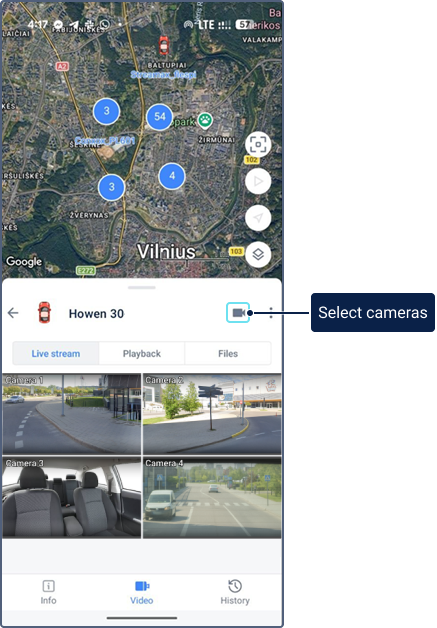
Selecting cameras
To watch live streams only from certain cameras, tap the icon  in the upper-right corner of the screen, select the required cameras, and tap OK. Only configured cameras are available for selection.
Live streams
To play a live stream, tap the icon  in its section. Each live stream is played separately. To stop the live stream, tap its section.
Double-tap the section of the required live stream to open it in full screen. In the full-screen mode, the map section is also available, in which you can see the unit location. If necessary, you can move this section to the right or left in the upper or lower part of the screen.
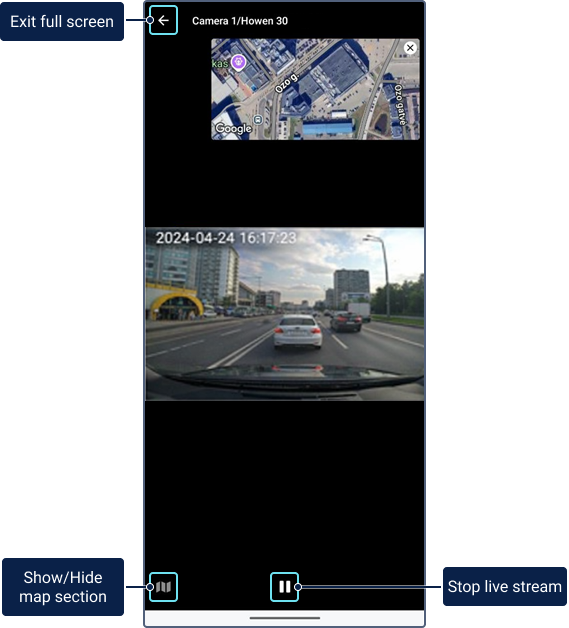
When watching the live stream in the full-screen mode, the following icons are available:
| Icon | Action |
|---|---|
| Play the live stream. If you stop the live stream, then after clicking on this icon it is played in real time again. |
| Stop the live stream. |
| Show/Hide the map section. To hide the map, you can tap the cross in the upper-right corner of its section instead of using this icon. |
| Exit the full-screen mode. |


Landscape mode is available for the convenience of watching the live stream in the full-screen mode.