Prerequisites
To access unit video, the Video monitoring service should be activated in the properties of the user account or billing plan. You can watch video of only those units which have been added for billing in the management system (CMS Manager). To work with the Video tab, you should have the following access rights to the unit:
| Access right |
Description |
| View object and its basic properties |
Allows you to access the Video tab. |
| View detailed object properties |
Allows you to access the Video tab. |
| View video |
Allows you to access the Video tab. |
| View connectivity settings |
Allows you to access the Video tab. |
| View commands |
Allows you to watch playback and live streams (must be used with the access rights above). |
| Send commands |
Allows you to watch playback and live streams (must be used with the access rights above). |
| Create, edit, and delete commands |
Allows you to watch playback and live streams (must be used with the access rights above). |
| Manage video |
Allows you to delete files (must be used with the access rights above). |
The application allows you to watch live streams from unit cameras, get videos for the past period, and work with them.
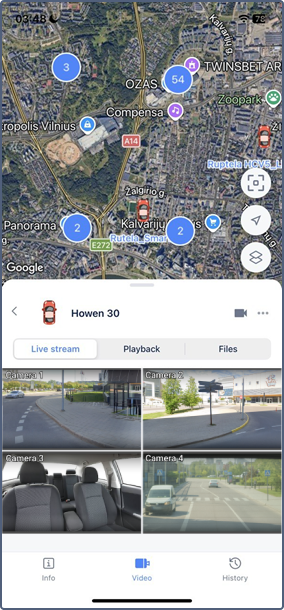
To access the unit video:
- Open the Monitoring tab in the navigation bar.
- Tap the required unit section in the work list.
- Select the Video tab.
Depending on the functions supported by the device type of the selected unit, you can work with the following tabs:
| Tab |
Description |
| Live stream |
Watching live streams from the unit cameras and monitoring the unit movement on the map. |
| Playback |
Requesting a playback for the past period and saving the required excerpts as files. |
| Files |
Viewing and deleting the saved files. |
Video is available for units for which cameras are configured. You can configure cameras on the Video tab of the unit properties in the monitoring system or in the camera settings in the mobile application.