Files
To work with the Files tab, the device type of the selected unit should support the function of saving files.
On this tab, you can work with files saved:
- manually on the Playback tab or on the same-name tab in the web version of Wialon;
- automatically when a notification with the Save a video as a file action created in the web version of Wialon is triggered.
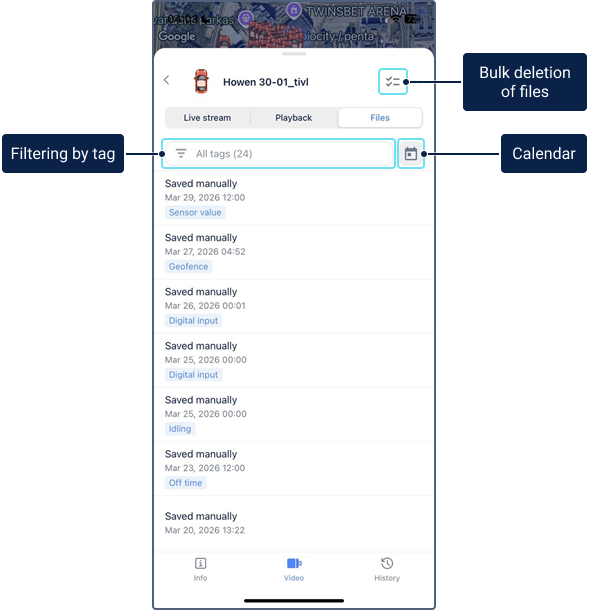
List of files
The list contains all the saved files of the unit, sorted from newest to oldest. If a file has been saved by means of a notification, its name is the same as that of the notification. If files have been saved manually, they are named Saved manually.
Below the event date and time, the tag of the event type is displayed (if specified). If you want to filter the files by a specific tag, tap the filter field and select the required tag.
To see the files for a specific period (today, yesterday, week, month), tap the calendar icon and select the period.
To watch the video file, tap its row.
Watching files
The saved video excerpt is shown below the map section. A double click on the section of the excerpt allows you to open it in full screen.
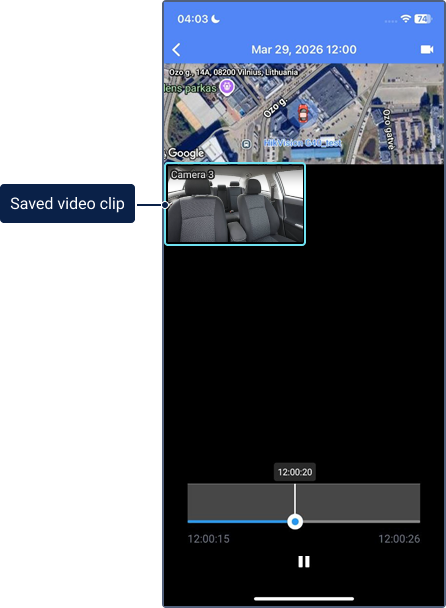
When watching the video, the following icons are available:
| Icon | Action |
|---|---|
 |
Play the video |
 |
Pause the video. |
 |
Select cameras and enable or disable the map section. |
 |
Show/Hide the map section when watching the video excerpt in the full-screen mode. |
The files saved manually are grouped if they have the same date and time of the event, regardless of its type. The files saved automatically are grouped if they were saved when the same notification was triggered and their date, time, and event type match.
Deleting files
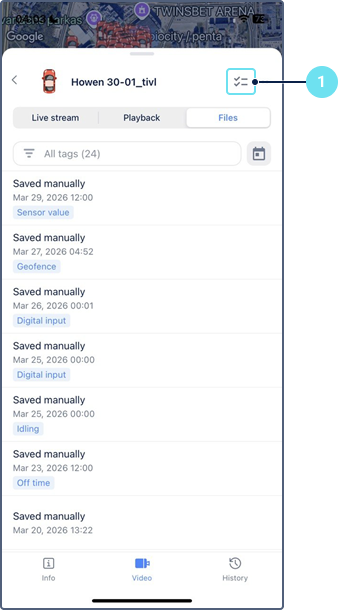
To delete one or several files at once, follow these steps:
-
Tap the icon
 .
.
-
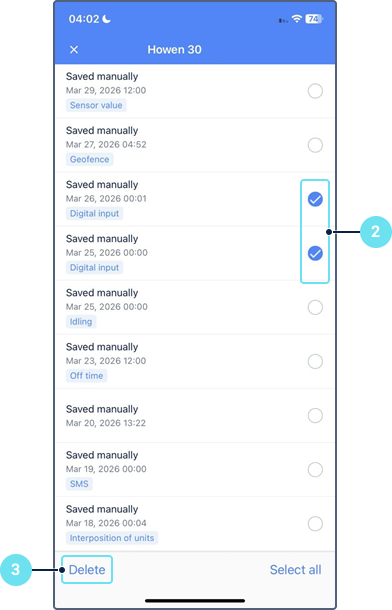
Select one or several files you want to delete or tap Select all.
-
Tap Delete.
To go back to the list of files, tap the cross in the upper-left corner of the screen.