Installing Wialon Local
The Wialon Local distribution contains the Debian 13 (Trixie) operating system. We recommend installing Wialon Local on a physical server. You can also install Wialon Local 2604 on the AWS cloud service.
To install the distribution on the Windows server, use a virtual machine.
First, download ISO image from the distribution server and record it on a CD, DVD, or USB flash drive.
The Wialon Local ISO supports both UEFI and legacy BIOS boot modes. Configure your server’s firmware (BIOS or UEFI) to boot from the installation media (CD, DVD, or USB flash drive). If your server supports UEFI, it is the recommended boot mode. Then follow the instructions on the screen:
-
Select the installation type:
-
on a single drive
-
on two drives in a RAID-1 configuration
-
on four drives in a RAID-10 configuration
-
on eight drives in a RAID-10 configuration
-
manual installation (Custom GUI mode)
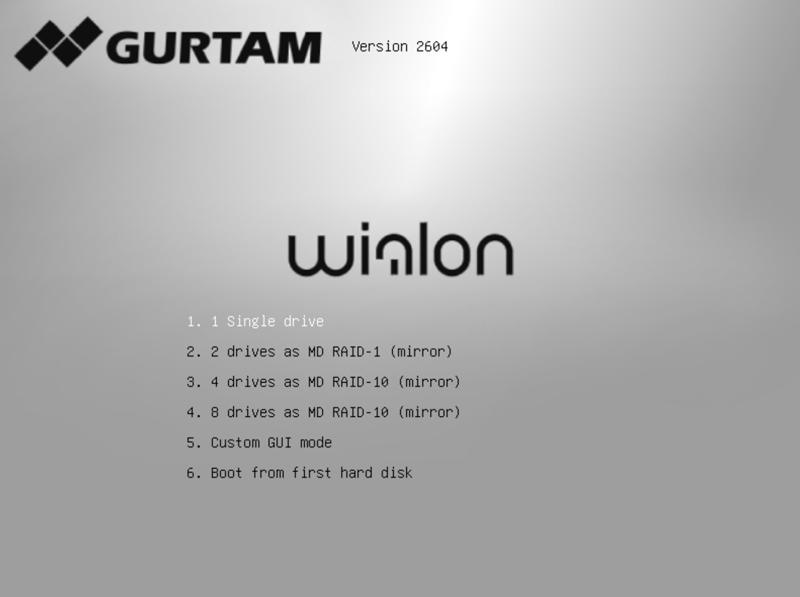
Use the Boot from first hard disk option only after the installation is complete, for example, if the boot media (CD, DVD, or USB flash drive) hasn’t been removed yet.
-
-
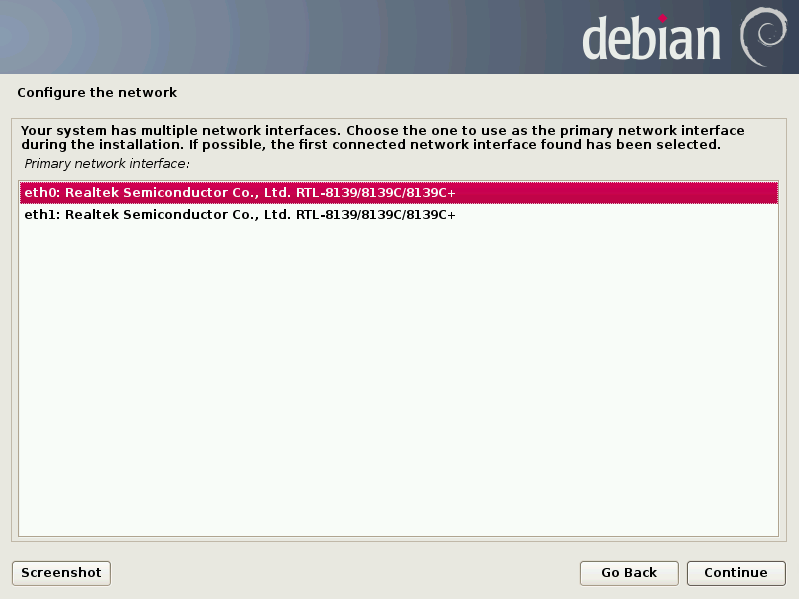
If more than one network is detected, you will be asked to select which one should be used during the installation process.
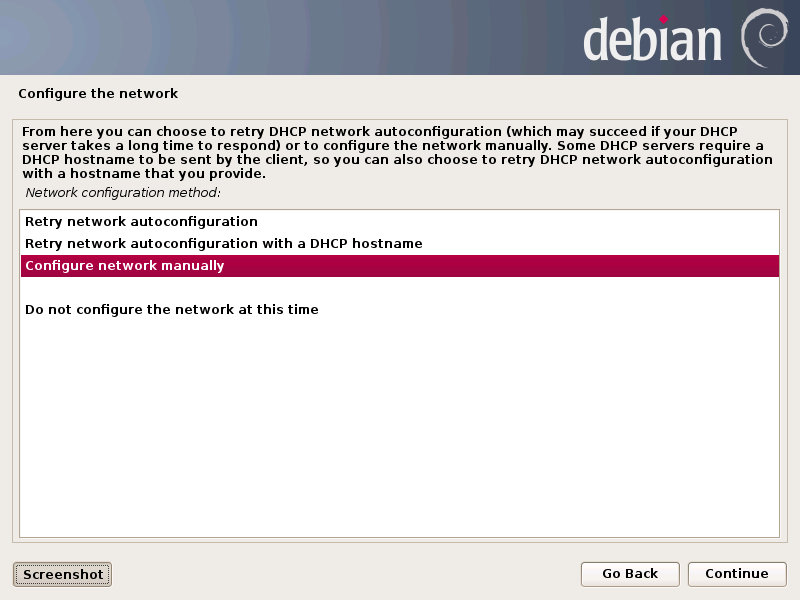
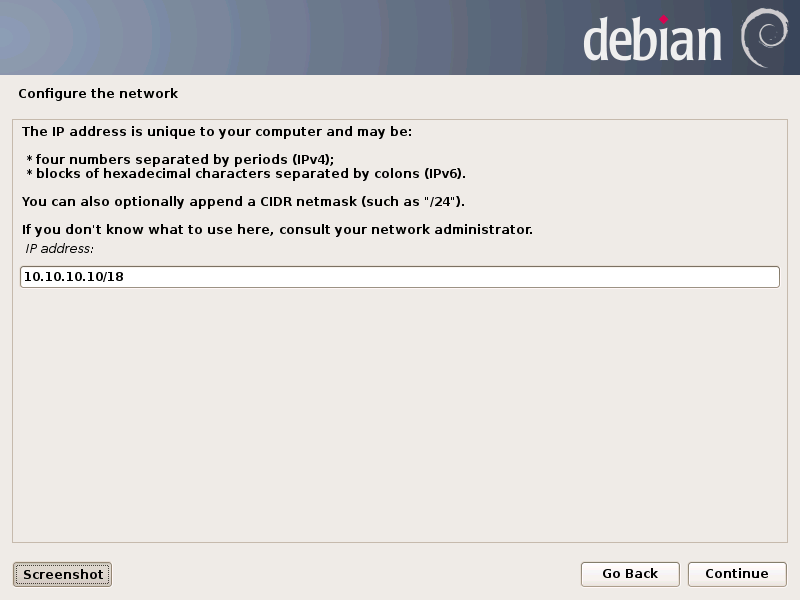
However, if DHCP server is not available during the installation, check network availability and repeat network adjustment or set network parameters manually:
-
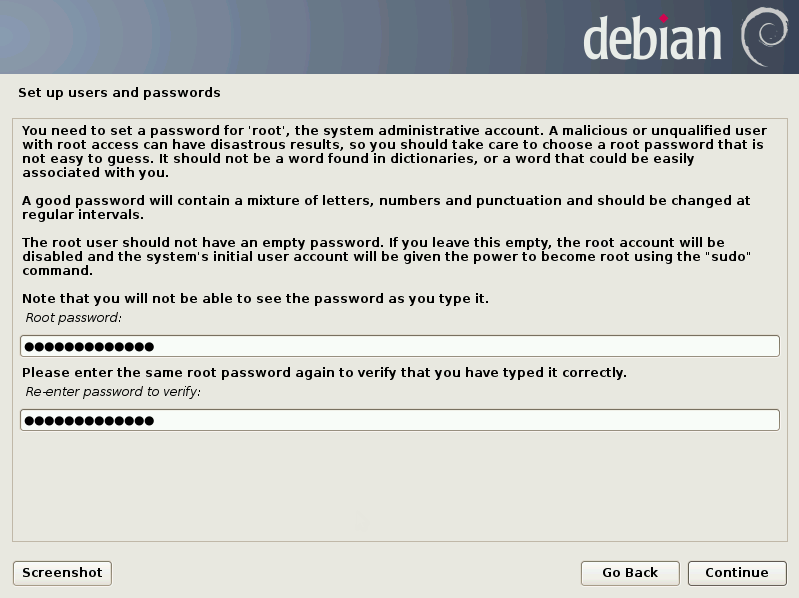
Set up password for the root account — main account of your Debian OS.
-
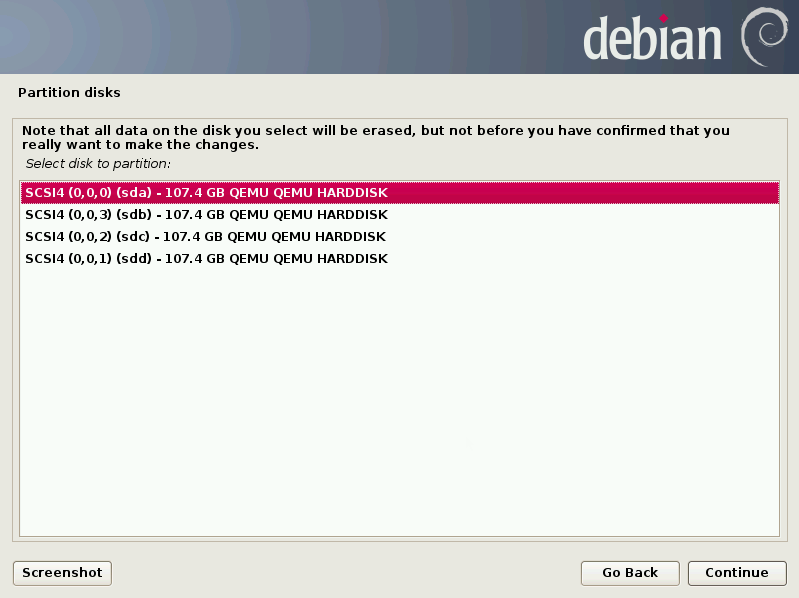
If installation on one drive was selected at the beginning, specify a particular drive here.
-
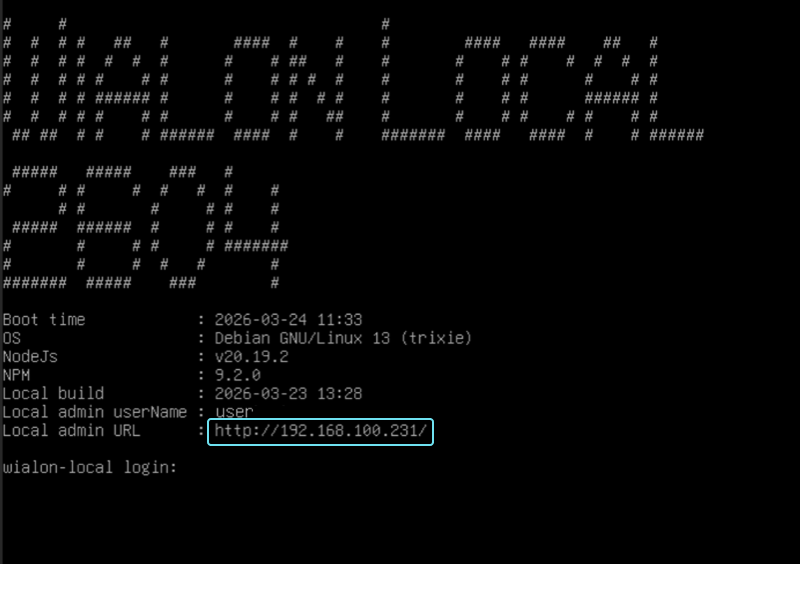
When the installation process is complete, the system will reboot automatically. After the reboot, the URL address of Wialon Local administration system will be shown.
-
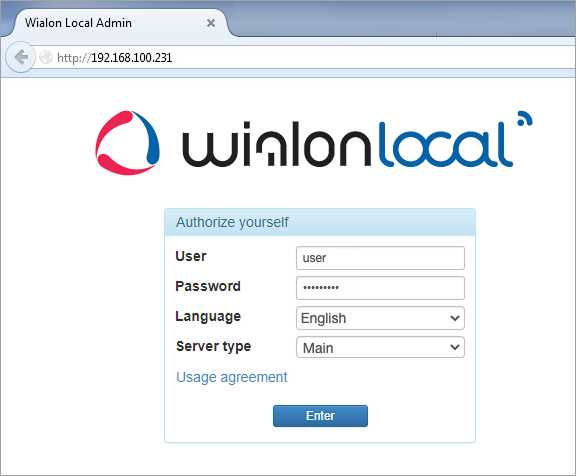
Enter this URL in the address bar of a browser on a computer with a graphical interface that has access to the server with Wialon Local. To authorize, use the username and password given to you when purchasing Wialon Local. In the Server type line, select Main if you are installing Wialon Local for the main server. Select Backup if you are installing Wialon Local for the backup server. See Installing a backup server for details.
-
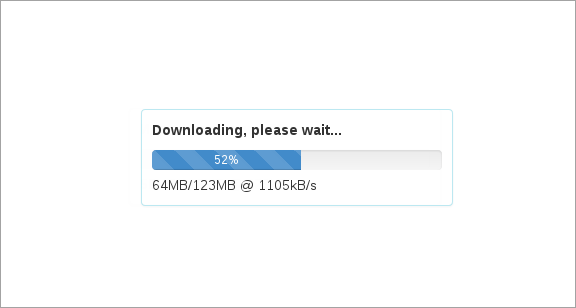
After a successful authorization, Wialon Local will be downloaded and installed. This may take some time.
-
When the process is complete, you log into the Administration system. If needed, configure access to it (see below).
The default interfaces of management and monitoring systems are available on ports 8024 and 8025, respectively.
Depending on the configuration of your server, a non-standard installation may be required. In case of difficulties, contact technical support.
Configuring access to the administration system
When you first log in to the administration system, you can receive a message that reads: You are looking for site that is not available here. Please check your DNS configuration.
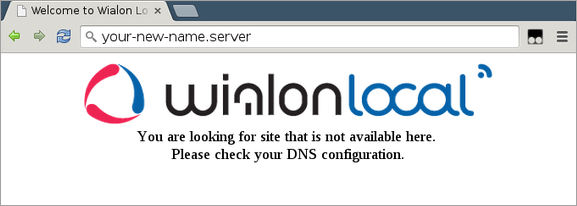
In this case, you should register your new address for the administration system in the /etc/nginx/conf.d/lcm.conf file.
For example:
server_name 192.168.100.231 127.0.0.1 your-new-name.server;