Installing Wialon Local on AWS
You can install Wialon Local on AWS (Amazon Web Services) using a ready CloudFormation template. The template creates all the required resources: a network, an EC2 instance with Wialon Local, an Elastic IP address, an encrypted disk, an SSH key pair, and a daily snapshot policy. For the full list, see Resources created by the template.
The installation consists of the following stages:
- Creating a stack from the CloudFormation template.
- Getting the connection data and saving the SSH private key.
- Connecting to the server over SSH.
- Logging in to the administration system.
The steps and screenshots on this page show the AWS console as it was when this guide was written. The interface may change on the Amazon side. For the current information, see the AWS documentation.
Creating a stack
To create a stack, follow the steps below.
-
Download the template file: wl.yaml. This is an AWS CloudFormation template: a YAML file which describes all the AWS resources required for Wialon Local, so that AWS creates them automatically as one stack.
-
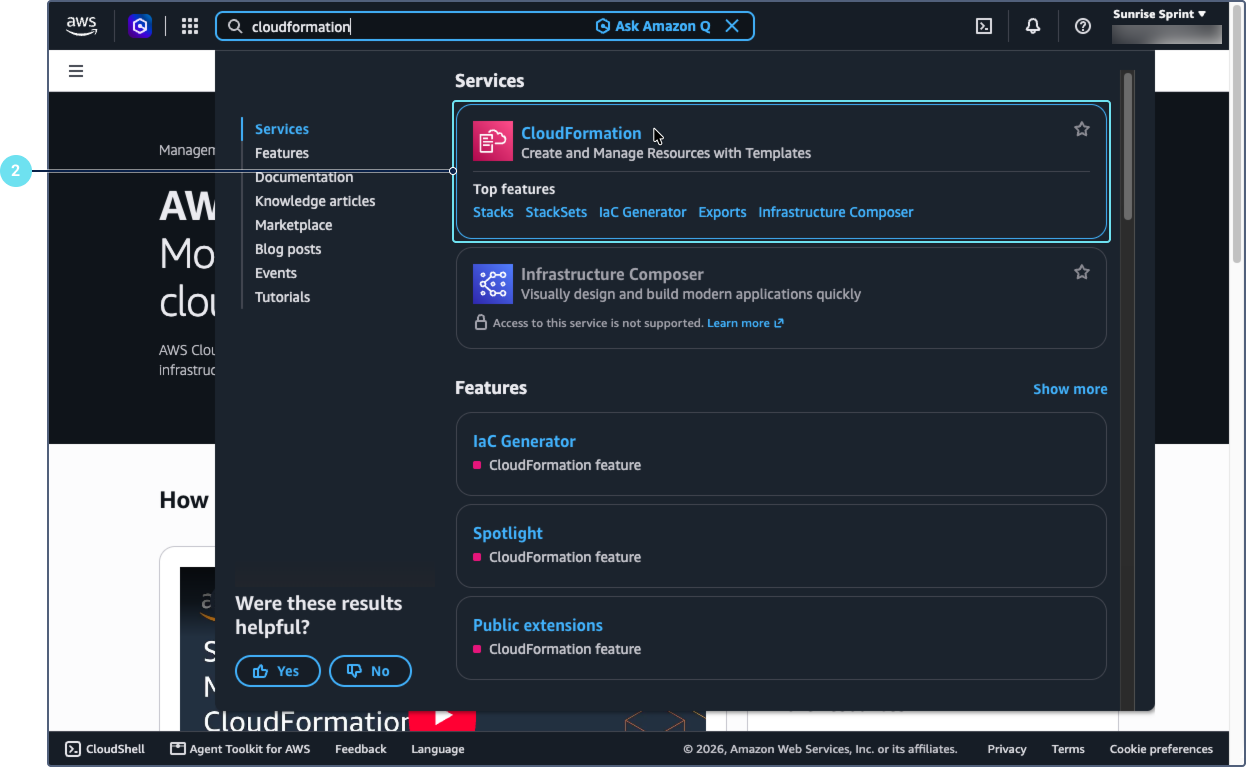
In the AWS console, find the CloudFormation service using the search field and open it.
-
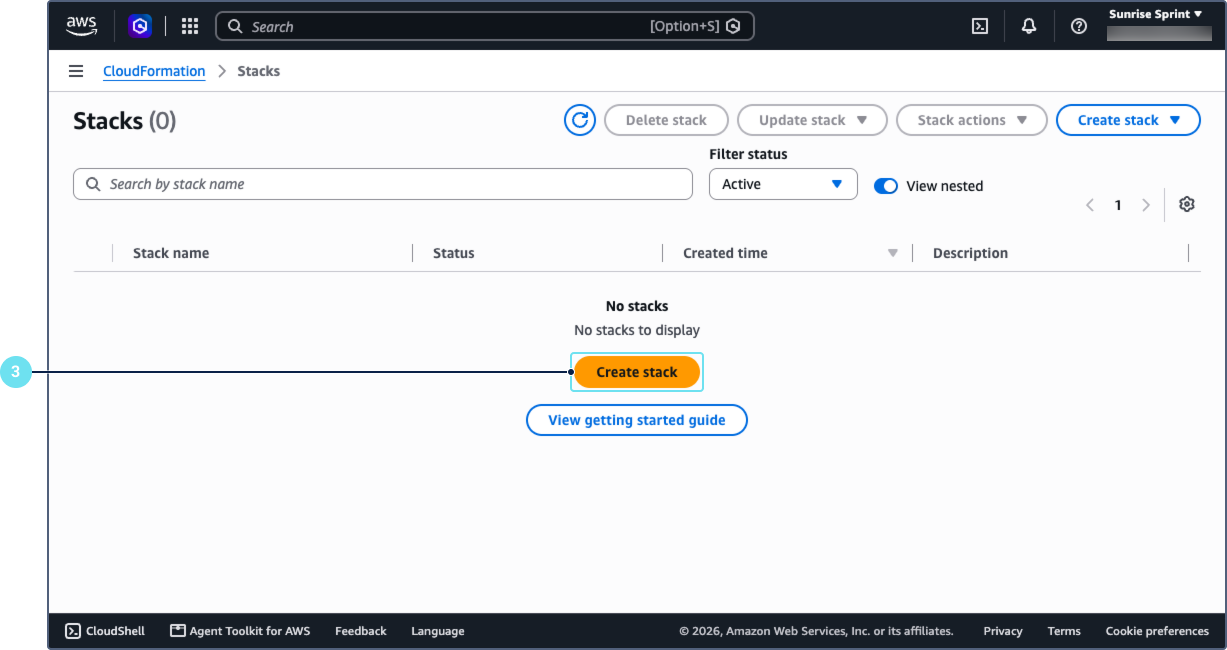
Click Create stack.
-
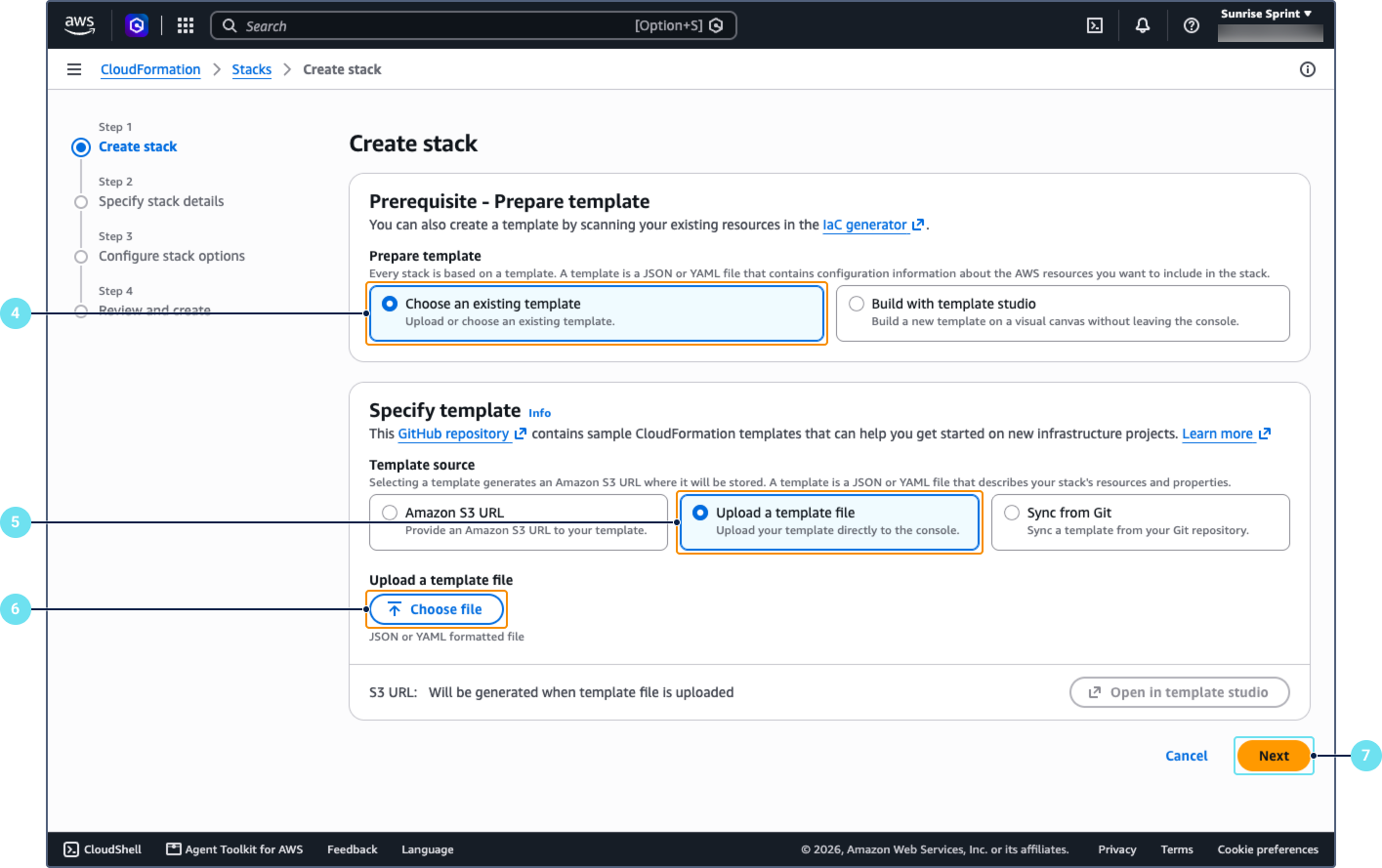
In the Prerequisite - Prepare template section, select Choose an existing template.
-
In the Specify template section, select Upload a template file as the template source.
-
Click Choose file and select the downloaded
wl.yamlfile. -
Click Next.
-
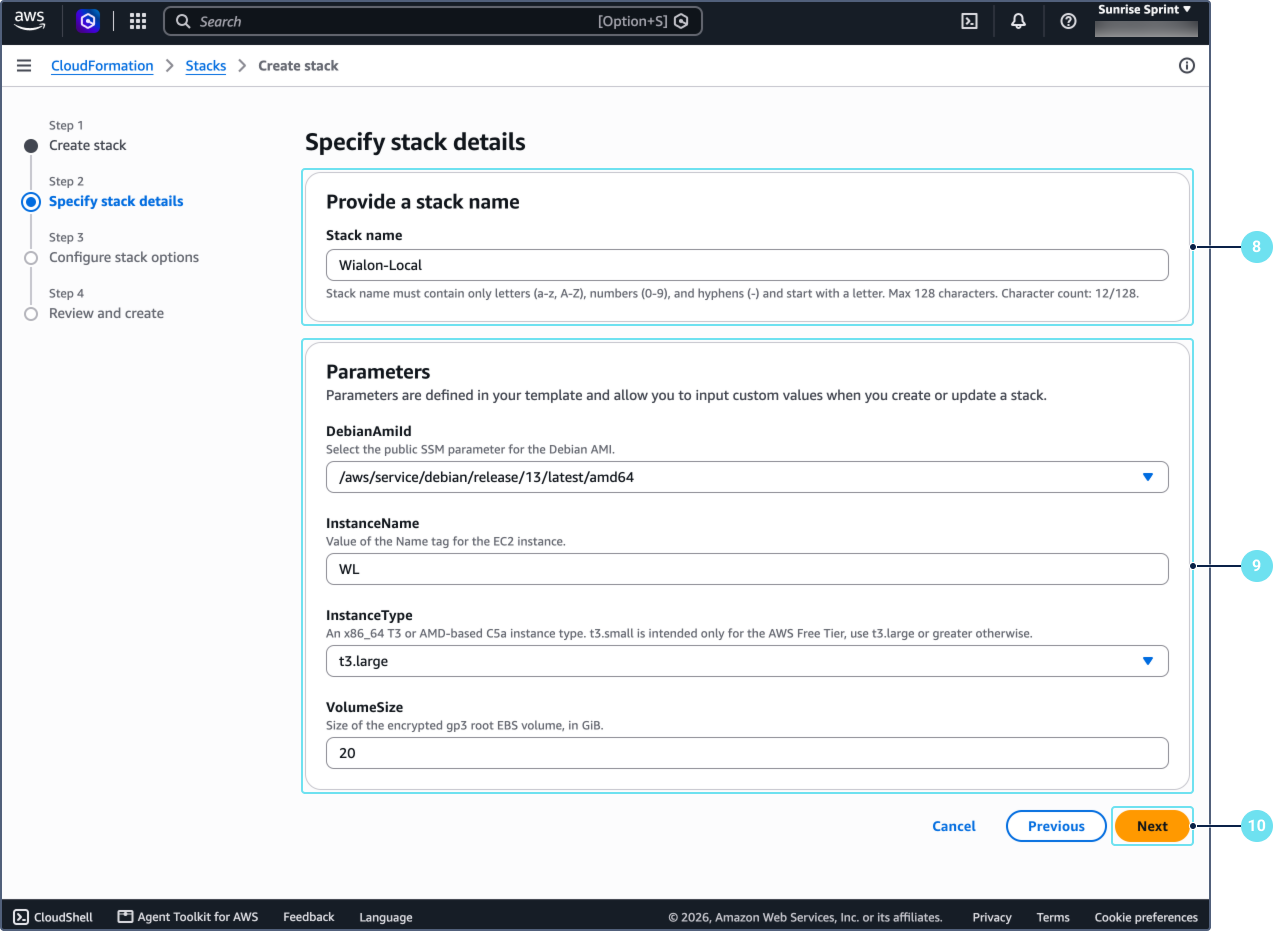
In the Stack name field, enter the name of the stack, for example,
Wialon-Local. The name can contain only letters (a-z, A-Z), numbers (0-9), and hyphens (-), must start with a letter, and can’t be longer than 128 characters.
-
In the Parameters section, specify the following values.
Parameter Description DebianAmiId The public SSM parameter for the Debian AMI. Leave the default value. InstanceName The value of the Name tag for the EC2 instance, for example, WL.InstanceType The type of the instance. Select it depending on the number of units you plan to use (see the table below). Only the t3.smalltype is available within the AWS Free Tier. Thet3.largeor a larger type requires a paid AWS plan.VolumeSize The size of the encrypted gp3 root EBS volume, in GiB. The minimum value is 20. Recommended instance types:
Number of units Instance type 100 t3.large 500 c5a.2xlarge 1000 c5a.2xlarge 2000 c5a.4xlarge 4000 c5a.4xlarge 10 000 c5a.8xlarge 15 000 c5a.8xlarge 20 000 c5a.16xlarge -
Click Next.
-
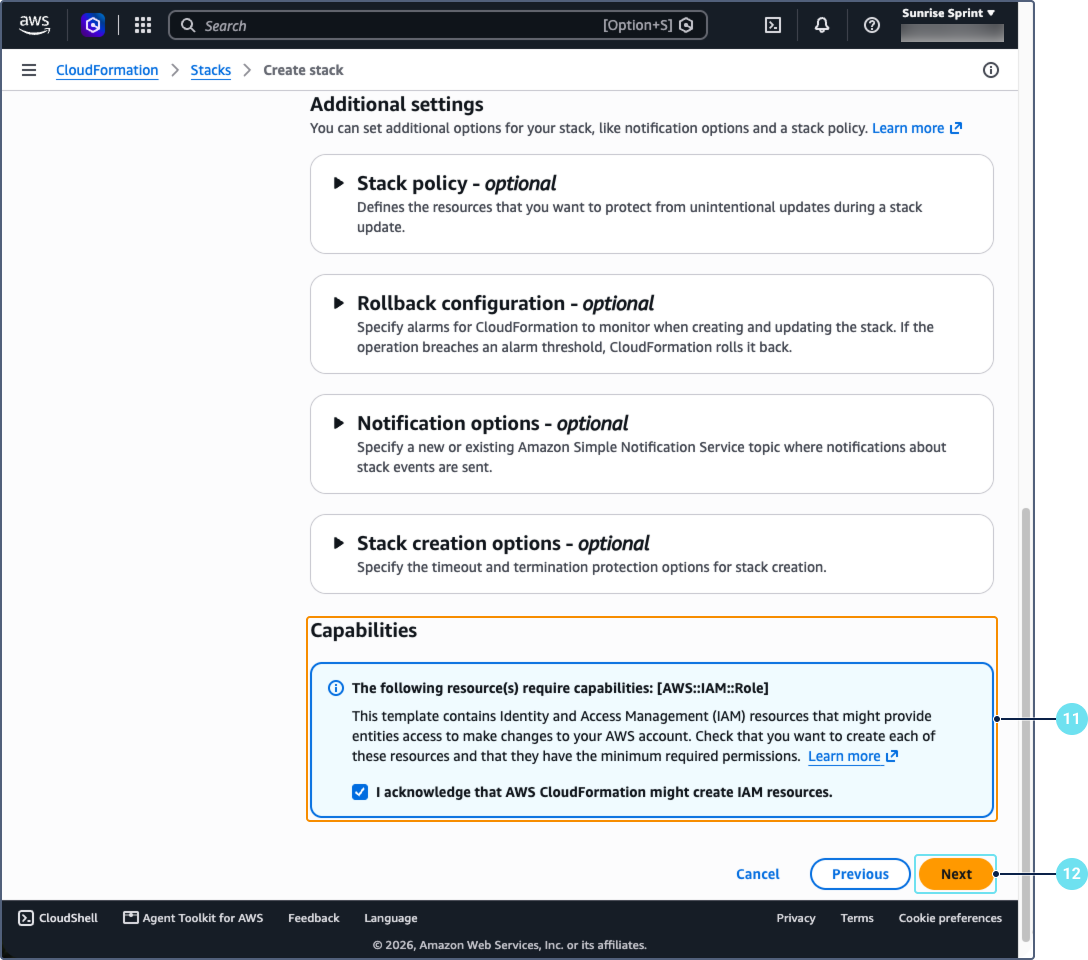
On the Configure stack options step, leave the default values. In the Capabilities section, select the I acknowledge that AWS CloudFormation might create IAM resources checkbox. The template creates an IAM role which is required for the instance to work.
-
Click Next.
-
On the Review and create step, leave the default values.
-
Click Submit.
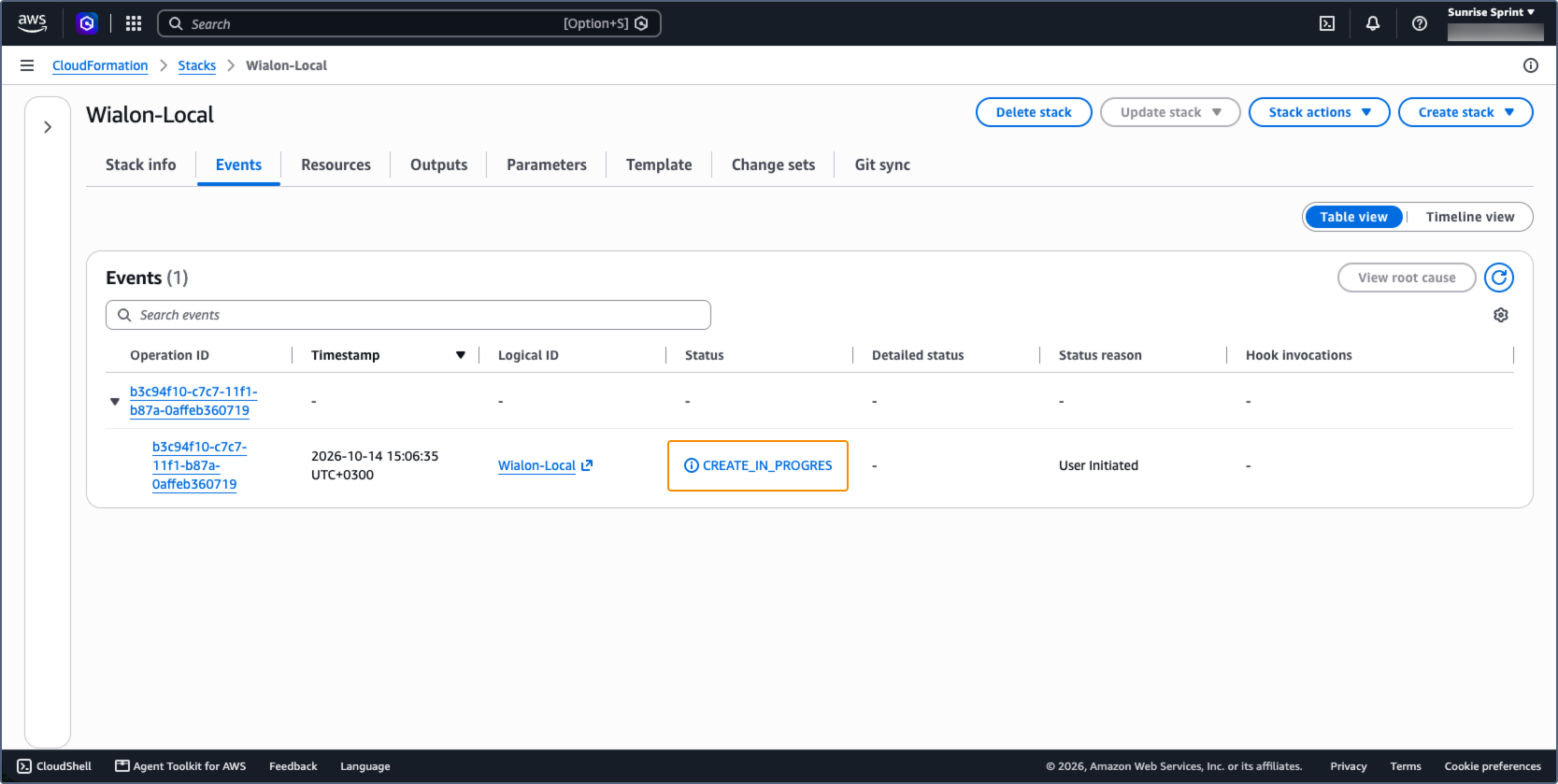
The stack creation starts, and the status of the stack changes to CREATE_IN_PROGRESS. You can track the process on the Events tab. It takes about 5 minutes.
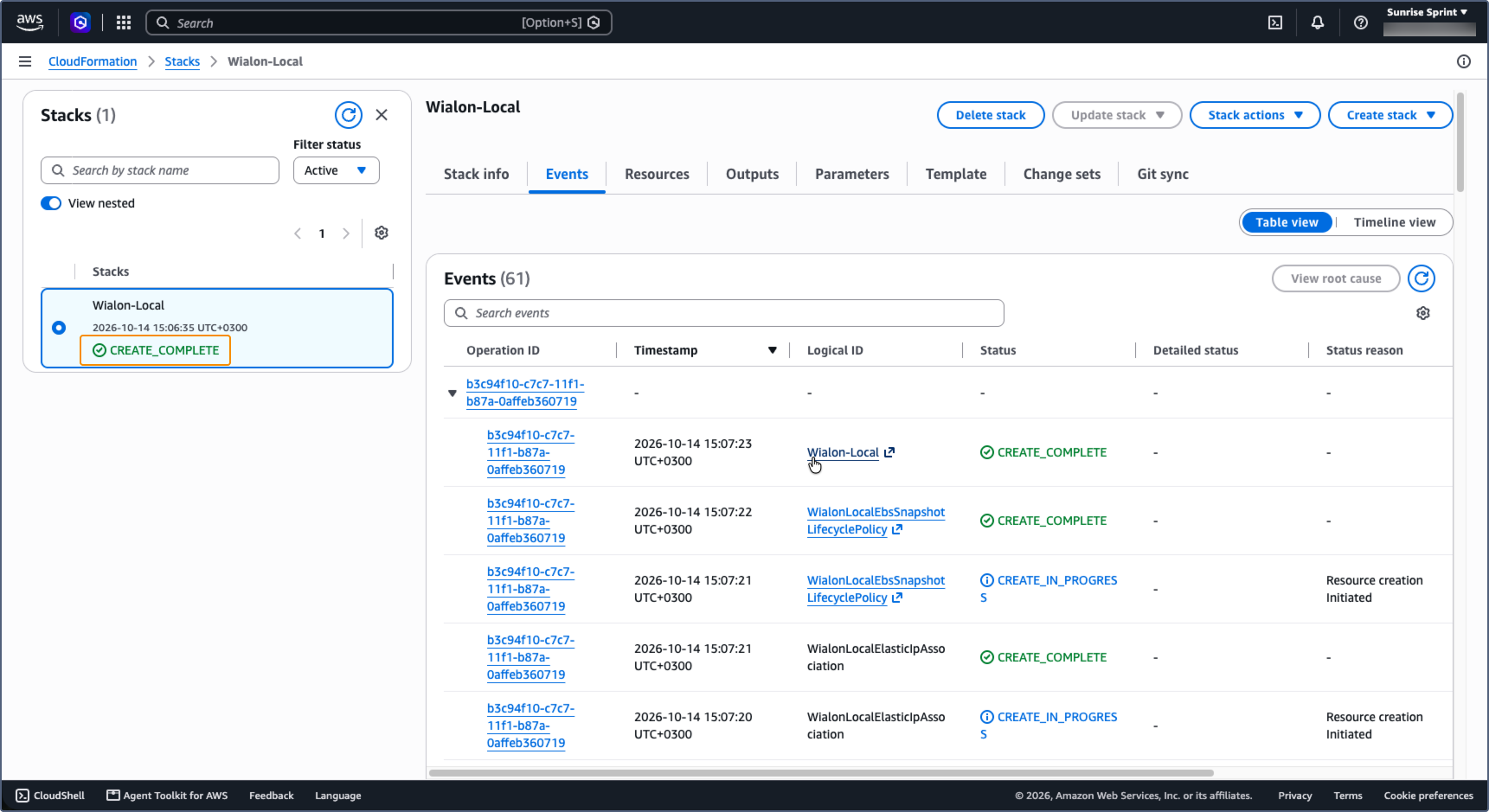
When the stack is created, its status changes to CREATE_COMPLETE. After that, wait about 5 more minutes before you connect to the server or open the address of the administration system. During this time, the installation scripts deploy Wialon Local on the created instance and restart the server.
Getting the connection data
To get the data for connecting to the server, follow the steps below.
-
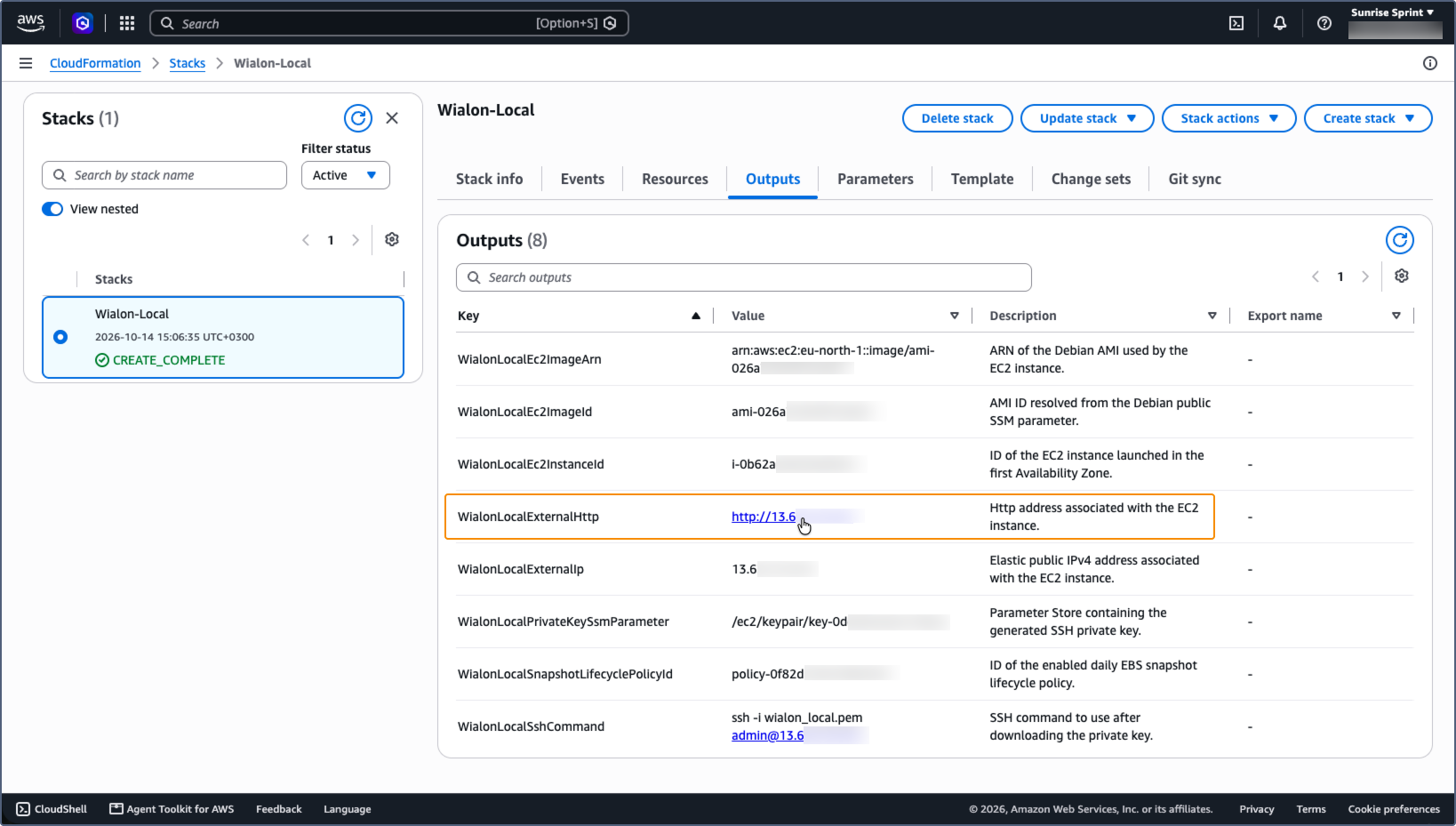
Open the created stack and go to the Outputs tab. The following values are required for further work.
Key Description WialonLocalExternalHttp The HTTP address of the Wialon Local administration system. WialonLocalPrivateKeySsmParameter The name of the Parameter Store parameter which contains the generated SSH private key. WialonLocalSshCommand The command for connecting to the server over SSH. The command is unique for each stack. 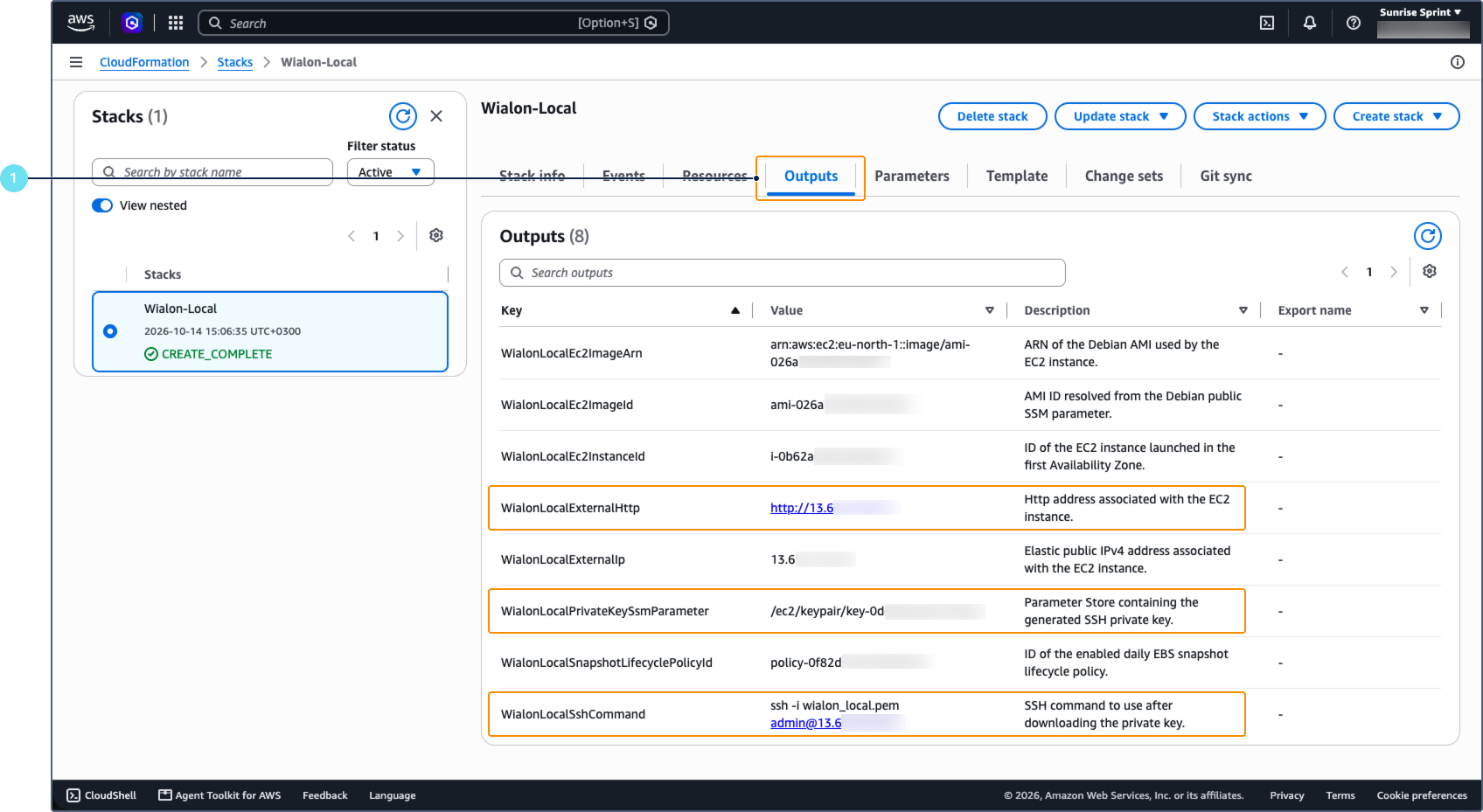
-
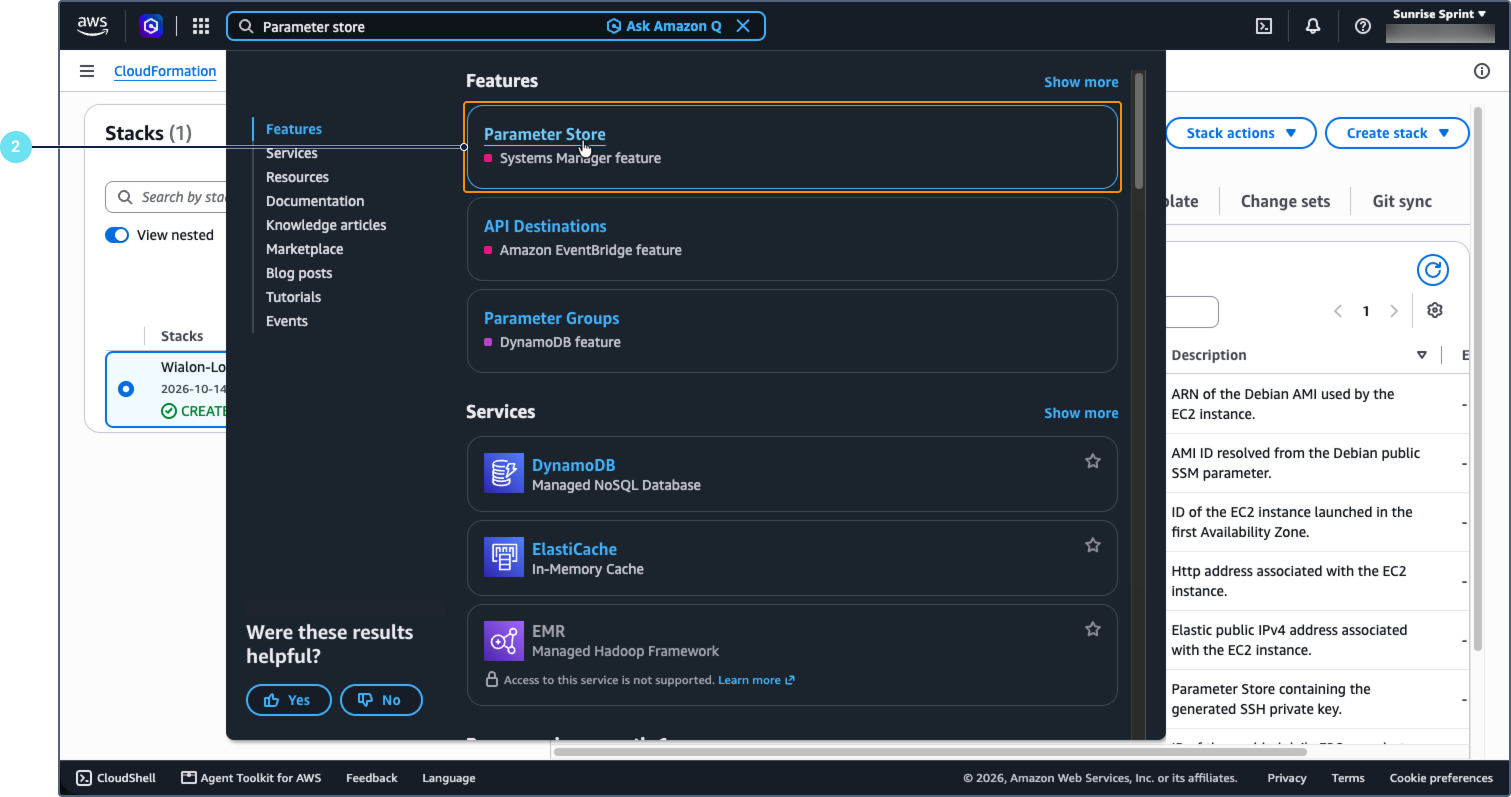
In the AWS console, find the Parameter Store service using the search field and open it.
-
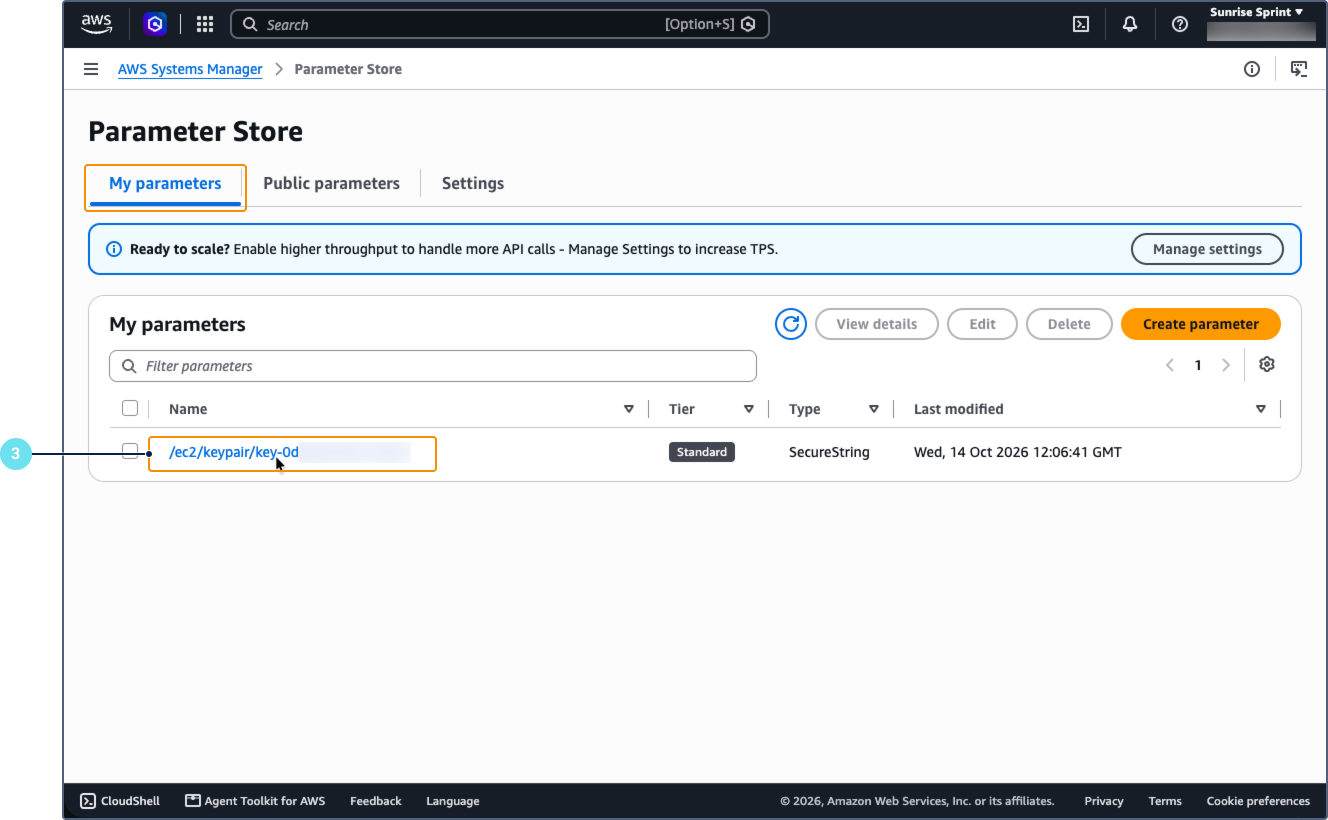
On the My parameters tab, select the parameter with the name from the
WialonLocalPrivateKeySsmParameteroutput, for example,/ec2/keypair/key-0fd1aa1a11a1aa11a.
-
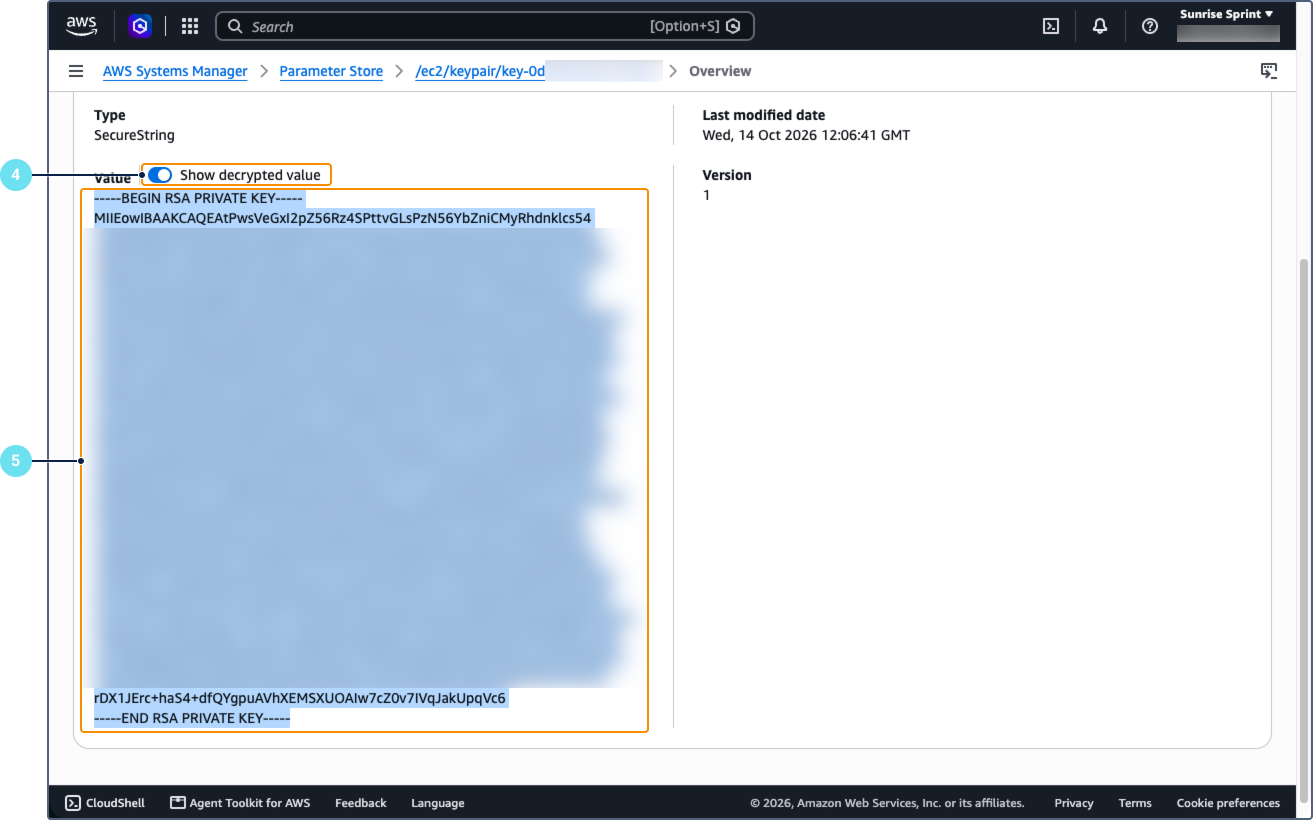
Click Show decrypted value to display the key value.
-
Copy the key, including the BEGIN and END lines with all their symbols, and save it on your computer. You can use any text editor for this. The file must be named
wialon_local.pem: this name is specified in theWialonLocalSshCommandoutput.
Keep the private key in a safe place. Without it, you can’t connect to the server over SSH.
Connecting to the server over SSH
To connect to the server, follow the steps below.
-
On your computer, open the terminal and go to the directory where you saved the
wialon_local.pemfile. -
Restrict the access rights to the file, so that only its owner can read it.
chmod 600 wialon_local.pem -
Run the command from the
WialonLocalSshCommandoutput (see step 1 in Getting the connection data), for example:ssh -i wialon_local.pem admin@13.00.000.00
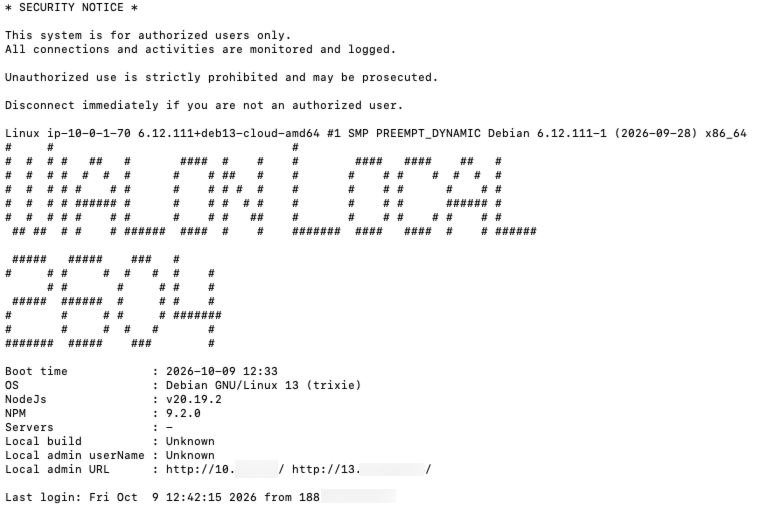
After a successful connection, the terminal displays the information about the server: the operating system version, the Node.js and NPM versions, and the addresses of the Wialon Local administration system.
Logging in to the administration system
To log in to the administration system, follow the steps below.
-
Open the address from the
WialonLocalExternalHttpoutput in a browser.
-
Enter the username and password from the email you received from Gurtam.
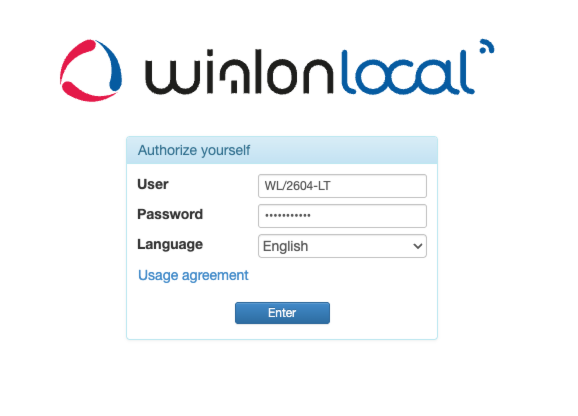
After a successful authorization, Wialon Local is downloaded and installed. This may take some time.
Next steps
After the installation, configure the system following the Post-installation checklist.
For additional information about working with AWS, see the AWS documentation.
Resources created by the template
The CloudFormation template creates the following AWS resources.
| Resource | Description |
|---|---|
| VPC with three public subnets | The network for the Wialon Local server. |
| Internet gateway and route table | Provide access to the server from the internet. |
| Security group | Controls the incoming traffic to the server (see below). |
| EC2 instance | The server with Wialon Local. |
| Elastic IP address | The permanent public IP address of the server, which is required for the license check. |
| Encrypted gp3 EBS volume | The root disk of the instance. |
| SSH key pair | The key for connecting to the server. The private key is stored in Parameter Store. |
| IAM role | Grants the instance the rights it needs to work. |
| Snapshot lifecycle policy | Creates a snapshot of the disk once a day. The policy keeps up to 60 snapshots, that is, the snapshots of the last 60 days.When you delete the stack, AWS deletes the instance and its disk, but the created snapshots remain in your AWS account and you keep paying for them. To stop the charges, delete the snapshots manually in the EC2 console. |
The security group opens the following ports for all IP addresses (0.0.0.0/0).
| Port | Purpose |
|---|---|
| 22 | SSH access to the server. |
| 80, 443 | Access to the Wialon Local sites over HTTP and HTTPS. |
| 4970-4999 | Service ports of Wialon Local. |
| 20100-30000 | Data from the devices. |
Port 22 is open for all IP addresses, so anyone can try to connect to the server over SSH. We recommend that you limit the range of the allowed addresses for this port in the settings of the security group in the AWS console.