Registering vehicles
This guide describes the process of registering vehicles to transmit their data to Wasl. The registration process consists of the following stages:
- Creating units in Wialon.
If the required units have already been created, skip this stage. If they belong to another user’s account, you must have the View object and its basic properties access right to this account. - Configuring the required sensors in the unit properties.
- Registering vehicles by adding them separately or importing them in bulk.
For information about the first stage, see Creating units. The other stages are described below.
Configuring sensors
Configure the sensors listed below in the unit properties.
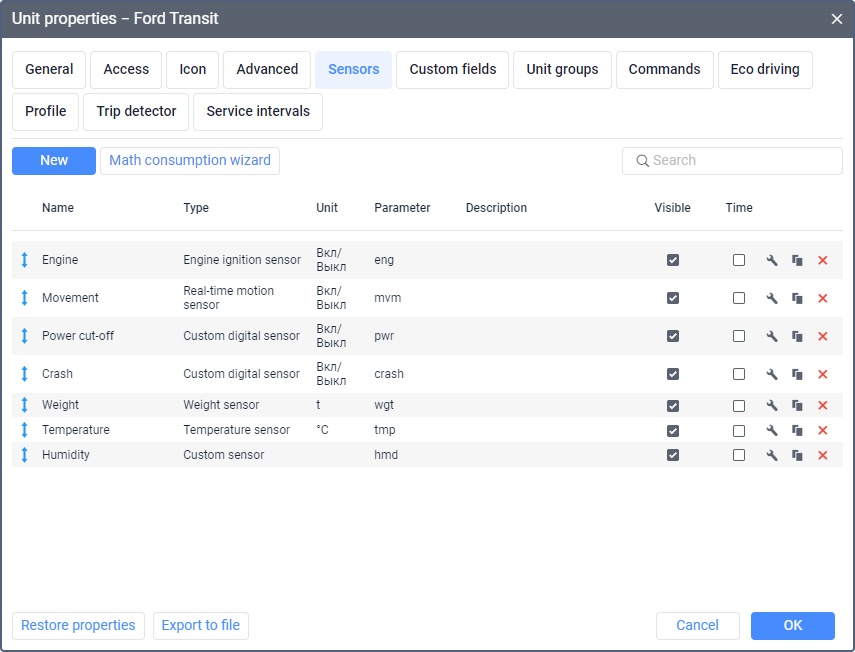
The required sensors are marked with an asterisk (*). The sensors can have any names.
| Sensor | Sensor type | Description |
|---|---|---|
| Engine sensor* | Engine ignition sensor | The sensor detects the ignition status (on/off). |
| Movement sensor* | Real-time motion sensor | The sensor detects if the unit is moving (on) or parked (off). |
| Power cut-off sensor* | Custom digital sensor | The sensor detects external power cut-offs. |
| Crash sensor* | Custom digital sensor | The sensor detects traffic accidents. |
| Weight sensor* | Weight sensor | The sensor detects the total weight of the vehicle and freight in kilos. |
| Temperature sensor | Temperature sensor | The sensor detects the temperature value. If you configure the calculation table for this sensor, set 0 as the lower bound and 101 as the upper one, and activate the Apply after calculation option. |
| Humidity sensor | Custom sensor | The sensor detects the humidity value. |
Adding vehicles separately
You can register vehicles by adding them one by one or importing them in bulk. To add a vehicle separately, follow the steps below.
-
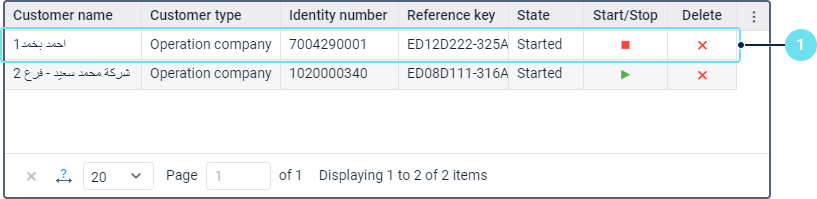
In the table of customers, click on the row of the customer for whom you want to register the vehicle.
-
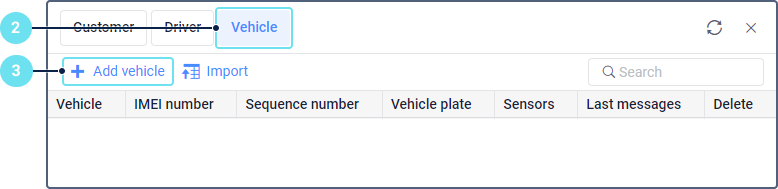
Go to the Vehicle tab.
-
Click Add vehicle.
-
Specify general information about the vehicle.
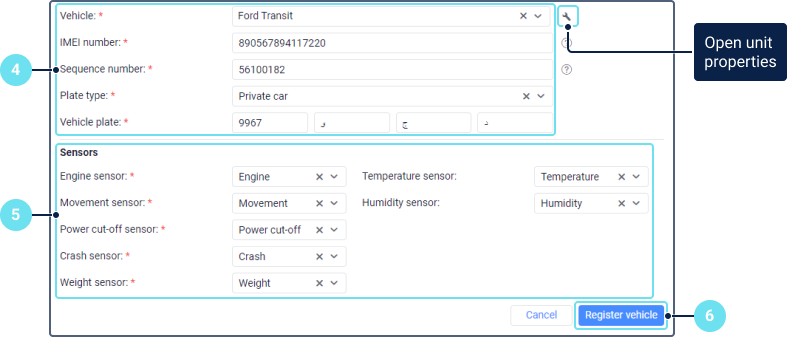
The required fields are marked with an asterisk (*). After the vehicle is registered, you can’t edit any fields, except for the IMEI number.
Field Description Account Select the Wialon account to which the unit belongs (optional). Vehicle* Select the unit you want to register. Depending on whether you have selected a Wialon account or not, the list shows either the units of this account or all the units available to you. You can’t select a vehicle that has already been registered. The field works as a dynamic filter. IMEI number* Enter the IMEI number of the device installed on the vehicle. It consists of 15 or 16 digits. If the IMEI number is used as the unique ID of the unit, this field is filled in automatically. You can edit it if needed. Storing category Select the storing category of the goods. Required only if the customer’s activity type is SFDA Sequence number* Enter the vehicle sequence number. It is a serial number, usually consisting of 8 to 9 digits, indicated in the lower-right corner of the vehicle licence card. Plate type* Select the plate type of the vehicle. Vehicle plate* Specify the vehicle plate. As a rule, it is a four-digit number followed by the left, middle, and right letters. Technical requirements Switch the toggle to confirm that you are aware of the technical requirements for this vehicle type. The option is available only if the customer activity type is speciality transport, bus rental, or educational transport. Safety requirements Switch the toggle to confirm that you are aware of the safety requirements for this vehicle type.The option is available only if the customer activity type is speciality transport, bus rental, or educational transport. Activity The activity type specified when registering the customer. Displayed only if the activity type is not default. This field is not editable. -
For customers with the Light transport, Default, and SFDA activity type, provide information about the tracking device. The required fields are marked with an asterisk (*).
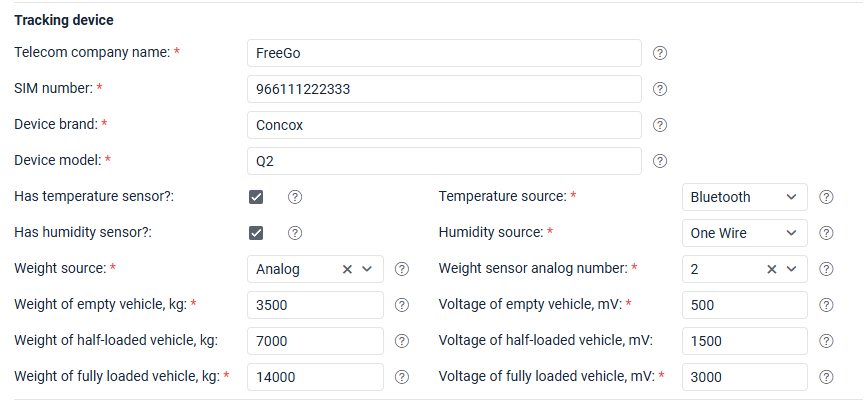
| Field | Description |
|---|---|
| Telecom company name* | The name of the telecom service provider. |
| SIM number* | The SIM card number of the tracking device. |
| Device brand* | The brand of the tracking device. Only Latin letters (A–Z) are allowed. |
| Device model* | The model of the tracking device. Only Latin letters (A–Z) and numbers (0–9) are allowed. |
| Has temperature sensor? | Enable this option if the vehicle has a temperature sensor. If the customer’s activity type is SFDA, the option is enabled by default. |
| Temperature source | The connection type of the temperature sensor. The following types are available: Recommended Standard (RS/Serial), One Wire, Bluetooth. This field is visible only when the Has temperature sensor? option is enabled. |
| Has humidity sensor? | Enable this option if the vehicle has a humidity sensor. If the customer’s activity type is SFDA, the option is enabled by default. |
| Humidity source | The connection type of the humidity sensor. The following types are available: Recommended Standard (RS/Serial), One Wire, Bluetooth. This field is visible only when the Has humidity sensor? option is enabled. |
| Weight source* | How the vehicle weight is measured. Select Analog if it’s calculated using an analog sensor or CAN bus / Vehicle computer if the weight value is retrieved from CAN bus. |
| Weight sensor analog number | The analog input number for the weight sensor. This field is required if the selected weight source is Analog. The available numbers are 1–5. You can clear this field by clicking the cross icon. |
| Weight of empty vehicle, kg | Vehicle weight when empty, measured in kilograms (kg). Must be a positive integer greater than 0. This field is required if the selected weight source is Analog. |
| Weight of half-loaded vehicle, kg | Vehicle weight at half load, measured in kilograms (kg). Must be a positive integer greater than 0. |
| Weight of fully loaded vehicle, kg | Vehicle weight at full load, measured in kilograms (kg). Must be a positive integer greater than 0. This field is required if the selected weight source is Analog. |
| Voltage of empty vehicle, mV | Sensor voltage reading when the vehicle is empty, measured in millivolts (mV). Must be a positive decimal number greater than 0. This field is required if the selected weight source is Analog. |
| Voltage of half-loaded vehicle, mV | Sensor voltage reading when the vehicle is at half load, measured in millivolts (mV). Must be a positive decimal number greater than 0. |
| Voltage of fully loaded vehicle, mV | Sensor voltage reading when the vehicle is at full load, measured in millivolts (mV). Must be a positive decimal number greater than 0. This field is required if the selected weight source is Analog. |
-
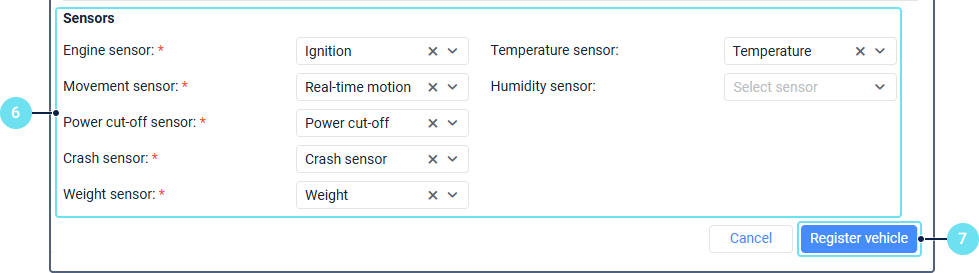
Select the vehicle sensors. Engine, movement, crash, weight, and power cut-off sensors are required. Temperature and humidity sensors are optional. You can’t select the same sensor in more than one field.
-
Click Register vehicle.
As a result of successful registration, the vehicle is saved to the table of vehicles. A record of the registration is shown in the log.