Importing vehicles in bulk
You can register several vehicles at once using the Import feature. It allows you to import vehicles in bulk from a CSV or XLSX file.
The import process consists of the following steps:
- uploading the required file;
- preparing a table with data to be imported;
- adding a template (optional);
- completing the import and checking the results.
Read more about each step below.
Uploading the file
To upload the file from which you want to import data, follow the steps below:
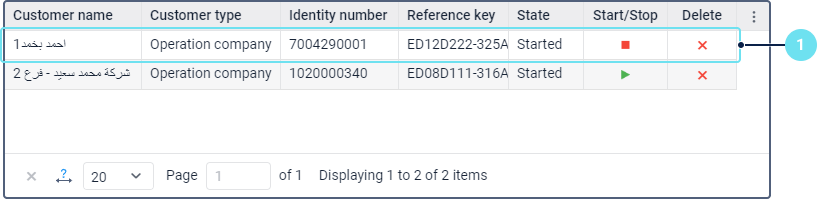
- In the table of customers, click on the row of the customer for whom you want to register the vehicle.
- Go to the Vehicle tab.
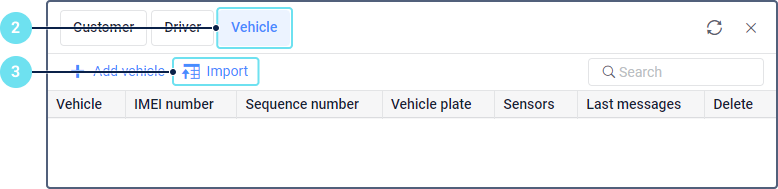
- Click Import.
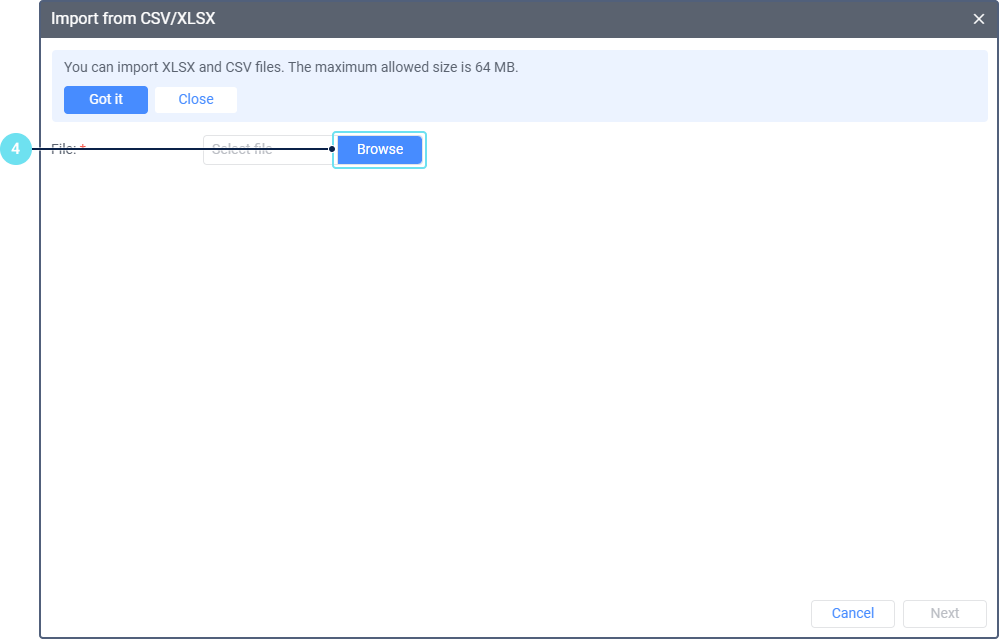
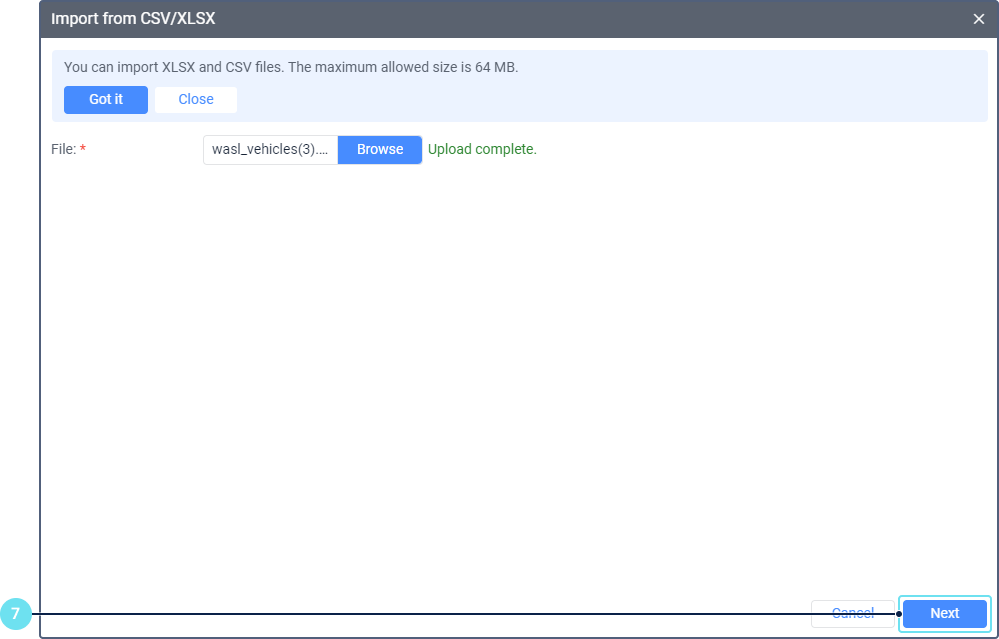
- Click on the Browse button and select the file you want to upload.
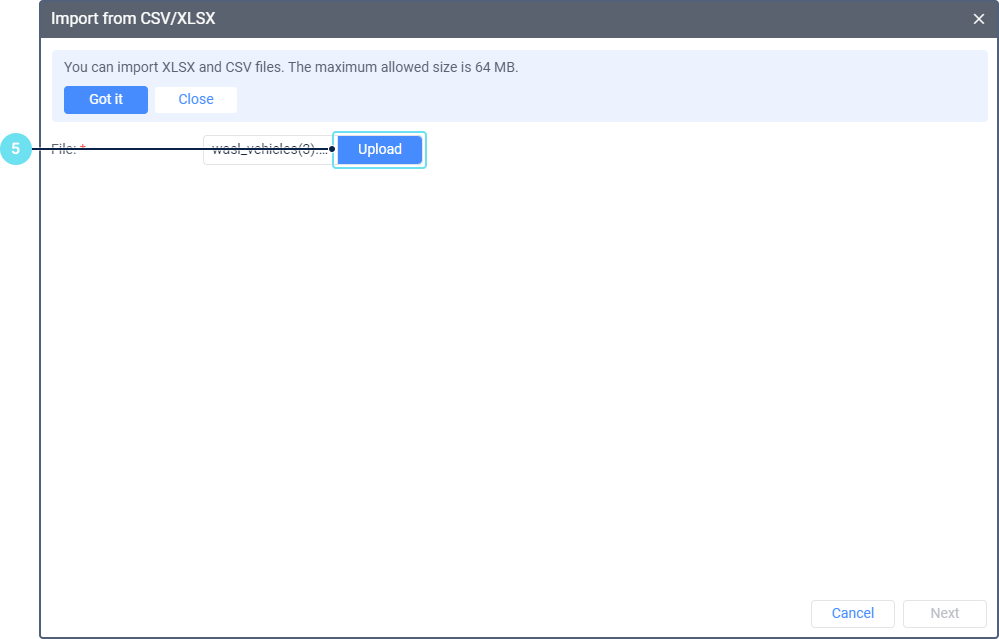
- Click Upload.
- For a CSV file, specify the separator: comma, semicolon, colon, or tab.
- Click Next.
Preparing the table for import
To prepare the uploaded data for import, follow the instructions below.
- Specify the headings of the columns. To do this, you can apply a previously saved template or select headings from the drop-down lists above the columns. Mandatory headings are marked with an asterisk (*). For a description of all available columns, see the section Vehicle import table.
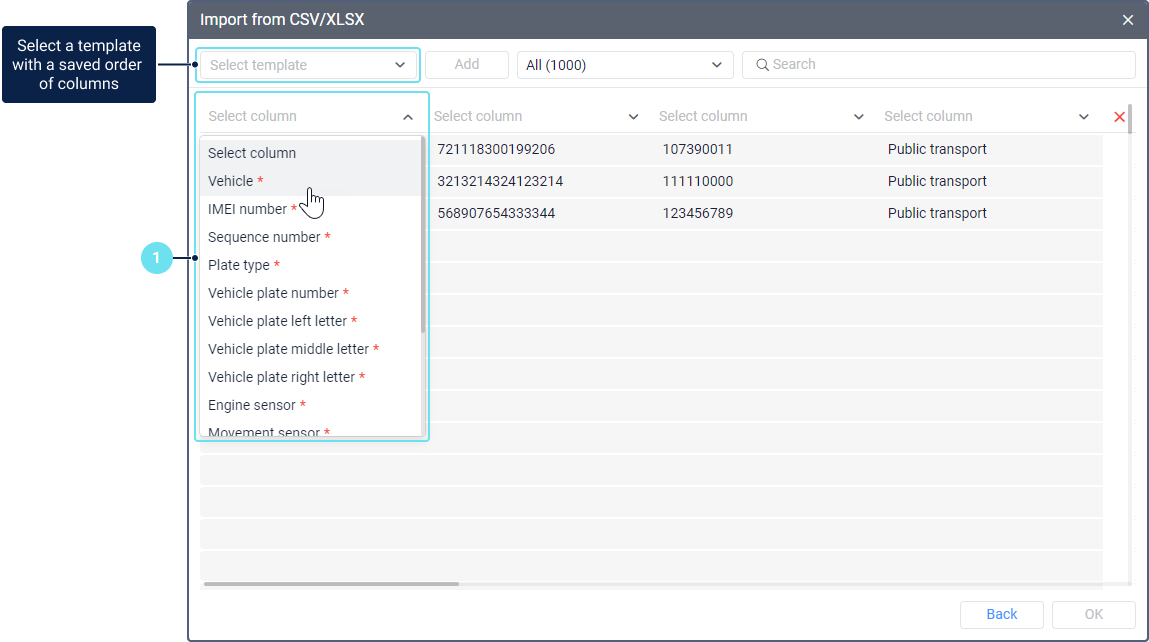
If no name is selected for a column, its contents are not imported into the system.
-
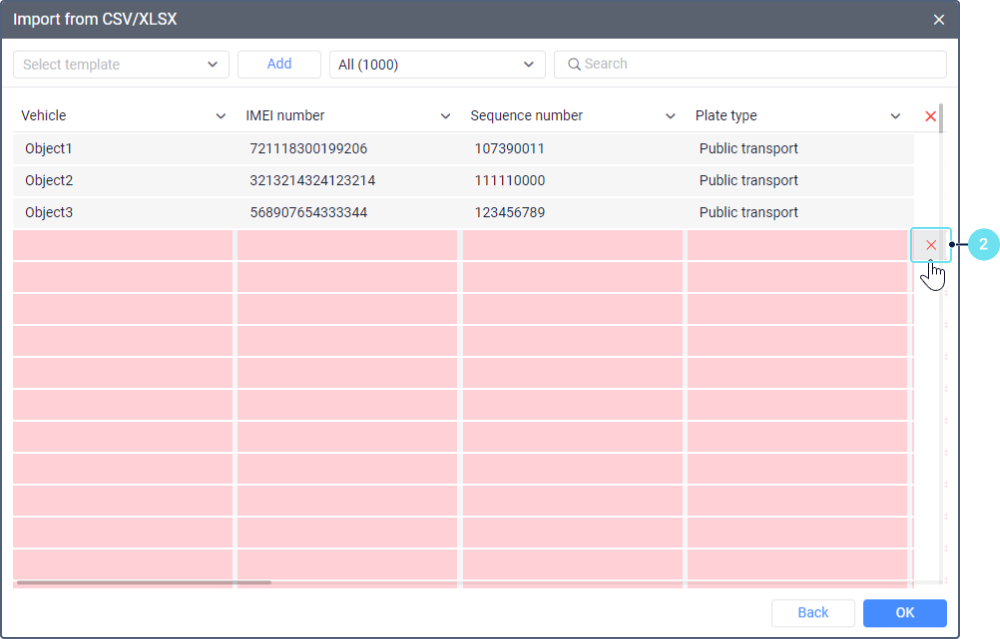
If needed, delete the unnecessary lines. To do this, point to the line and click on the icon at the end of the line.
-
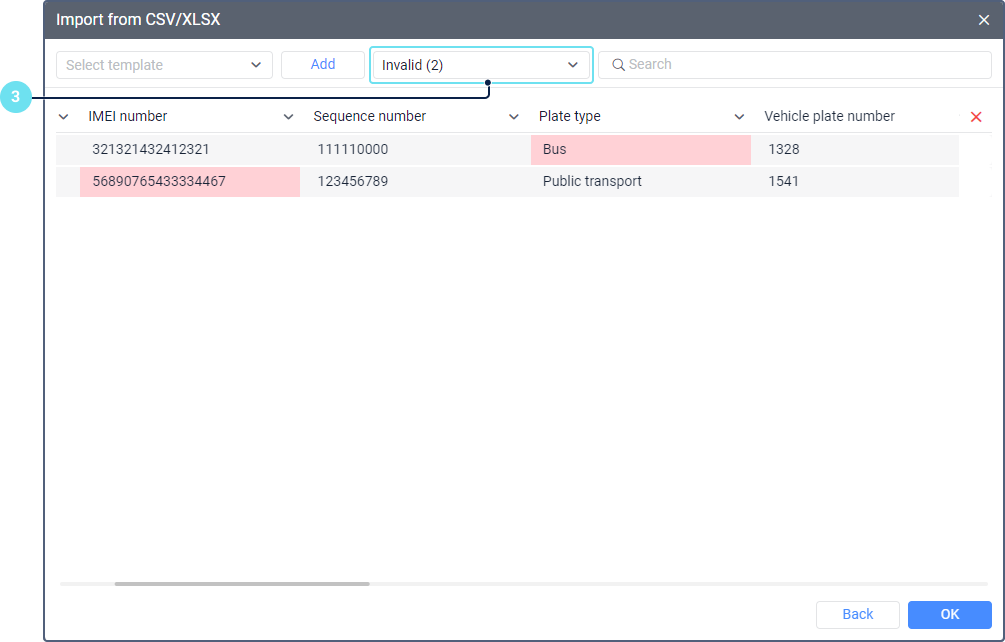
Make sure the table shows valid data. To do this, select Invalid in the filter. If nothing is found by the filter, all rows are valid. If invalid data is found, edit it.
-
If necessary, save the template so that you can immediately apply the same column order the next time you import data.
Vehicle import table
In the table for importing units, you can select the columns listed below. Here you can find their description and the requirements that must be met so that the data in these columns is considered valid.
Mandatory columns are marked with an asterisk (*).
| Column | Description | Requirements |
|---|---|---|
| Vehicle* | The name of the vehicle. | The vehicle name must match the name of the unit available to the user. |
| IMEI number* | The IMEI number of the device installed on the vehicle. | The value must consist of 15 to 16 numbers. |
| Sequence number* | The sequence number of the vehicle. It is a serial number, usually consisting of 8 to 9 digits, indicated in the lower-right corner of the vehicle licence card. | The value must contain only numbers and be no more than 100 characters long. |
| Plate type* | The plate type of the vehicle. | Allowed plate types: Private car, Public transport, Private transport, Public minibus, Private minibus, Taxi, Heavy equipment, Export, Diplomatic, Motorcycle, Temporary. |
| Vehicle plate number* | The number of the vehicle plate. As a rule, the vehicle plate consists of a four-digit number followed by the left, middle, and right letters. In this column, specify only the number of the plate. | The value must contain only numbers and be no more than 100 characters long. |
| Vehicle plate left letter* | The left letter of the vehicle plate. | The value must consist of one letter. |
| Vehicle plate middle letter* | The middle letter of the vehicle plate. | The value must consist of one letter. |
| Vehicle plate right letter* | The right letter of the vehicle plate. | The value must consist of one letter. |
| Engine sensor* | The sensor of the Engine ignition sensor type. | The name of the sensor must match the one specified in the unit properties. |
| Movement sensor* | The sensor of the Real-time motion sensor type. | The name of the sensor must match the one specified in the unit properties. |
| Power cut-off sensor* | The sensor of the Custom digital sensor type used for detecting external power cut-offs. | The name of the sensor must match the one specified in the unit properties. |
| Crash sensor* | The sensor of the Custom digital sensor type used for detecting traffic accidents. | The name of the sensor must match the one specified in the unit properties. |
| Weight sensor* | The sensor of the Weight sensor type. | The name of the sensor must match the one specified in the unit properties. |
| Temperature sensor | The sensor of the Temperature sensor type. | The name of the sensor must match the one specified in the unit properties. |
| Humidity sensor | The sensor of the Custom sensor type used for measuring humidity. | The name of the sensor must match the one specified in the unit properties. |
| Telecom company name | The name of the telecom service provider. | Provided only for customers with the Light transport and Default activity type. |
| SIM number | The SIM card number of the tracking device. | The value must contain only digits. Provided only for customers with the Light transport and Default activity type. |
| Device brand | The brand of the tracking device. | Only Latin letters (A–Z) are allowed. Provided only for customers with the Light transport and Default activity type. |
| Device model | The model of the tracking device. | Only Latin letters (A–Z) and numbers (0–9) are allowed. Provided only for customers with the Light transport and Default activity type. |
| Has temperature sensor? | Shows whether the vehicle has a temperature sensor. | The allowed values are true and false. Provided only for customers with the Light transport and Default activity type. |
| Temperature source | The connection type of the temperature sensor. | The allowed values are Recommended Standard, One Wire, Bluetooth. Provided only for customers with the Light transport and Default activity type. |
| Has humidity sensor? | Shows whether the vehicle has a humidity sensor. | The allowed values are true and false. Provided only for customers with the Light transport and Default activity type. |
| Humidity source | The connection type of the humidity sensor. | The allowed values are: Recommended Standard, One Wire, Bluetooth. Provided only for customers with the Light transport and Default activity type. |
| Weight source* | How the vehicle weight is measured. | Specify Analog if it’s calculated using an analog sensor or CAN bus / Vehicle computer if the weight value is retrieved from CAN bus. Provided only for customers with the Light transport and Default activity type. |
| Weight sensor analog number | Analog channel number for the weight sensor. | The allowed values are from 1 to 5. This column is required if the specified weight source is Analog. Provided only for customers with the Light transport and Default activity type. |
| Weight of empty vehicle, kg | Vehicle weight when empty, measured in kilograms (kg). | Must be a positive integer greater than 0. This column is required if the specified weight source is Analog. Provided only for customers with the Light transport and Default activity type. |
| Weight of half-loaded vehicle, kg | Vehicle weight at half load, measured in kilograms (kg). | Must be a positive integer greater than 0. Provided only for customers with the Light transport and Default activity type. |
| Weight of fully loaded vehicle, kg | Vehicle weight at full load, measured in kilograms (kg). | Must be a positive integer greater than 0. This column is required if the specified weight source is Analog. Provided only for customers with the Light transport and Default activity type. |
| Voltage of empty vehicle, mV | Sensor voltage reading when the vehicle is empty, measured in millivolts (mV). | Must be a positive decimal number greater than 0. This column is required if the specified weight source is Analog. Provided only for customers with the Light transport and Default activity type. |
| Voltage of half-loaded vehicle, mV | Sensor voltage reading when the vehicle is at half load, measured in millivolts (mV). | Must be a positive decimal number greater than 0. Provided only for customers with the Light transport and Default activity type. |
| Voltage of fully loaded vehicle, mV | Sensor voltage reading when the vehicle is at full load, measured in millivolts (mV). | Must be a positive decimal number greater than 0. This column is required if the specified weight source is Analog. Provided only for customers with the Light transport and Default activity type. |
Completing the import and checking the results
To complete the import, click ОК.
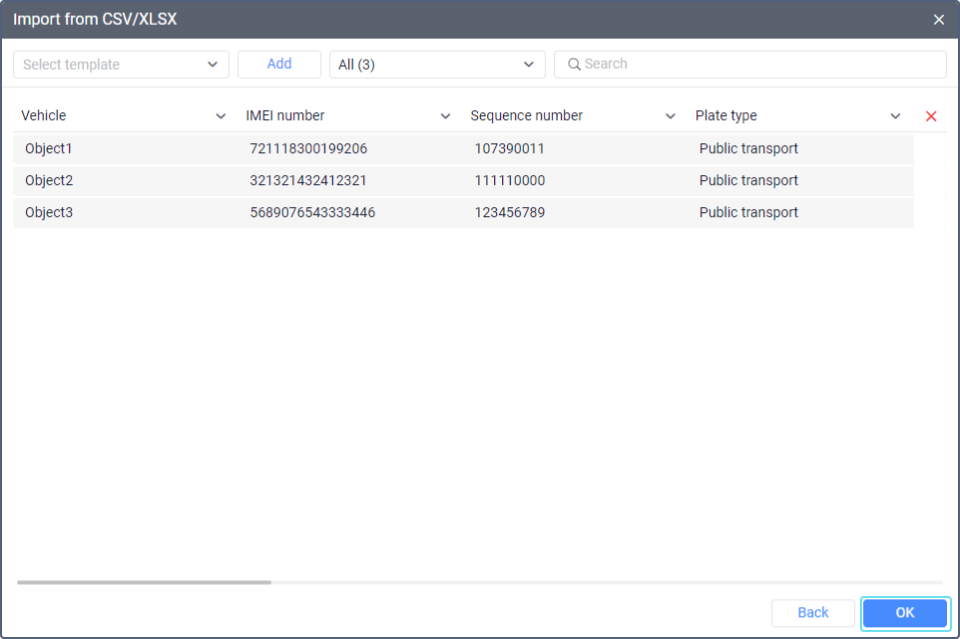
Importing multiple vehicles may take some time.
If the import of at least one vehicle is successful, the pop-up message Import completed is shown. In the opposite case, you can see the message that the data couldn’t be imported. When importing vehicles, this message also contains a file with information about the errors that occurred. You can download it.
As a result of successful import, the vehicle is registered and saved to the table of vehicles. A record of the registration is shown in the log.