Sensor tracing
The Sensor tracing table shows sensor values at certain points in time. The table can be exported in MS Excel where you can build any custom charts based on the data provided.
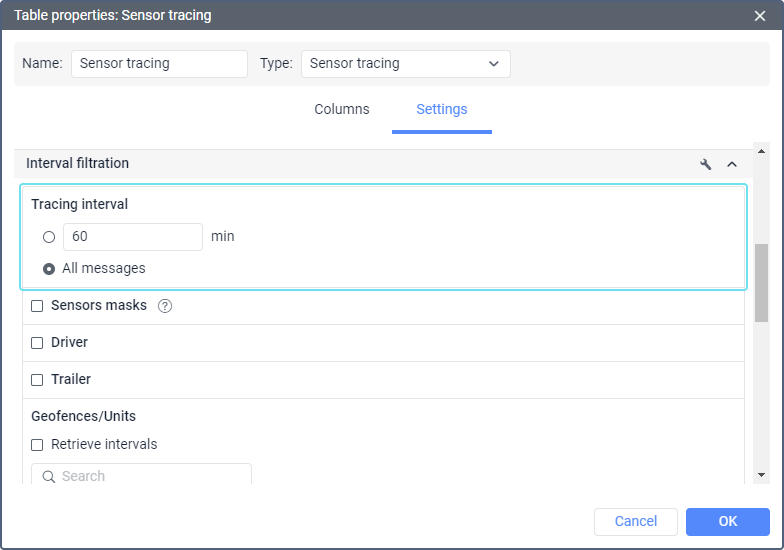
The Sensor tracing table can include either all messages or take a value in a time interval (for example, take a value every 10 minutes). You can select the option you need in the table settings in the Tracing interval filter. If a tracing interval is indicated, the system will search and display the sensor value from the message which is the closest to the necessary point in time.
The columns available in the Sensor tracing table are described below.
| Column | Description |
|---|---|
| Speed | The speed of the unit from the message from which the value was taken. |
| Coordinates | The coordinates of the unit from the message. |
| Location | The location of the unit at the moment of sending the message with the sensor's value. |
| Sensor | The name of the sensor. |
| Time | The time of the message from which the value was taken. |
| Value | The value (numbers only). If the numerical value of the parameter sent by the sensor exceeds 53 bits (9,007,199,254,740,991), the accuracy of displaying this parameter in the interface and reports is reduced starting from the lower bits. However, such values can be processed, for example, by bitwise control or used for sensors with bitwise control. |
| Formatted value | The value based on the indicated units of measurement or the value of the text sensor. |
| Driver | The name of the driver (if available). |
| Trailer | The name of the trailer (if it was assigned). |
| Notes | An empty column for custom notes. |
| Video | Files saved using the Video module which capture the time when the message with the sensor value was sent. To watch them, click on the icon The column is available if the Video monitoring service is activated in the account properties. |
| Image | The images received from the unit. Viewing images in reports and the functions available while doing this are described here. |

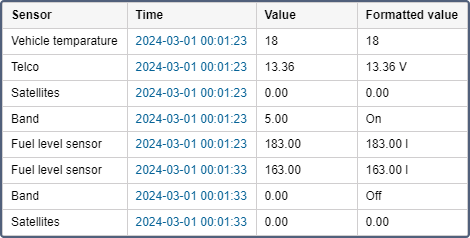
If the Each sensor in separate column option is activated for the Sensor tracing table, the values of each sensor are displayed in a separate column. This option is available only in reports for single units, not for unit groups. If you select this option, the columns Values or/and Formatted value will be generated for each sensor individually. This allows exporting sensor values to MS Excel and eventually building various charts and diagrams on this basis.
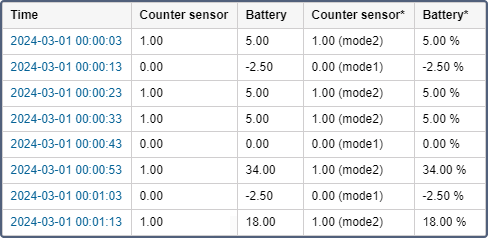
If you activate the Each sensor in separate column and Skip invalid values options simultaneously, only the lines that have at least one sensor’s value is shown in the generated report. The lines without any sensor’s value are not shown. The name of a column containing formatted values is marked by a special symbol (*). Formatted value fields may contain textual information (in brackets) indicated for value intervals.
You can apply interval filtering to the Sensor tracing table by driver, trailer, and by geofence or unit. In addition, in the Sensor masks section, you can specify which sensors should be traced.
If you use grouping or the Total row in the Sensor tracing table, the values in the grouping and Total rows are calculated in accordance with the grouping value selected for each column.
Invalid values in the “Sensor tracing” table
If the parameter value contains the characters that the system can’t decode, then  is displayed in the report instead of them, and a dash (-----) is shown instead of the value when you export the report to an XLSX file.
If a received value is out of range (the bounds are indicated in sensor properties), then a dash is displayed in the lines with the values of the sensor. To exclude such rows, check the Skip invalid values option in the report template.
The cases when a sensor sends text values (as opposed to numeric) or no values at all are also considered invalid.
In order for the text parameters to be recognized as valid and displayed in the Formatted value column, activate the Text parameters option when creating a custom sensor.