Notification triggers
The Notification triggers table allows viewing the details of all notification triggers for a unit or unit group, including notification names, types and actions, trigger time, assigned drivers, location, count, and other data.
The table is available for units and unit groups.
How notifications are triggered in Wialon
Notifications are triggered when specific conditions are met. These conditions vary depending on the notification type and can include the following.
- Service interval: the expiration of a service interval set in the unit properties triggers the Maintenance notification.
- Absence of messages: if no messages are received from a unit for a specified period, the Connection loss notification is triggered.
- Unit messages: other notification types are triggered when a unit message with certain parameters is received.
Questions and answers
How can I learn if the notification is triggered?
The following example with a Speed notification shows how you can learn if the notification is triggered.
There is a notification of the Speed type for a unit group with the Display online notification in a popup window and Register event for unit actions. The notification is triggered by the message containing a speed value which exceeds the specified limit.
While you are logged in to the system, you can view the triggered notification in the online notification window. The notification text describes the information from the triggering message. The triggering messages can also be viewed in real time in the log within your session.
The Register event for unit action allows retreiving the information on the previously received messages that triggered the notification. This information can be found in different parts of the interface, such as:
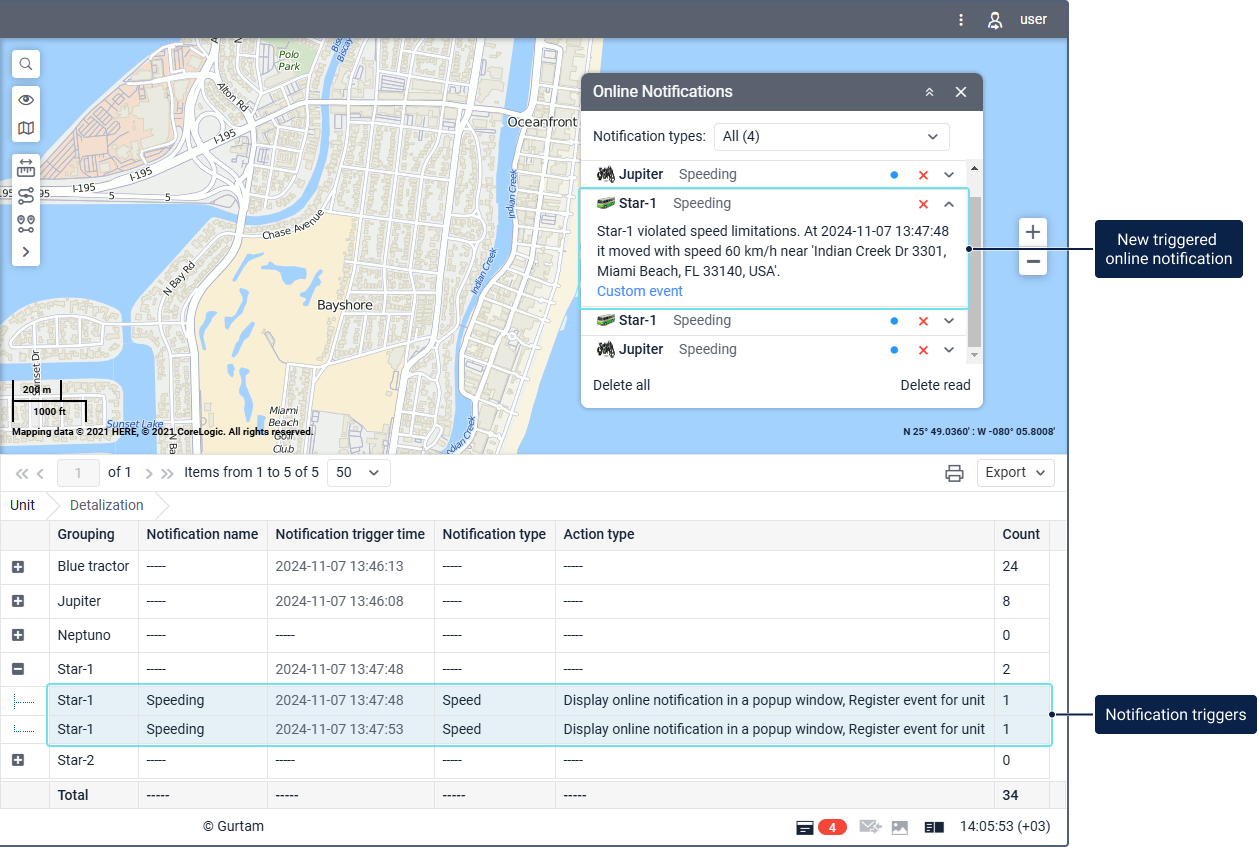
The Notification triggers table summarizes the essential information about the notification triggers. In this case, it shows the unit, the notification name, the time of each message which triggered the notification, the notification type, actions and calculates the number of triggers.
You can select the columns and set the interval filters based on what information you want to include in the table.
Columns in the “Notification triggers” table
The Notification triggers table can contain the columns listed below.
| Column | Description |
|---|---|
Notification name | The name of the triggered notification. |
Notification trigger time | The time when the notification is triggered. If the date is colored in lilac, you can click on it to view the message sending location on the map. |
Notification type | The type of the triggered notification. |
Notification text | The text of the triggered notification. |
Action | The action of the triggered notification. If a notification has multiple actions configured, all these actions are shown in the trigger row, separated by commas. |
Unit | The name of the unit that met the conditions for triggering the notification. If you have selected the Unit group report type, enable the Detalization option to see all notification triggers for each unit. For the Unit group report type, grouping by unit is automatically applied. |
Resource | The name of the resource where the triggered notification is stored. The resource where the notification is stored can be different from the resource where the report is stored. If you have no access to the notification resource, a dash is shown in this column for a trigger row. |
Driver | The name of the driver assigned to the unit at the moment of notification triggering. A dash is shown in this column for a trigger row if there is no assigned driver at the moment of notification triggering or the user has no access rights to the resource. |
Location | The unit location at the moment of notification triggering. If location can’t be determined, a dash is shown in the column. |
Count | The number of notification triggers. For the rows with single notification triggers, the value is always 1. It is recommended to use this column in combination with the Grouping parameter or the Total row. If the Total row is configured in the table, you can see the total number of notification triggers for the selected period and unit or unit group. |
Notes | An empty column where you can add your comments after printing or exporting the report. |
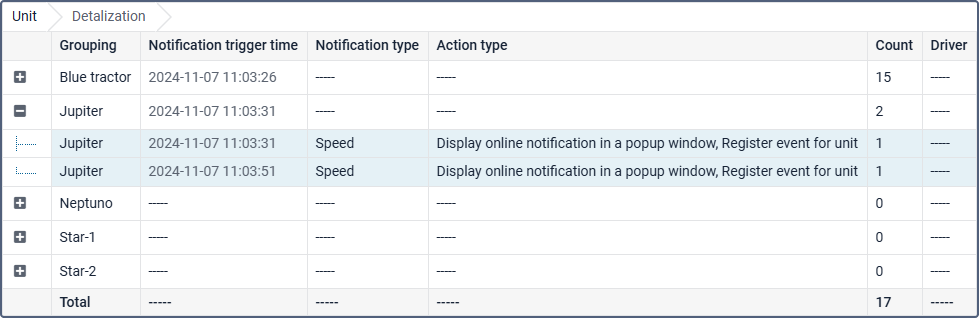
“Notification triggers” table filters
The following interval filters are available in the table settings: