Configuring notification text
This page describes the redesigned notification system with updated combining logic, flexible condition building blocks, and a new full-screen interface. If your account hasn’t been upgraded to the new notification system yet, refer to the previous version of the “Notifications” documentation.
You can specify text for particular notification actions on step 4 of the notification setup. This step is available if you selected one of the following actions on the previous step:
- notify by email
- notify by SMS
- send notification to Telegram
- display online notification in a popup window
- send mobile notification
- send a request
- register event for unit
When you open this step, the notification text is automatically filled with a default template. This default text is generated based only on the first configured condition; it doesn’t consider any additional conditions. You can manually edit this text and add tags relevant to all the included conditions.
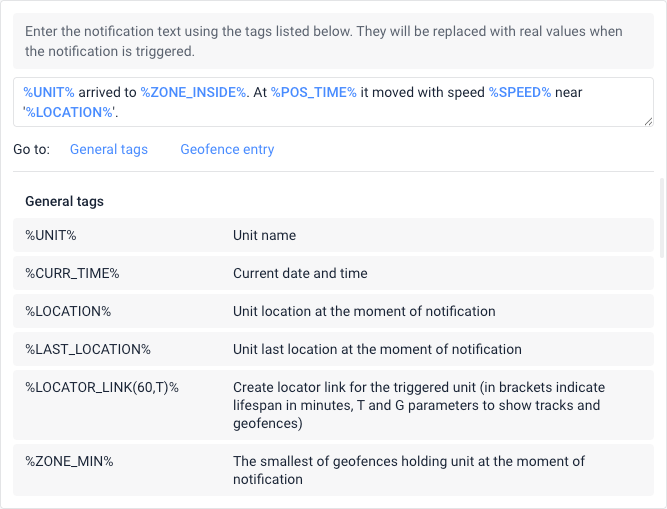
The notification text can be in any language and contain any characters.
If you select the Notify by SMS action, it is not advisable to specify a long text. If the text length exceeds the maximum allowed SMS message length, the text is sent in multiple messages.
If you select the Send a request action, you should enter the request parameters in the notification text. In addition to the parameters, you can enter text using URL encoding. If you use this action together with others (for example, notify by email), the same text is generated for all the notifications.
Using tags
You can add tags to the text. These are keywords which will be replaced with real values when the notification is triggered.
A tag must be marked with a percent sign on both sides. Otherwise, it is considered plain text and is not replaced by real values.
For example, entering the text:
%UNIT% arrived to %ZONE_INSIDE%. At %POS_TIME% it moved with speed %SPEED% near %LOCATION%.
is converted to:
Rover119 arrived to Base. At 2025-05-01 12:01:37 it moved with speed 156 km/h near KU 8, Thurnau, DE.
To add a tag to the text, click on it in the list below the text box or enter it manually.
Tags in notifications with combined conditions (OR operator)
When using the OR operator, the notification text doesn’t change depending on which condition triggered the notification; the same template is used for all. Only tags related to the condition that actually triggered the notification are replaced with real values. Tags belonging to conditions that didn’t trigger remain in the delivered message as plain text (for example, %SPEED% or %ADDRESS%). If the same condition type is used multiple times (for example, Sensor value OR Sensor value), the tag reflects the value of the sensor that triggered the notification.
Formatting rules for tags
- The units of measurement (kilometers or miles) used to decipher the tags depend on the settings of the resource to which the notification belongs.
- The date and time format is taken from the settings of the resource creator.
- The time tags use the time zone specified for the creator of the resource in which the notification is stored.
Questions and answers
Tag categories and availability
The set of tags available to use depends on the specific condition or conditions you selected in step 1 of the notification setup.
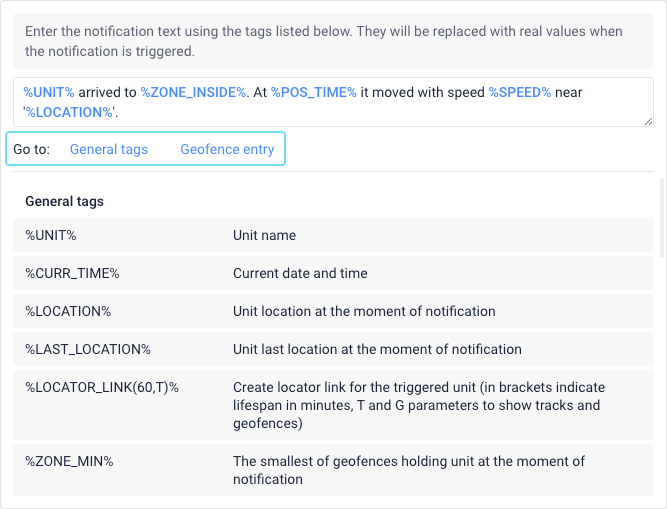
Below the text entry field, tags are grouped into categories, such as General tags and condition-specific tags (for example, Geofence entry). You can click the links next to Go to: to view the relevant list of tags.
General tags
Below is a list of general tags available for most notification types.
| Tag | Description |
|---|---|
%UNIT% |
The name of the unit. |
%UNIT_ID% |
The internal ID of the unit in the system. |
%CURR_TIME% |
The current date and time. |
%LOCATION% |
The unit location at the moment of notification. Determined by the geodata source selected in the settings of the user who created the resource in which the notification is stored. For a Fuel drain condition, the location at the start of the drain is shown. |
%LAST_LOCATION% |
The unit last location at the moment of notification. Determined by the geodata source selected in the settings of the user who created the resource. This tag is useful if the message that triggered the notification doesn’t contain location data. |
%LOCATOR_LINK(60,T)% |
Create locator link for the triggering unit. In brackets, indicate the lifespan in minutes, and use T and G parameters to show tracks and geofences. The default lifespan is 60 minutes. For an unlimited lifespan, enter 0 (zero). |
%ZONE_MIN% |
The smallest of the geofences in which the unit was at the moment when the notification was triggered. The geofence name is displayed instead of the tag only if the geofence and the notification belong to the same resource. |
%ZONES_ALL% |
All the geofences in which the unit was at the moment when the notification was triggered. |
%UNIT_GROUP% |
Groups containing the triggering unit. |
%SPEED% |
Unit speed at the moment of notification. The tag doesn’t work in notifications about fuel fillings, drains, and charges. |
%POS_TIME% |
The date and time of the message which triggered the notification. If this message doesn’t contain location data, the tag is replaced by the date and time of the last message with this data. |
%MSG_TIME% |
The date and time of the message which triggered the notification. |
%MSG_TIME_INT% |
Unix time of the message which triggered the notification. |
%NOTIFICATION% |
The name of the notification. |
%DRIVER% |
The name of the driver assigned to the unit at the moment when the notification was triggered. It is shown only if the driver belongs to the same resource as the notification. |
%DRIVER_PHONE% |
The phone number of the driver. |
%TRAILER% |
The name of the trailer assigned to the unit at the moment when the notification was triggered. It is shown only if the trailer belongs to the same resource as the notification. |
%VIDEO_LINK(480)% |
Links to the video files saved for the triggered notification. These links are generated when the Save video as a file action is configured together with any action that allows text input. In parentheses, specify the validity period of the links in minutes in the range between 480 (minimum) and 2880 (maximum). A value outside this range is reset to the default value of 480 minutes. |
%SENSOR(*)% |
Sensors and its values. Specify the sensor name or mask in brackets. If you leave the asterisk in brackets, all the sensors of the unit and their values are shown. The tag doesn’t work in notifications about fuel fillings, drains, and charges. Sensor values can be displayed in rounded form. For this purpose, the required rounding format must be selected in your user settings. If you are not logged in, but the notification is triggered, the format is taken from the settings of the user who created the resource where the notification is stored. If On/Off is specified as a unit of measurement for a digital sensor, or if no unit of measurement is indicated whatsoever, the tag is replaced by On or Off. If another unit of measurement is specified, for example, Activated/Deactivated, the tag is replaced by these values. |
%ENGINE_HOURS% |
The value of engine hours at the moment when the notification was triggered. |
%MILEAGE% |
The value of mileage at the moment when the notification was triggered. |
%LAT% |
Latitude at the moment when the notification was triggered (for example, N 55° 45.7530'). |
%LON% |
Longitude at the moment when the notification was triggered (for example, E 37° 35.2068'). |
%LATD% |
Latitude without formatting. |
%LOND% |
Longitude without formatting. |
%GOOGLE_LINK% |
The link to Google Maps with the unit location at the moment when the notification was triggered (for example, http://maps.google.com/?q=55.762550N,37.586780E). |
%CUSTOM_FIELD(*)% |
The custom fields from the unit properties. If you leave the asterisk in brackets, all the custom fields, including the administrative ones, and their values are shown. To get the value of a certain field, specify its full name in brackets. In this case, only the field value is shown in the notification (without the field name). |
Address
Use these tags to break down the specific address components of the unit location.
In the triggered notification with the Address condition, instead of the tags below, information from the address specified in the step 1 of notification setup is shown. The address format is taken from the geodata source in the settings of the user who created the resource where the notification is stored.
| Tag | Description |
|---|---|
%COUNTRY% |
The name of the country. |
%REGION% |
The name of the region (state, and so on.). |
%CITY% |
The name of the city (town, and so on.). |
%STREET% |
The name of the street. |
%HOUSE% |
The number of the house. |
Connection status
This tag indicates whether the unit connection to the server was lost or restored.
| Tag | Description |
|---|---|
%LOSE_RESTORE% |
Losing or restoring connection. |
Driver assignment
Use these tags to identify the driver assigned to the unit.
| Tag | Description |
|---|---|
%DRIVER_ID% |
The code of the driver. |
%DRIVER_NAME% |
The name of the driver. |
Fuel fillings, drains, and battery charges
These tags provide comprehensive data about energy replenishment or loss events.
| Tag | Description |
|---|---|
%TYPE% |
The type of energy replenishment: a fuel filling or a battery charge. Used for the Fuel filling and Battery charging conditions. |
%VOLUME% |
The volume of the fuel filling, drain, or battery charge. |
%INITIAL_LEVEL% |
The fuel level at the beginning of a fuel filling or fuel drain, or the battery level at the beginning of a battery charge. |
%FINAL_LEVEL% |
The fuel level at the end of a fuel filling or fuel drain, or the battery level at the end of a battery charge. |
%TIME_FROM% |
The time when a fuel filling, fuel drain, or a battery charge began. |
%TIME_TO% |
The time when a fuel filling, fuel drain, or a battery charge ended. |
%SENSOR_NAME% |
The name of the sensor that triggered the notification. If the Sum up values option is selected, then from all the sensors the values of which are summed up, the tag is replaced by the name of the sensor that has the smallest ID in the system. Thus, the name you see instead of the tag doesn’t depend on the sensor value. |
%DURATION% |
The duration of a fuel filling, fuel drain, or a battery charge in minutes. |
Geofence entry
Use these tags to include information about the unit interaction with specific areas.
| Tag | Description |
|---|---|
%ZONE_INSIDE% |
The name of the geofence about which the notification is received. |
%ZONE_DESC% |
The description from the geofence properties. |
Geofence exit
Use these tags to include information about the unit interaction with specific areas.
| Tag | Description |
|---|---|
%ZONE_OUTSIDE% |
The name of the geofence about which the notification is received. The tag %ZONE_OUTSIDE% is replaced by the names of the geofences in which the unit was at the moment of the previous message, but which it has already left. If there are no such geofences or the previous message with location data is not found, the notification text displays only the tag name (%ZONE_OUTSIDE%). |
%ZONE_DESC% |
The description from the geofence properties. |
Health status
These tags summarize the device operational health and outline any active issues.
| Tag | Description |
|---|---|
%HEALTH_CHECK_STATUS% |
The device health status at the time of notification triggering. |
%REASON% |
List of active incidents at the time of notification triggering. |
Maintenance
Use these tags to show upcoming or overdue vehicle maintenance details.
| Tag | Description |
|---|---|
%SERVICE_NAME% |
The name of the service. |
%SERVICE_TERM% |
The state of the service: how much time, kilometers, or engine hours are left, or how much time, kilometers, or engine hours the service is overdue. |
Message limit
This tag indicates the total number of messages received during the specified period.
| Tag | Description |
|---|---|
%MSG_COUNT% |
The number of messages. |
Parameter state
These tags display the specific parameters and their values sent by the device.
| Tag | Description |
|---|---|
%PARAM_NAME% |
The name of the parameter controlled by means of the notification. |
%PARAM_VALUE% |
The value of the parameter. |
Passenger assignment, Passenger not separated
Use these tags to display details about identified passengers.
| Tag | Description |
|---|---|
%TAG_ID% |
The code of the passenger. |
%TAG_NAME% |
The name of the passenger. |
Route activity
These tags describe the unit current status and location along a scheduled route.
| Tag | Description |
|---|---|
%ROUTE_NAME% |
The name of the route. |
%ROUTE_STATUS% |
The state of the ride. |
%ROUTE_POINT% |
The name of the route check point. |
%ROUTE_SCHEDULE% |
The name of the route schedule. |
%ROUND_NAME% |
The name of the ride. |
Sensor value
These tags display information about the specific sensors that triggered the notification.
| Tag | Description |
|---|---|
%SENSOR_NAME% |
The name of the sensor that triggered the notification. If the Sum up values option is selected, then from all the sensors the values of which are summed up, the tag is replaced by the name of the sensor that has the smallest ID in the system. Thus, the name you see instead of the tag doesn’t depend on the sensor value. |
%SENSOR_VALUE% |
The sensor value that triggered the notification. |
%TRIGGERED_SENSORS% |
All the sensors that triggered the notification, and their values. In contrast to the %SENSOR_NAME% tag, here you can see exactly those sensors the values of which fall within the specified range (if the In range activation type is selected) or are outside the range (if the Out of range activation type is selected). |
%SENSOR_VALUE_OLD% |
The sensor value from the previous message. |
SMS
This tag inserts the exact content of an incoming SMS message.
| Tag | Description |
|---|---|
%SMS_TEXT% |
The text of the SMS message. |
Road speed limits
These tags provide details about road speed limits and how much they were exceeded.
| Tag | Description |
|---|---|
%SPEED_LIMIT% |
The speed limit at the moment of triggering the notification. |
%SPEEDING_VALUE% |
The value by which the speed limit was exceeded. |
Trailer assignment
These tags show information about the trailer currently assigned to the unit.
| Tag | Description |
|---|---|
%TRAILER_ID% |
The code of the trailer. |
%TRAILER_NAME% |
The name of the trailer. |
Unit proximity
This tag specifies the other unit involved in a proximity or approach event.
| Tag | Description |
|---|---|
%OTHER_UNIT% |
The name of the other unit. |
Empty data display
If the data is unknown, the tags are displayed exactly as they are, that is, they are not replaced by any values. This can happen in notifications with multiple OR conditions when the notification text includes tags from a condition that didn’t trigger the notification.
The exceptions are the following tags which are automatically hidden and not displayed in the notification text when there is no data:
| Group | Tags hidden when empty |
|---|---|
| Units and unit groups | %UNIT%, %UNIT_GROUP%, %UNIT_ID% |
| Date and time | %CURR_TIME%, %POS_TIME%, %MSG_TIME% |
| Location and geofences | %LOCATION%, %LAST_LOCATION%, %LAT%, %LON%, %LATD%, %LOND%, %GOOGLE_LINK%, %LOCATOR_LINK%, %ZONES_ALL%, %ZONE_MIN% |
| Passengers | %TAG_NAME%, %TAG_ID% |
| Others | %SPEED%, %ENGINE_HOURS%, %MILEAGE%, %LOSE_RESTORE% |