Viewing online notifications
This page describes the redesigned notification system with updated combining logic, flexible condition building blocks, and a new full-screen interface. If your account hasn’t been upgraded to the new notification system yet, refer to the previous version of the Notifications documentation.
Receiving online notifications is one of the ways of informing the user about the activity of the unit. Only the users who are authorized in the system at the moment when a notification is triggered can receive the online notification. Also, users can view all triggered notifications in the Notification triggers report table.
By default, online notifications are displayed in a pop-up window in the bottom right corner of the screen. However, you can disable the Automatically display popup events option in the user settings. In this case, you can open the Online Notifications window manually by clicking the icon  in the bottom panel. If you have any unread notifications, this icon displays a red indicator showing the number of unread alerts. You can also see the number of new online notifications on the browser tab.
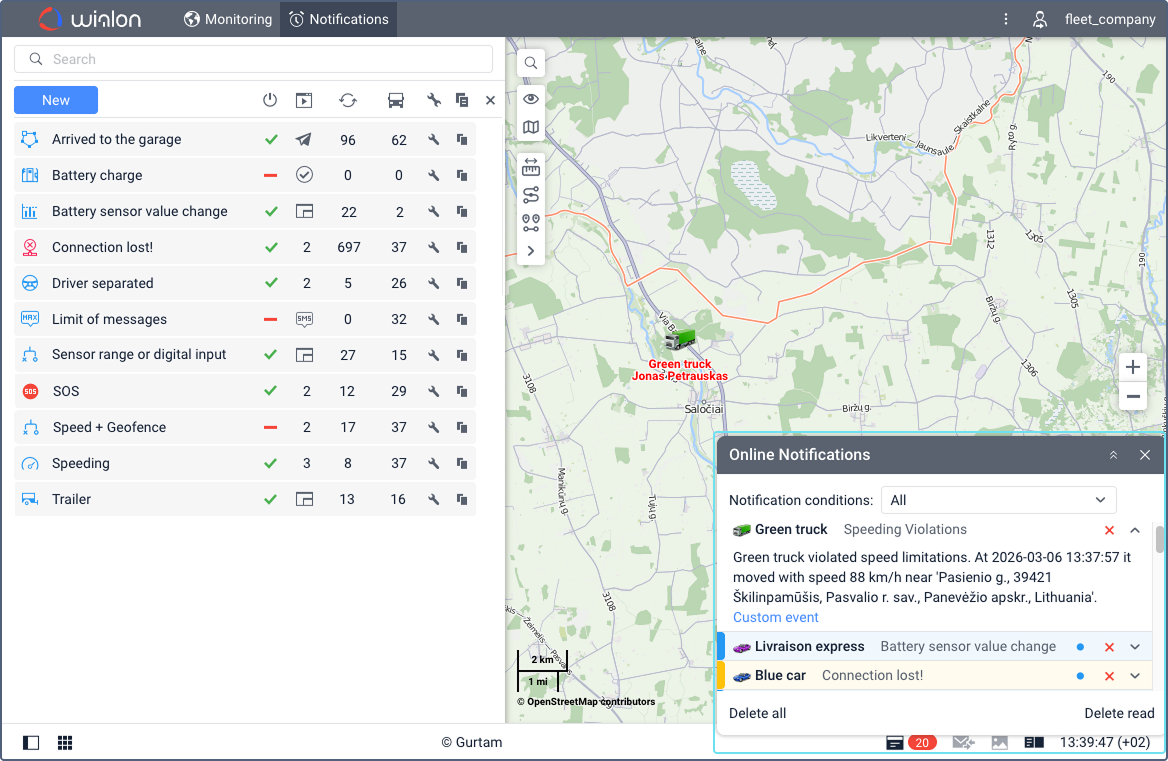
Online notification settings
-
Audio signals: Online notifications can be accompanied by an audio signal. To do this, enable the Play sound for events option in the user settings. If you want to use a different audio signal instead of the standard one, indicate the URL for downloading it in the notification properties. You can set different sounds for different notifications.
-
Colors: To highlight different types of notifications, you can set different color indicators and backgrounds for them in the action parameters.
-
Minimaps: You can also view online notifications in minimaps. To do this, enable the Blink minimap option in the notification properties.
Actions with online notifications
You can manage and interact with triggered alerts directly from the Online notifications window:
-
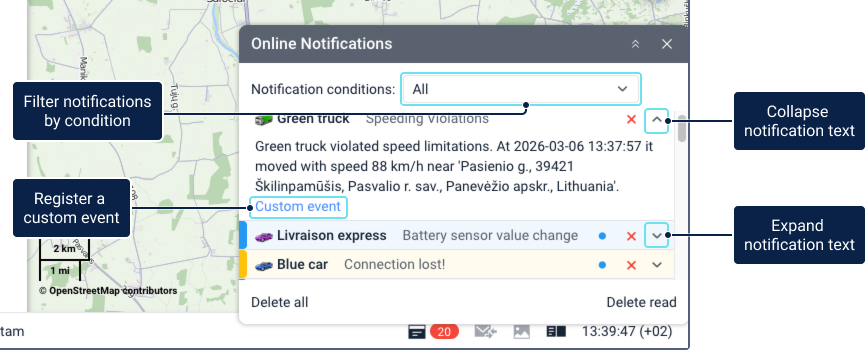
Filtering: At the top of the Online notifications window, a Notification conditions drop-down filter is available to sort the displayed alerts by conditions. By default, it shows all notifications. This filter is available only for the top-level users and users with dealer rights.
-
Viewing and expanding: New notifications are displayed at the top of the list. The online notification title coincides with the name of the notification. To expand or collapse a particular notification’s details, use the icons
 /
/ or click on an empty area of the title bar.
 -
Unread status: Unread notifications are highlighted with a blue dot (
 ) next to the expand/collapse arrows.
 -
Map centering: After clicking on the name of the notification, the map is centered on the place where the event has occurred. After clicking on the name of the unit, the map is centered on its last position. The unit is also added to the work list on the Monitoring tab and to the map.
-
Deleting: To delete a specific notification, click the icon
 next to its name. You can also delete all notifications or the read ones by clicking Delete all or Delete read at the bottom of the window of online notifications.
 -
Window management: You can drag the notification window around the screen. You can also change the size of the window by dragging its edge in the right direction. The position and size are saved until the next time you open the notification window.
-
Custom event registration: To register a custom event, click the blue Custom event link inside an expanded notification in the Online Notifications window. The event is registered on the basis of the received data about the activity of the unit. In this registration, the notification text is used as a comment. You can view the registered event and the comment in the Events report table.
Web push notifications
The system supports receiving web push notifications. Their advantage is that you can view a notification from any tab of your browser, or when the browser is minimized. You can enable web push notifications in the dialog box which opens after receiving the first online notification. Read about enabling browser notifications on the Basic settings page.