Suntech ST4315: Configuration and use in Wialon
This guide describes how to configure and use the Suntech ST4315 device in Wialon.
You can request a Wialon trial account here.
Quick setup
To point the device to your Wialon account, use the SyncTrak configuration software provided by the manufacturer and a micro-USB cable. Follow the steps below for a quick setup:
- On the Network parameters tab, fill in the Server IP(1005) and Server Port(1006) fields. Use the same IP address and port as in the unit properties in Wialon.
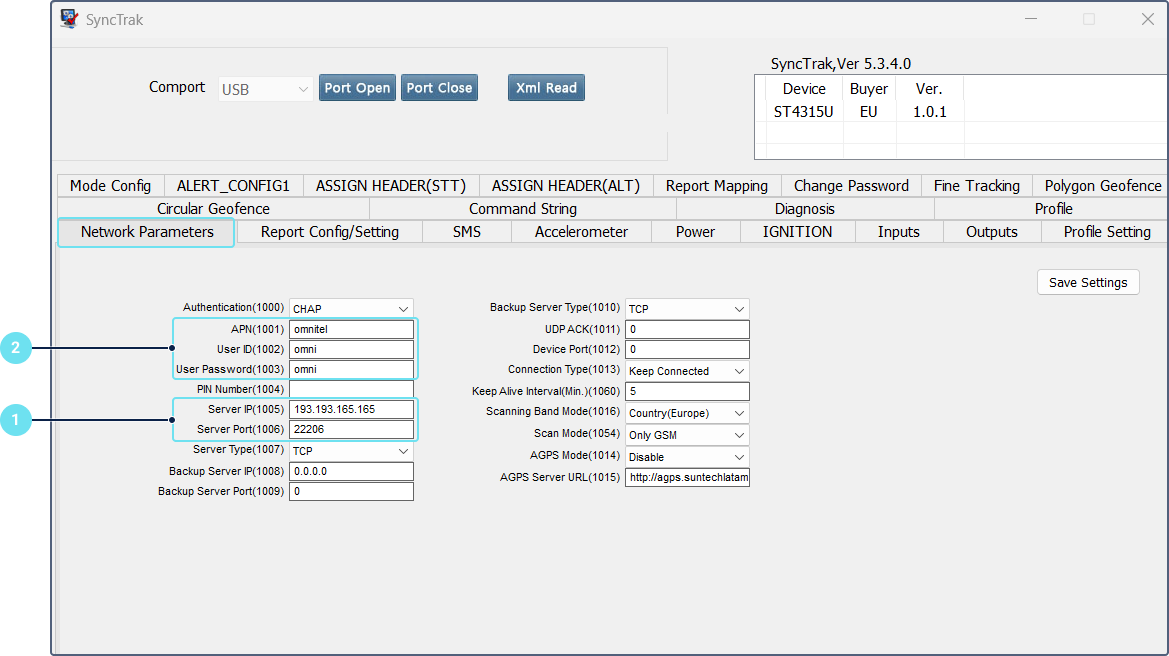
- Specify APN settings in the APN(1001), User ID(1002) and User password(1003) fields.
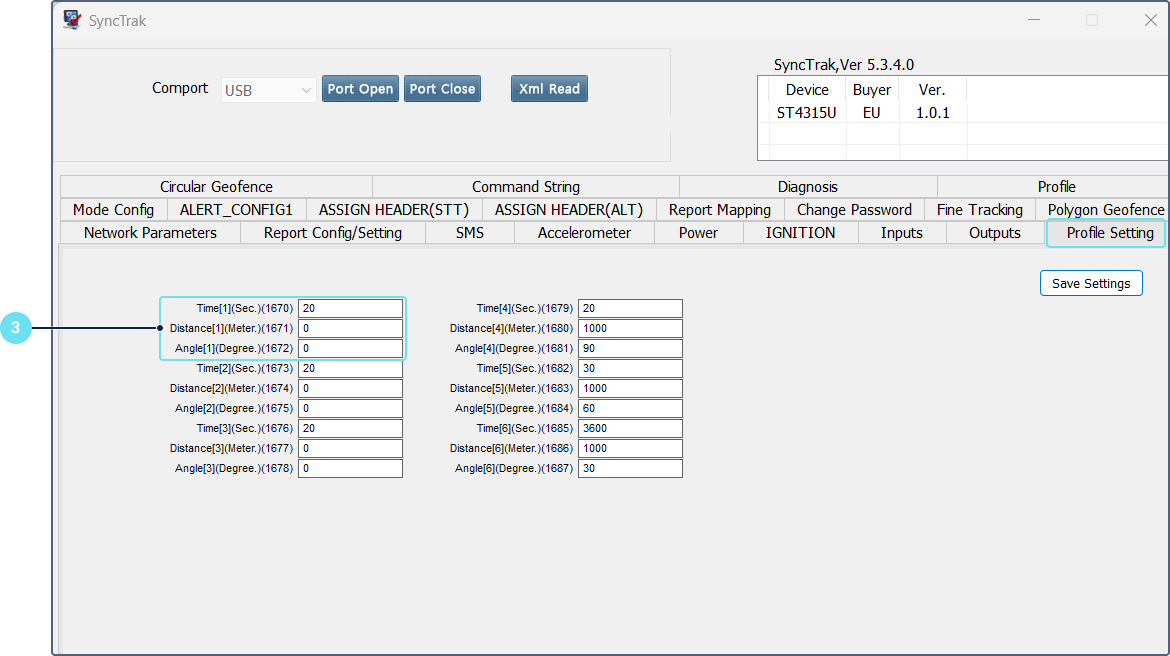
- On the Profile setting tab, specify the sending period (time), distance and angle.
- On the Report mapping tab, adjust report and alert masks.
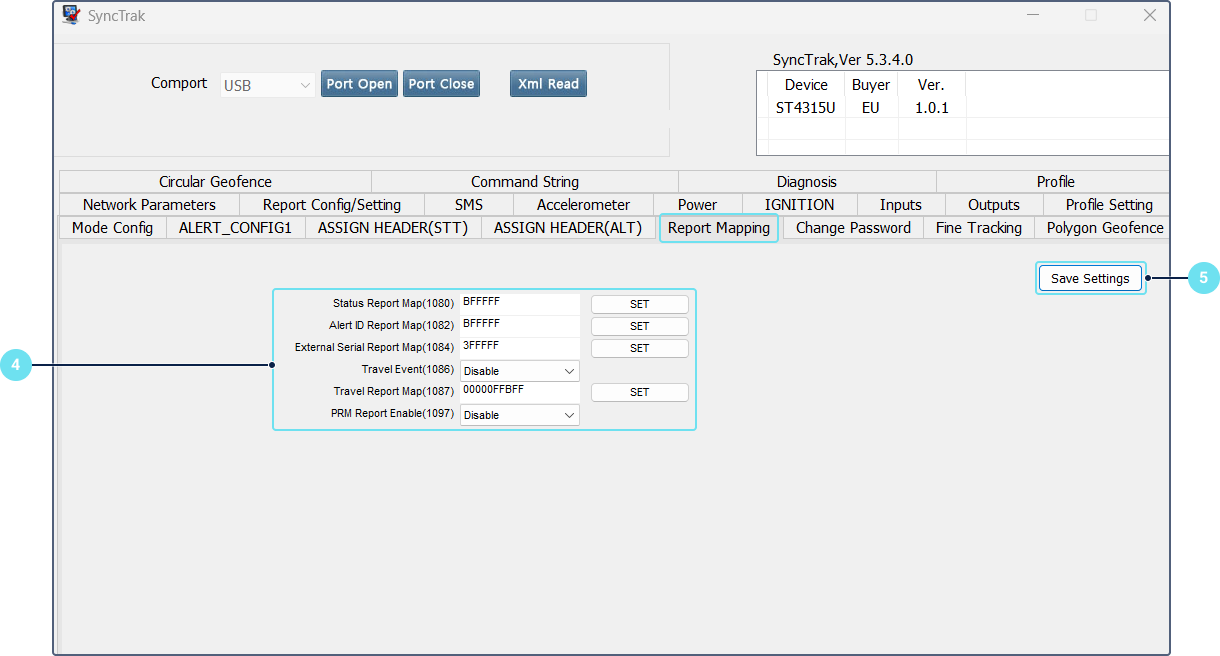
- Click Save settings to save tha changes.
- Insert the SIM card correctly.
- Use the 10-digit serial number as the unique ID in Wialon.
Additional device settings
The additional device settings are available in the unit properties upon clicking on the icon  next to the Device type field.
The available settings are as follows:
| Setting | Description |
|---|---|
| Request complete STT Assign Map | When enabled, Wialon requests complete STT Assign Map2 and uses the response to parse additional data. |
| Omnicomm LLS by transp | Enable this option if you are using the Omnicomm fuel level sensor. The following parameters are registered: lls_N_temp, lls_N_lvl, lls_N_freq. |
| QQZM Camera by transp | Enable this option if you are using the QQZM Camera. |
| Escort TD by transp | Enable this option if you are using the Escort TD fuel level sensor. The following parameters are registered: esc_temp, esc_level. |
| Skip registering 0507 command responses | When enabled, Wialon doesn’t register responses to the Request complete STT Assign Map command. Otherwise, cmd_resp is registered as:cmd_resp=05;07;7f8f80e7;01,02,20,17,18,23;01,18,19,20,21;15,16,17,18,19,20,21,22 |
| TPMS by transp | Enable this option if you are using the RS232 TPMS receiver. The following parameters are registered: tire_N_pressure, tire_N_temp, tire_N_status, tire_N_battery. |
| Getscale GS-404 by transparent | Enable this option if you are using the Getscale GS-404 RFID reader. Parameters with the prefix gs_404_ are registered. |
| Getscale GS-302 by transparent | Enable this option if you are using the Getscale GS-302 temperature sensor. Parameters with the prefix gs_302_ are registered. |
| Getscale GS-601 by transparent | Enable this option if you are using the Getscale GS-601 keyboard. Parameters with the prefix rfid_ are registered. |
| RFID SGBras by transparent | Enable this option if you are using the SGBras RFID reader. The following parameters are registered: rfid_evt, rfid, rfid_data, rfid_data_number. |
| Temperature Sensor SGBras by transparent | Enable this option if you are using the SGBras temperature sensor. The following parameters are registered: tempN, entry_state, sens_1_on_alert, sens_2_on_alert. |
| Display commands responses | Display responses to commands in the Chat with drivers window. |
| Connect-Bus by transparent | Enable this option if you are using the Chiptronic Connect-Bus reader. Parameters with the prefix connect_bus_ are registered. |
| SW101 accessory connected | Enable this option if you are using the SW101 transmitter. |
| Autosender AS0721 by transp | Enable this option if you are using the Autosender AS0721 concrete mixer sensor. The following parameters are registered: log_code, prod_code, dir_rotate, speed_low, speed_high. |
Commands
You can configure the device using the following commands:
-
Reboot device: CMD;DeviceID;03;03
-
Set APN: PRG;DeviceID;10;01|APN;02|APNuser;03|APNpassword
-
Set Server IP and port: PRG;DeviceID;10;05|IP;06|22206
-
Set sending intervals for profile 1: PRG;DeviceID;16;70|Time(s);71|Distance(m);72|Angle
When sending commands from Wialon, CMD and the unique ID are added automatically, just 03;03 is entered by the user.
For PRG and REQ commands, the unique ID is also added automatically. The format PRG;10;01|APN is entered by the user.
If you have further questions regarding the device configuration in Wialon, send the request to support@wialon.com and specify the following details:
- device type and ID,
- issue description,
- configuration file (if applicable).
For ultimate technical support with hardware setup, we recommend contacting the device manufacturer.
Useful articles and links
Parameter description
Case studies