Generating activation code reports
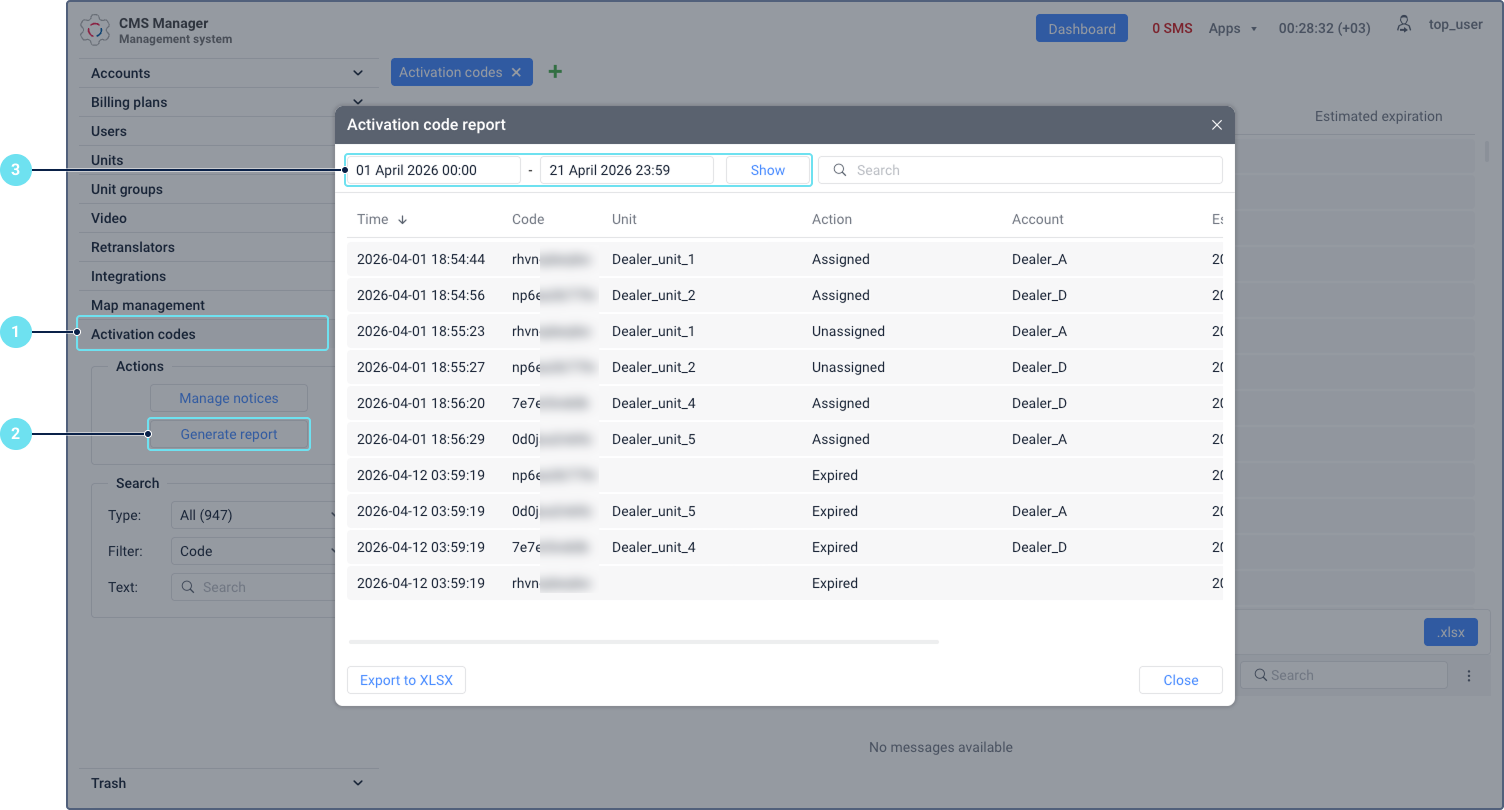
The activation code report provides a historical log of the actions performed on activation codes: when a code was assigned to a unit, unassigned from it, or expired.
To generate an activation code report, follow these steps:
-
In the CMS Manager navigation panel, select Activation codes.
-
Click Generate report in the left panel. The Activation code report window opens. By default, the report displays data for today (from 00:00 to the current time).
-
To change the time interval, select the dates and click Show.
Report columns
The report contains the following columns:
| Column | Description |
|---|---|
| Time | The date and time when the action occurred. |
| Code | The activation code affected by the action. |
| Unit | The unit the code was assigned to, unassigned from, or linked to at the time of expiration. For top account users, this cell can be empty if the code wasn’t assigned to any unit at the time of the action. |
| Action | The type of action: Assigned, Unassigned, or Expired. |
| Account | The account where the unit is created. For top account users, this cell can be empty if the code wasn’t assigned to any unit at the time of the action. |
| Estimated expiration | The estimated date of the code expiration. |
| Activation | The date when the code was first activated (assigned to a unit for the first time). |
| Validity period, d | The validity period of the code in days. |
For top account users, the report shows all code actions. For users with dealer rights, the report shows only actions linked to units they have access to.
Sorting the report
The report is sorted chronologically by default. You can sort the report by any column by clicking on its header. Only one sorting option can be applied at a time.
Searching in the report
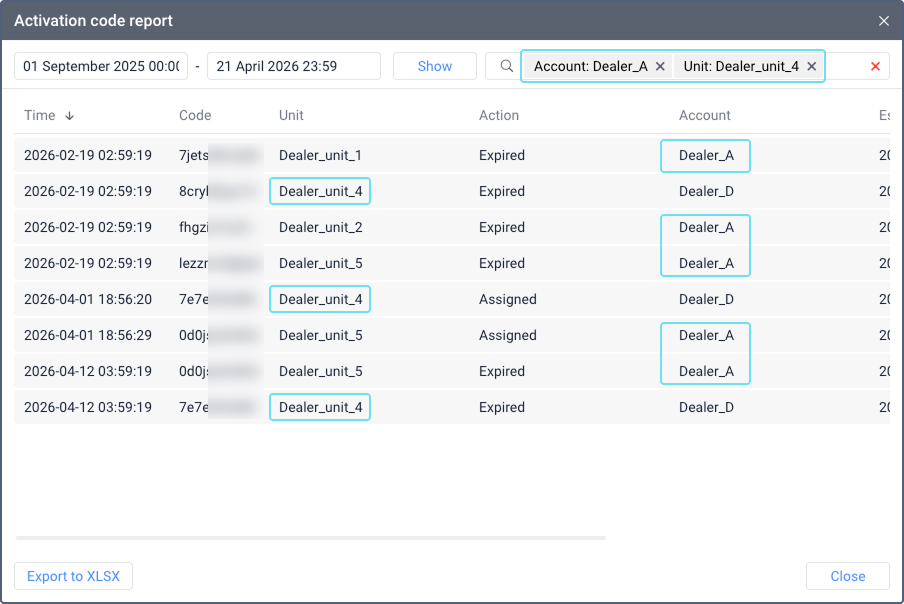
You can filter the report by account, unit, or action using the search field above the table. Select a criterion type, enter or select a value, and it appears as a chip. You can add up to 5 chips in total. Each criterion type can be used multiple times: up to 5 for Account or Unit, and up to 3 for Action. If you search by several criteria, the OR logic is applied, that means, the results show rows matching any of the entered values.
Exporting the report to XLSX
You can export the activation code report to an Excel file. The exported file contains the same columns as the report. If a search filter is applied, only the filtered results are exported.
To export the report, click Export to XLSX at the bottom of the report window.
The default file name follows the format: export_file_yyyy-mm-dd_hh-mm.xlsx, where yyyy-mm-dd_hh-mm is the current date and time. The dates in the exported file use the format defined in the user settings.