User groups
A user group is a macro-object which allows you to combine users by certain criteria, for example, by role or department. The main purpose of groups is to grant access rights to several users at once instead of configuring them for each user individually.
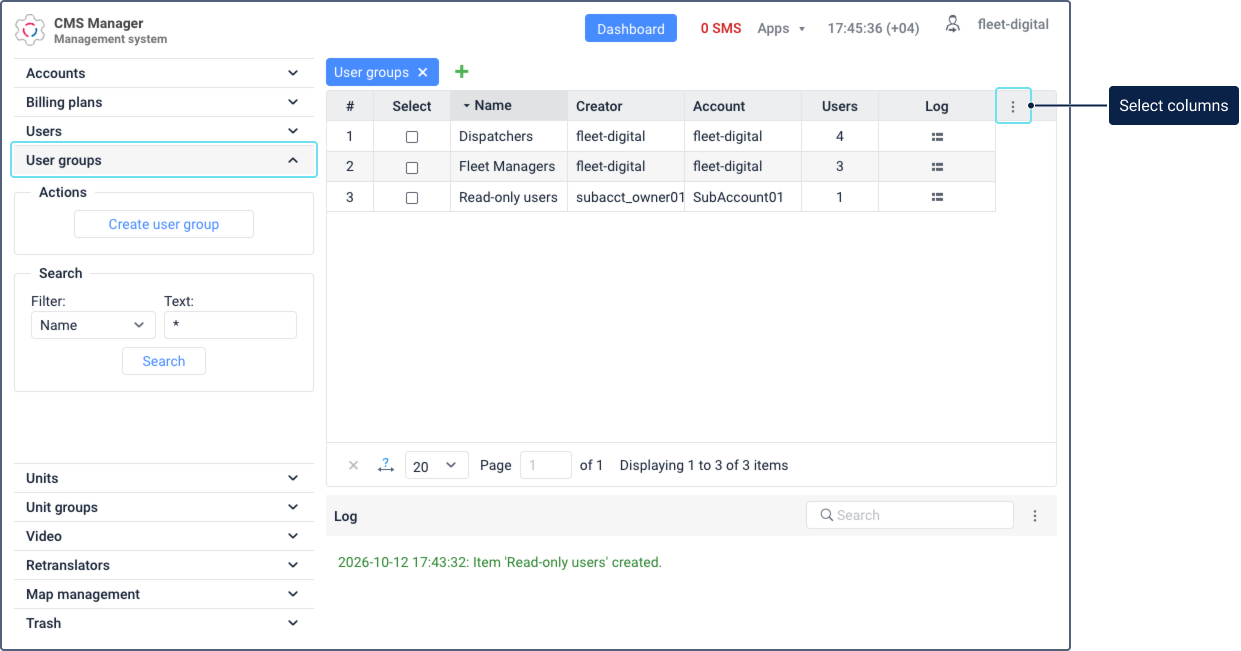
You can work with user groups in the User groups section of the management system.
The rights granted to a group extend the rights of its members, but don’t replace their own rights. For details, see User group access rights.
The table of the User groups section contains all the created groups. In the section, you can also perform the following actions with them: create, edit properties, copy, and delete. To quickly find groups, use the dynamic filter.
Adding or hiding columns
To add or hide columns with additional information about user groups, click the icon  in the table header. In the menu, the following columns are available:
| Column | Description |
|---|---|
| # | The sequence number of the group in the table. |
| Select | The selection of the group in the table. |
| Name | The name of the group specified in its properties. |
| Creator | The user on whose behalf the group has been created. |
| Account | The account to which the group belongs. |
| Users | The number of users added to the group. |
| Log | The icon  which allows you to open the log of the group. which allows you to open the log of the group. |
Actions with user groups
You can perform standard actions with user groups:
- create (the Create user group button);
- view or edit properties (see User group properties);
- copy;
- delete.
The availability of each action depends on your access rights to the group.
Creating user groups
To create a user group, follow these steps:
-
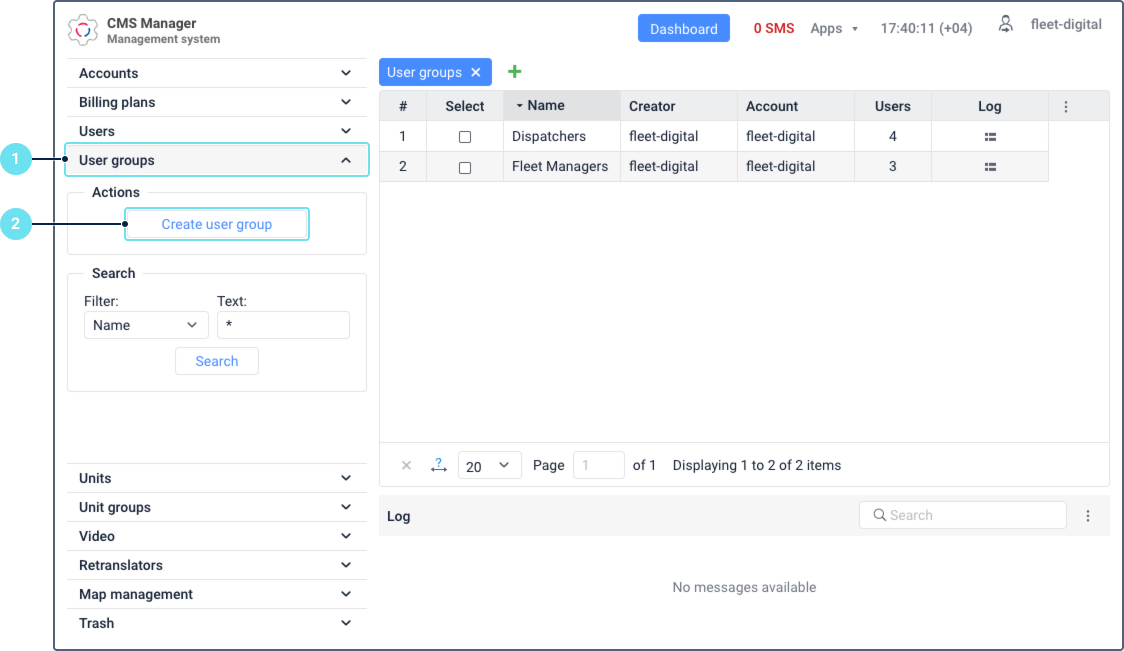
Go to the User groups section.
-
Click Create user group.
-
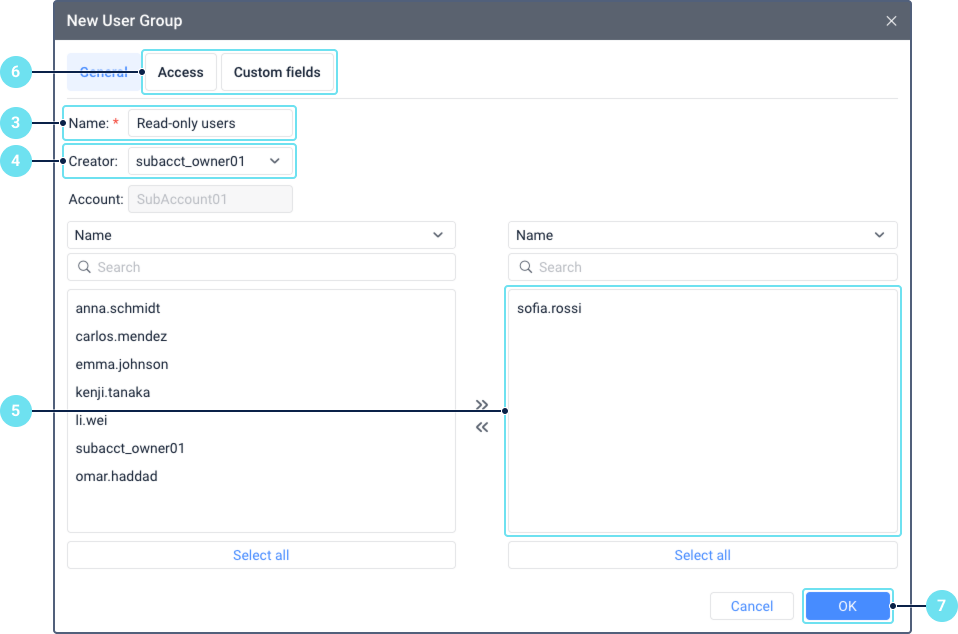
Specify the group name.
-
If necessary, select the creator of the group in the dropdown list.
-
In the left list, select the users you want to add to the group and move them to the right list.
-
If necessary, configure the Access and Custom fields tabs.
-
Click OK.
Copying user groups
Copying allows you to create a new group based on an existing one. This is useful if you want to create a group with similar properties, for example, with the same set of access rights.
To copy a user group, follow these steps:
- In the User groups section, click the row of the required group holding down the Ctrl key.
- Specify the name of the new group. It must be unique.
- If necessary, select the creator of the new group and edit the list of its users, the access rights granted to the group, and its custom fields.
- Click OK.
If you don’t have enough access rights to certain data, it remains hidden and isn’t copied to the new group.
The users of the group receive the rights granted to the new group only after you save it.
Deleting user groups
To delete a user group, you must have the Delete object access right to it. If you don’t have this right, you can’t select the group in the table.
To delete user groups, follow these steps:
-
Go to the User groups section.
-
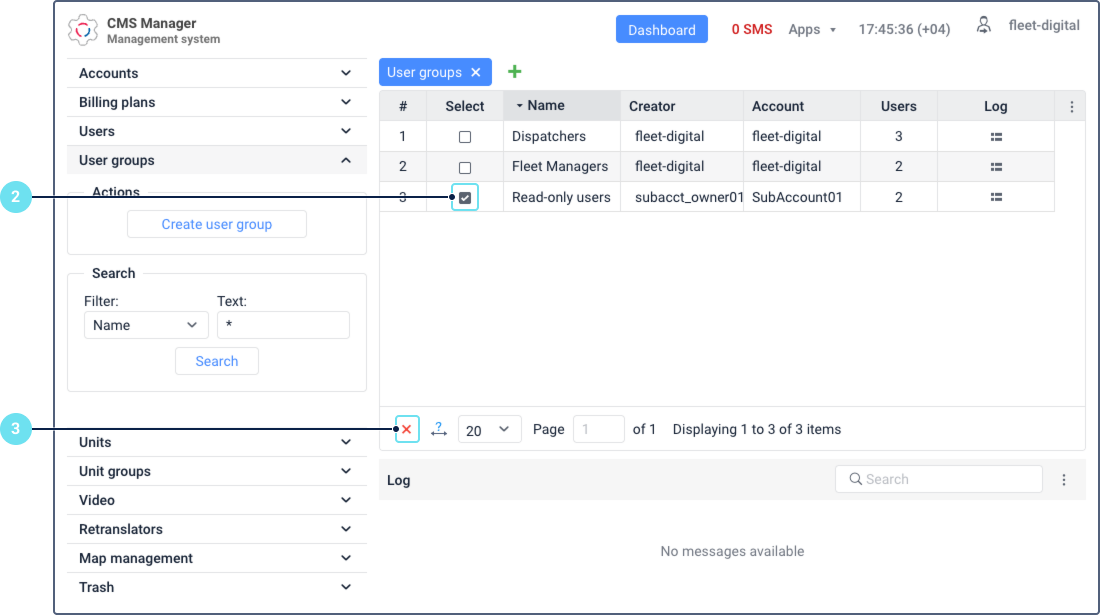
In the Select column, mark the groups you want to delete. To select all the groups, hold down the Ctrl key and check any box in the Select row.
-
Click the icon
 in the toolbar below the table.
 -
Click OK to confirm the action.
A record of deleting the group is added to the log.
Consider the following:
- Deleting a group doesn’t delete the users added to it.
- The users lose the access rights which they received through the group. Their own rights don’t change.
- The user of the top account can restore the deleted group from the trash within 30 days. Restoring the group is available no earlier than 20 minutes after it’s deleted. The group is restored without its users, so you should add them to it again.