Video traffic report
The video traffic report shows video traffic consumption and traffic package purchases for the units of an account over a selected period.
Requesting a report
To generate a report, follow the steps below.
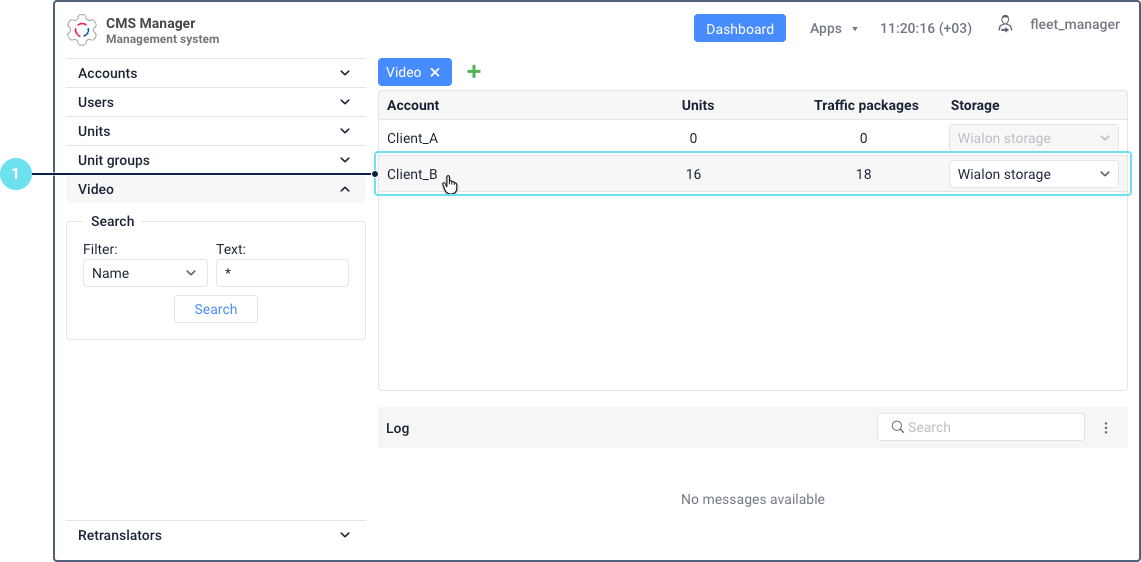
- In the Video section, select the account containing the units you want to check in the report.
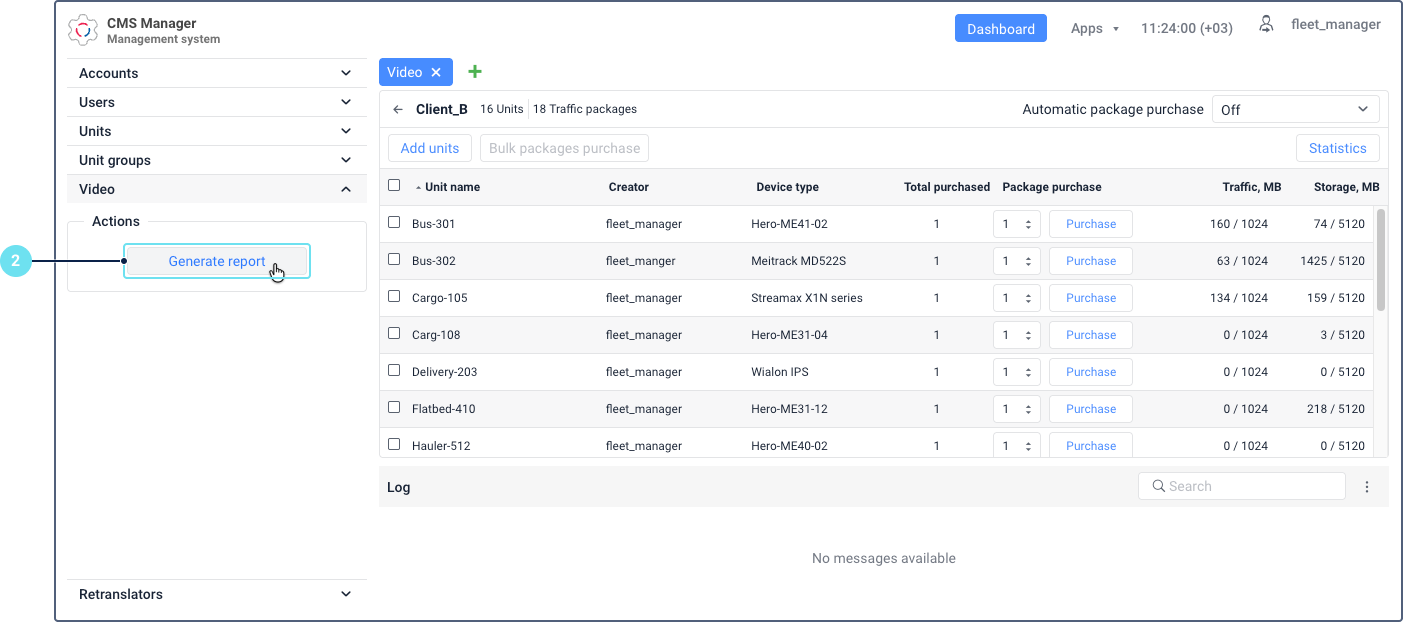
- Click Generate report in the Actions section on the left.
- In the Video traffic report window, specify the date range (start and end dates). You can enter dates manually or use the calendar.
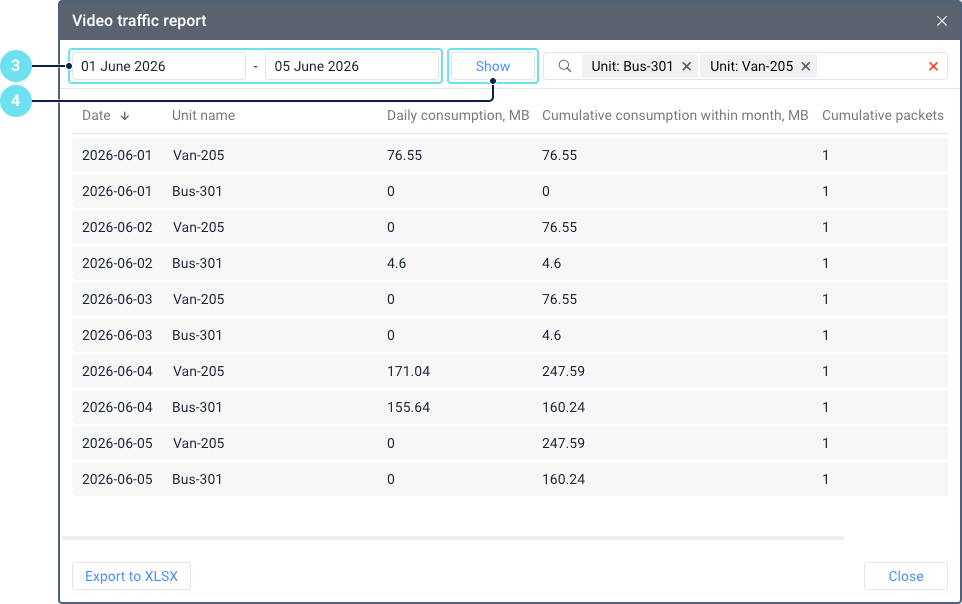
By default, the previous month is selected. The current date and dates older than 1 year are not available for selection.
- Click Show.
The report data is displayed in a table. The report contains units that were included in the video billing during the requested period, even if they are no longer billed at the time the report is generated.
Report table
Each row in the table represents the traffic data of a single unit for a specific day. If an account has several units with video monitoring, the table contains a separate row for each unit on each day within the selected period.
The report table contains the following columns.
| Column | Description |
|---|---|
| Date | The day for which the video traffic data is shown. |
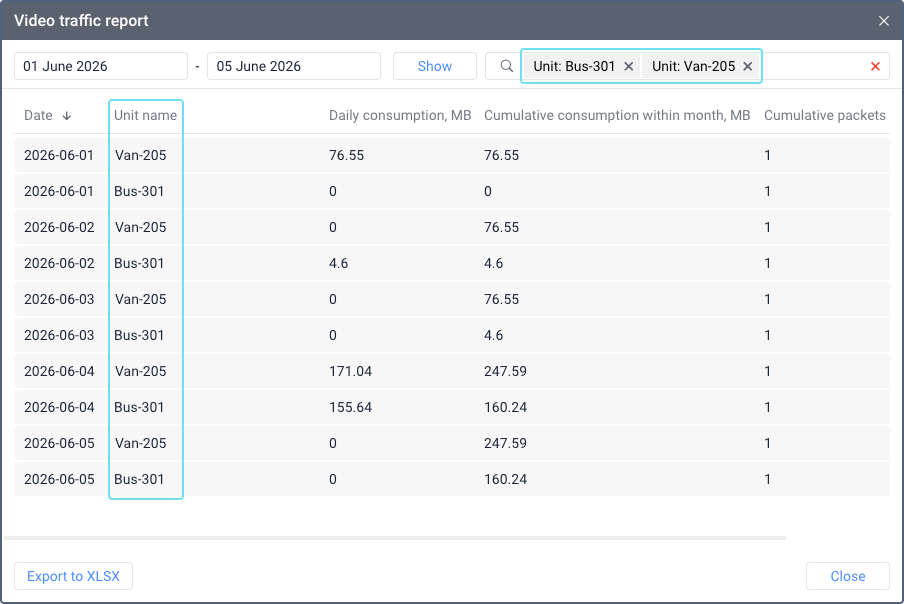
| Unit name | The name of the unit. |
| Daily consumption, MB | The amount of video traffic consumed by the unit on that day, in megabytes. |
| Cumulative consumption within month, MB | The total video traffic consumed by the unit from the first day of the month up to and including the date of the row, in megabytes. The value increases with each day and resets at the beginning of the next month. For example, if a unit consumed 100 MB on June 1 and 50 MB on June 2, the cumulative consumption shows 100 for June 1 and 150 for June 2. |
| Cumulative packets purchased within month | The total number of traffic packages purchased for the unit from the first day of the month up to and including the date of the row. The value increases with each purchase and resets at the beginning of the next month. For example, if 1 package was purchased on June 1 and another on June 15, the value shows 1 for dates June 1–14 and 2 for dates from June 15 onward |
Sorting the report
By default, the data is sorted by date in ascending order. Within the same date, units are sorted alphabetically by name. To change the sort order by date (ascending or descending), click the Date column header. Sorting by other columns is not available.
Searching in the report
To find specific units in the table, enter a unit name in the search field above the table and select it. You can add multiple names to search for several units at once. If you search by several units, the OR logic is applied: the table shows rows matching any of the selected values. To remove a unit from the search, click the icon  next to it. To clear all the selected units, click the icon
  on the right side of the search field. The search works only by unit name.
Exporting the report
To save the report as a CSV file, click Export to CSV. If a search filter is applied, only the filtered results are exported.
The default file name follows the format: export_to_file_accountName_video_traffic_yyyy-mm-dd_hh-mm.csv, where accountName is the name of the account for which the report was generated, and yyyy-mm-dd_hh-mm is the current date and time.