AI agent
The AI agent is a CMS Manager tool that performs tasks in your account based on text requests in plain language. It uses the Wialon API, so any action available in the API can be performed, for example, changing the settings of many units at once, setting up notifications, running reports, or checking the account structure. The results can also be provided as a PDF document, a dashboard, or an app.
You send requests in a chat in the AI Agent section. The agent performs all tasks with the access rights of the creator of the top account. The chat history is saved.
On this page, you can find out how to:
- start working with the agent;
- give tasks to the agent;
- search, download, and manage the chat;
- check how many credits are used;
- change the monthly credit limit;
- view the credit usage history;
- continue working when credits run out.
Starting the agent
To start working with the agent, follow these steps:
- In CMS Manager, open the AI Agent section.
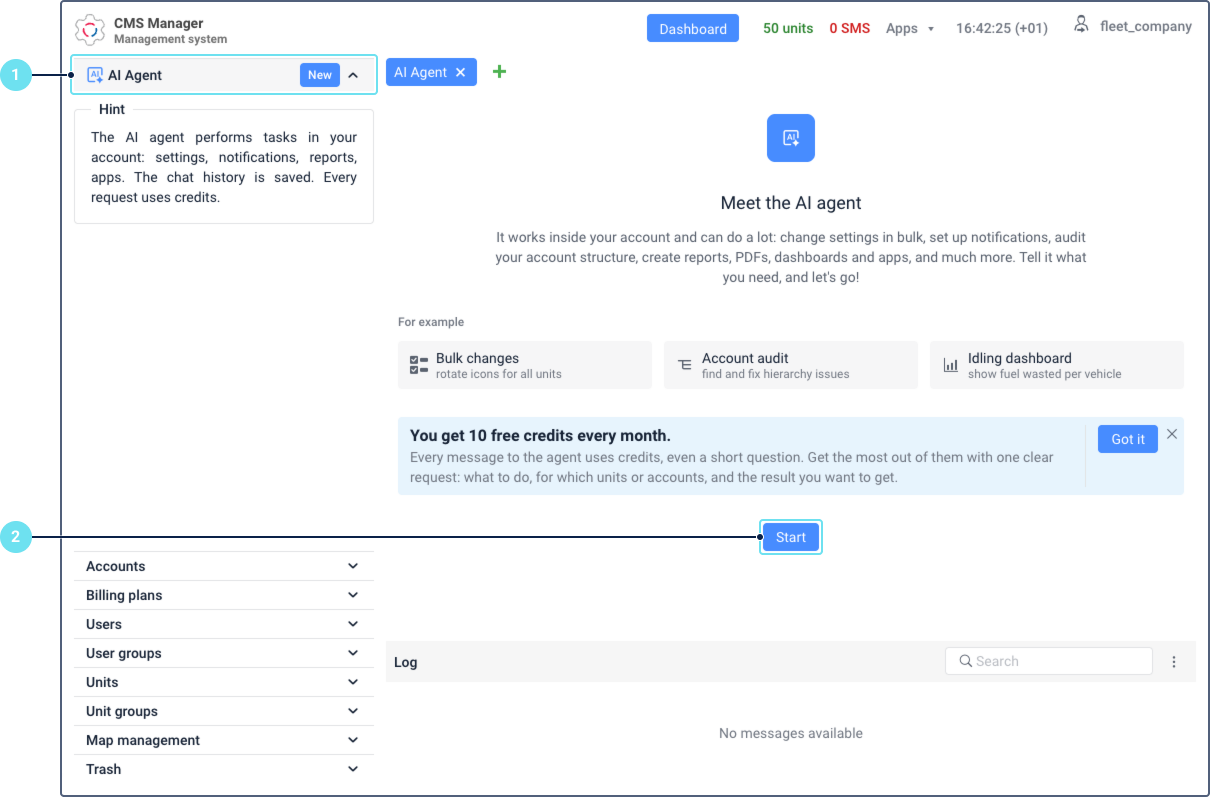
- Click Start. The system creates the agent. This can take some time.
- Enter your request in the chat.
You need to click Start only once. The next time you open the section, the chat opens with the previous history.
Giving tasks to the agent
Every message to the agent uses credits, even a short question. If the request isn’t clear, the agent asks questions, and each answer also uses credits. To get the result faster and use fewer credits, describe the whole task in one request.
The agent reads data from the account without confirmation. Before changing anything in the account, it asks for your approval.
To give the agent a task, follow these steps:
-
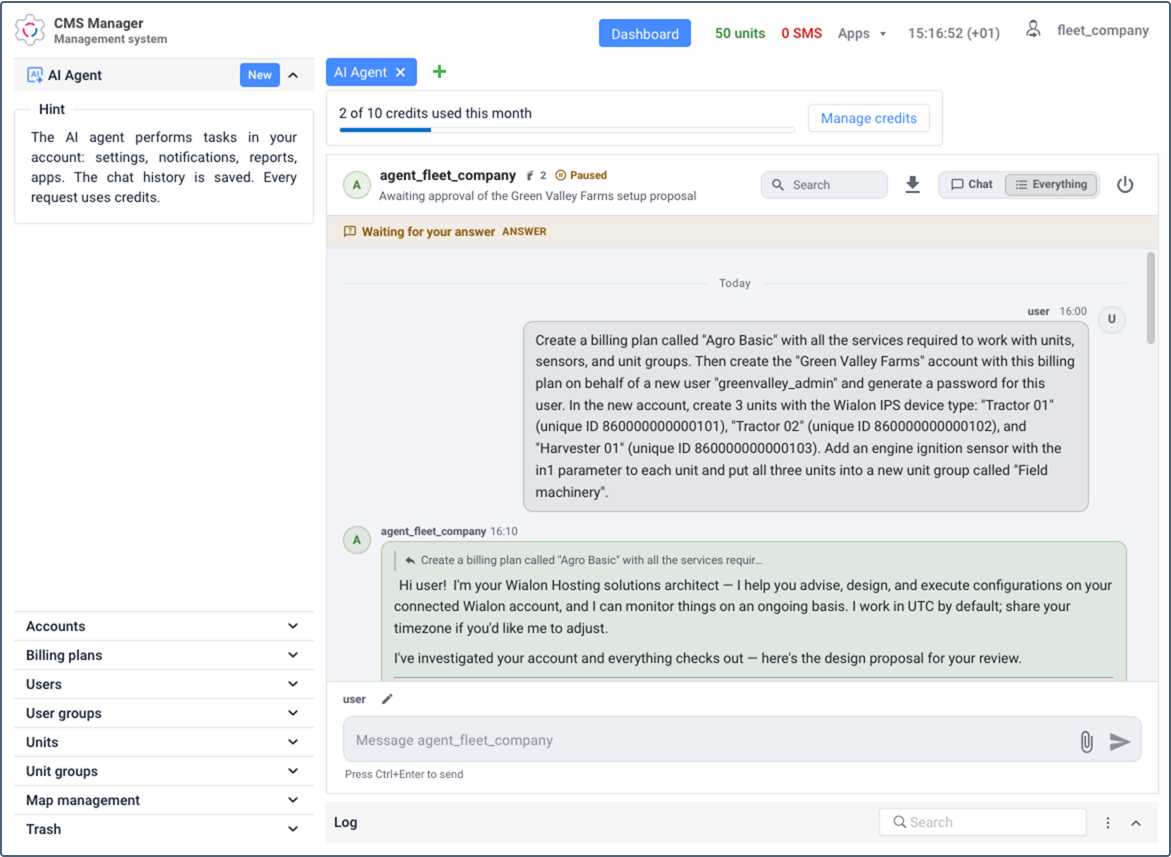
In the AI Agent section, enter your request in the chat. Include the following in the request:
- what the agent must do;
- in which account and for which objects: units, unit groups, users, and so on;
- what result you want to get: changed settings, a report, a file, or a list of objects.
Request example: In the “Client A” account, create a notification for all units in the “Delivery” group. The notification must send an email to dispatcher@example.com when the speed exceeds 90 km/h.
-
Send the message. The agent analyzes the request, collects the required data, and performs the task or suggests a solution.
-
If the agent asks questions, answer them in the chat.
-
If the task requires changes in the account, the agent describes the planned changes in the chat. Check them and confirm. If the changes aren’t what you need, don’t confirm them and clarify the request in the chat.
After you confirm the changes, the agent applies them.
By default, the result is shown in the chat as text or a table. You can also ask for it in another form: a file to download (for example, a PDF file, a CSV table or a KML file with geofences), a web page with charts or a map, or a whole web app that works with your Wialon data.
Managing the chat
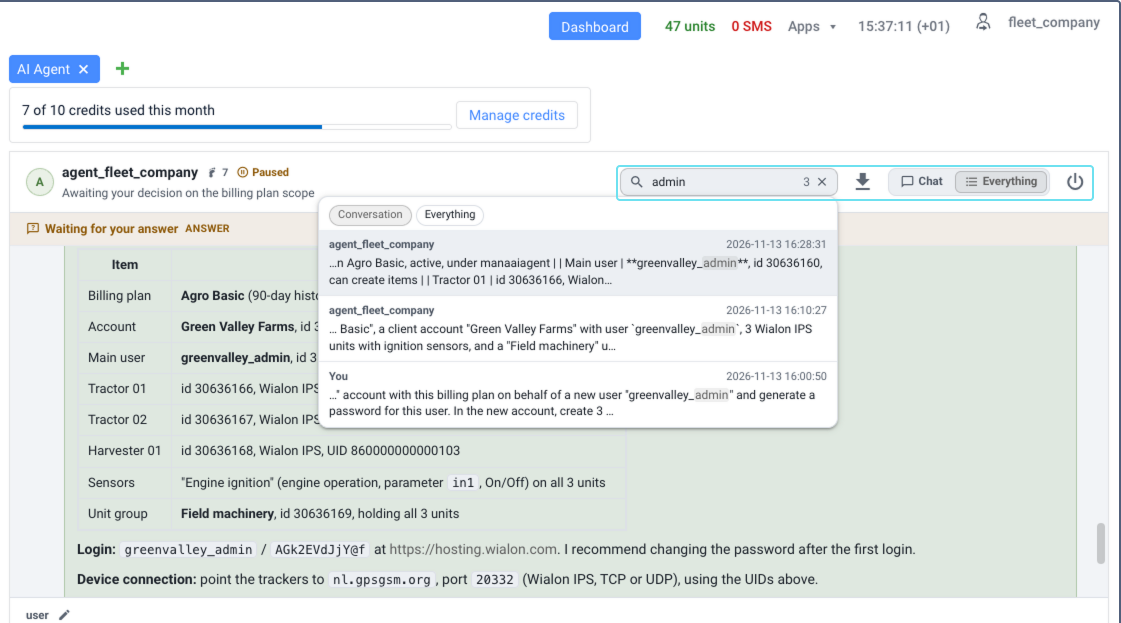
Above the chat, you can search for messages, change what the chat shows, download the chat history, and disable the agent.
| Action | Description |
|---|---|
| Search for messages | Enter the text in the search field. The found messages are shown in a list under the field, with the sender and the time of each message. To search only in your messages and the agent’s replies, select Conversation. To also search in the actions of the agent, select Everything. To go to a message in the chat, click it in the list. |
| Download the chat history | Click the icon  and select the file format: TXT or JSON. |
| Change the chat view | To see only your messages and the agent’s replies, select Chat. To also see the actions that the agent performs to complete the task, select Everything. |
| Disable or enable the agent | Click the icon  to switch off the agent. While it’s off, any messages you send wait in the chat and are processed once you switch the agent back on. |
Managing credits
The work of the agent is paid with credits. You get 10 free credits every month. After you use them up, you pay only for the credits you actually use, not for the whole monthly limit.
The monthly limit sets the maximum number of credits that can be spent in a month. When less than 1 credit is left, the agent stops processing requests until the limit is increased or a new month starts.
Checking credit usage
The counter above the chat shows how many credits are used this month out of the monthly limit, for example, 2 of 10 credits used this month. The counter updates every minute and resets at the start of each month.
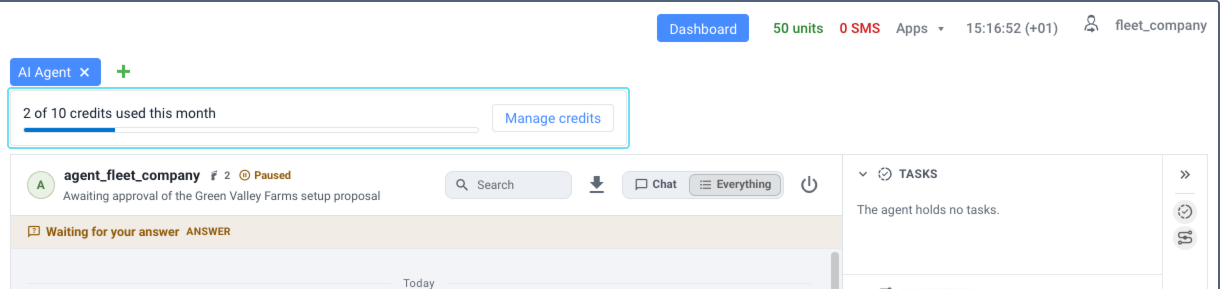
To see how many credits were used on each day, view the usage history.
Changing the monthly limit
Only the user who is the creator of the top account can change the monthly limit.
To change the limit, follow these steps:
- Above the chat, click Manage credits.
- In the Monthly credit limit field, enter the new value. It can’t be lower than the number of credits already used this month.
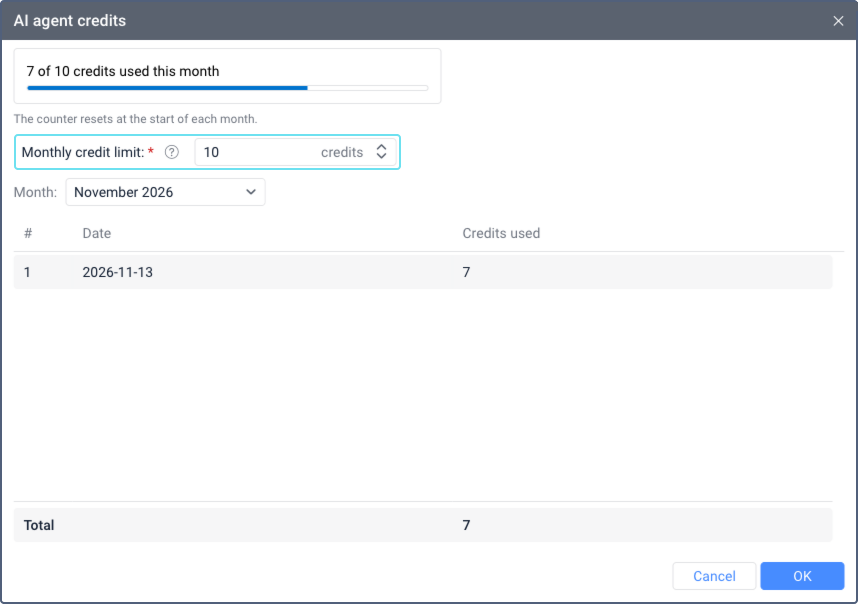
- Click OK.
The new limit applies immediately.
Viewing the usage history
To see how many credits were used on each day, follow these steps:
- Above the chat, click Manage credits. The AI agent credits window opens.
- In the Month list, select the month you need.
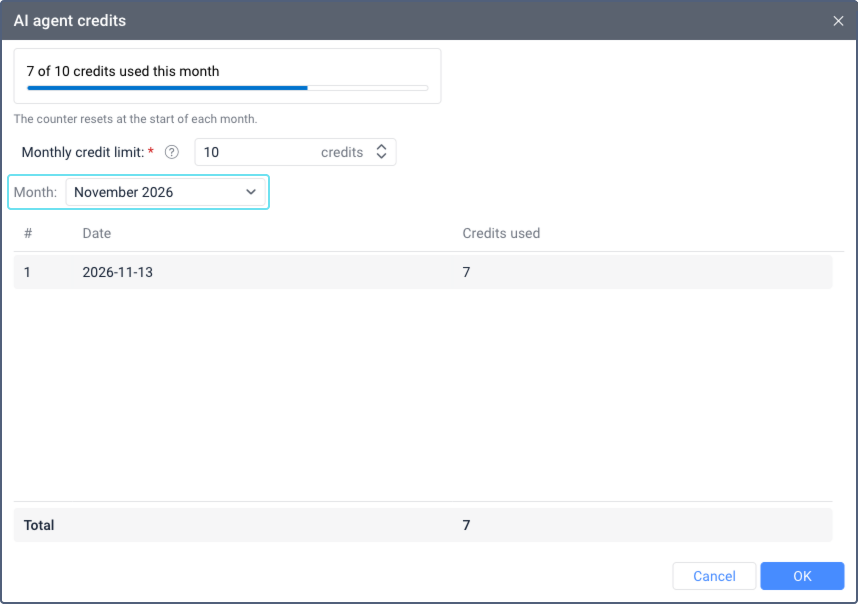
The table shows the number of credits used on each day of the selected month. The Total row shows the number of credits used in the whole month.
Continuing work when credits run out
When less than 1 credit is left for the current month, the agent stops processing requests, and the system displays a banner above the chat.
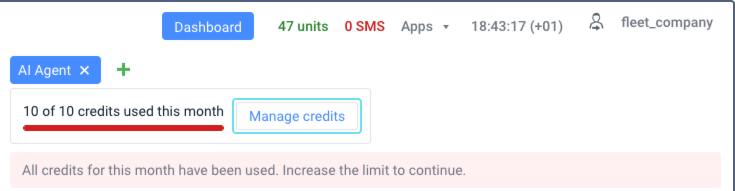
To continue working with the agent, increase the monthly limit:
- If you’re the creator of the top account, click Manage credits in the banner and enter a higher value.
- If you’re another user of the top account, ask the main user to increase the limit.
After the limit is increased, the agent continues working.