Unit dynamics
Unit dynamics shows statistics on the number of active units per account and subaccount for a selected period. This allows tracking unit counts for billing purposes.
To view unit dynamics for an account, go to the Accounts table in CMS Manager and click the icon  in the Unit dynamics column for the required account. This opens the Unit dynamics window.
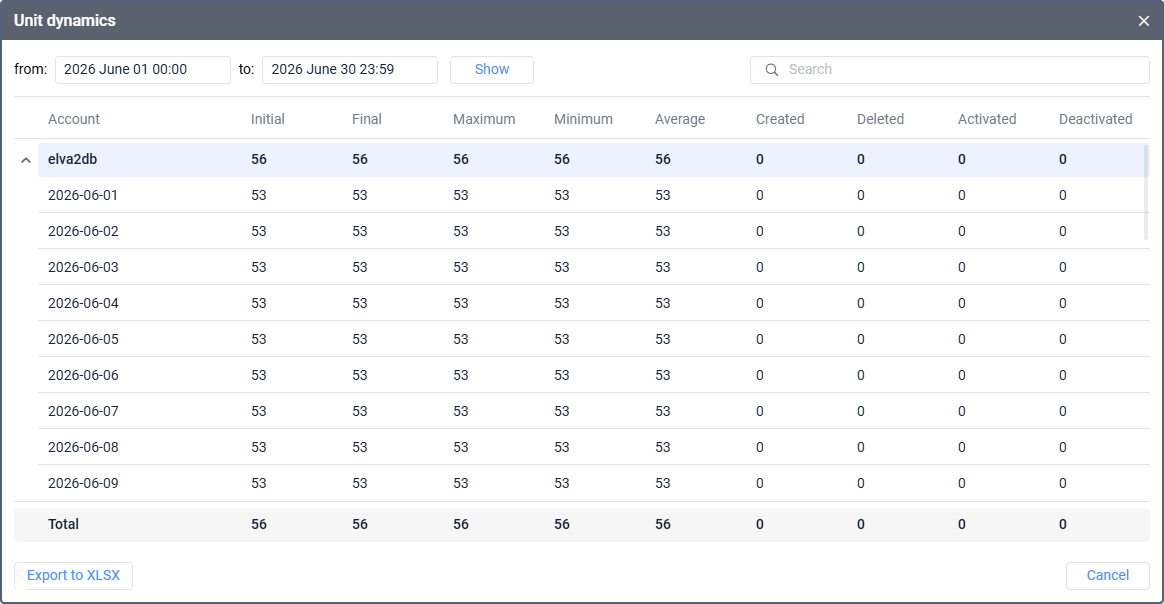
Selecting a period
At the top of the window, select the period using the from and to date pickers. Click Show to load the data for the selected period.
By default, the period is set to the previous calendar month.
Viewing unit dynamics
The table displays a hierarchical view of unit statistics with the following columns:
| Column | Description |
|---|---|
| Account | The account name. Expand this row to see unit statistics for each day of the selected period as well as for each subaccount. |
| Initial | The number of active units at the start of the period (or day). |
| Final | The number of active units at the end of the period (or day). |
| Maximum | The maximum number of active units during the period. |
| Minimum | The minimum number of active units during the period. |
| Average | The average number of active units over the period. |
| Created | The number of units created during the period (or day). |
| Deleted | The number of units deleted during the period (or day). |
| Activated | The number of units activated during the period (or day). |
| Deactivated | The number of units deactivated during the period (or day). |
The Total row at the bottom of the table shows the aggregated values across all accounts for the selected period.
Searching by account
Use the search field in the upper-right corner to filter the table by account name. Type the account name and press Enter to add a search chip. You can add multiple chips to search for several accounts at once. The results match any of the entered values.
To remove a single search chip, click the gray cross icon on the chip. To clear all chips, click the red cross icon on the right side of the search field.
While the search filter is active, the table shows matching rows as a flat list (without parent rows), and the Total row is hidden.
Exporting to XLSX
Click Export to XLSX to download the table data as an XLSX file. The exported file contains the full dataset for the selected period, including the hierarchy and the Total row. The active search filter doesn’t affect the export.