Setting notification limitations and schedule
This page describes the redesigned notification system with updated combining logic, flexible condition building blocks, and a new full-screen interface. If your account hasn’t been upgraded to the new notification system yet, refer to the previous version of the Notifications documentation.
You can set options limiting and scheduling notification triggering on the second step of notification creation or editing.
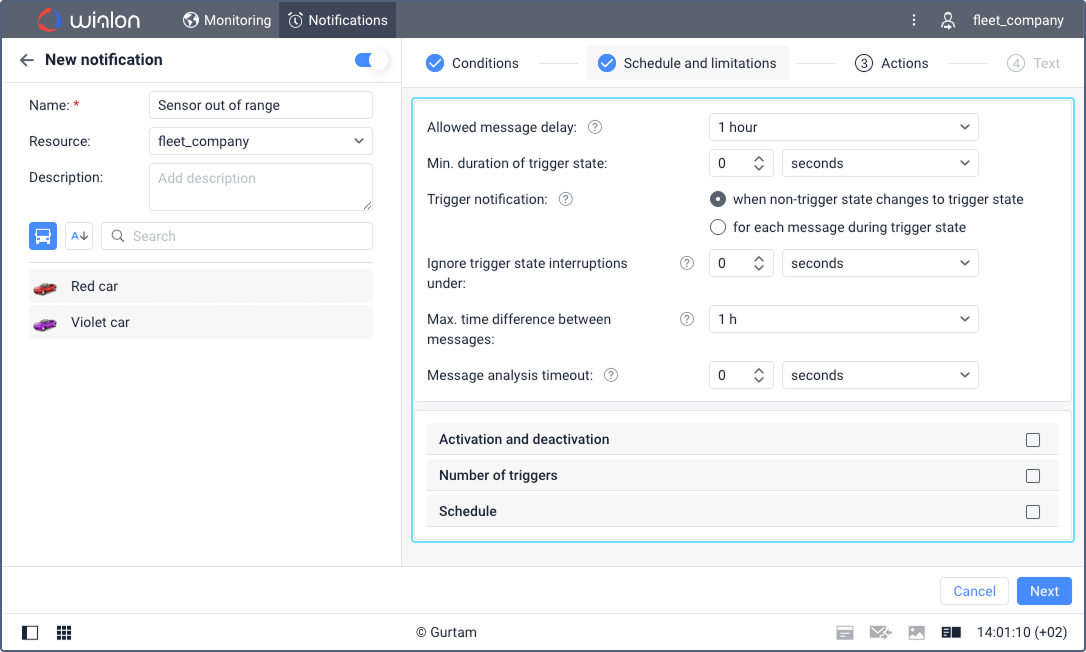
The following options are available.
Allowed message delay
(Previous name: Controlled period from current time)
The period between the time when the message was generated by the device and the time when it was registered on the server (see the table of data messages). If this value is exceeded, the message is not taken into account and the notification is not triggered.
For the Fuel drain, Fuel filling and Battery charging conditions, this parameter refers to the interval between the time of a filling, drain or battery charge (time of the maximum fuel or battery level difference) and the moment of their registration in real time.
It is advisable to indicate a delay of at least an hour because a shorter period may not be enough for data analysis.
Min. duration of trigger state
The parameter which allows you to prevent the accidental triggering of the notification caused by tracker errors (for example, in case of false exits from the geofence). You can also use this parameter, for example, to specify the minimum duration of speeding or other alarm states for which a notification should be triggered.
Specify the minimum duration of the alarm state in seconds, minutes or hours and select a unit of time in the drop-down list. The maximum allowed value is 24 hours (1440 minutes, 86,400 seconds).
This parameter is applied to all the notification triggering conditions at the same time. For example, you can combine conditions such as geofence entry or exit with speed threshold, sensor value requirements, and duration parameters.
Trigger notification
(Previous name: Generate notification)
The parameter which allows you to select when the notification should be triggered. Two options are available:
- when non-trigger state changes to trigger state
- for each message during trigger state
When non-trigger state changes to trigger state
To receive the notification only when a certain state of the unit changes, select the When non-trigger state changes to trigger state option.
If you select this option, make sure the unit state is not triggering at the moment you enable the notification.
The system monitors state changes by comparing every unit message with the previous one. If the last received message contains a parameter value which matches the conditions for triggering the notification and the previous message contains one which doesn’t, the notification will be triggered. In the case of the Sensor value range, Sensor value difference and Parameter in a message conditions, if the previous message doesn’t contain the required parameter or its value is invalid, the system analyses the 5 messages received before the last one. If there is a message with a valid value among them, it is used instead of the previous message.
The When non-trigger state changes to trigger state option applies to all the notification triggering conditions at once.
Example. A notification has been configured with three conditions. The first condition (Geofence entry) tracks the unit location within a geofence. The second condition (Custom speed range) is triggered when the speed exceeds 60 km/h. The third condition (Sensor value range) is triggered when a custom sensor value is between 5 and 10. The When non-trigger state changes to trigger state option is selected.
Such a notification is triggered in the following cases:
- when the unit enters the geofence at a speed exceeding 60 km/h, and the custom sensor value falls within the range of 5 to 10;
- when the unit has been in the geofence for some time, its speed is higher than 60 km/h, and the custom sensor value, which wasn’t within the specified range, changes to one that falls into it;
- when the unit has been in the geofence for some time, the custom sensor value falls within the range of 5 to 10, and the unit speed, which was lower than 60 km/h, changes to one that exceeds 60 km/h.
For each message during trigger state
Select this option if you want the notification to be triggered every time a message is received that meets the triggering conditions, even if the trigger state has not changed since the last message.
Ignore trigger state interruptions under
(Previous name: Min. duration of the previous state)
The setting is available if the When non-trigger state changes to trigger state option is selected for the Trigger notification parameter.
If the time which passes before the beginning of the triggering state is equal to or greater than specified in this parameter, a notification is triggered. This prevents repeated triggering in cases where the triggering state is interrupted for a short period of time.
Specify the minimum duration of the non-triggering state in seconds, minutes or hours, and select a unit of time in the drop-down list. The maximum allowed value is 24 hours (1440 minutes, 86,400 seconds).
Example. A user has configured a condition of the Custom speed range type with the range of allowed speed from 0 to 60 km/h. The specified minimum duration of the non-triggering state is 2 minutes. This means that if the speed is exceeded, the notification will be triggered only if there have been no speed limit violations for at least 2 minutes after the last triggering.
If a schedule is configured for the notification and the beginning of the previous state is outside the specified time frame, the system takes into account the entire interval of the previous state. That is, the notification will be triggered if this interval is greater than the specified value.
Max. time difference between messages
The drop-down list in which you should select the maximum time between the triggering message and the one that preceded it. Available if the When non-trigger state changes to trigger state option is selected for the Trigger notification parameter.
If the time difference between the triggering message and the previous message is greater than the selected one, the notification is not triggered.
Message analysis timeout
The time interval after receiving a message upon the expiration of which the message should be analyzed. The setting is available if the When non-trigger state changes to trigger state option is selected for the Trigger notification parameter.
It is advisable to specify a longer timeout if the device has a black box, because it may take time to unload all the messages accumulated in it during a connection loss (for example, when the unit was abroad).
Specify the timeout in seconds or minutes and select a unit of time in the drop-down list. The maximum allowed value is 30 minutes (1800 seconds).
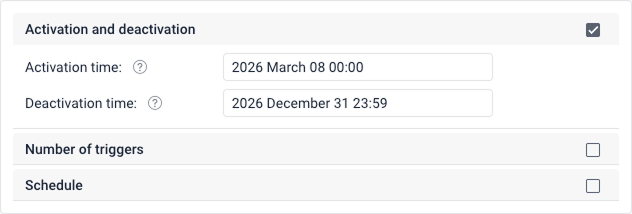
Activation and deactivation
Use this option if you want to limit the time period when the notification is enabled.
- Activation time: Beginning of time during which notification conditions are monitored and notification is triggered when triggering conditions are met.
- Deactivation time: End of this period. After this time the notification is disabled and can’t be triggered.
Number of triggers
In the Max. triggers field, set the maximum number of times the notification can be triggered. When this limit is reached, the notification is automatically disabled.
The option is applied to all notification triggers of all the units or unit groups controlled by this notification. For example, 5 is indicated in the Max. triggers field of the notification that controls 2 units. The notification is disabled when the sum of triggers for both units reaches 5.
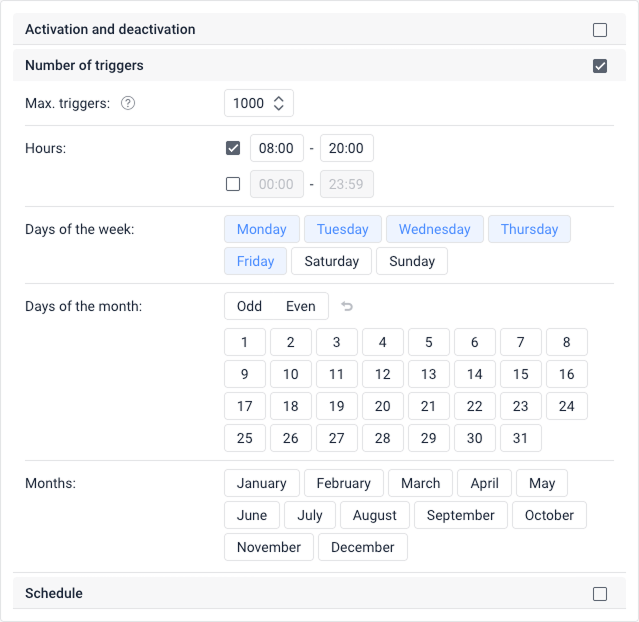
You can set a schedule for this parameter. In this case, the limit on triggers is applied only to the specified intervals. Outside of these intervals, the notification won’t be triggered at all, regardless of the unit activity.
When a notification is triggered, the time of message registration on the server is taken into account, and not the time of message generation. Therefore, when a message is sent from the black box, the notification can be triggered even if the message has been generated within the specified interval, and the limit on triggers has already been reached.
Schedule
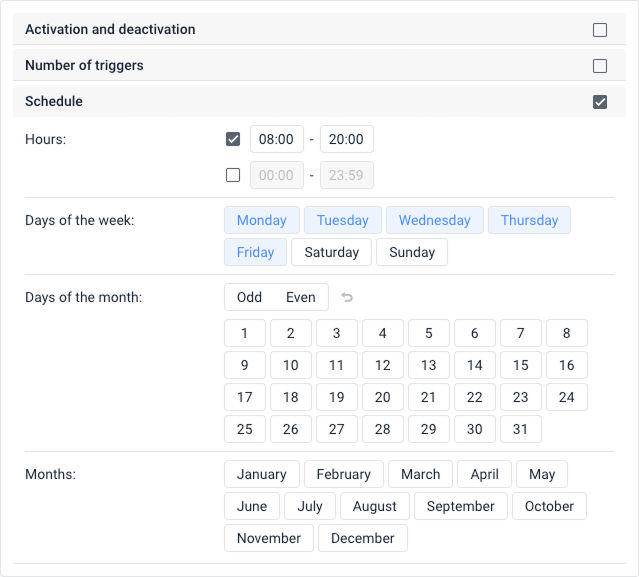
Use this section to define the specific time windows when the notification is active. Outside of these specified periods, the notification won’t be triggered.
Hours
Specify, during what time interval the notification conditions should be controlled within the day. You can specify two time intervals.
The last minute of the specified interval is included in the limit. For example, specifying a time limit of 00:00 to 13:59 will include an interval of 13:59:00 to 13:59:59.
To make the interval fields active, check the box next to them.
Days of the week
Select the days of the week on which the notification conditions should be controlled.
Days of the month
Select the dates on which the notification conditions should be monitored. To select all the odd or even dates at once, use the respective buttons. To clear the selection, click on the icon  .
.
Months
Select the months during which the notification parameters should be controlled.
If you specify a limitation only in the Hours section, the notification parameters are monitored during the specified intervals every day. If you select days and months in addition to the time intervals, the system controls the notification parameters during the specified intervals only on these days and months. If you specify a limitation only in the Months section, the notification parameters are constantly monitored during the selected months.