Managing notifications on the tab
This page describes the redesigned notification system with updated combining logic, flexible condition building blocks, and a new full-screen interface. If your account hasn’t been upgraded to the new notification system yet, refer to the previous version of the Notifications documentation.
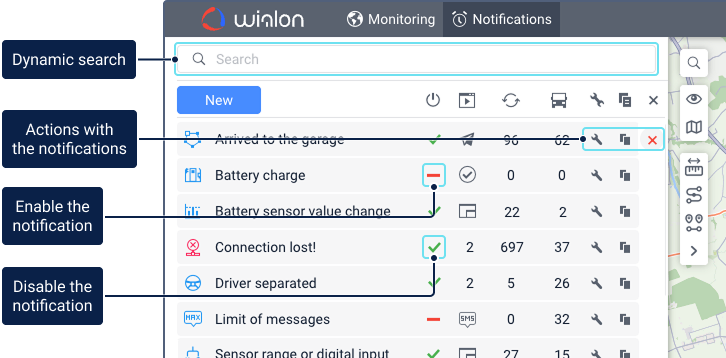
On the Notifications tab, you can see a list of all the available notifications. Above the list, there is the New button for creating notifications and a Search bar for dynamically finding notifications by different criteria. For details, see the Searching notifications page.
If the background of a notification in the list is orange (and accompanied by a red warning icon), it means that you should change its settings because it poses a threat to the performance of your system. This may occur for two reasons:
- the execution time of the notification exceeds 10 minutes (for example, when the specified time interval or number of units is too large in a notification with the Send a report by email action);
- the notification has been triggered more than 10,000 times within an hour (for example, when the For all messages option is unnecessarily enabled in the notification settings).
Notification list columns
In the list of notifications, the columns are represented by icons in the header. They provide the following information:
| Column/Icon | Description |
|---|---|
| Condition icon | The icon representing the specific condition (for example, speed, geofence, fuel, etc.). If a notification has multiple conditions, the icon is  . See Configuring conditions for a detailed description of conditions. . See Configuring conditions for a detailed description of conditions. |
| Name | The name given to the notification. |
 |
Indicates if the notification is enabled  or disabled or disabled  . Clicking it toggles the state. Use the icon in the header to change the state of all notifications at once. . Clicking it toggles the state. Use the icon in the header to change the state of all notifications at once. |
 |
Shows the action performed by the notification (for example, popup window, email, SMS). If several actions are configured, their number is shown. Hover over the number to view the list of actions. See Configuring actions for a detailed description of actions. |
 |
The number of times the notification has been triggered. |
 |
The number of units for which the notification is configured. Hover over the number to view unit names and icons. |
Actions with notifications
You can perform the following actions for each notification using the icons in the list:
| Icon | Action |
|---|---|
|
Disable the notification (the icon changes to as a result). |
|
Enable the notification (the icon changes to as a result). |
 / / |
Edit the notification parameters, or view them if you don’t have the Create, edit and delete notifications access right. |
 |
Copy the notification, that is, create a new notification using the current one as a template. |
 |
Delete the notification. |
Notification tooltip
Hovering over a notification displays a tooltip showing its specific parameters. The tooltip contains:
- Icon: Condition icon.
- Name: Displayed in bold at the top of the tooltip.
- Control type: The condition or combination of conditions (including AND or/and OR operators) that trigger the notification.
- Actions: The list of actions performed when triggered (for example, Display online notification in a popup window, Send a request).
- Text: The actual notification text configured, including any tags.
- Resource: The resource to which the notification belongs.