Assigning billing plans to customers
Who can do it: Service provider
Where: Wialon Platform Studio
To make Wialon Platform features available to your customers, assign them suitable billing plans.
To assign a billing plan, follow the steps below:
- In Wialon Platform Studio, open the Customers page.
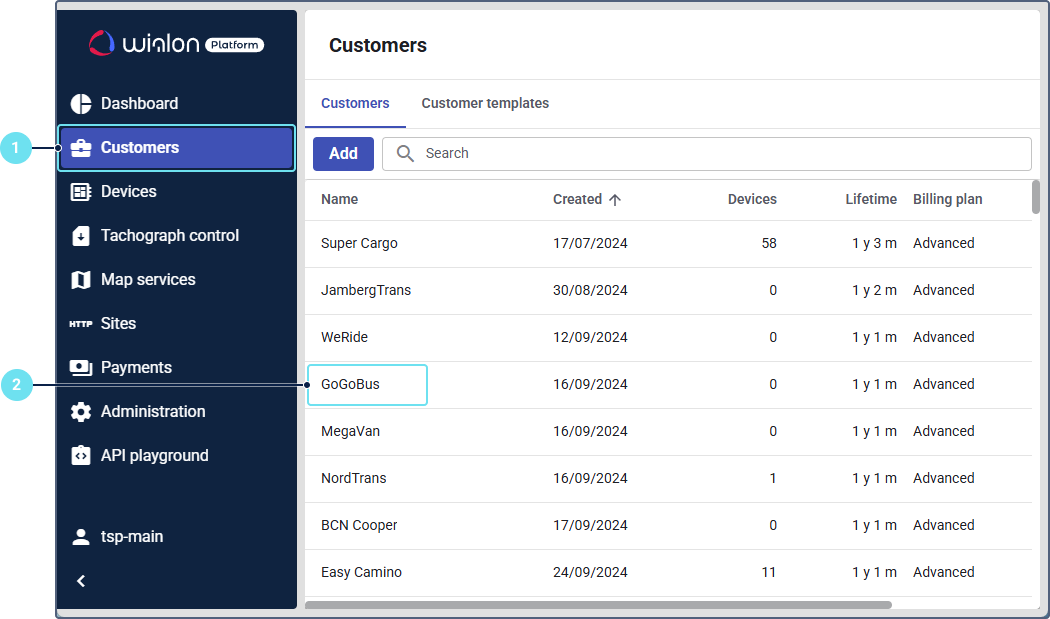
- Select the customer to whom you want to assign the billing plan.
- In the Billing plan configuration section, click Select.
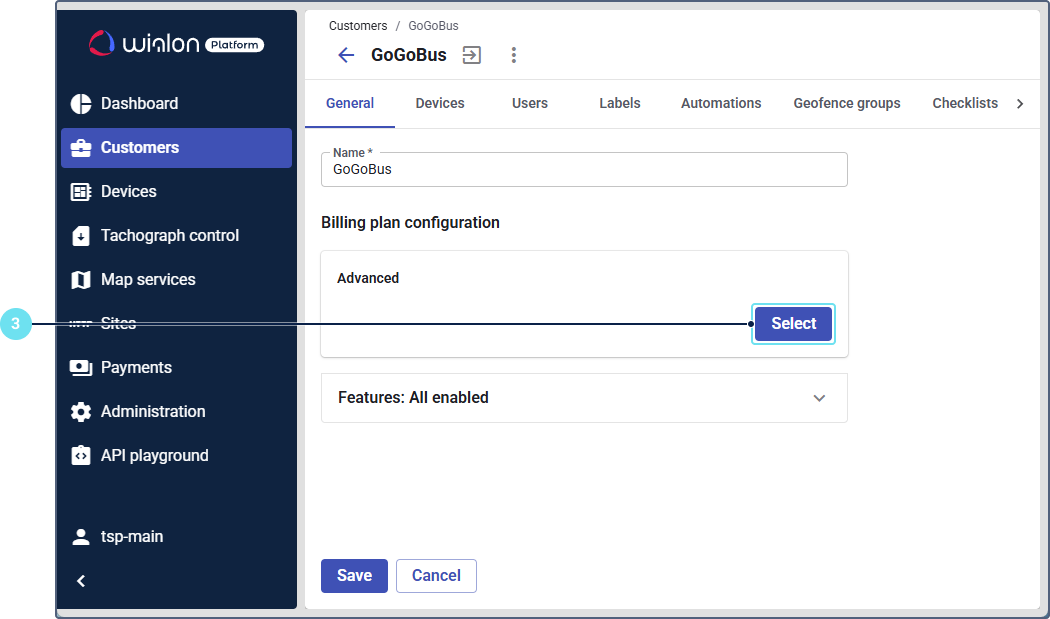
- Select the billing plan suitable for this customer. There are two billing plans you can choose from:
| Billing plan | Description |
|---|---|
| Fleet digitalization | Provides functionality for GPS tracking, route monitoring, driver management, operational control, automation and more. Included features:
|
| Indoor asset tracking | Provides functionality for tracking and monitoring assets inside buildings such as factories, hospitals, rental depots, and other large facilities. Includes the Indoor module. |
- For Fleet digitalization, you can disable some features in the Features section. In this way, you can decide what features will be available to the customer after assigning this billing plan to them. By default, all features are enabled.
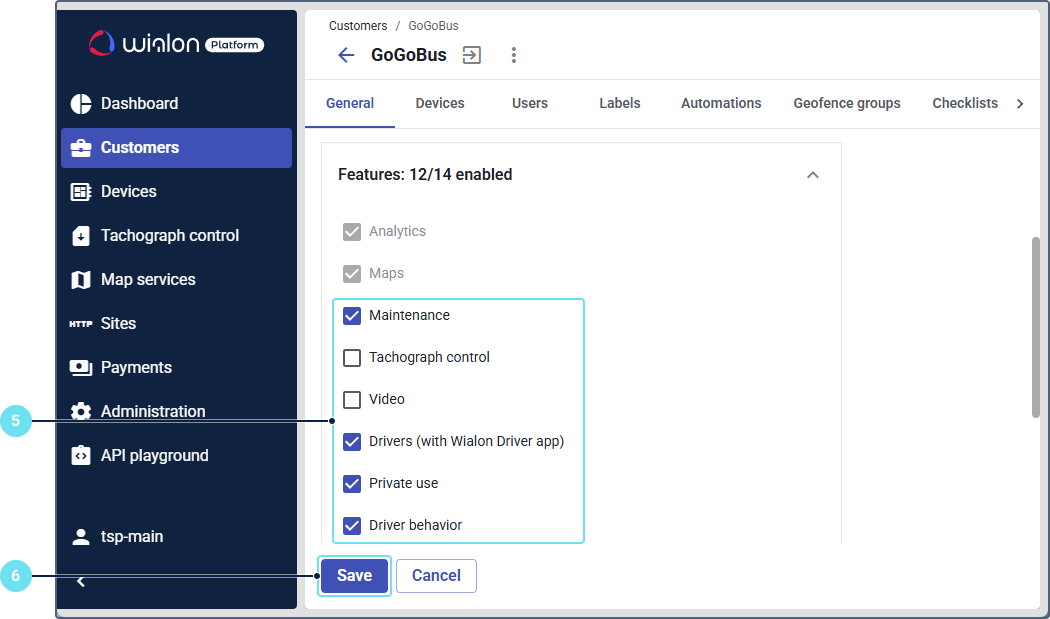
- Click Save to apply the changes.
After that, the selected billing plan is assigned to the customer and they can access the enabled features.