Managing device properties
Who can do it: Service provider
Where: Wialon Platform Studio
After a device is created, you can manage its settings and data streams through its properties. To access them, go to the Devices page and click on the required device from the list.
The device properties are organized into several tabs described below.
General
The General tab provides the primary configuration for a device, including basic identification and operational settings. Enter the general vehicle properties when you create a device. After you save the device, you can add more properties in the general section and add detailed identifiers and physical characteristics under the following separate sections:
- Vehicle identification and control
- Energy and emissions
- Vehicle physical characteristics
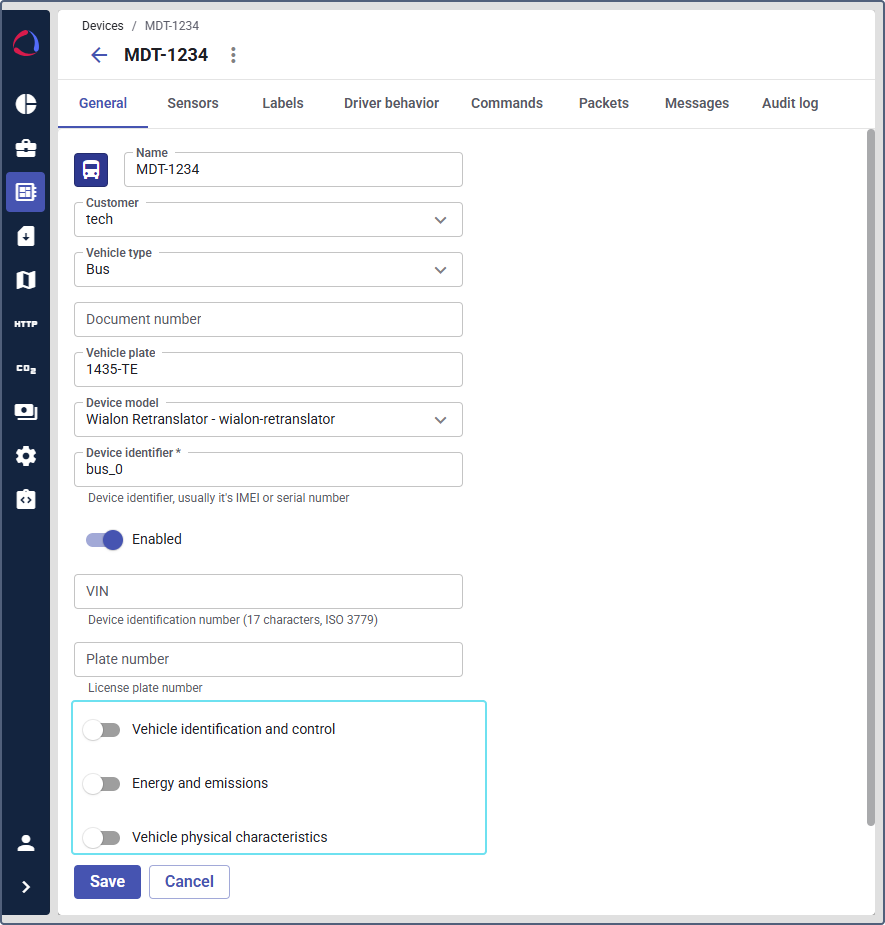
The following fields are available for an existing device under the general section:
- Document number: The vehicle registration certificate (technical passport) number.
- Vehicle plate: The primary license plate of the vehicle.
- VIN: Vehicle Identification Number (17 characters, ISO 3779 format, numbers and uppercase letters excluding I, O, Q). The VIN can be entered manually or filled in automatically from incoming telemetry data. If the VIN received from telemetry doesn’t match the value entered manually, the platform displays a mismatch indicator next to the field.
- Plate number: Secondary license plate field.
Vehicle identification and control
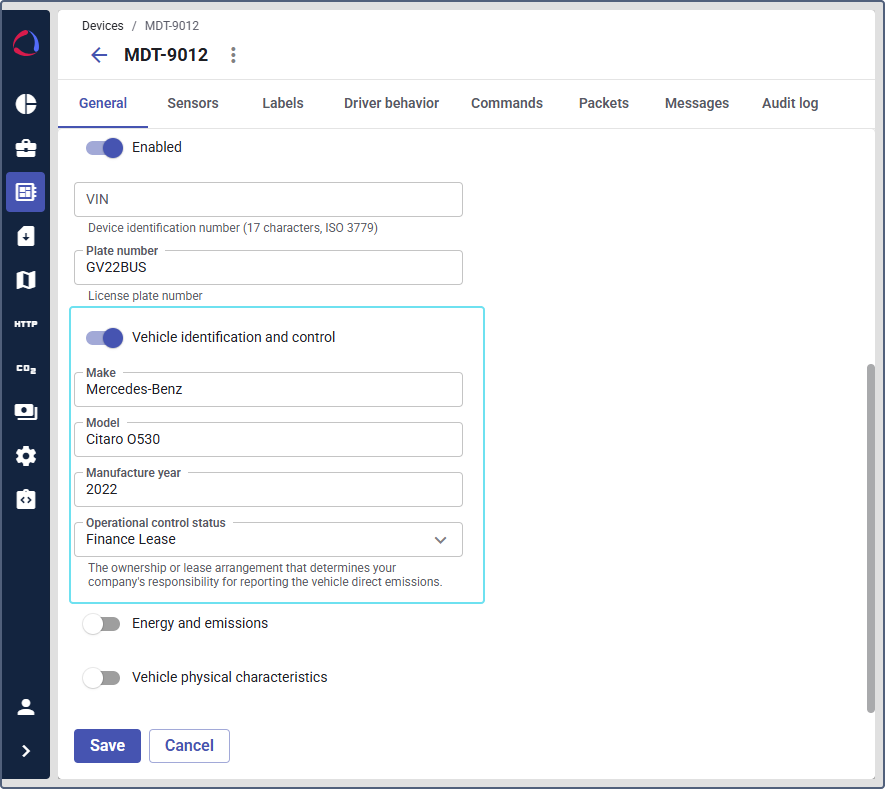
To show extended vehicle fields, enable the Vehicle identification and control toggle and provide the following information:
- Make: The vehicle manufacturer. For example, Mercedez-Benz.
- Model: The vehicle model. For example, Citaro G (O530).
- Manufacture year: The year the vehicle was produced. For example, 2022.
- Operational control status: Ownership or lease arrangement used for emissions reporting. Click to select from the list: Owned, Finance lease or Operating lease (Controlled).
Energy and emissions
This section is available only if the Emissions module is enabled for the customer.
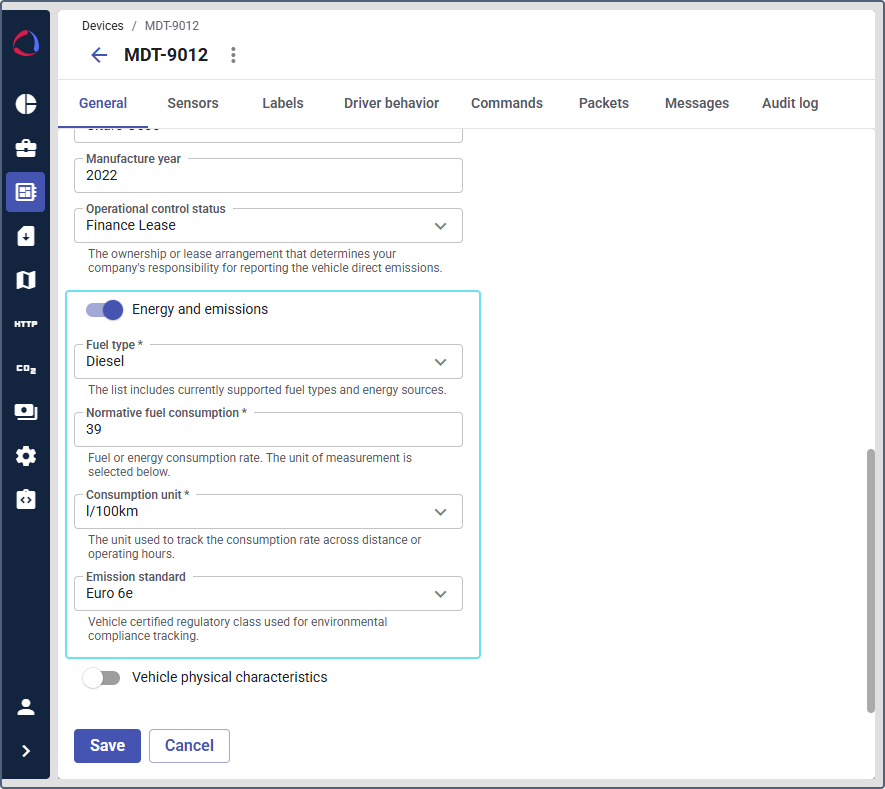
To show the fields in this section, enable the Energy and emissions toggle and provide the following information:
- Fuel type (required): The fuel or energy source for the vehicle. Available options are: Gasoline, Diesel, Biodiesel, Hybrid, Electric, Petrol, LNG, or LPG. This field is required to calculate emissions.
- Normative fuel consumption (required): The fuel or energy consumption rate for the device. Enter the value in whole or decimal numbers (for example, 32.5). The unit of measurement is selected in the Consumption unit field below. Use the value from your operational experience or the vehicle manufacturer’s technical specifications. This value is used to estimate emissions when the fuel volume sensor isn’t configured or doesn’t provide sufficient data.
- Consumption unit (required): The unit used to track the consumption rate across distance or operating hours. Available options are: l/100km (liters per 100 kilometers) or l/1eh (liters per 1 engine hour).
- Emission standard (optional): The regulatory emission class for environmental compliance. The following emission standard options are available:
- Europe (EU): Euro 1, Euro 2, Euro 3, Euro 4, Euro 5a, Euro 5b, Euro 6b, Euro 6c, Euro 6d-Temp, Euro 6d, Euro 6e, Euro 7.
- USA Federal (EPA Tier): Tier 0, Tier 1, Tier 2, Tier 3, Tier 4.
- USA California (CARB LEV/ZEV): LEV I, LEV II, LEV III, LEV IV, ZEV.
The platform uses two data sources to calculate emissions: actual fuel consumption from the fuel volume sensor and estimated consumption based on mileage or engine hours. If the fuel volume sensor data is available, the platform uses it. Otherwise, it falls back to the normative fuel consumption specified here. For details on how emissions are calculated, see Emissions.
Vehicle physical characteristics
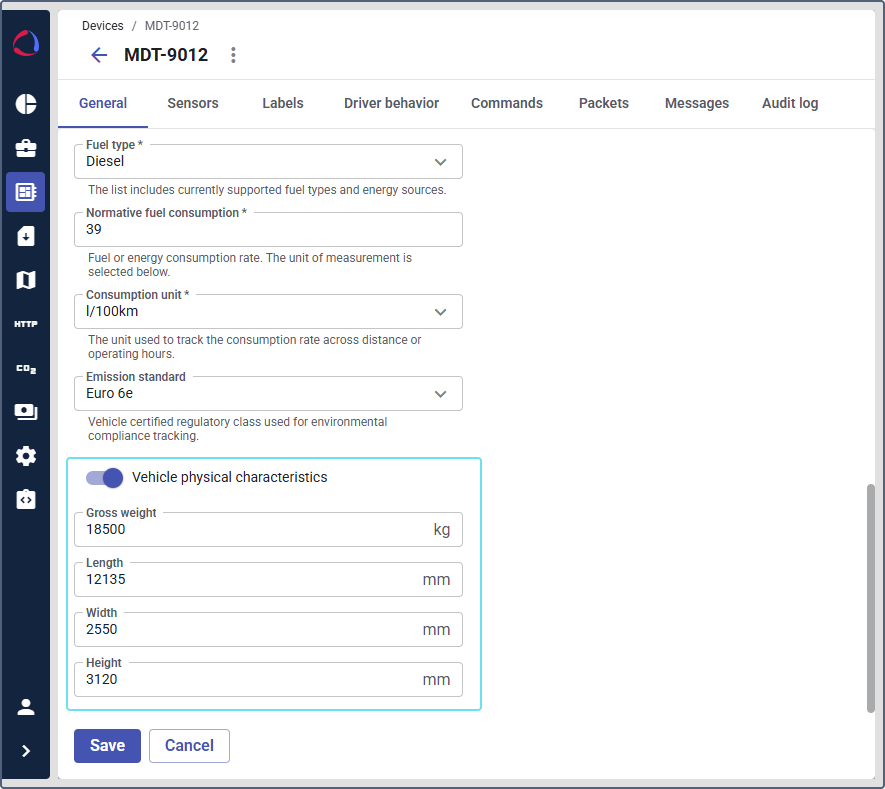
To show the vehicle dimensions and weight, enable the Vehicle physical characteristics toggle and provide the following information:
- Gross weight: Total weight of the vehicle in kilograms (kg).
- Length: Vehicle length in millimeters (mm).
- Width: Vehicle width in millimeters (mm).
- Height: Vehicle height in millimeters (mm).
Customizing the device color and icon
You can set a custom icon and color for each device. The selected icon and color are displayed for this device in the device list, device details, and on the map in both Wialon Platform FleetSpace and the Wialon Platform mobile app.
To customize the device icon:
- Navigate to the Devices page and select the device.
- On the General tab, click the device icon next to the Name field.
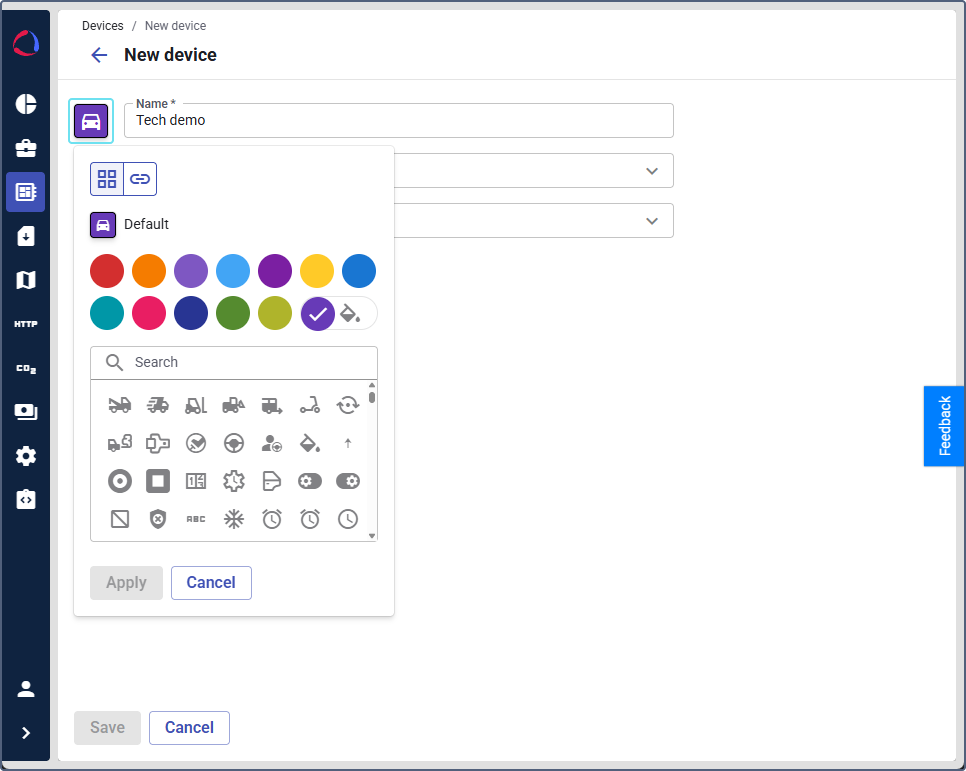
- In the icon settings, select a color for the device icon. Select one of the available colors from the palette (red, orange, blue, light blue, purple, yellow, teal, pink, olive, green, or dark blue) or set a custom one.
- (Optional): To set a custom color, click the color picker icon
 at the end of the color palette to open the color picker. In the color picker, you can:
- Enter a HEX color code (for example,
#673ab7) in the input field at the top. - Drag the pointer across the gradient area to adjust the saturation and brightness.
- Use the hue slider at the bottom to select the base color. Click Apply to confirm the custom color, or Cancel to discard it. To return to the preset color palette, click the back arrow.
- Enter a HEX color code (for example,
- Select an icon from the gallery below. Use the Search bar to filter the available icons by name. The gallery includes icons for various vehicle types (cars, trucks, buses, vans, tractors, motorcycles) and other vehicle categories.
- Click Apply to save the changes, or Cancel to discard them.
- Select an icon from the gallery below. Use the Search bar to filter the available icons by name. The gallery includes icons for various vehicle types (cars, trucks, buses, vans, tractors, motorcycles) and other asset categories.
- Click Apply to save the changes, or Cancel to discard them.
The Default section at the top of the window cancels all the custom settings and sets the default configuration.
The icon and color you set here define the base appearance of the device. On the map, the icon shape can change dynamically based on the device movement state.
Sensors
The Sensors tab allows you to configure how the platform interprets raw data from the device. This is where you map raw data channels to meaningful parameters. See how to configure sensors on the Configuring sensors page.
Labels
Here you can assign labels to categorize the device (for example, Truck, Van, or Car).
Driver behavior
Link the device to specific driver behavior criteria presets to monitor driving quality.
Packets
The Packets tab is a service tab for technical diagnostics. This tab can be used by developers and support staff to troubleshoot connectivity issues and verify the raw data stream. It displays the raw data packets as they are received by the platform from the device.
The data is shown with timestamps (for example, 2025-10-28 18:41:51.106 +02) and indicates whether the packet was set or received, along with the size and the raw hexadecimal content of the packet.
By default, the tab displays packets received during the last two hours. You can change this period using the date picker. The selected period is also applied to the Messages tab while the device details remain open.
Messages
The Messages tab is used for technical diagnostics, allowing you to view the parsed messages received from the device. The messages are listed in a table format with fields such as Time, Server time, Speed, Address, Satellites, and Other data. To use the tab:
- In the date picker, select the period for which you want to see the received messages.
- Click the message row.
- See the parsed parameters on the Message details pane on the right. To quickly find the required parameter, start typing its name in the search field.
- Verify the device data.
By default, the tab displays messages received during the last two hours. You can change this period using the date picker. The selected period is also applied to the Packets tab while the device details remain open.
You can create sensors from parameters on the Message details pane.
You can download the message table in CSV format by clicking the CSV button.
Commands
On this tab, you can view and manage the commands available for the device. The list of available commands varies depending on the protocol the device is using. To learn more about the device commands, see the Commands section for your protocol in flespi documentation.
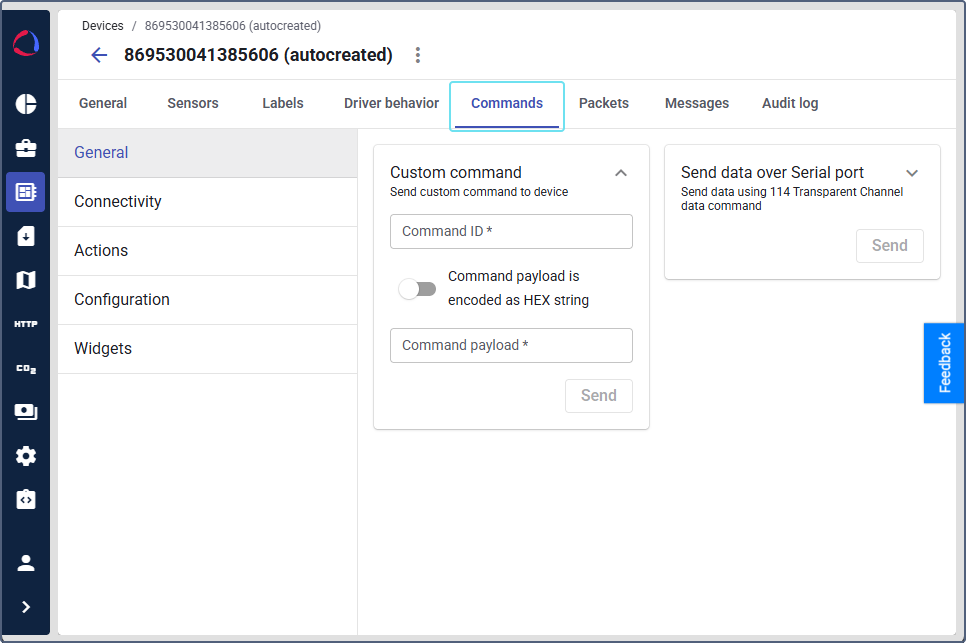
Commands are organized into sections in a side navigation menu. Depending on the device type, the menu can consist of different sections. The most common sections are General, Actions, Configuration and Widgets.
Click a section name in the side menu to view the commands it contains. Related commands (for example, get and send variants of the same command) are grouped together under a single entry.
To find a specific command, use the search by name, title or description. The search field is available in sections that contain more than 6 commands.
Audit log
Here you can track all changes made to the device’s properties. The tab provides a complete history of who did what and when.