Setting up an account for indoor asset tracking
Who can do it: Service provider
Where: Wialon Platform Studio
Before your client can track assets inside their building, create a customer account for them, assign the Indoor asset tracking billing plan, and add users.
Adding users to your service provider account
To let your colleagues manage indoor customers, invite them to your service provider account and assign roles. For details, see Inviting users with specific roles to Wialon Platform.
Creating a customer
One customer can represent a single building or a company that manages several buildings.
You can assign the Indoor asset tracking plan only when you create the customer. After that, you can’t change the plan or turn off the
indoorfeature. To move a client to another plan, create a new customer account for them.
-
In Wialon Platform Studio, open the Customers page.
-
Click New customer.
-
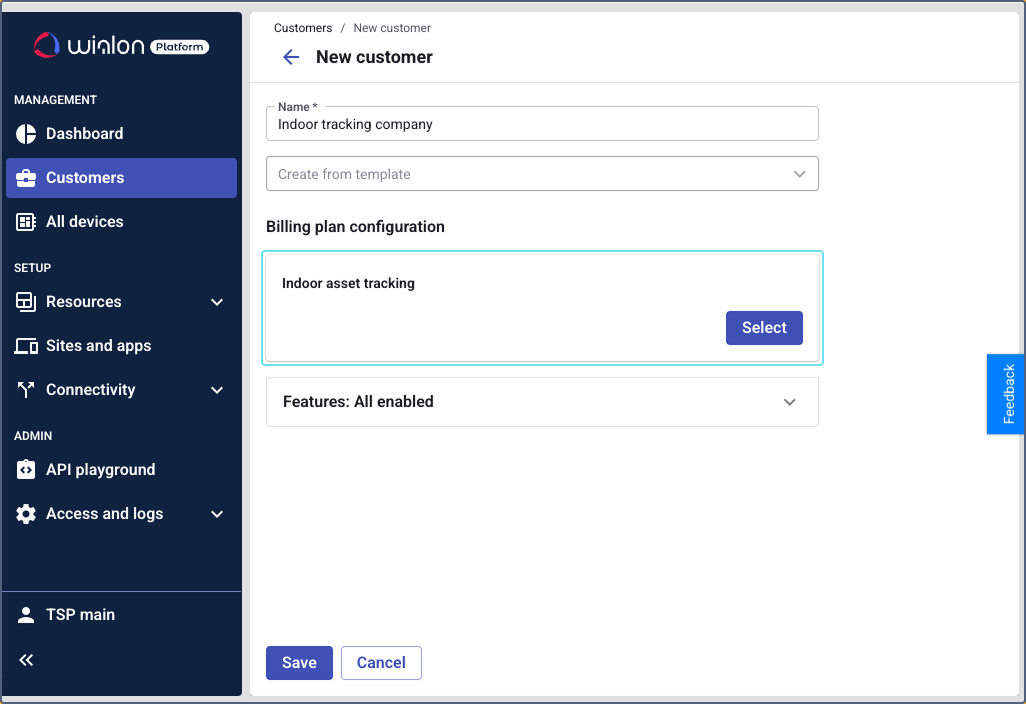
Enter the customer name.
-
In the Billing plan configuration section, click Select.
-
Select the Indoor asset tracking plan and click Save.
-
Click Save to apply the changes.
The Indoor asset tracking plan contains one feature, indoor, which is always enabled, so the Features section can’t be edited. After that, the customer gets access to the Live View, Buildings, Assets, and Tags pages in Wialon Platform FleetSpace.
Customer templates don’t support the Indoor plan. Create each indoor customer individually.
Creating users for the customer
Create at least one user so your client can log in to Wialon Platform FleetSpace.
- Open the customer and go to the Users tab.
- Click New user.
- Enter the user name and set a password.
- Click Next.
- Click Copy and save to copy the login credentials and create the user.
- Share the copied credentials with the user.
For details, see Creating customer users.
Granting permissions on indoor entities
Permissions define what your customer users can see and change in Wialon Platform FleetSpace. You can grant them separately for each type of indoor entity.
-
Open the customer and go to the Users tab.
-
Select the user.
-
Open the Permissions tab and go to the Entities section.
-
For each entity type, select the required checkboxes: View, Update, Create, Delete. When you select any permission, the View permission is selected automatically. If you clear the View checkbox, all permissions for that entity are removed.
Entity What the user can manage Assets Assets on the Assets page, including pairing them with tags. Asset categories Categories on the Categories tab of the Assets page. Buildings Buildings on the Buildings page. Floors Floor plans, their scale, and their properties. Zones Zones drawn on floor plans. Anchors Anchors and their positions on floor plans. Gateways Gateways and their positions on floor plans. Tags Tags on the Tags page. 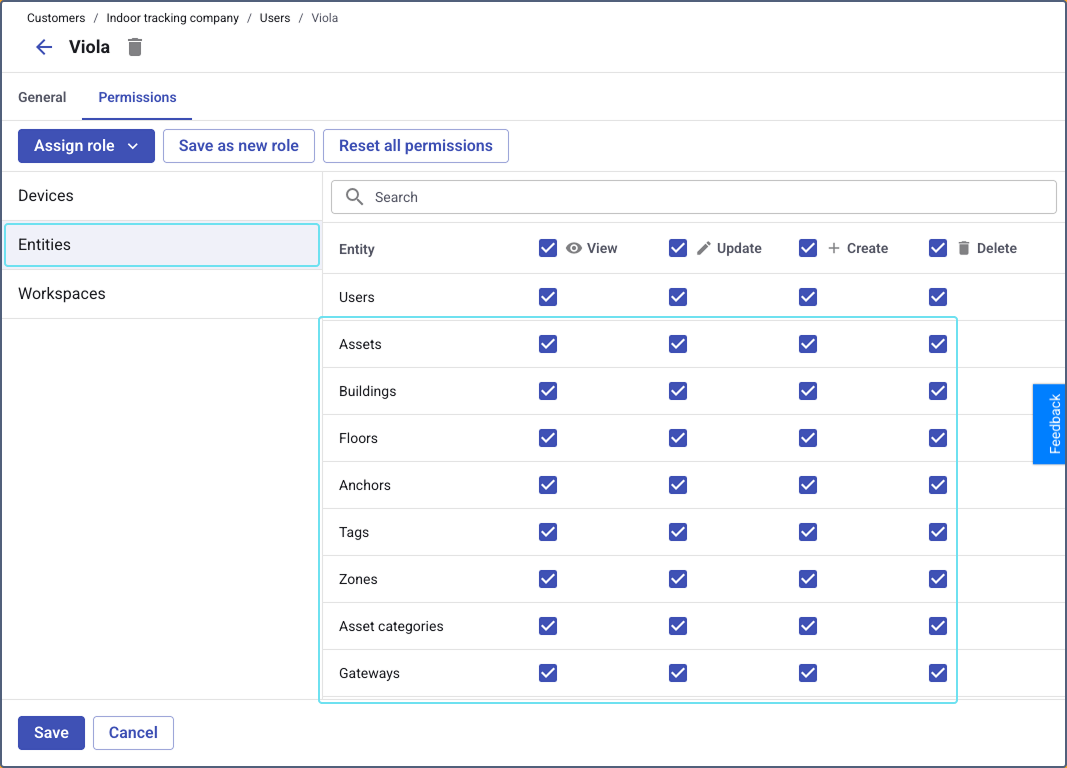
-
Click Save.
For example, give your client’s warehouse manager full access to assets and tags, but view-only access to buildings, so they can’t change the floor plans by mistake.
These permissions appear only after you assign the Indoor billing plan to the customer.
For details, see Managing user permissions.