Adding the “Create tracking link” widget
Who can do it: Service provider
Where: Wialon Platform FleetSpace
To allow customers to create tracking links directly from the device list and device details, you can configure the Create tracking link action widget in Wialon Platform FleetSpace. This widget provides an alternative way to create tracking links without navigating to the Location share page.
You can add the Create tracking link action to the following sections:
- Device list
- Device details
In the device list
To add the Create tracking link widget to the device list:
-
In Wialon Platform FleetSpace, navigate to the Devices page.
-
Click the icon
 in the sidebar to enable the editor mode.
 -
Click the icon
 or
or  in any device row.
 -
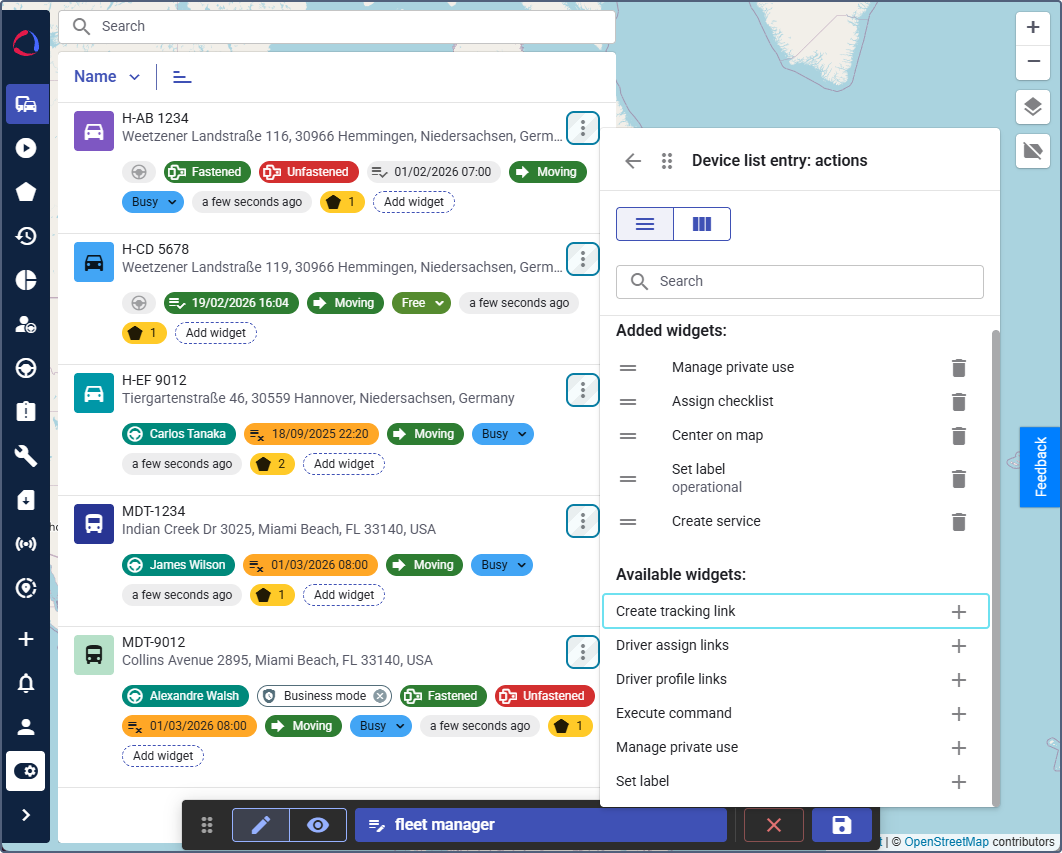
In the Device list entry: actions panel, find the Create tracking link widget in the Available widgets list. To quickly find the widget, start typing its name in the Search bar.
-
Click the icon
next to it. -
Click the icon
 to save the changes.
These settings apply to all devices in the device list. After saving, the Create tracking link option appears in the context menu of each device row.
to save the changes.
These settings apply to all devices in the device list. After saving, the Create tracking link option appears in the context menu of each device row.
In the device details
To add the Create tracking link widget to the device details:
- In Wialon Platform FleetSpace, navigate to the Devices page and click on any device to open the device details.
- Click the icon in the sidebar to enable the editor mode.
- Click the icon in the device details.
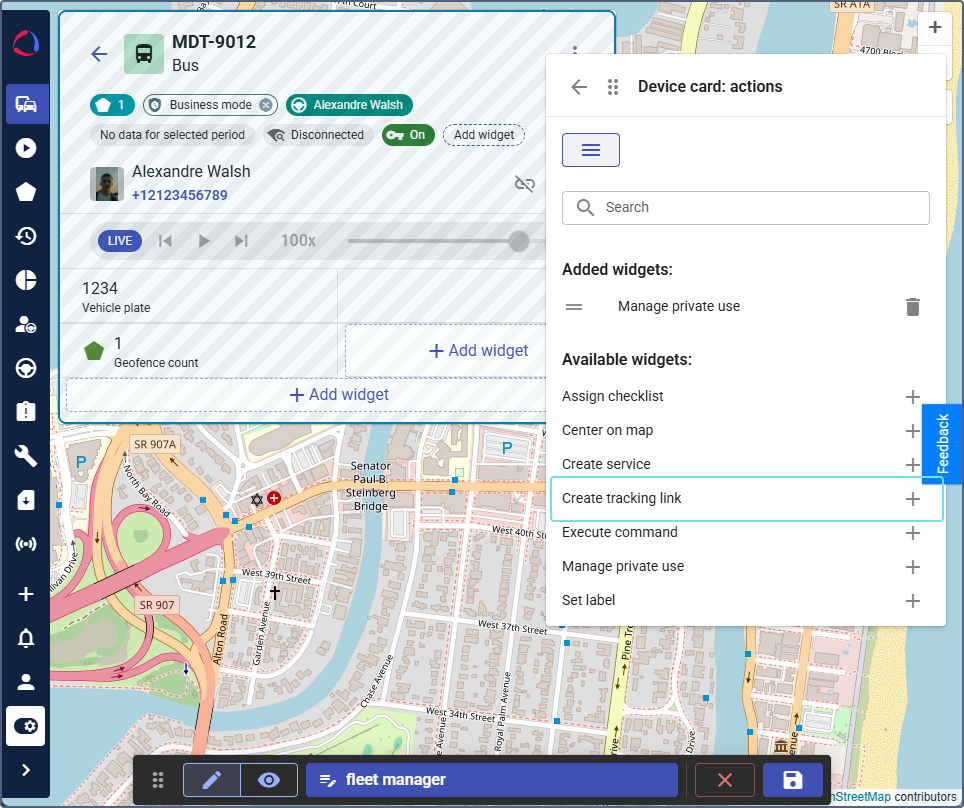
- Under the Available widgets section, locate the Create tracking link widget. To quickly find the widget, start typing its name in the Search bar.
- Click the icon next to it.
- Click the icon to save the changes.
This setting applies to the details view of all devices.
Using the widget
After the widget is added, customers can create tracking links directly from the device list or device details. For detailed instructions on creating a tracking link using the widget, see Creating and editing tracking links.