Building and managing app versions
Who can do it: Service provider
Where: Wialon Platform Studio
After configuring the app branding and app identity for both Android and iOS, you can build the white-labeled app. The system generates the app binaries that you can download and submit to app stores.
The build process is the same for the Wialon Driver and Wialon Platform mobile apps. Builds of each app type are listed on their own tab of the Sites and apps page.
Building the app
To build the white-labeled Wialon Driver or Wialon Platform app:
-
Open the App settings tab of the Wialon Driver or Wialon Platform app details.
-
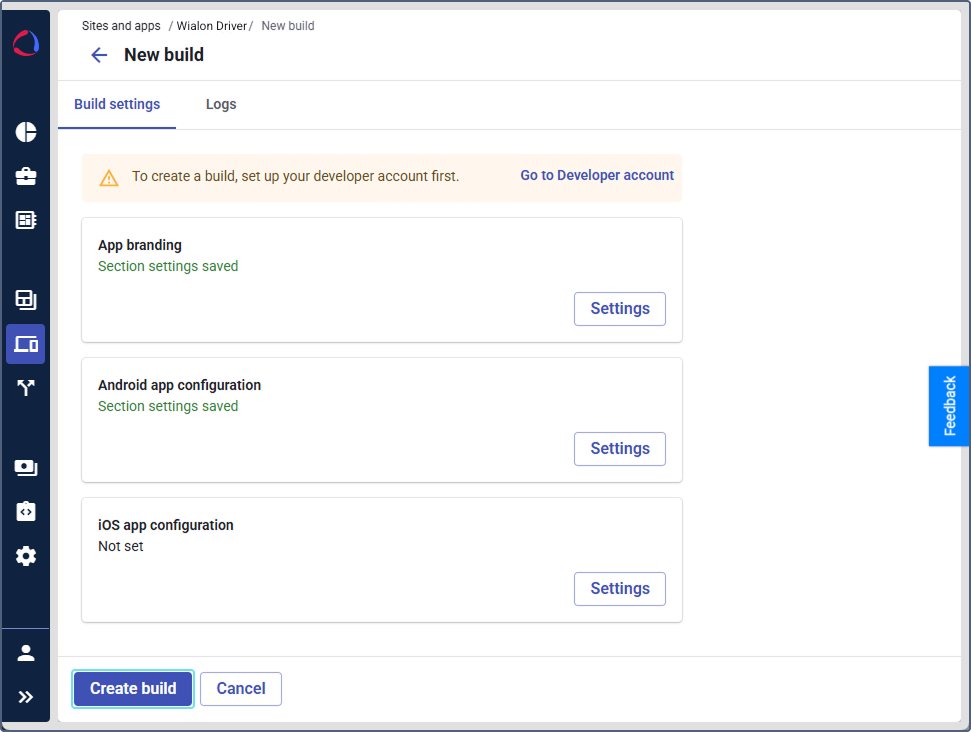
Verify that the App branding and at least one app configuration section (Android app configuration, iOS app configuration, or both) show a configured status.
-
Click Create app.
-
The system starts generating the app binaries for both Android and iOS. The build process runs in the background, and you can navigate away from the page.
-
When the build is complete, you receive a notification to the email specified while configuring apps.
The build appears in the table on the Wialon Driver or Wialon Platform tab with one of the statuses: Completed, Error, In progress or In edit. The most recent build for each platform is marked with the green Latest chip next to the version number.
Downloading a build
To download a completed build:
-
Navigate to the Wialon Driver or Wialon Platform tab on the Sites and apps page.
-
Find the build with the Completed status.
-
Click the action menu icon
 and select Download.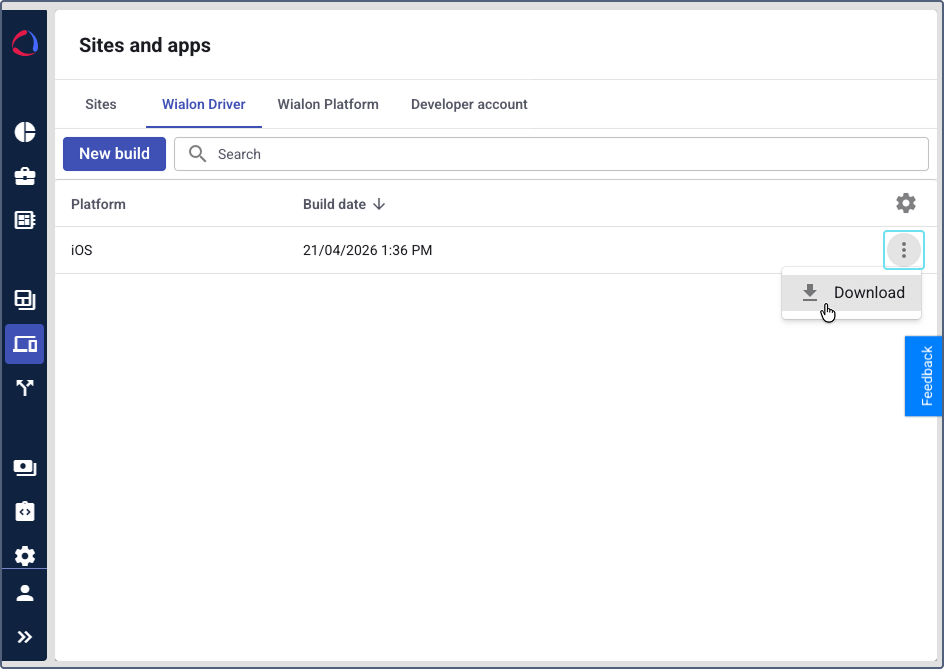
-
The system downloads the build file:
- AAB for Android builds
- IPA for iOS builds
After downloading, upload the build to the corresponding app store and submit it for review. For detailed instructions, see Uploading builds to app stores.
After each new build, you must re-upload the app binary and resubmit it to the app stores for review.
Fixing a failed build
If a build fails (status: Error), hover over the error chip to see the error description in the tooltip.
If the build has several errors, the tooltip shows only the first one.
To fix a failed build:
- On the Wialon Driver or Wialon Platform tab of the Sites and apps page, click New app and select the app with the failed build in the dropdown list. The system loads the data from your last configuration, so you don’t need to start from scratch.
- Review and fix the issue described in the error tooltip.
- Click Create app.
You can’t open or edit a build with the Error status directly. Use the New app dropdown to select the app with the failed build.
Managing brandings
On the Wialon Driver and Wialon Platform tabs, builds are grouped by the branding they belong to. Each branding contains the Android and iOS configurations and all builds created from them.
A branding appears in the table as soon as you create it, even if it doesn’t contain any builds yet. Click the branding row to continue the setup: the values you entered before are kept and can be edited.
Brandings are sorted by creation date, so the most recently created branding is shown first.
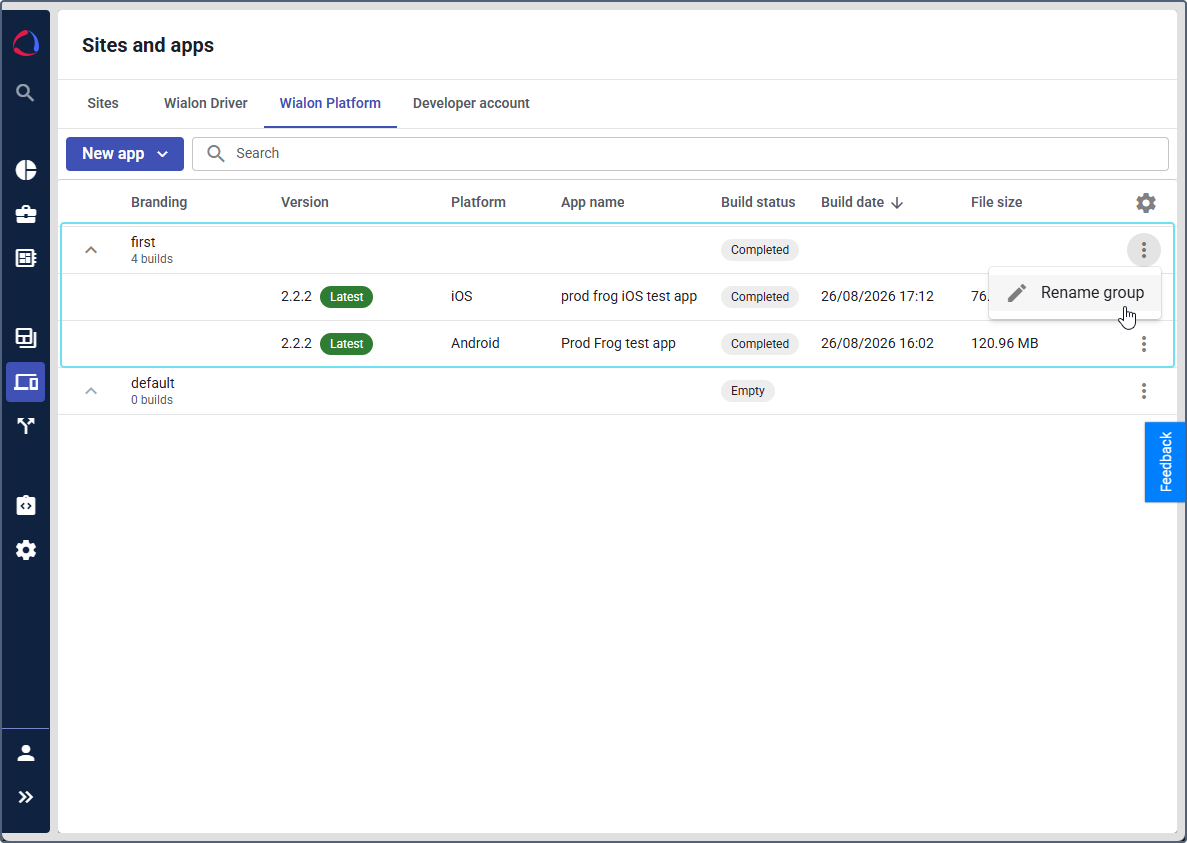
You can perform the following actions with brandings in the table:
- Rename brandings
- Add or delete their store links
- Assign brandings to customers
- Delete brandings
These actions are available only to users with the Administrator and Operations manager role. You can’t delete or rename the default branding.
Renaming a branding
To rename a branding:
- Hover over the branding row and click the icon .
- Select Rename branding. The same window as for creating a branding opens, with the current name prefilled.
- Edit the name and click Save.
Adding and deleting store links
You can add links to the app in the App Store and Google Play. To do this:
- Hover over the branding row and click the icon .
- Select Store links.
- Paste the links into the App Store (iOS) and Google Play (Android) fields to add the links, or clear the fields to delete them. The added links must start with
http://orhttps://. - Click Save.
Assigning a branding to customers
You can assign a branding to one or more customers.
This feature is available on the Sites and apps page, where you can assign the same branding to one or more customers, as well as on the Customers page, where you can assign a branding to a selected customer in their profile.
A customer can have only one branding assigned. If you assign another branding to a customer who already has one, the previously assigned branding is automatically unassigned.
On the Sites and apps page
To assign a branding to customers on the Sites and apps page:
- On the Wialon Driver or Wialon Platform tab, hover over the branding row and click the icon .
- Select Assign to customers.
- Select the required customers from the dropdown list.
- Click Apply.
After this, you can see an indicator with the number of customers the branding is assigned to in the Customers column of the table. Hover over the indicator to see the customers’ names. You can also find this information on the Customers page, where the Wialon Driver and the Wialon Platform columns as well as the customer profiles show what branding is assigned to each customer.
To unassign the branding from a customer, follow the previous instructions, but remove the unnecessary chip from the Customers field in step 3.
In the customer profile
To assign a branding to a customer in the customer profile:
- Go to the Customers page.
- Select the required customer to open their profile.
- In the Sites and apps section, click the icon
 .
. - In the Wialon Driver and Wialon Platform fields, select the required branding.
- Click Save.
To unassign the branding from a customer in their profile, follow the previous instructions, but clear the Wialon Driver and Wialon Platform fields in step 4.
Deleting a branding
You can delete a branding only while it doesn’t contain any builds. As soon as a build starts, the Delete branding action becomes unavailable.
- Hover over the branding row and click the icon .
- Select Delete branding.
- Confirm the deletion.
You can’t restore a deleted branding.