Generating the “Scope 1 emissions” report
Who can do it: Customer
Where: Wialon Platform FleetSpace
The Scope 1 emissions report provides a monthly breakdown of CO2 equivalent (CO2e) emissions per device. The report shows emissions calculated from fuel volume sensor data and normative consumption estimates separately, making it suitable for compliance reporting and auditing.
Generating the report
To generate the Scope 1 emissions report:
- In Wialon Platform FleetSpace, navigate to the Reports page.
- In the dropdown menu at the top of the screen, select Scope 1 emissions. The settings selected for this report are saved for this session.
- Click on the date range field in the top bar.
- In the calendar, select the start and end dates for the report and click Apply.
- Click on the Devices dropdown menu.
- Select one or more devices in the dropdown list and click Apply.
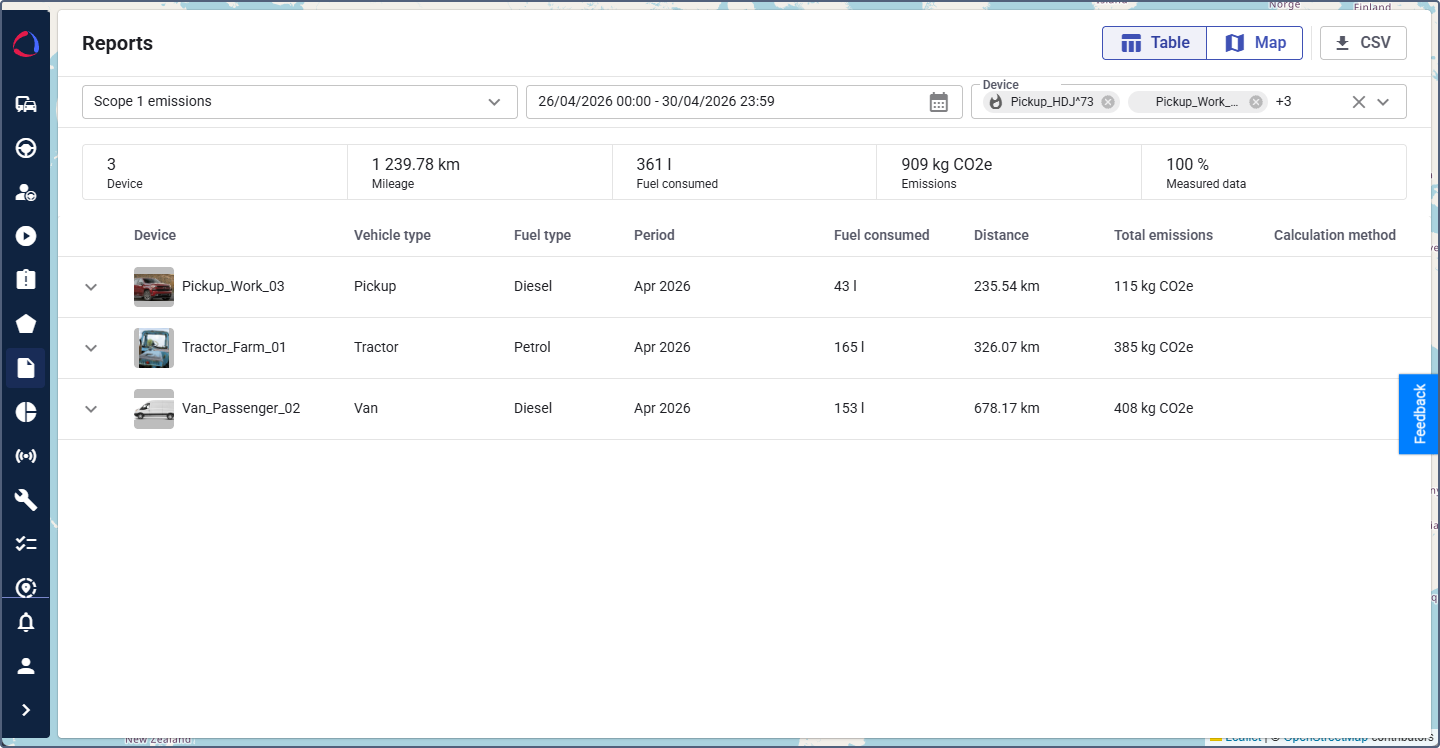
The report is generated automatically, displaying monthly emissions data for the selected devices and period. You can navigate to other pages and return to your report. The generated report is available for 1 minute.
Information available in the report
The report is organized into two sections: a summary at the top and a detailed table below.
Summary
The summary section displays key statistics for the selected period and devices:
| Statistic | Description |
|---|---|
| Devices | The total number of devices included in the report. |
| Mileage | The total distance covered by all devices in the report. |
| Fuel consumed | The total fuel consumed by all devices. |
| Emissions | The combined CO2e emissions for all devices for the selected period. |
| Measured data | The percentage of emissions calculated from actual fuel volume sensor data (as opposed to normative estimates). |
Detailed report table
The detailed table presents data on emissions grouped by device. Each device row can be expanded to view individual monthly entries.
| Column | Description |
|---|---|
| Device | The name and icon of the device. You can expand the row to view the detailed results for the selected period. |
| Vehicle type | The vehicle type assigned to the device (for example, Pickup, Tractor, Van). |
| Fuel type | The fuel type configured in the device properties (for example, Diesel, Petrol). |
| Period | The calendar month the emissions data relates to. |
| Fuel consumed | The amount of fuel consumed during the period. |
| Distance | The distance traveled during the period. |
| Total emissions | The total CO2e emissions for the device in the given period, measured in kg CO2e. |
| Calculation method | The method used to calculate emissions for the device. |
Exporting the report
To download the report in CSV format, click the button  at the top of the report.