Creating a building and floors
Who can do it: Service provider, customer user
Where: Wialon Platform FleetSpace
A building contains the floor plans on which you place hardware and draw zones.
Creating a building
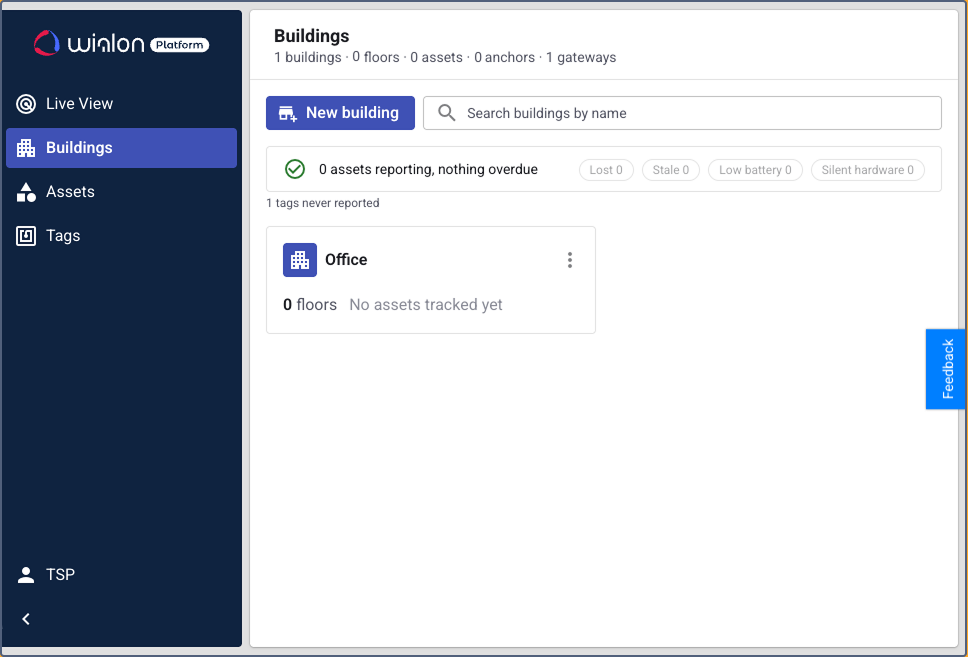
- Go to the Buildings page.
- Click New building.
- Enter the building name and, optionally, its address. The address is for reference only and isn’t used for map positioning.
- Click Save.
Adding a floor
- Open the Floor plans view of a building from the Live View tab or from the building card.
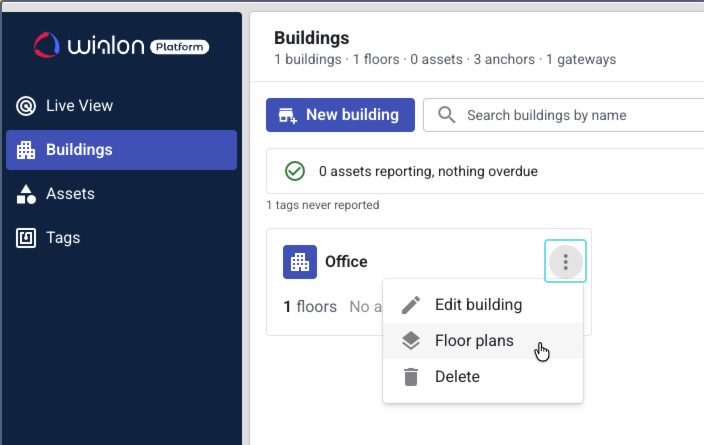
- Click Add floor.
- In the New floor panel, upload the floor plan image (PNG, JPG, WebP, or SVG).
- Crop the image if needed.
- Set the scale: draw a line between two points with a known distance and enter this distance in meters. The scale makes positions on the plan match the real dimensions of the building.
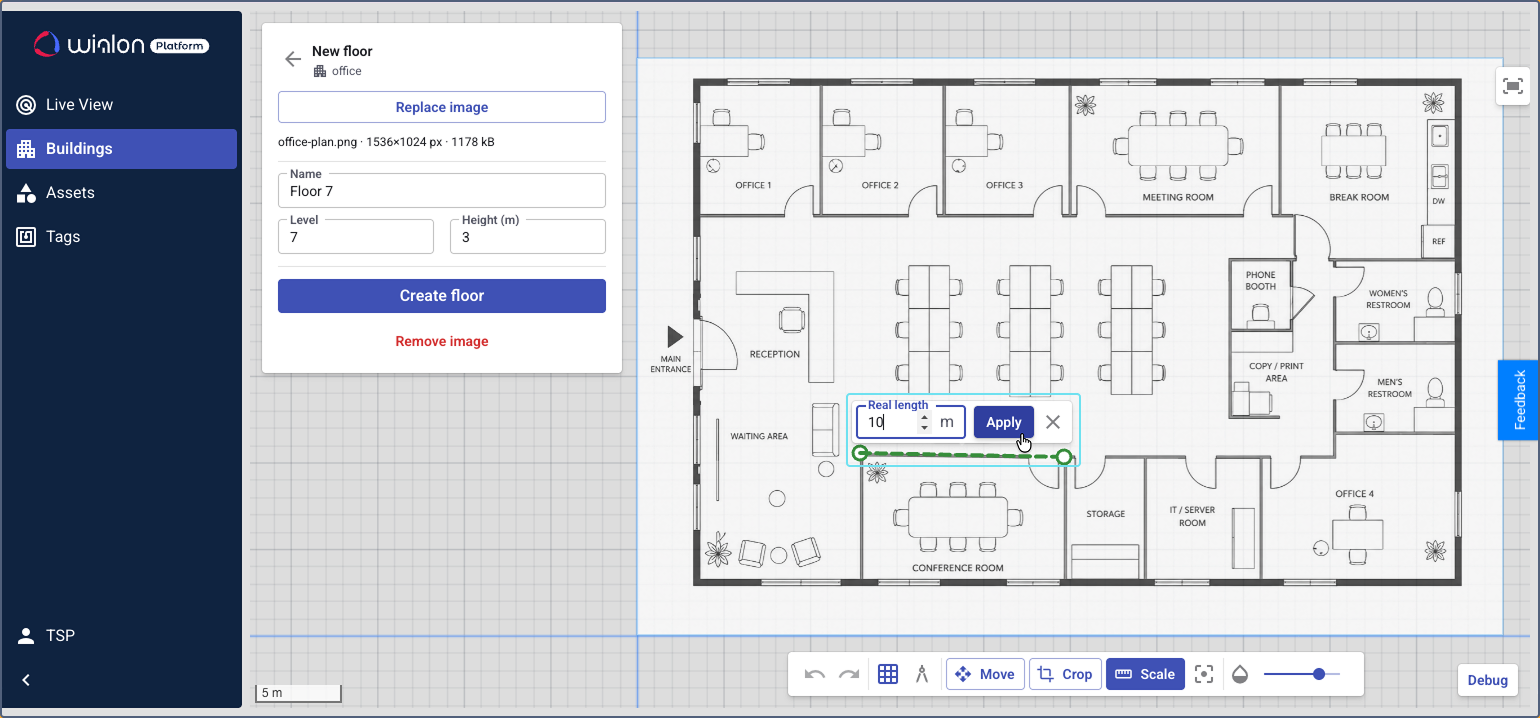
- Enter the floor name, level, and height.
- Level is a short label (up to 16 characters) that identifies the floor within the building
(for example,
1,B1,Ground). It must be unique within the building. - Height is the floor height in meters (optional).
- Level is a short label (up to 16 characters) that identifies the floor within the building
(for example,
- Click Create floor.
Repeat these steps for each floor. If several floors have the same layout, duplicate an existing floor to copy its plan and zones. Anchors and gateways are not copied — they stay on the original floor.
Editing a floor
To change the floor plan, its name, or its height:
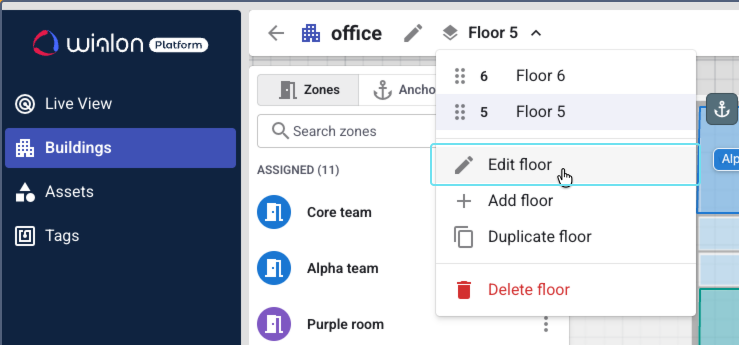
- Open the Floor plans view of a building from the Live View tab or from the building card.
- Select the floor.
- Click Edit floor.
- Make the changes.
- Click Save.
Checking the state of the building
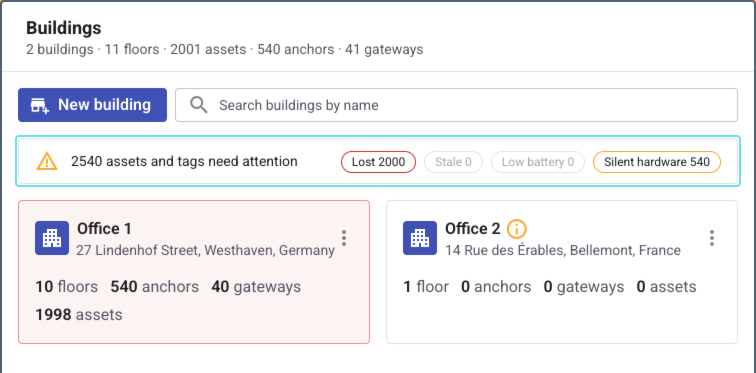
The building card shows the number of floors and assets. If some assets, tags, or hardware need attention, the card is highlighted: red for lost assets or low battery, yellow for stale positions or silent hardware. The counters at the top of the Buildings page show the total numbers across all buildings. Click a counter to filter the list and see only the affected buildings.
| Counter | What it includes |
|---|---|
| Lost | Assets and tags that haven’t reported a position for 1 hour or more. |
| Stale | Assets and tags that haven’t reported a position for 15 minutes to 1 hour. |
| Low battery | Tags with the Low and Critical battery statuses. Tags with the Warning status aren’t counted. |
| Silent hardware | Anchors and gateways with the Silent and Offline statuses. |
Anchors and gateways get their status based on the time of their last message.
| Status | Condition |
|---|---|
| Online | Less than 30 minutes ago |
| Silent | From 30 minutes to 2 hours ago |
| Offline | 2 hours ago or more |
| No data | The hardware has never sent a message |
If an anchor is silent, the assets near it can be shown in a wrong zone or lose their position. Check the power supply and the network connection of the hardware.
For details on asset statuses, see Finding assets on the map.