Requesting tachograph files
Who can do it: Service provider
Where: Wialon Platform Studio
You can request tachograph files from devices manually in Wialon Platform Studio.
You can request files only from the devices that support tachograph functionality. See their list on the Tachograph control page.
To request files from a device:
-
In Wialon Platform Studio, expand the Connectivity section in the navigation menu.
-
Open the Tachograph control page.
-
Navigate to the Tacho devices tab.
-
Find the required device in the list. You can search devices by name, company name, company card, company connection status, customer, and device connection status.
-
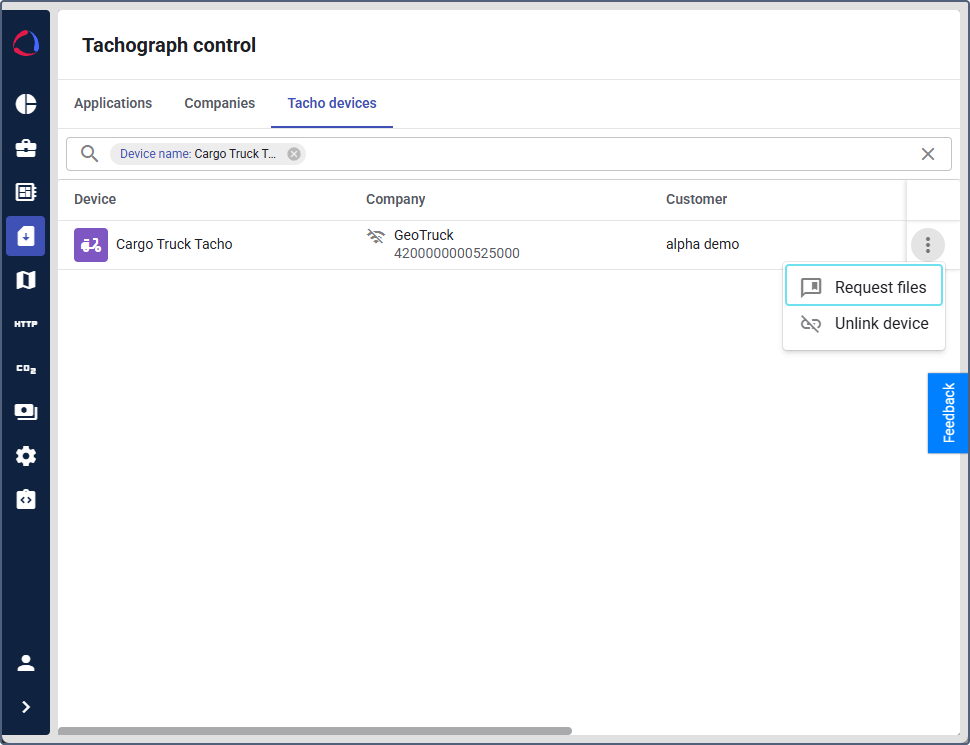
At the end of the row with the required device, click the three-point icon.
-
Select Request files.
-
Select the slot type which should be used to retrieve the file. You can select multiple slots.
The slot types you select here apply only to this request. They don’t change the slot types configured for the automatic file request of this device.
-
Click Send.
The files are retrieved immediately if the following conditions are met:
- the device is online
- the company card is online
- the ignition is on
If at least one of the conditions is not met, the file request is placed in a queue and will be processed as soon as the conditions are satisfied. In the Queue column of the device list, you can see the number of requests that have been sent but not yet completed. If you have selected more than one slot type in step 6, the number of requests added to the queue corresponds to the number of the selected slots.
The received tachograph files are stored in the system for a year. The total size of stored tachograph files, images and videos can’t exceed 2 GB. Once this limit is reached and new files are requested, older files are automatically removed from system storage to free up space.
You can monitor download deadlines for drivers and devices using the Due dates tab or Tacho file widgets. For details, see Monitoring due dates for tachograph file downloads.
Requesting files from the device profile
You can also request files for a single device without leaving its profile.
- In Wialon Platform Studio, go to the Devices page and click the required device in the list.
- Switch to the Tachograph tab.
- Click Request files, check the device status, the ignition status, and the company card status, and confirm the request.
The new request appears in the list of commands right away. A request that’s being processed has the Queued status until the conditions listed above are met.