Enabling and disabling private mode automatically according to schedule
Who can do it: Service provider
Where: Wialon Platform Studio
You can automate the vehicle private use so that the private mode turns on for selected vehicles on a schedule. This helps customers ensure that vehicle location is hidden during non-working hours or other predefined periods.
This page shows how to enable private mode every weekday from 6:00pm to 8:00pm using the Schedule automation and the Start private mode action template.
To configure a workflow that enables private mode automatically based on the schedule, follow the next steps:
- Create a Start private mode action template.
- Create a Schedule automation (weekdays at 6:00pm).
- Link the automation to the action template.
Step 1: Create a “Start private mode” action template
First, create an action template that will turn the private use on and off for the selected vehicles:
-
In Wialon Platform Studio, navigate to the Customers page.
-
Select a customer from the list to open their details.
-
Go to the Automations tab.
-
Switch to the Action templates mode.
-
Click New action template.
-
In the Name field, enter a name, for example,
Car private use after working hours. -
In the Type field, select Start private mode.
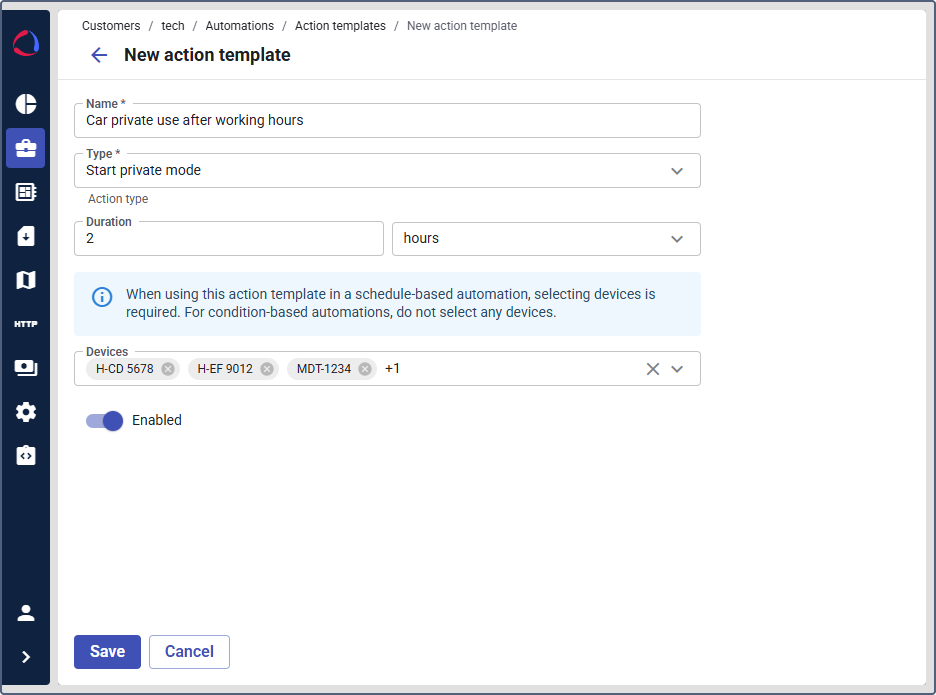
-
In the Duration field, specify how long private mode must stay enabled. Select either hours or minutes in the right field and enter the value (up to 720 hours or 43200 minutes). For the period from 6:00pm till 8:00pm, select 2 hours.
-
In the Devices field, select the devices for which this action enables private mode.
-
Make sure the action template is Enabled.
-
Click Save.
Step 2: Create a “Schedule” automation
To create a schedule that acts as a trigger for the action template, follow the next steps:
-
On the Automations tab, click New automation.
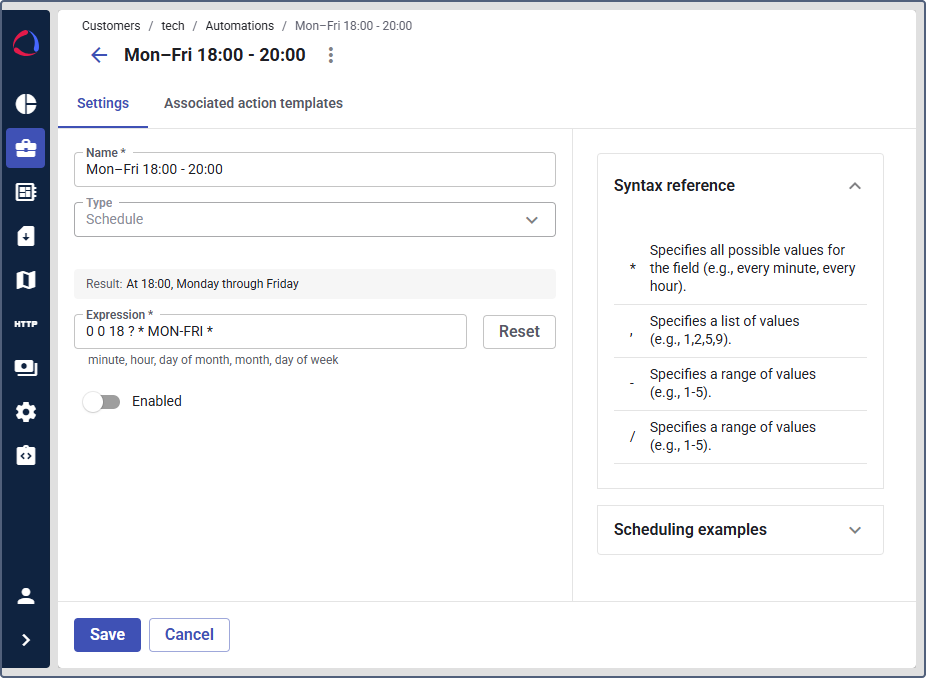
-
In the Name field, enter a name, for example,
Mon–Fri 6 - 8. -
In the Automation type field, select Schedule.
-
In the Expression field, specify the cron expression for weekdays at 6:00pm:
0 0 18 ? * MON-FRI * -
Enable the automation.
Before saving the automation workflow, it is necessary to associate it with the created action template.
Step 3: Link the automation to the action template
To finish the automation workflow:
-
In your automation, go to the Associated action templates tab.
-
Click Link action template.
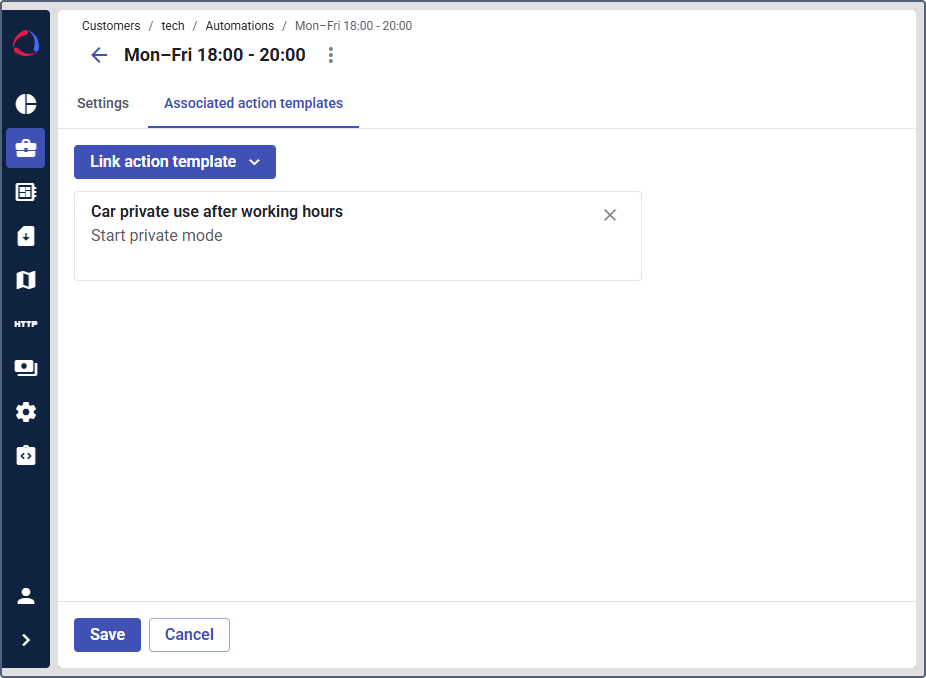
-
Select the Start private mode action template you created in Step 1.
-
Click Save.
Every weekday at 6:00pm, the automation triggers the Start private mode action template. While private mode is active, GPS-dependent data is not registered and can’t be restored (see Enabling private use mode for a device). After 2 hours, at 8:00pm, private mode is automatically disabled.