Managing user settings
Who can do it: Customer user
Where: Wialon Platform mobile app
On the Settings screen, you can review your user details, adjust display preferences, and switch the app theme to match your needs.
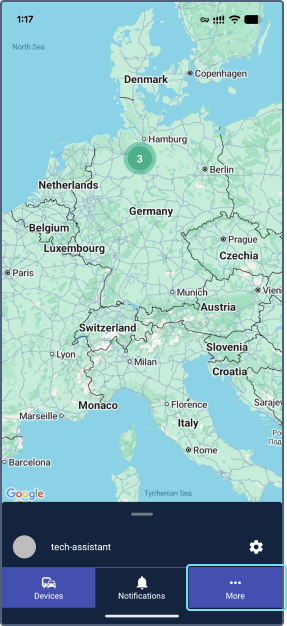
To open the settings, tap the More tab in the navigation bar, then tap the gear icon  .
.
Viewing your user details
On the Settings screen, you can check your account information:
- Username: Your login name in the system.
- Realm: The realm identifier required to log in to the app. Tap the icon to copy the realm to the clipboard.
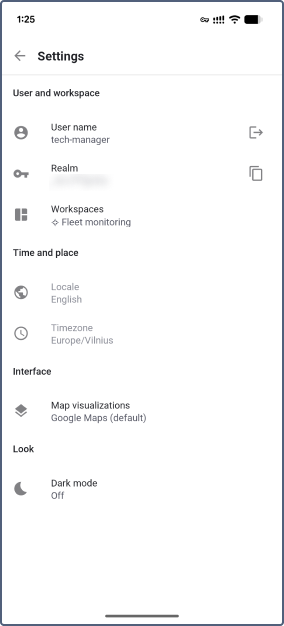
The locale displayed on the Settings screen is configured in the user settings in the web version. To change the timezone, contact your service provider.
Switching the workspace
If your service provider has assigned multiple workspaces to your user account, you can switch between them to access different layouts and features.
- Tap the More tab in the navigation bar.
- Tap the gear icon to access the Settings screen.
- Tap Workspaces.
- Select the workspace you want to use from the dropdown list.
The app updates to reflect the selected workspace layout.
Configuring map display
You can choose which information is displayed on the map alongside your devices.
-
Tap the More tab in the navigation bar.
-
Tap the gear icon
to access the Settings screen. -
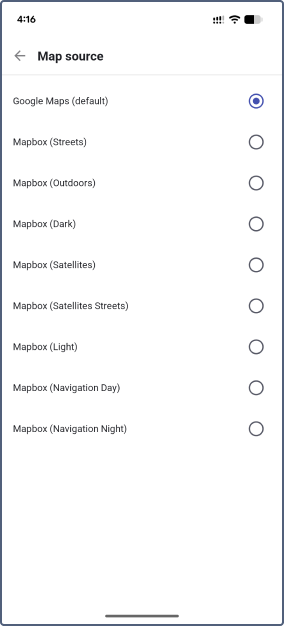
Tap Map settings.
-
Select the map source from the dropdown list. The default option is Google maps. The basemaps are configured and managed in Wialon Platform Studio by your service provider. See the full guides for service providers in the Maps section. The Wialon Platform mobile app supports the same basemaps as the Wialon Platform FleetSpace web version.
-
Use the Device name toggle to show or hide device names on the map.
Switching the dark mode
You can switch between light and dark modes or let the app follow your device settings.
- Tap the More tab in the navigation bar.
- Tap the gear icon to access the Settings screen.
- Tap Dark mode.
- Select one of the following options:
- Auto: The app follows the theme set on your device.
- On: Dark mode is always applied.
- Off: Light mode is always applied.
Logging out
To log out of the app:
- Tap the More tab in the navigation bar.
- Tap the gear icon to access the Settings screen.
- In the User and workspace section, tap the logout icon
 next to your username.
After logging out, the app returns to the login screen.