Viewing your driving score
Who can do it: Customer driver
Where: Wialon Driver mobile app
The Driving score feature in Wialon Driver lets you view your overall driving performance, track how your score changes over time, identify areas for improvement, and review individual violations. Your score is calculated based on the driver behavior criteria configured by the service provider.
All data on the Driving score page is shown for the last 30 days. The period is fixed, so you don’t need to select dates.
Accessing your driving score
To access your driving score:
-
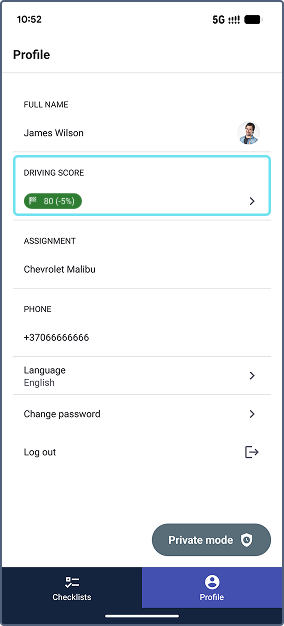
In Wialon Driver, open the Profile tab.
-
In the Driving score section, you can see your score for the last 30 days and the score change compared to the previous 30 days (in percent).
The score is color-coded based on your performance:
| Score range | Color | Rating |
|---|---|---|
| 0–49 | Red | Risky driving |
| 50–89 | Orange | Mostly safe driving |
| 90–100 | Green | Excellent driving |
To open the dedicated Driving score page with detailed information, tap the Driving score section.
Analyzing driving score details
The Driving score page shows your driving performance for the last 30 days.
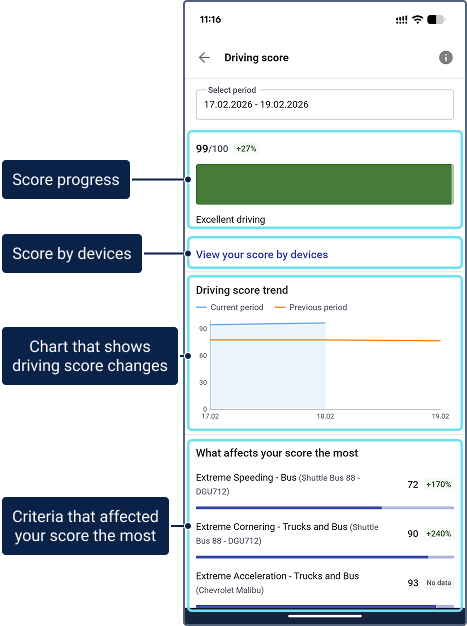
The page includes the following information:
- Your score: The score out of 100, shown in the center of a circle. The colored line around the circle shows how high the score is. Below the score, you can see a short rating of your driving.
- View score trend: A link that opens the score trend chart.
- What affects your score the most: A list of the top criteria that affected your score (see Viewing criteria).
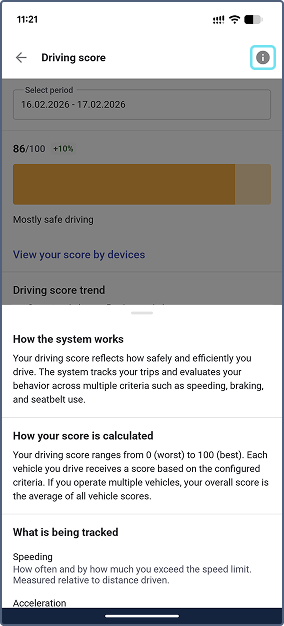
Tap the info icon
in the header of the Driving score page to open a panel that explains how your score is calculated.
Viewing the score trend
To see how your score changed during the last 30 days, tap View score trend on the Driving score page.
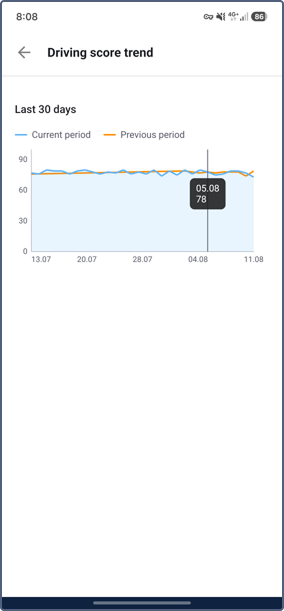
The chart contains two lines:
- Current period: Your score for each day of the last 30 days.
- Previous period: Your score for the 30 days before that, so you can check whether your driving is improving.
Tap a point on the chart to see the date and the exact score for that day.
To return to the Driving score page, tap the back arrow.
Viewing criteria
The What affects your score the most section on the Driving score page shows the top 3 criteria that have the biggest negative impact on your score.
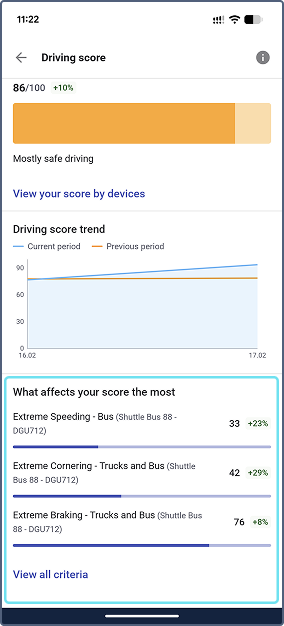
For each criterion, you can see the following:
- The criterion name and the vehicle you were assigned to when the violations were detected.
- The score for this criterion and a bar that shows how high this score is. The higher the score, the better your driving by this criterion.
- The score change compared to the previous 30 days, in percent. If there is nothing to compare with, No data is shown.
The same criterion can appear several times in the list, once for each vehicle you were assigned to during the period.
To see the violations detected for a criterion, tap it (see Viewing violations for a criterion).
Viewing all criteria
To see the complete criteria list, tap View all criteria.
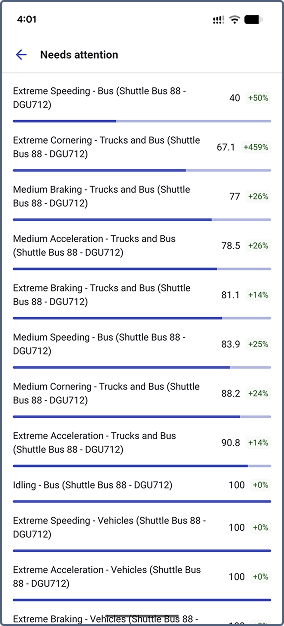
Criteria are sorted by score, from the lowest to the highest, so the criteria that need your attention the most are at the top of the page.
To see only the criteria for one of your vehicles, select it in the dropdown at the top of the page. To see the criteria for every vehicle you were assigned to during the last 30 days, select All vehicles.
The criteria with no violations during the period are grouped in the Criteria without violations section at the bottom of the page. The number in brackets shows how many such criteria there are. The section is collapsed by default. To open it, tap the section name.
You can also tap any criterion in this list to see its violations.
Viewing violations for a criterion
You can see all violations detected for a single criterion and vehicle during the last 30 days.
To open the criterion details, tap the criterion in one of the following places:
- The What affects your score the most section on the Driving score page.
- The list on the Criteria scores page (see Viewing all criteria).
At the top of the screen, you can see the criterion name with the vehicle in brackets, the score for this criterion, the score change compared to the previous 30 days, and a bar that shows the score.
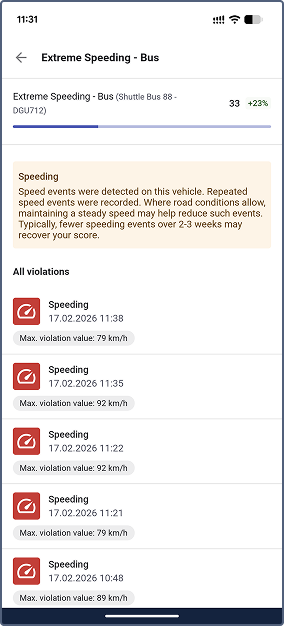
Below, the app shows a tip that explains which events were detected and what you can do to recover your score.
The All violations section lists the violations detected for this criterion, starting with the most recent one. For each violation, you can see its name, date, time, and the value that shows how serious it was, for example, the maximum speed for a speeding violation.
You can tap a violation to see its details.
Viewing violation details
To see the full information about a violation, tap it in the All violations section.
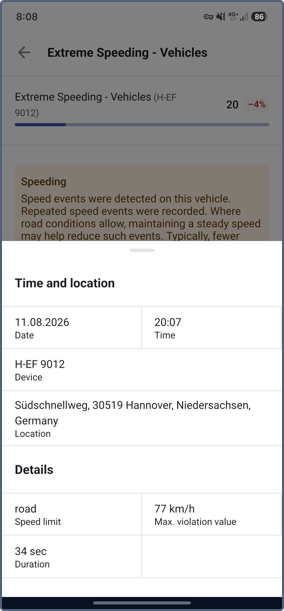
The Time and location section shows the date and time when the violation started, the vehicle you were assigned to, and the place where the violation happened. If the address is unknown, the coordinates are shown.
The Details section shows the values of the violation. The set of fields depends on the criterion:
| Criterion | Fields |
|---|---|
| Speeding | Max. violation value, Duration, Speed limit |
| Acceleration, Braking, Cornering | Max. violation value |
| Idling, Seatbelt | Duration |
| Green Band | Max. violation value, Duration |
The Max. violation value shows how serious the violation was, for example, the maximum speed for speeding. If a value isn’t available, the app shows N/A.
To return to the list, swipe the panel down.