Driver app configuration
Who can do it: Service provider
Where: Wialon Platform Studio
When creating a build for a white-labeled driver app, you must configure the app identity for the app stores.
Android app configuration
To configure the Android app settings for a build:
-
In Wialon Platform Studio, go to the Sites and apps page and open the Driver app tab.
-
Click New build or open an existing build.
-
On the General tab, click Settings next to Android app configuration.
-
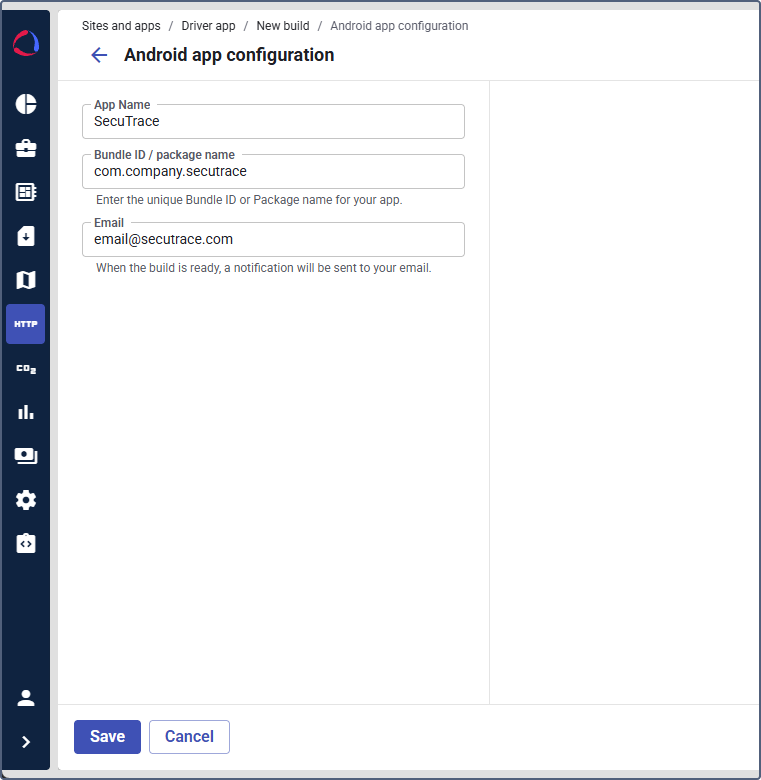
Fill in the following fields:
- App name: The name of the app. It is displayed in the Google Play Store.
- Bundle ID / package name: The unique identifier for your Android app (for example,
com.yourcompany.driver). The package name is suggested automatically based on the app name. You can’t change it later. - Email: Your contact email. When the build is ready, a notification is sent to this email.
-
Click Save.
iOS app configuration
To configure the iOS app settings for a build:
- In Wialon Platform Studio, go to the Sites and apps page and open the Driver app tab.
- Click New build or open an existing build.
- On the General tab, click Settings next to iOS app configuration.
- Fill in the following fields:
- App name: The name of the app. It is displayed in the Apple App Store.
- Bundle ID: The unique identifier for your iOS app (for example,
com.yourcompany.driver). Make sure the Bundle ID matches the one registered in your Apple Developer account. - Email: Your contact email. When the build is ready, a notification is sent to this email.
- Provisioning profile: Upload the provisioning profile file (.mobileprovision format). It links the app to your developer account and devices. Make sure the profile includes all required capabilities for your app, such as in-app purchase, push notifications, and communication notifications.
- Click Save.
Changing the Bundle ID after the initial app submission may require creating a new app listing in App Store Connect.
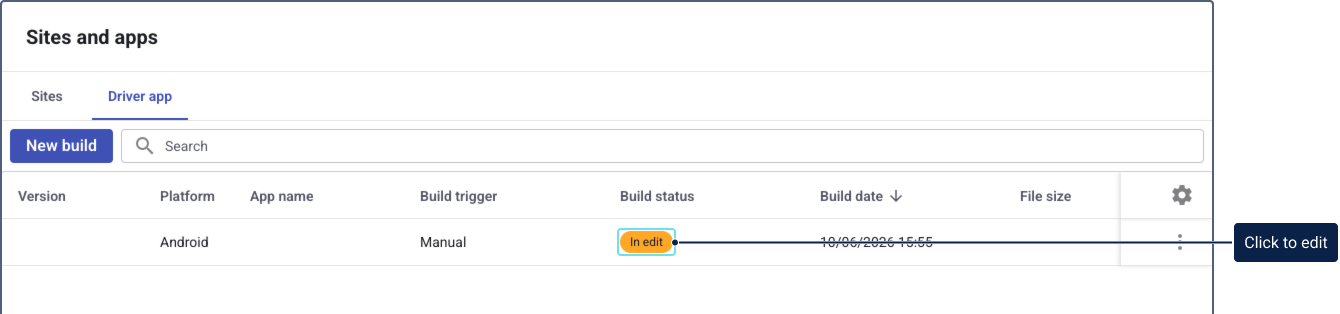
After you save the Android or iOS apps configuration, the build appears in the table on the Driver app tab with the In edit status. Click the In edit status chip to open the build and continue editing (for example, to configure the remaining settings or update the branding).