Monitoring due dates for tachograph file downloads
Who can do it: Service provider, Customer
Where: Wialon Platform FleetSpace
The Due dates tab on the Tachograph control page shows the download deadline status for every driver and device that has at least one tachograph file download.
The deadline for each item is calculated based on the date of the last download and the interval required by EU Regulation No 165/2014:
| Entity type | Download interval |
|---|---|
| Driver card | Every 28 days |
| Vehicle unit (device) | Every 90 days |
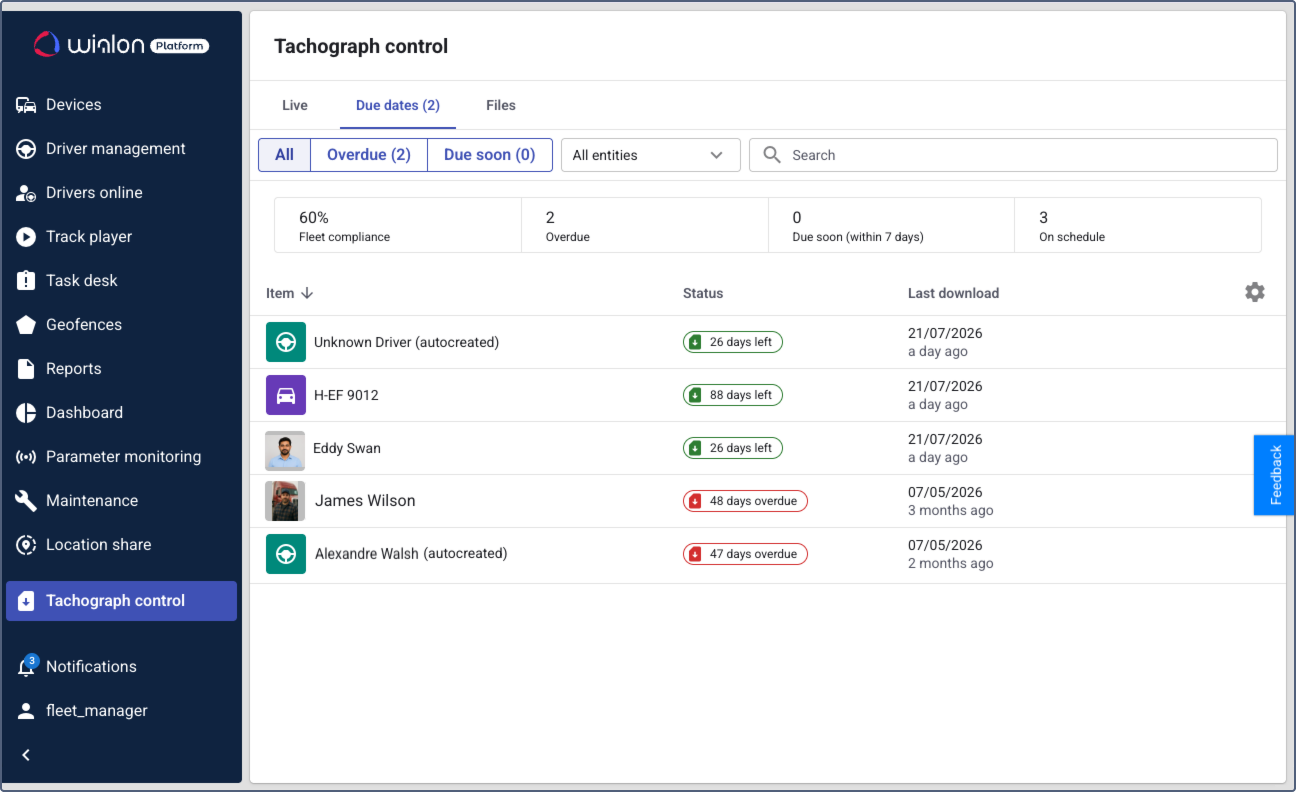
The number in parentheses next to the tab name (for example, Due dates (2)) shows the total number of overdue and due soon items.
Only drivers and devices with at least one tachograph file download appear in the table. Entities without download history aren’t shown. To get your first tachograph files, request them manually or configure automatic file requests.
Summary section
At the top of the Due dates tab, a summary section provides a quick overview of whether tachograph files in your fleet are downloaded on schedule:
| Card | Description |
|---|---|
| Fleet compliance | The percentage of drivers and devices whose tachograph downloads are on schedule (not overdue or due soon). |
| Overdue | The number of drivers and devices that have exceeded their download deadline. |
| Due soon | The number of drivers and devices approaching their download deadline (7 days or less remaining). |
| On schedule | The number of drivers and devices with more than 7 days remaining until their download deadline. |
Due dates table
Each row in the table represents a driver or device with a tachograph download. The table contains the following columns:
| Column | Description |
|---|---|
| Name | The name of the driver or device. Click a row to open the driver or device details. |
| Status | The download deadline status, shown as a color-coded chip. See Status indicators for details. |
| Last download | The date of the last tachograph file download for this driver or device. |
Status indicators
The Status column displays a color-coded chip that shows how close the driver or device is to their download deadline:
| Indicator | Color | Status | Description |
|---|---|---|---|
 |
Green | On schedule | More than 7 days remain until the download deadline. The chip displays the number of days left (for example, 27 days left). |
 |
Yellow | Due soon | 7 days or fewer remain until the download deadline. The chip displays the number of days left (for example, 3 days left). When the deadline is today, the chip displays Due today. |
 |
Red | Overdue | The download deadline has passed. The chip displays the number of days overdue (for example, 47 days overdue). |
Filtering the table
You can filter the table to show only the items you need:
- Click All, Overdue, or Due soon to show items based on their deadline status. The number in parentheses shows how many items match each status.
- Select All entities, Devices, or Drivers to show only the selected type.
Using the search field
The Search field at the top of the table helps you find specific items. You can use it in two ways:
- Start typing a driver name, device name, or status (Overdue, Due soon, or On schedule) to see matching suggestions and select the necessary item from the list.
- Click on the search field and select a criterion first: Device, Driver, or Status. Start typing or select one or more values from the list. Click Apply.
You can combine several criteria. To clear a criterion, click the icon  . To clear all criteria, click the icon
  in the search field.
Sorting the table
You can sort the table by clicking on a column header. Click the header again to switch between ascending and descending order. The current sorting column and direction are indicated by an icon  next to the column name.
Customizing column visibility
You can choose which columns to display in the table and change their order. To do this, click the icon  in the upper-right corner of the table header.
In the configuration menu, you can:
- Use the checkboxes to show or hide individual columns. Use the Show/Hide all checkbox to select or cancel the selection of all columns at once.
- Drag the columns using the icon
 to reorder them.
 - Click Reset to restore the default column configuration.
The changes apply immediately to the table.
Tacho file deadline widgets
In addition to the Due dates tab, you can add tacho file deadline widgets to the device and driver lists and details in FleetSpace. These widgets display the download deadline status directly on the Devices and Drivers online pages, so you don’t need to open the Due dates tab to check individual deadlines.
The following widgets are available:
| Widget | Description |
|---|---|
| Tacho file (chip) | A chip that shows the download deadline status with a color-coded indicator next to the driver or device name. |
| Tacho file (cell) | A cell that shows the download deadline status in the parameters grid. |
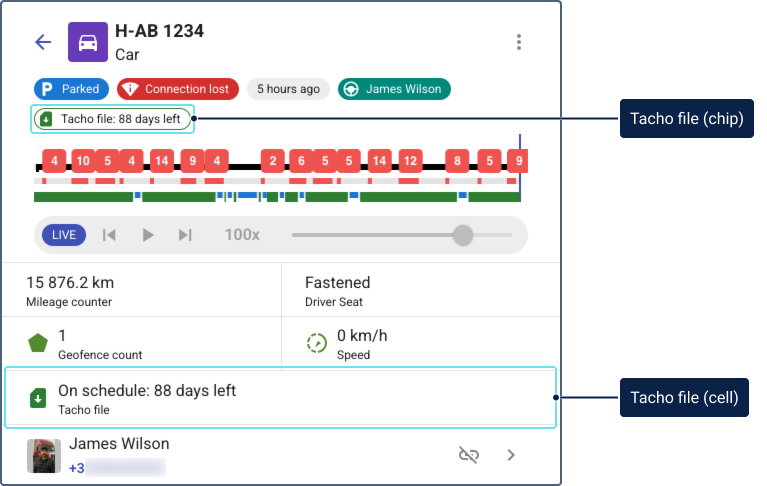
The widgets use the same color coding as the Due dates table: green (on schedule), yellow (due soon), and red (overdue). Widgets appear only for entities that have at least one recorded tachograph file download.
To add these widgets, use the editor mode. For instructions on adding widgets to the device list and details, see Setting up widgets in the device list and Setting up widgets in the device details. For the driver list and details, see Customizing a driver profile view.
Tacho file deadline widgets aren’t included in the default workspace. A service provider must add them in the editor mode for each workspace where they should appear.