Setting up tachograph file downloads
To download tachograph files, the service provider completes the following steps in Wialon Platform Studio:
- Installing the Tacho Bridge application
- Adding the application to the module
- Adding companies to the module
- Linking devices to the companies
Each of these steps is described below.
These steps are needed only to download tachograph files. Live tachograph data comes directly from the tracker, so it’s available without the Tacho bridge application and without a company card. For details, see Configuration steps.
Installing the “Tacho bridge” application
To install the Tacho Bridge application:
- In Wialon Platform Studio, expand the Connectivity section in the navigation menu and open the Tachograph control page.
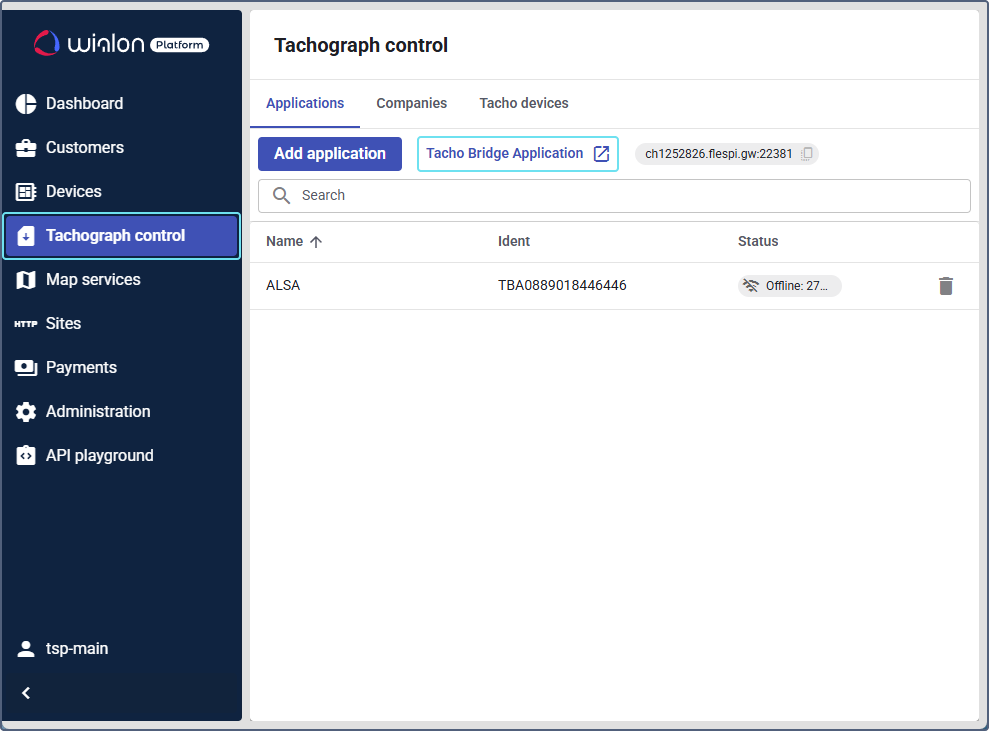
- Follow the Tacho Bridge application link.
- Download the application. For Windows, use the download link with the .msi extension. For macOS, use the link with the .dmg extension.
- Install the Tacho bridge application on your computer.
Adding the Tacho Bridge application to the module
To add the installed application to the module:
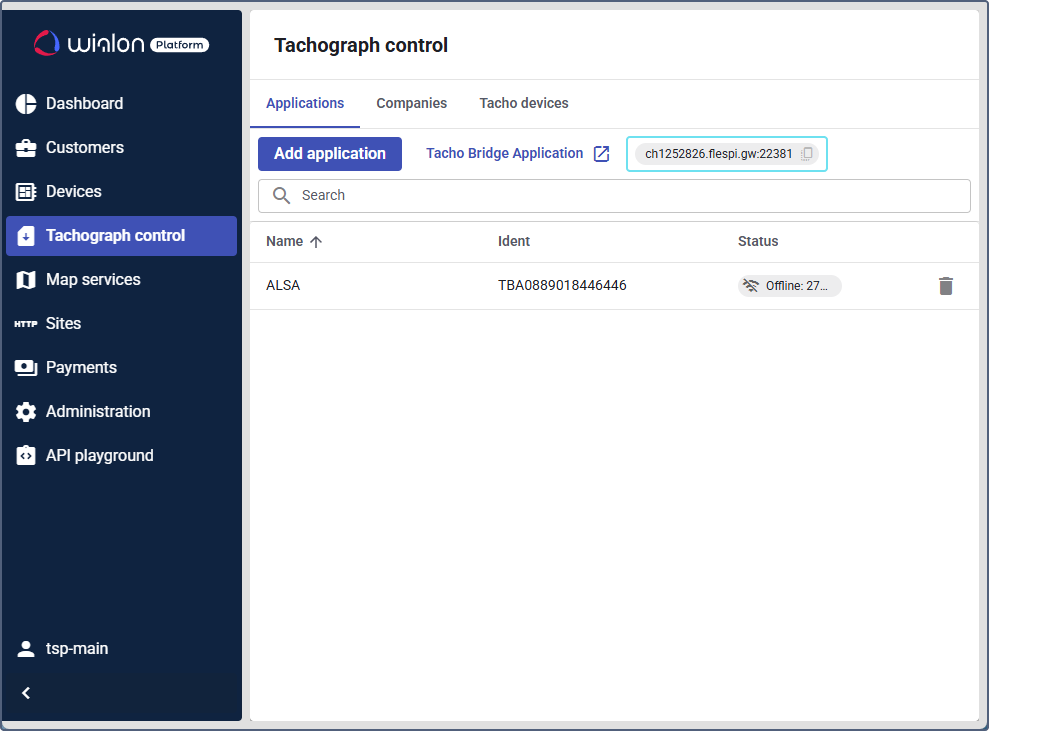
- On the Tachograph control page of Wialon Platform Studio, copy the server address next to the application download link.
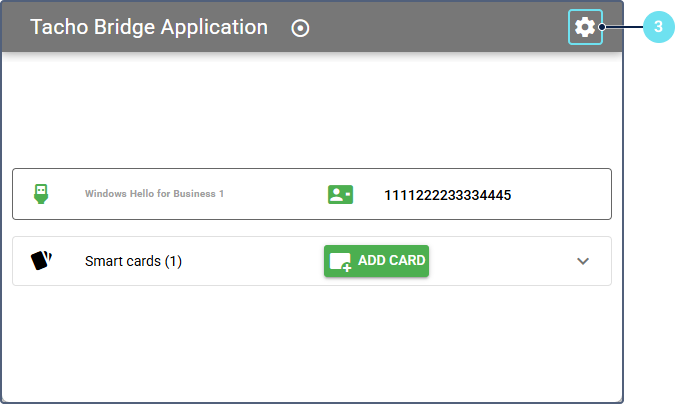
- Start the Tacho bridge application.
- Open the application settings (the icon
 on Windows, or the Config button on macOS).
- In the App ident field, specify the application identifier. You can enter any value of 13 characters, but make sure it is unique within your account.
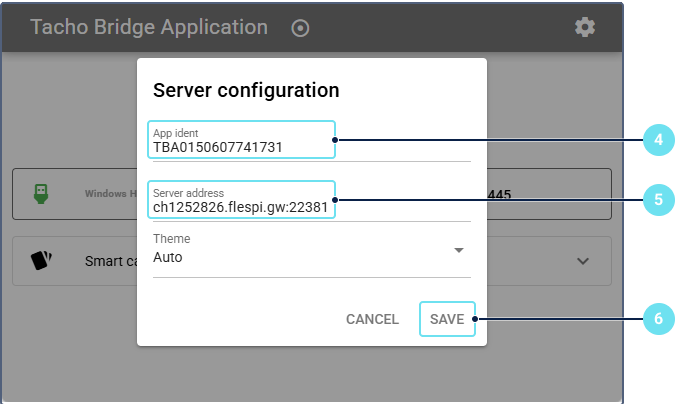
- In the Server address field, paste the copied server address.
- Click Save.
- On the Tachograph control page of Wialon Platform Studio, click Add application.
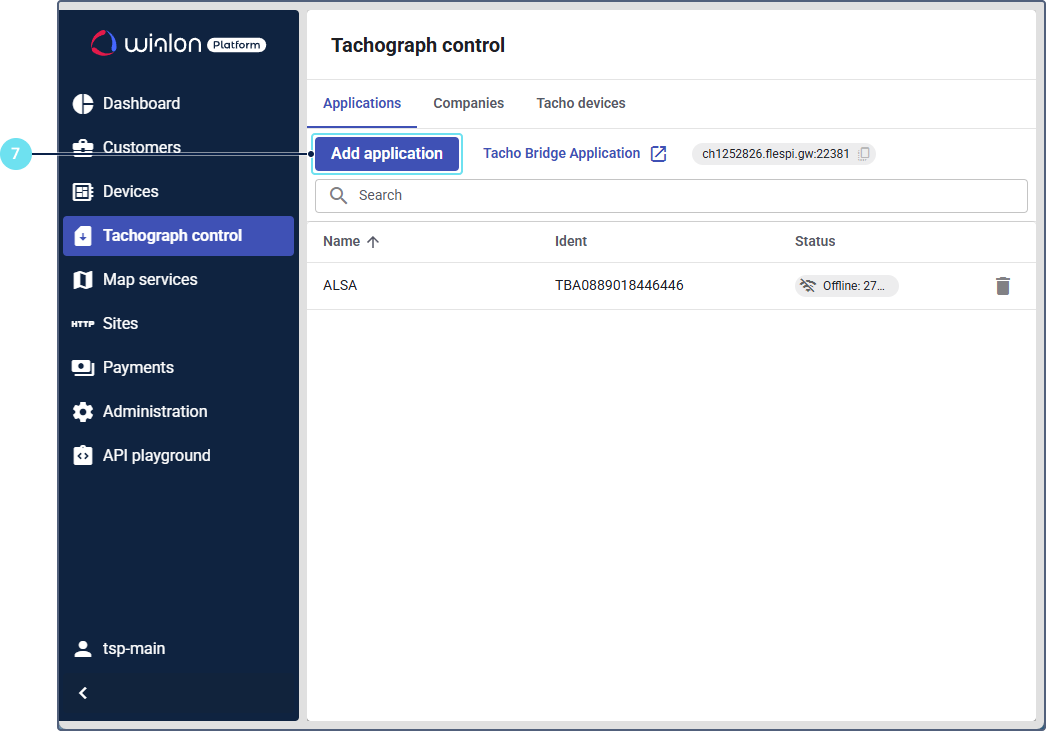
- Enter the name which you want to use for the Tacho bridge application installed on your computer.
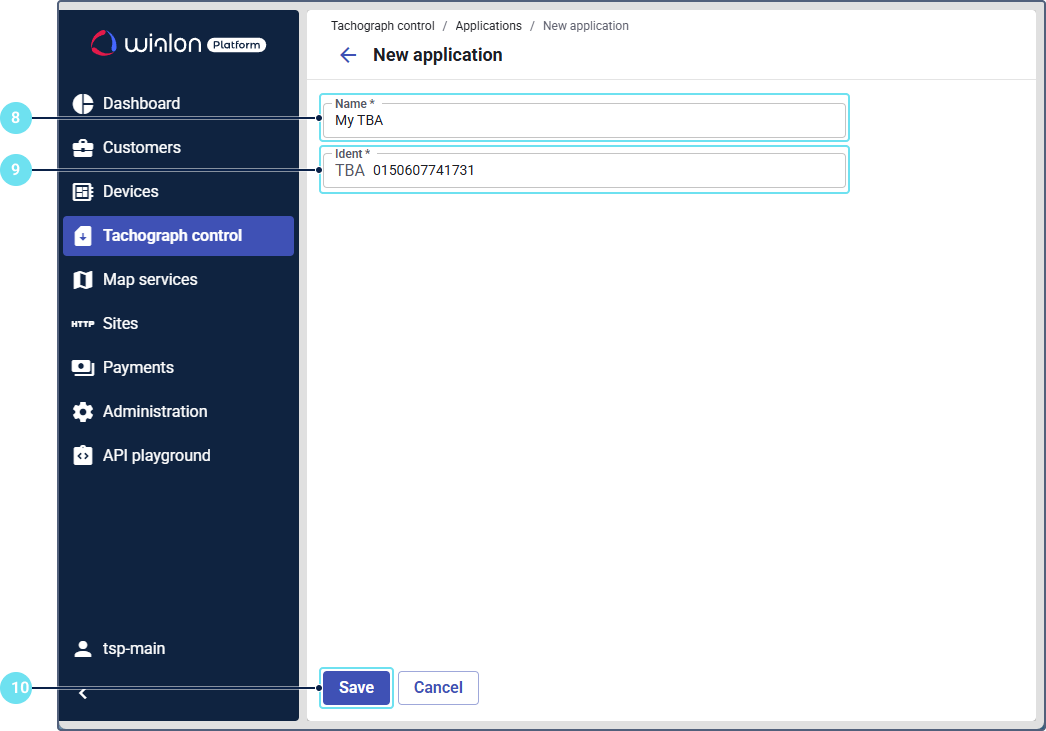
- Specify the application identifier. It must be the same as in step 4.
- Click Save.
After that, the added application is displayed on the Tachograph control page.
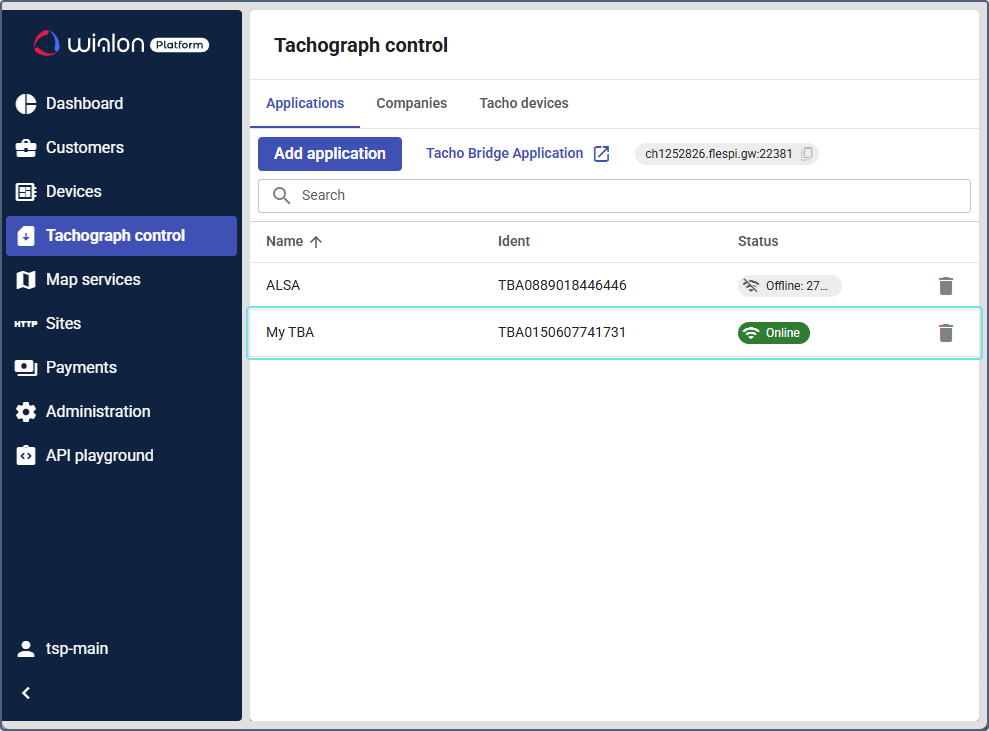
You can add multiple Tacho bridge applications installed on different computers to the tab. It will allow different employees who use this account to request tachograph files from their computers.
Adding companies to the module
Adding companies to the module includes:
- Adding company cards to the Tacho bridge application
- Adding companies to Wialon Platform Studio
To add company cards to the Tacho Bridge application:
- Open the Tacho bridge application.
- Insert the company card into the card reader connected to your computer.
- When the application detects the card, click the icon
 in the card section.
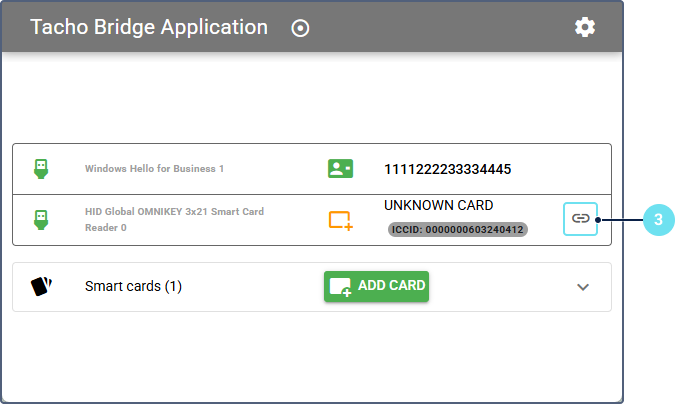
- Take out the card and find the company card number printed on it.
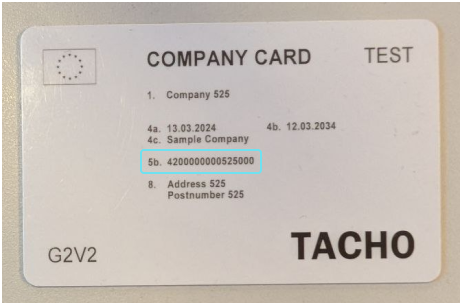
- Specify the company card number in the application.
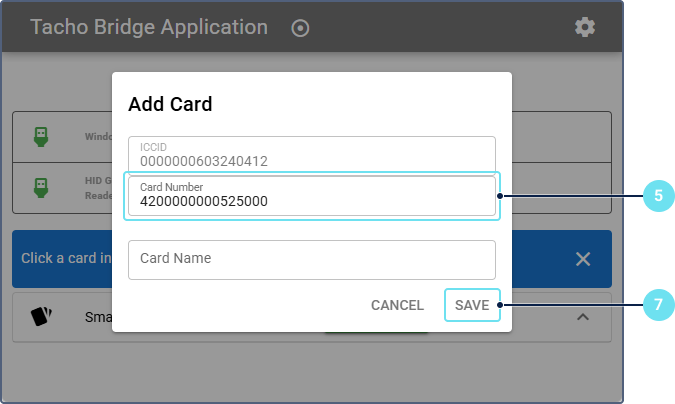
- Insert the card into the card reader.
- Click Save.
To add companies to Wialon Platform Studio:
-
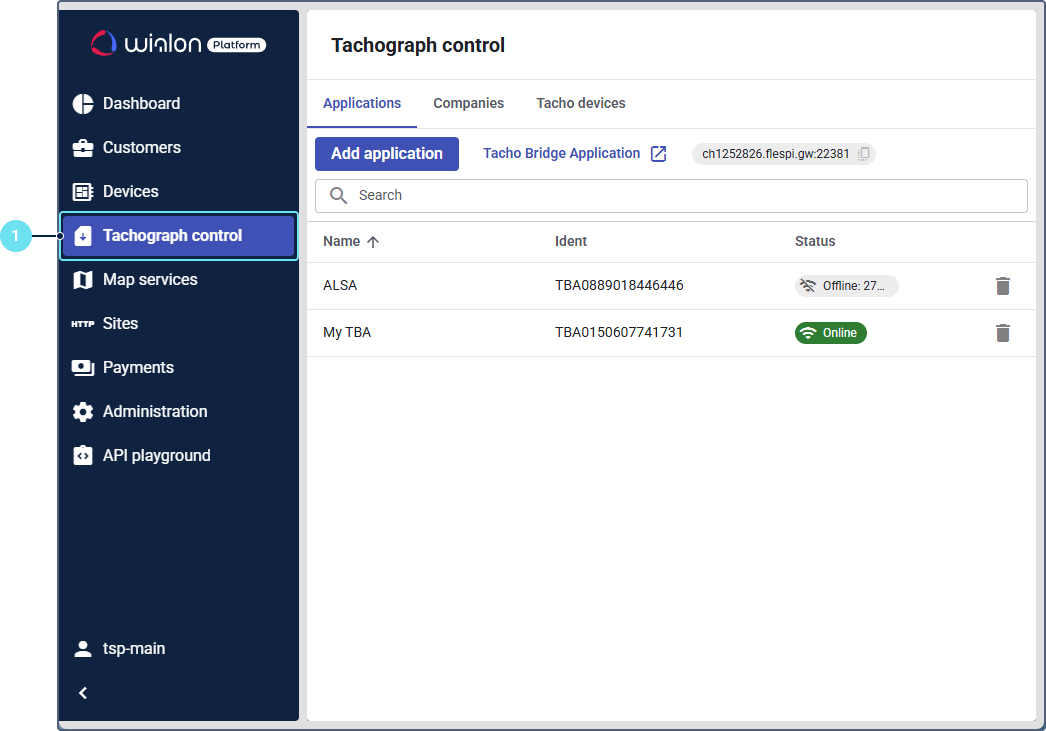
In Wialon Platform Studio, expand the Connectivity section in the navigation menu and open the Tachograph control page.
-
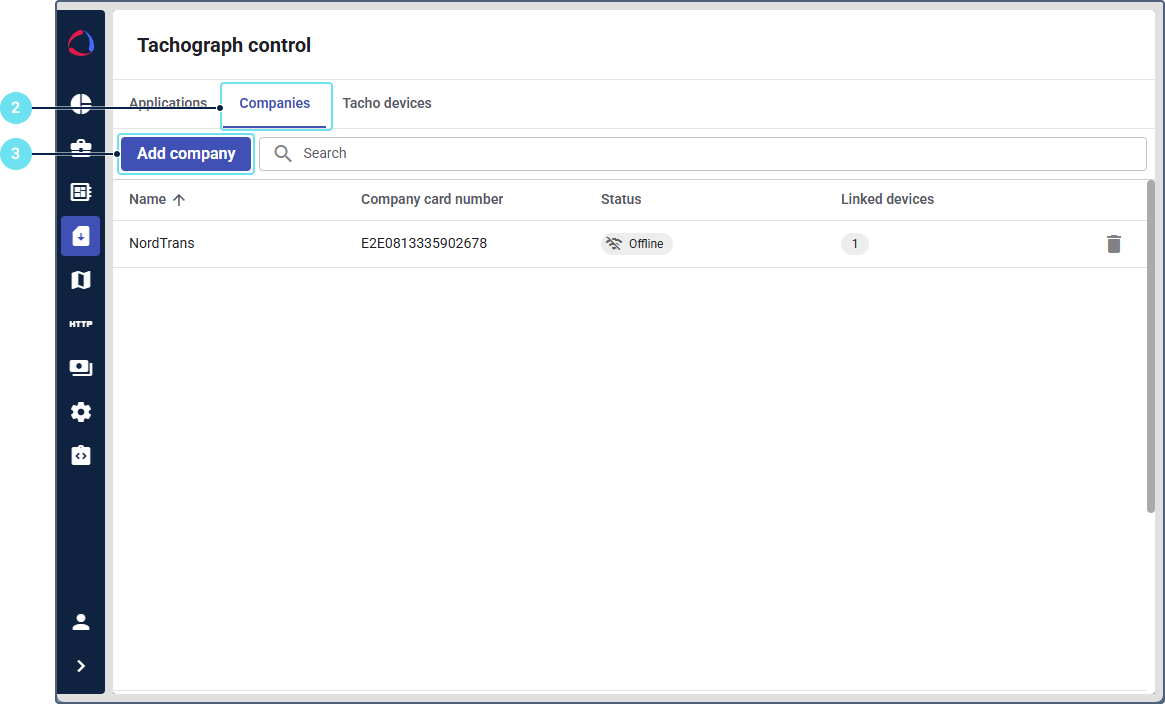
Navigate to the Companies tab.
If you haven’t created any companies yet, click Add first company on the empty page.
-
Click Add company.
-
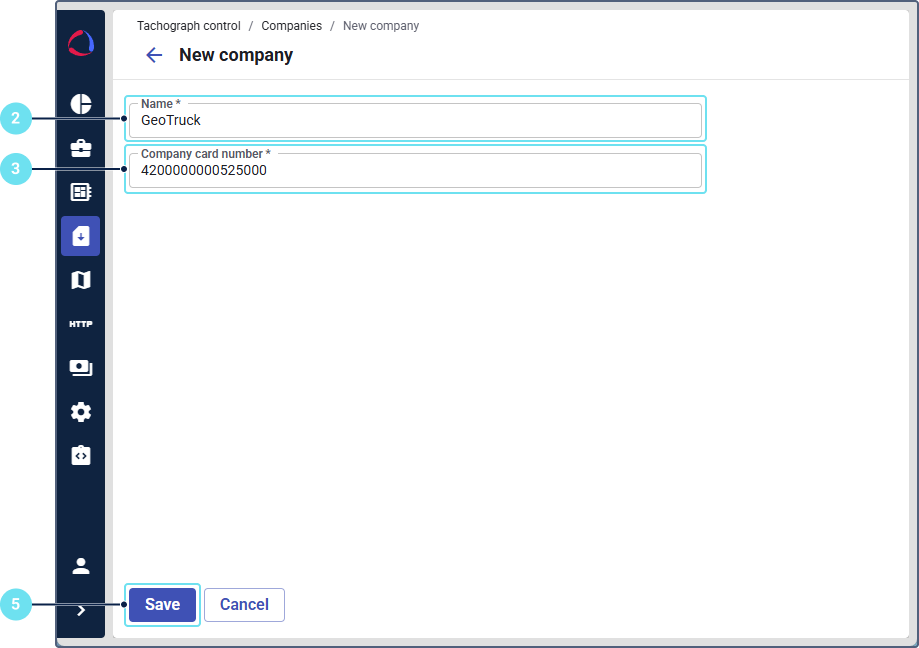
Enter the company name.
-
Specify the company card number.
-
Click Save.
After that, the added company is displayed in the list of companies.
Linking devices to the companies
You can link only the devices that support tachograph functionality. See their list on the Tachograph control page. Devices that don’t support company cards, such as flespi gateway devices, aren’t available in the list.
To link devices to the added company:
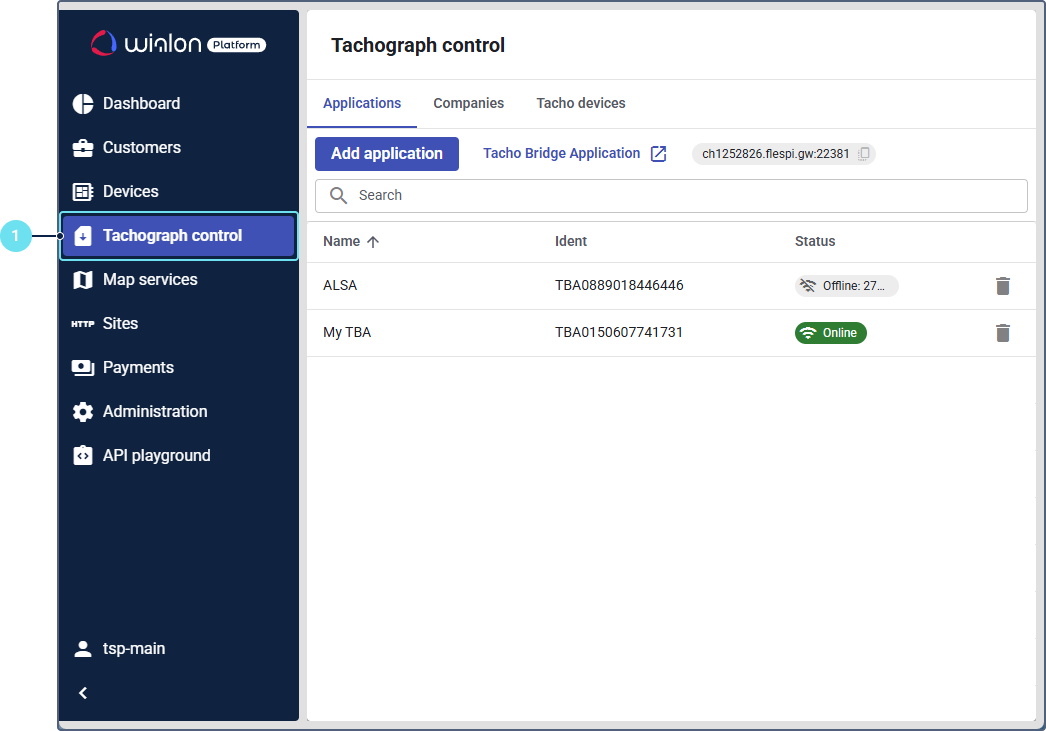
- In Wialon Platform Studio, expand the Connectivity section in the navigation menu and open the Tachograph control page.
- Navigate to the Companies tab.
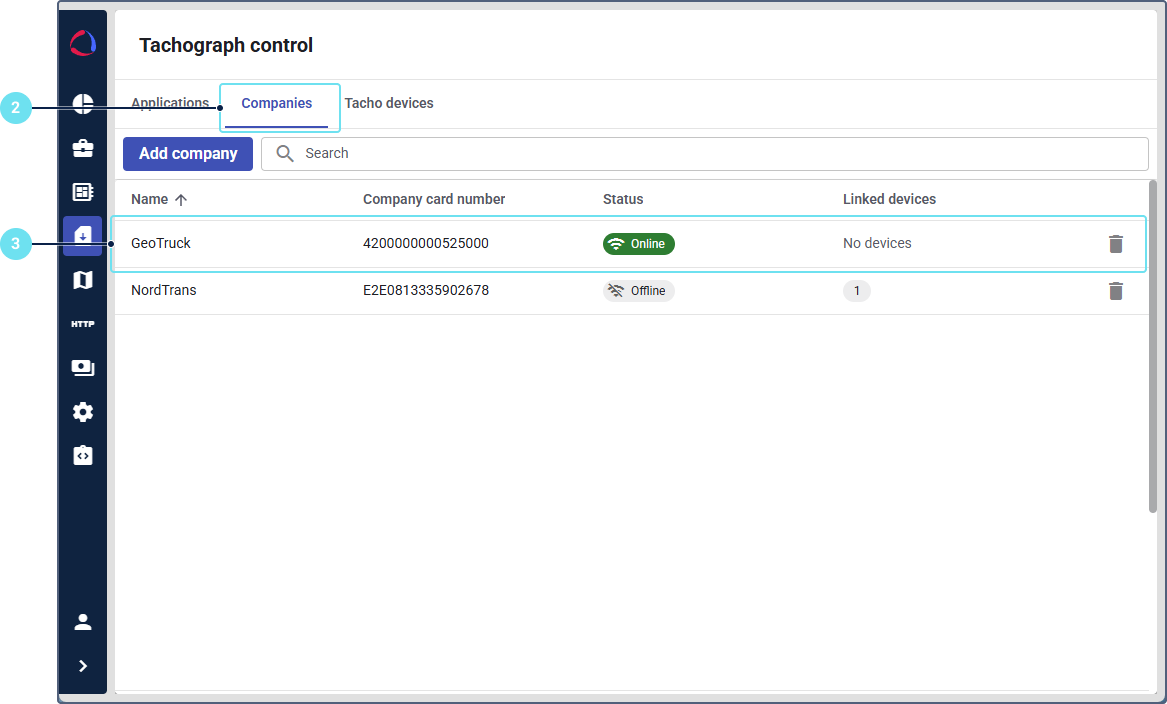
- Click on the row of the company to which you would like to link a device.
- Go to the Devices tab of the company details.
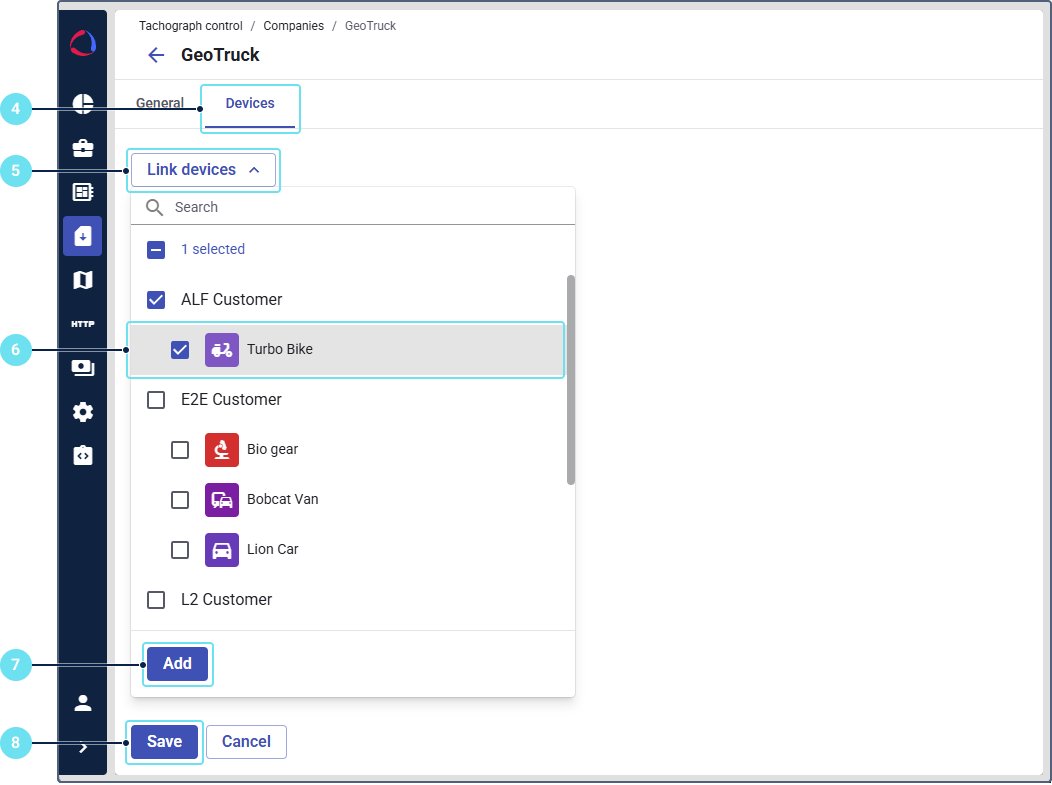
- Click Link devices.
- Select the devices you want to link to this company.
- Click Add.
- Click Save.
The devices are now linked to the company.
You can also link a device to a company in the device details when configuring the tachograph functionality for a device.
Receiving files from flespi gateway devices
If you have your own flespi account, your devices can stay in it and send tachograph files by themselves. In Wialon Platform, such a device is created with the Flespi Gateway model. Wialon Platform copies each received file to this device automatically.
For these devices:
- You don’t need the Tacho bridge application, a company card, the Tachograph option, or slot types.
- You can’t request files from the devices or link them to a company.
- The device appears on the Tacho devices tab in Wialon Platform Studio after it sends its first tachograph file.
The received files are used in the same way as the files of other devices: they appear in the file lists, update the download dates, and are used for the chronography and the reports.