Adding and connecting a gateway
Who can do it: Service provider, Customer
Where: Wialon Platform FleetSpace
The gateway sends data from anchors and tags to the platform. Unlike anchors and tags, a gateway isn’t created automatically, so add it in the account first and only then point the hardware to the platform.
For the hardware installation guidelines (the number of anchors for each floor, the coverage area, and the gateway placement), see the documentation of the hardware manufacturer.
You can do all the steps in Wialon Platform FleetSpace yourself: log in as the customer. Your customer users can do the same steps if you gave them the required permissions.
Adding a gateway
-
On the Buildings page, open the building floor plans and select the floor where the gateway is installed.
-
Click Edit floor.
-
On the panel on the left, select the Gateways tab.
-
Click the Add button for adding a gateway.
-
In the Add gateway window, fill in the fields:
Field Description Ident The gateway ident, for example, BTGW-123456. Required.Name The name shown in the lists and on the floor plan. Required. Position The point on the plan where the gateway is installed. To set it, click the required place on the floor plan. Optional. -
Click Save changes.
To add several gateways at once, import them from a CSV file. See Importing assets and tags from a file. Imported gateways aren’t placed on a floor plan, so open the floor editor and place each of them afterwards.
Getting the connection address
-
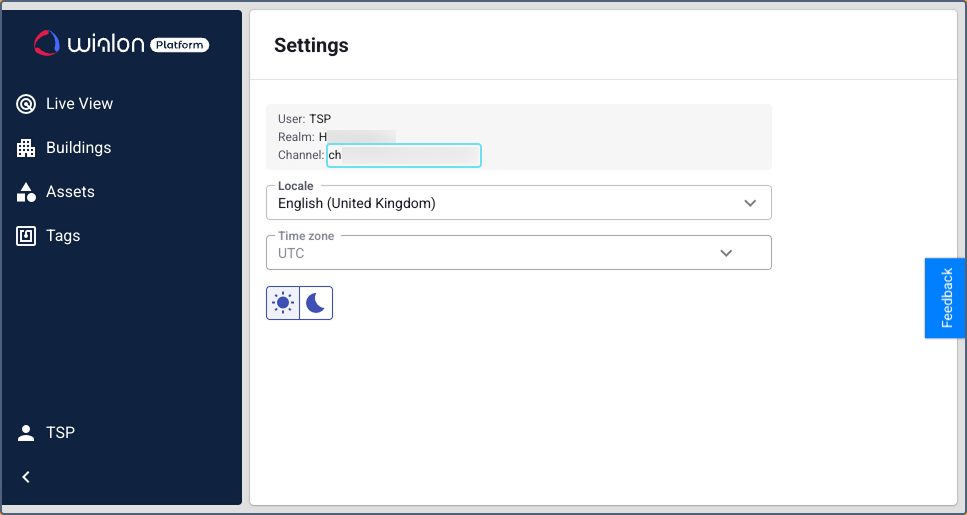
Go to Settings.
-
Find the Channel field. It shows the connection address in the
host:portformat. -
Copy the value.
Pointing the gateway to the platform
In the gateway settings, enter the copied address as the data destination. The exact steps depend on the hardware model, so check the manufacturer instructions.
After the gateway starts sending data, the anchors and tags that work through it appear in the account automatically.
Anchors and tags are added automatically only if their gateway is already added in the account. The platform identifies the customer by the gateway, so data from an unknown gateway is skipped.
If the hardware stops sending data, the building card on the Buildings page shows a warning. For details, see Checking the state of the building.