Managing forms (for customer managers)
Who can do it: Service provider, customer
Where: Wialon Platform FleetSpace
This page details how customer managers can monitor and analyze form data.
Viewing assigned forms
Customer managers can view all forms currently assigned to devices in Wialon Platform FleetSpace. This allows for real-time monitoring of active inspections.
To view assigned forms:
-
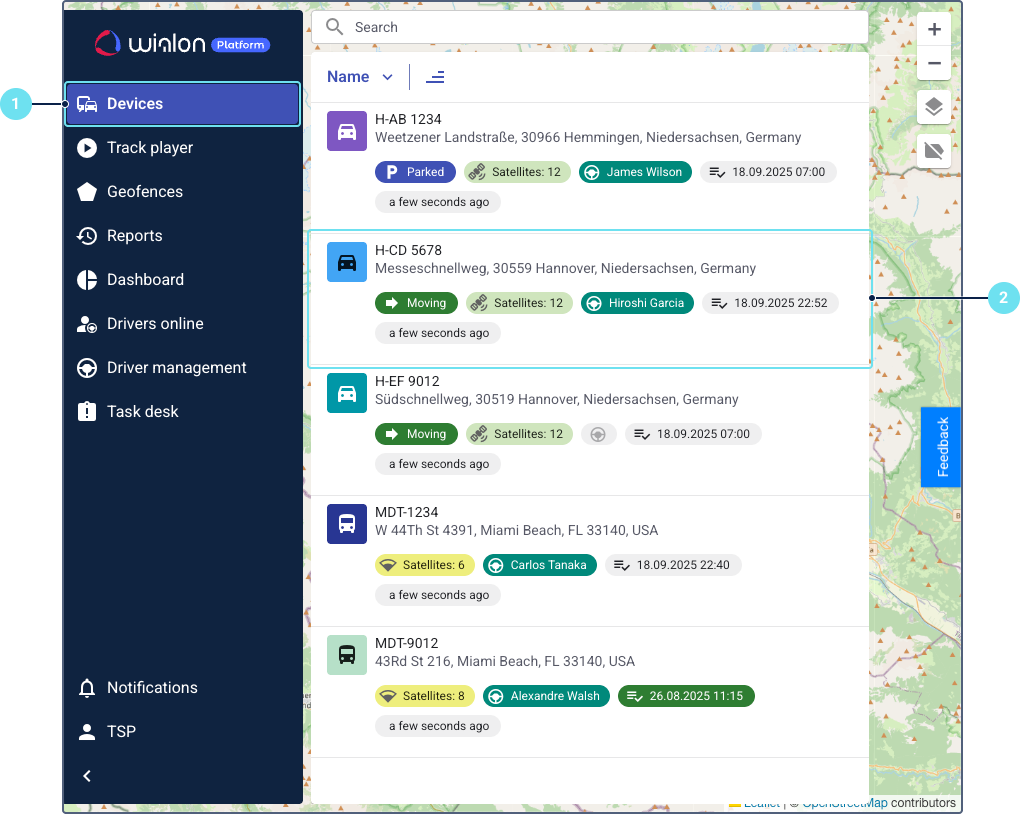
In Wialon Platform FleetSpace, navigate to the Devices or Drivers online page.
-
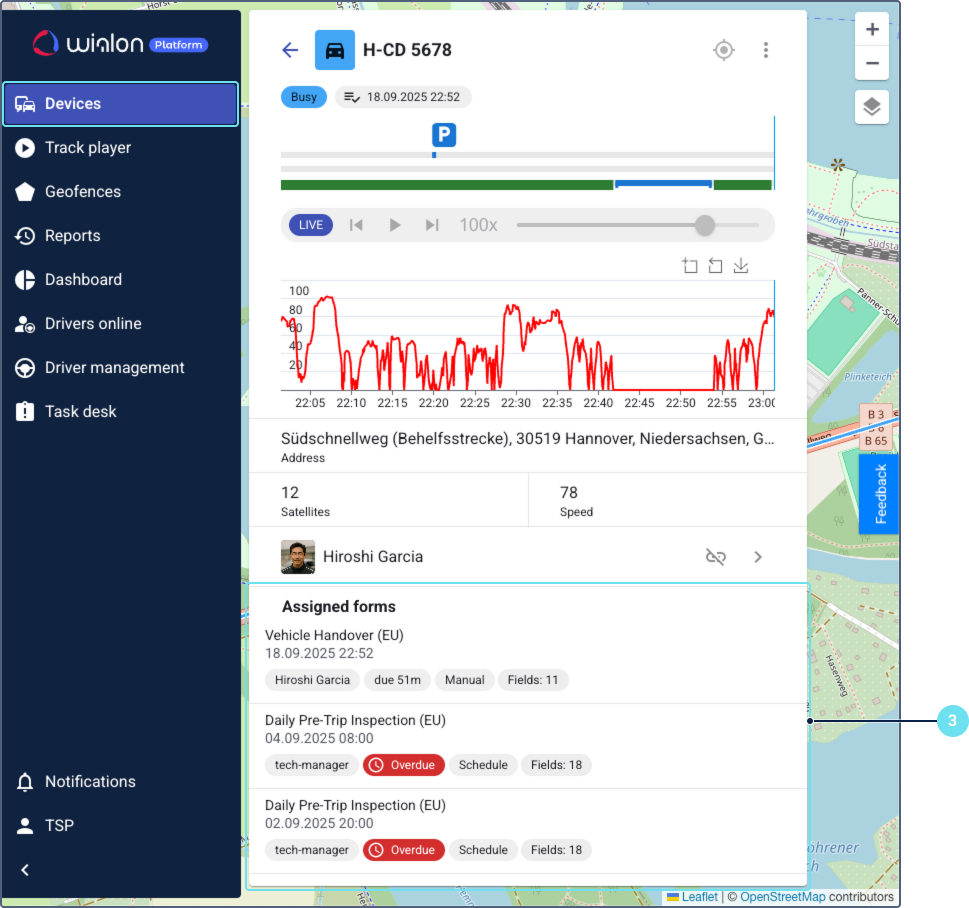
Click on a specific device or driver in the list to open its details page.
-
Find the Assigned forms page and view the list of forms assigned to the device. The list is sorted in descending order by assignment date. The list displays details such as the form name, assignment time, assigned user or driver, status, assignment method, number of items.
-
Click on a form to view its items.
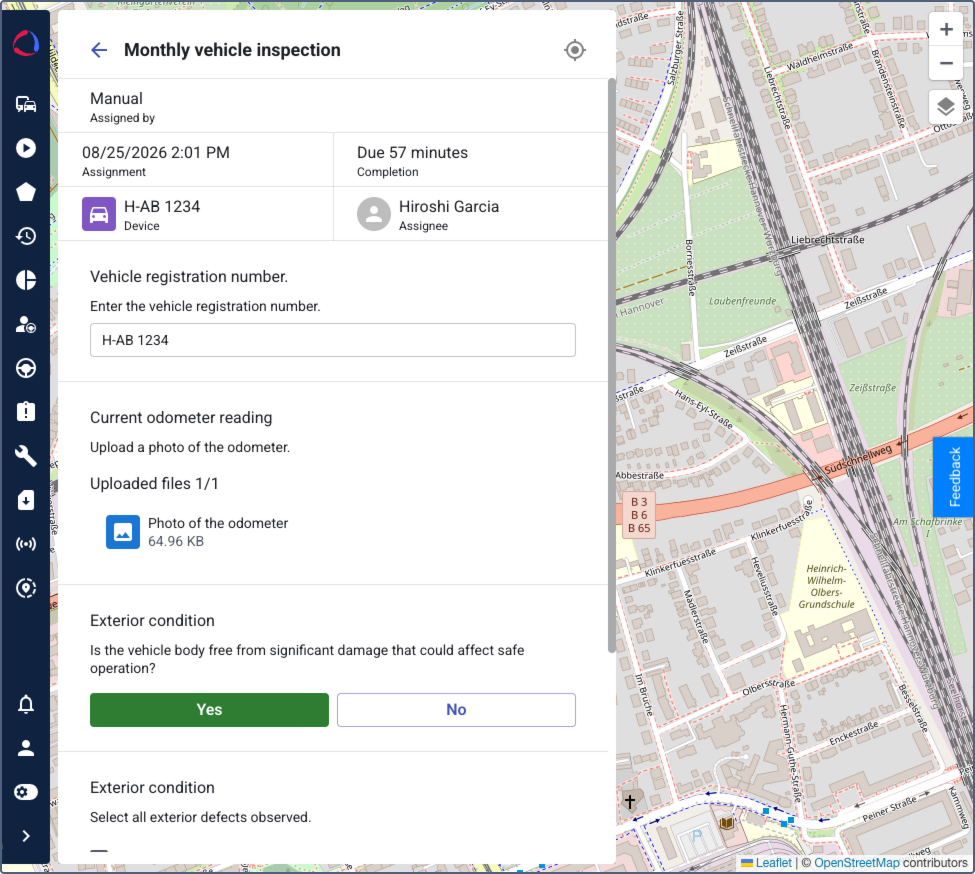
If you have permission to update forms, you can complete and submit those assigned to other users or drivers from the device or driver details pages.
Viewing submitted forms
Customer managers can access historical data on conducted inspections, which helps in investigating disputes, monitoring fleet performance, and ensuring compliance.
To view submitted forms:
-
Log in to Wialon Platform FleetSpace.
-
Navigate to the Devices or Drivers online page.
-
Click on a specific device or driver in the list to open its details page.
-
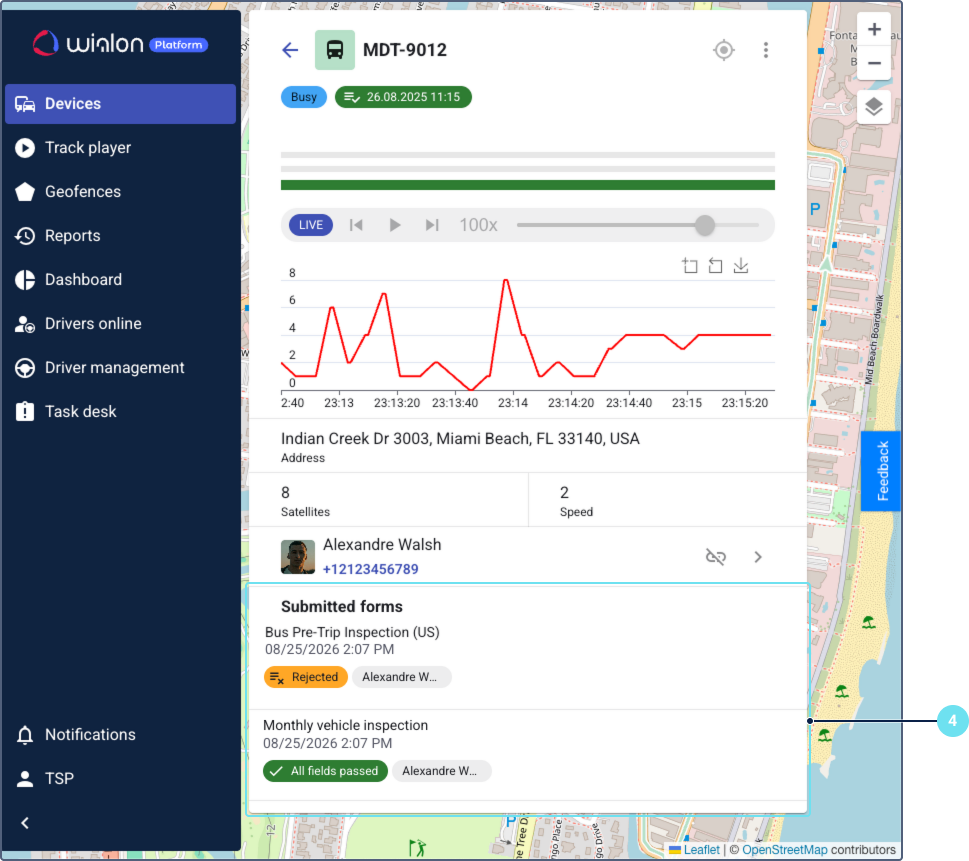
Find the Submitted forms page and view the list of forms submitted for the device. The list is sorted in descending order by submission date. The list displays details such as the form name, submission time, assigned user or driver, and number of failed items.
-
Click on a form to view its items and the provided answers. You can’t edit submitted forms.
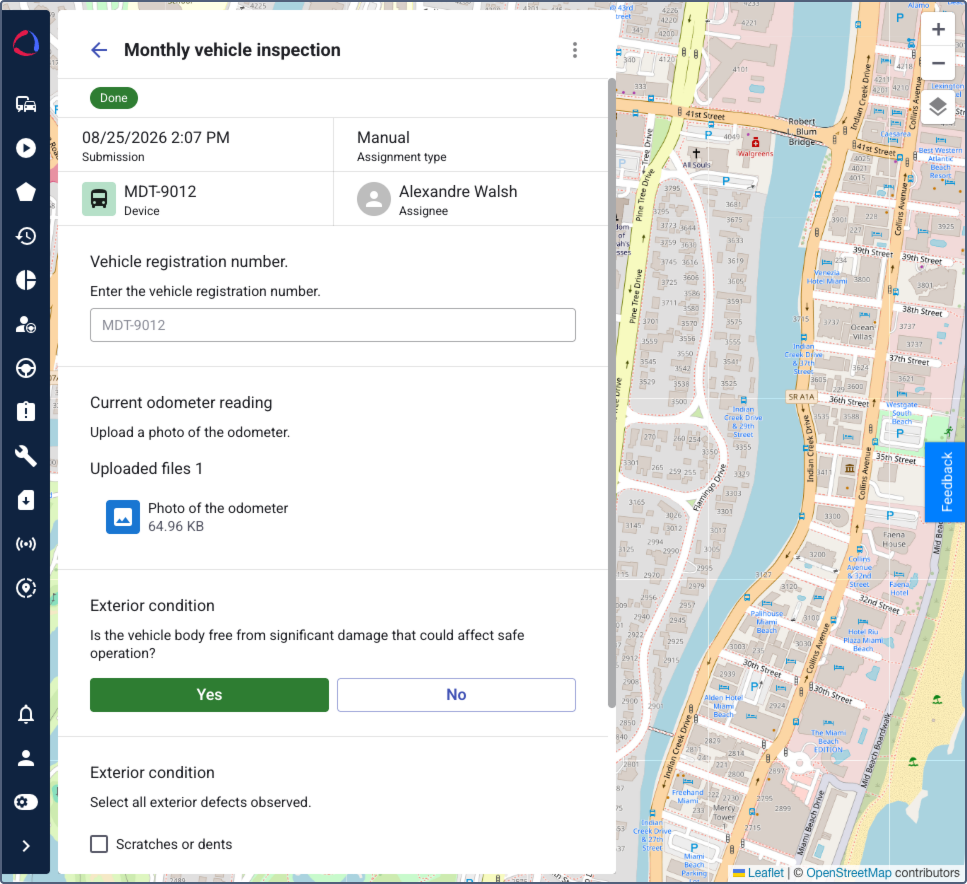
Viewing form reports
Customer managers can access reports to analyze form data and gain insights into fleet performance. These reports provide structured data for informed decision-making.
Service providers can configure automatic report sending by attaching it to the automations with the actions Send an email and Send Telegram message.
Generating the report
To generate a report on forms, follow these steps:
-
Log in to Wialon Platform FleetSpace.
-
Go to the Reports page.
-
Select Forms as the report type. The settings selected for this report will be saved for this session.
-
Configure the report parameters:
- date range
- grouping by devices, drivers, or users
- specific devices, drivers, or users to include depending on the selected grouping
-
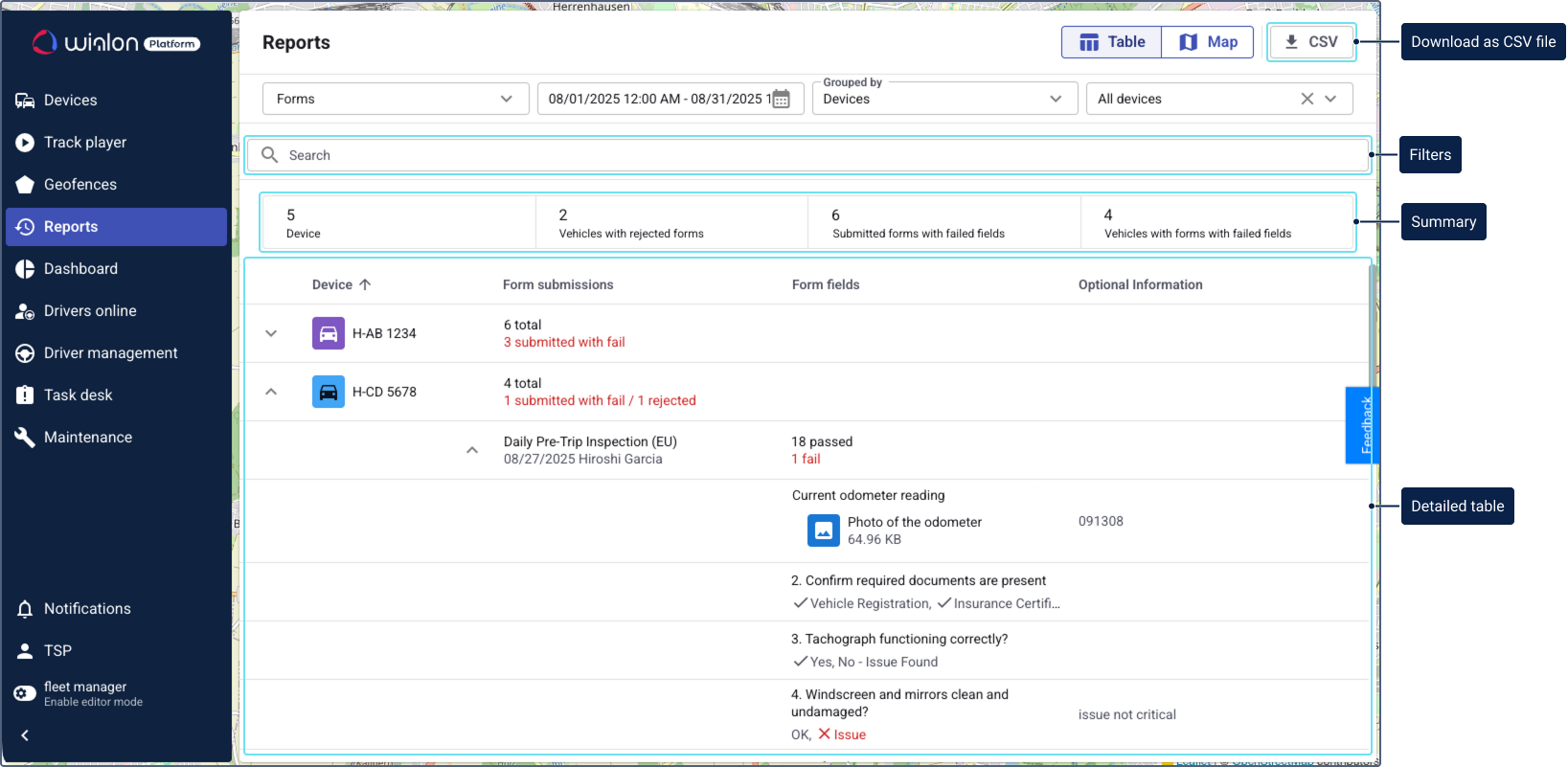
The report is generated automatically. If needed, download the report in CSV format by clicking the icon
 .
.
You can navigate to other pages and return to your report. The generated report is available for 1 minute.
Information available in the report
The generated report provides a comprehensive overview of form data, offering both a summary and detailed information in a table format.
Summary
The summary section includes key metrics such as the total number of devices, devices with rejected forms, submitted forms containing failed items, and devices associated with forms that have failed items.
Detailed report table
The main table presents detailed information for each entry, including the device name, the total number of submitted forms, the assignee’s name, the completion date, the number of passed and failed form items, and the specific form items along with their responses. If a response contains an attached image, you can download it by clicking the icon .
Filtering the report data
You can refine the report data by applying various filters:
- Filter by form name to view data for specific forms.
- Filter by status to include only forms that are Done or Rejected.
- Filter by failed checks to display forms with or without failed items.