Creating and managing white-labeled sites
Who can do it: Service provider
Where: Wialon Platform Studio
The Sites tab allows you to create and manage custom white-labeled sites. This feature enables you to offer the platform to your customers under your own branding, using custom domains and visual themes.
To create a new white-label site, follow the next steps:
-
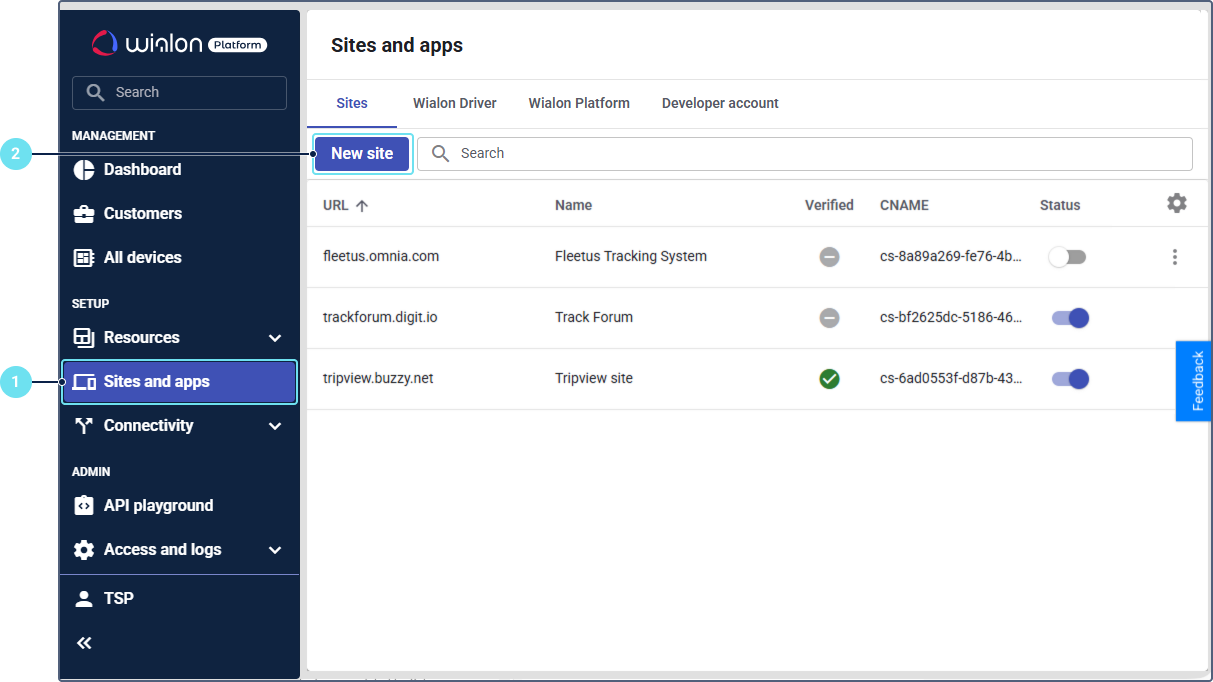
In Wialon Platform Studio, navigate to the Sites and apps page.
If you haven’t created any sites yet, click Add first site on the empty page.
-
Click New site.
-
In the URL field, enter the custom domain you want to use for this site (for example,
fleet.yourcompany.com).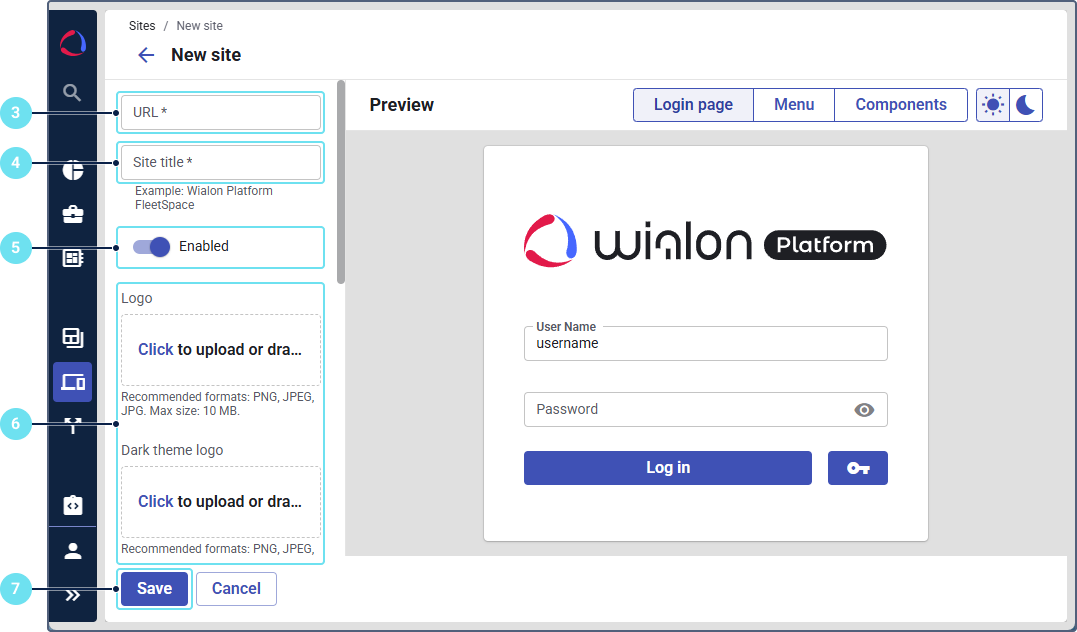
-
In the Site title field, enter a name for the site. This name is for internal use and won’t be visible to your customers.
-
Switch on the Enabled option to enable the site. The site will be available immediately after the verification.
-
Customize the visual elements of your site, such as the site logo, login page background, light and dark mode colors, and more.
-
Click Save.
After you save the site, you will see it in the list. The next step is to verify your domain.
Managing site list
The site list on the Sites and apps page displays all your created sites with such information as the site URL, name, if the site is verified or not, CNAME, and status (whether the site is enabled or disabled).
Use the filter in the Search bar to sort sites by name, URL address, verification status, or activation status (enabled or disabled).
To enable a site from the list, set the toggle in the Status column to Enabled. Once enabled and verified, the site will be accessible to users at the custom URL.
To edit a site, click on its row in the list, make the necessary changes, and save them.
To delete a site, hover over the site row, click the icon  and select Delete.
To verify a site, add a CNAME record to your domain DNS settings and select the Verify option.
Assigning a site to customers
You can assign a site to one or more customers.
This feature is available on the Sites and apps page, where you can assign the same site to one or more customers, as well as on the Customers page, where you can assign a site to a selected customer in their profile.
A customer can have only one site assigned. If you assign another site to a customer who already has one, the previously assigned site is automatically unassigned.
On the Sites and apps page
To assign a site to customers on the Sites and apps page:
- On the Sites tab, hover over the site row and click the icon
 .
. - Select Assign to customers.
- Select the required customers from the dropdown list.
- Click Apply.
After this, you can see the assigned site on the Customers page, where the Site column as well as the customer profiles show what site is assigned to each customer.
To unassign the site from a customer, follow the previous instructions, but remove the unnecessary chip from the Customers field in step 3. In this case, the customer gets the default site instead of the previous one.
In the customer profile
To assign a site to a customer in the customer profile:
- Go to the Customers page.
- Select the required customer to open their profile.
- In the Sites and apps section, click the icon
 .
. - In the Site field, select the required site.
- Click Save.
After this, the customer gets access to the assigned site.