Payments
The Payments page is designed to help service providers view information about their monthly payments and invoices. It is available in Wialon Platform Studio only for users with the Administrator role.
The page contains two tabs: Invoices and payments and AI agent.
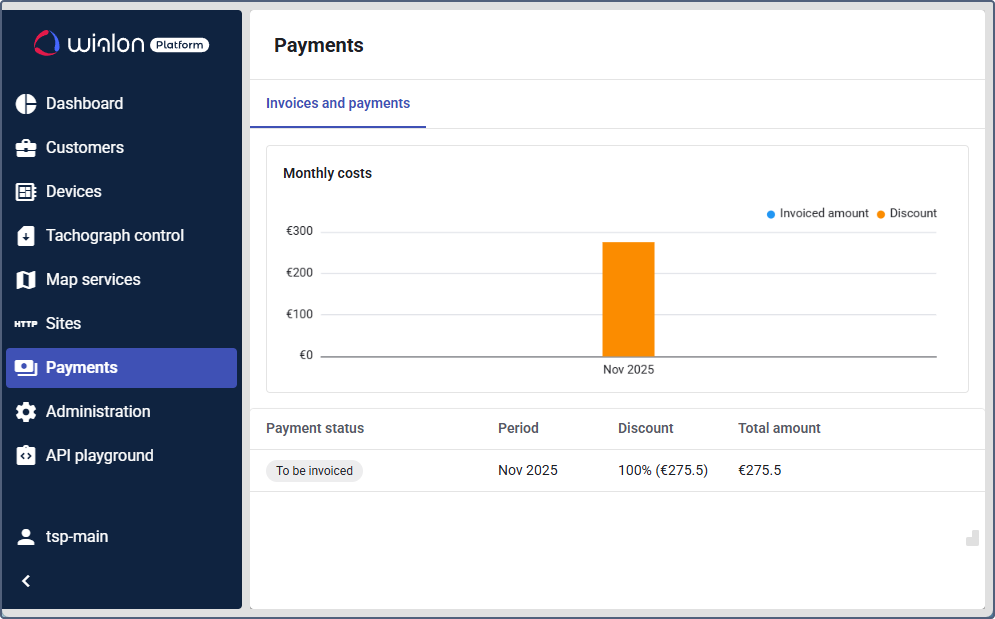
“Invoices and payments” tab
The Invoices and payments tab allows you to access:
- Monthly costs chart
- Table of monthly payments
- General billing data for each month
- Invoice details by customer for each month
“Monthly costs” chart
The Monthly costs chart displays the invoiced amount for each month of using Wialon Platform. Hover over the bar of a certain month to view the invoiced amount for this period.
Table of monthly payments
The table of monthly payments contains the following columns:
| Column | Description |
|---|---|
| Payment status | Displays the status of the invoice: open or paid. |
| Period | Invoice period. |
| Total amount | Total cost for using Wialon Platform during the invoice period after applying the discount (if any). |
To download the invoice, click the icon  in the row of the required month.
To make a payment for the open invoice, click the icon  in its row.
Click the row of the required month to view the general billing data for that period.
General billing data for a month
To view general billing data for a certain month:
- Open the Payments page.
- Click the row of the required month in the table of monthly payments.
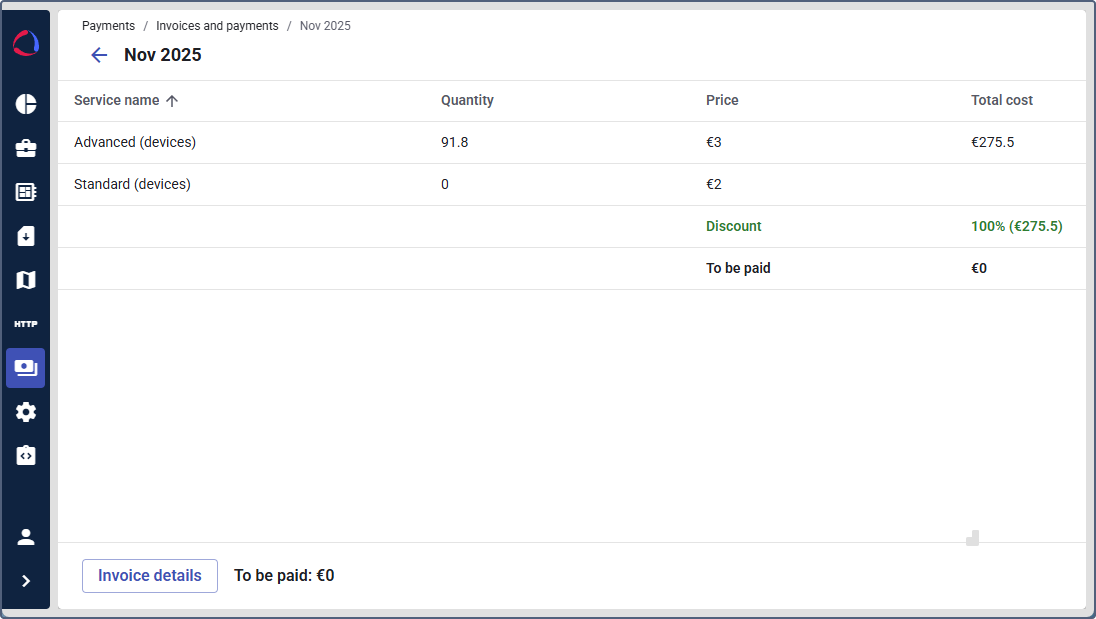
General billing data is displayed in a table with the following columns:
| Column | Description |
|---|---|
| Service name | Billing plan name. |
| Quantity | Average number of devices which used this billing plan during the month. |
| Price | Price per device according to the billing plan. |
| Total cost | Total cost for using this billing plan during the month. |
The Discount row shows the applied discount, and the Total row indicates the total amount you paid or have to pay for this month.
To download the invoice, click the icon in the heading.
“AI agent” tab
On the AI agent tab, you can track how many credits the AI agent spends and change its monthly spending limit. For details, see AI agent.