Creating and managing white-label sites
Who can do it: Service provider
Where: Wialon Platform Studio
The Sites section in Wialon Platform Studio allows you to create and manage custom white-label sites. This feature enables you to offer the platform to your customers under your own branding, using custom domains and visual themes.
To create a new white-label site, follow the next steps:
-
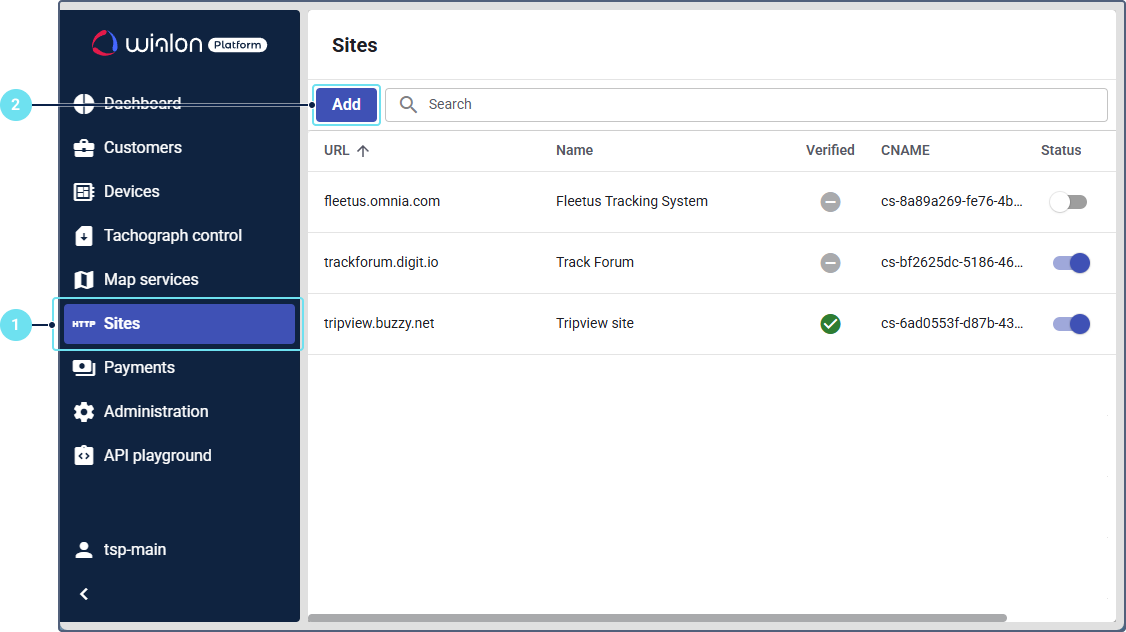
In Wialon Platform Studio, navigate to the Sites page.
-
Click New site.
-
In the URL field, enter the custom domain you want to use for this site (for example,
fleet.yourcompany.com).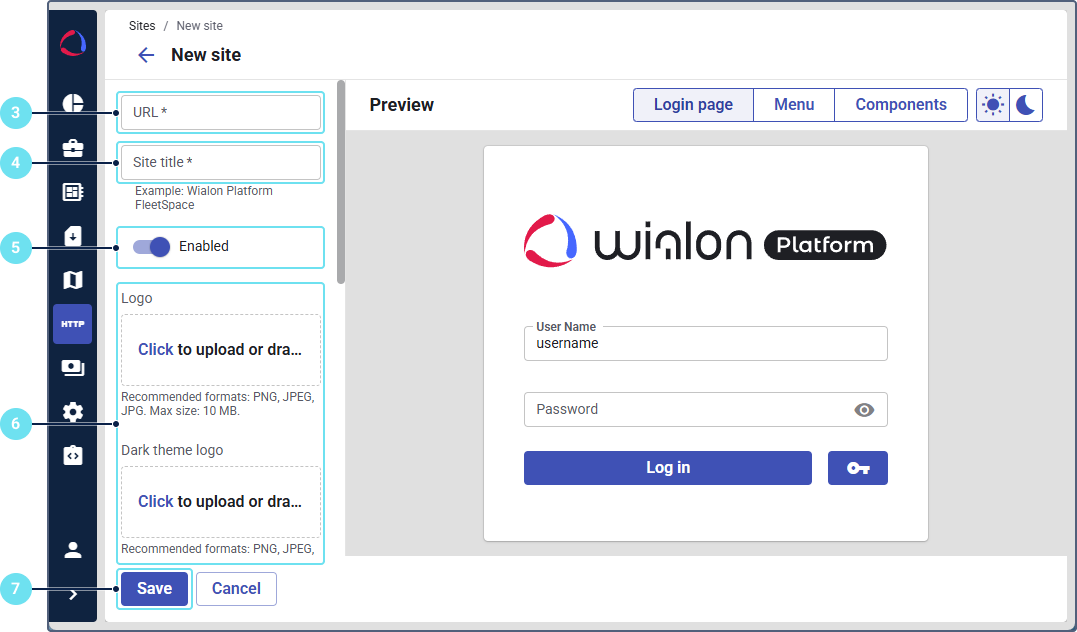
-
In the Site title field, enter a name for the site. This name is for internal use and won’t be visible to your customers.
-
Switch on the Enabled option to enable the site. The site will be available immediately after the verification.
-
Customize the visual elements of your site, such as the site logo, login page background, light and dark mode colors, and more.
-
Click Save.
After you save the site, you will see it in the list. The next step is to verify your domain.
Managing site list
The site list on the Sites page displays all your created sites with such information as the site URL, name, if the site is verified or not, CNAME, and status (whether the site is enabled or disabled).
Use the filter in the Search bar to sort sites by name, URL address, verification status, or activation status (enabled or disabled).
To enable a site from the list, set the toggle in the Status column to Enabled. Once enabled and verified, the site will be accessible to users at the custom URL.
To edit a site, click on its row in the list, make the necessary changes, and save them.
To delete a site, hover over the site row, click the icon  and select Delete.
To verify a site, add a CNAME record to your domain DNS settings and select the Verify option.