Managing the device table
Who can do it: Service provider
Where: Wialon Platform Studio
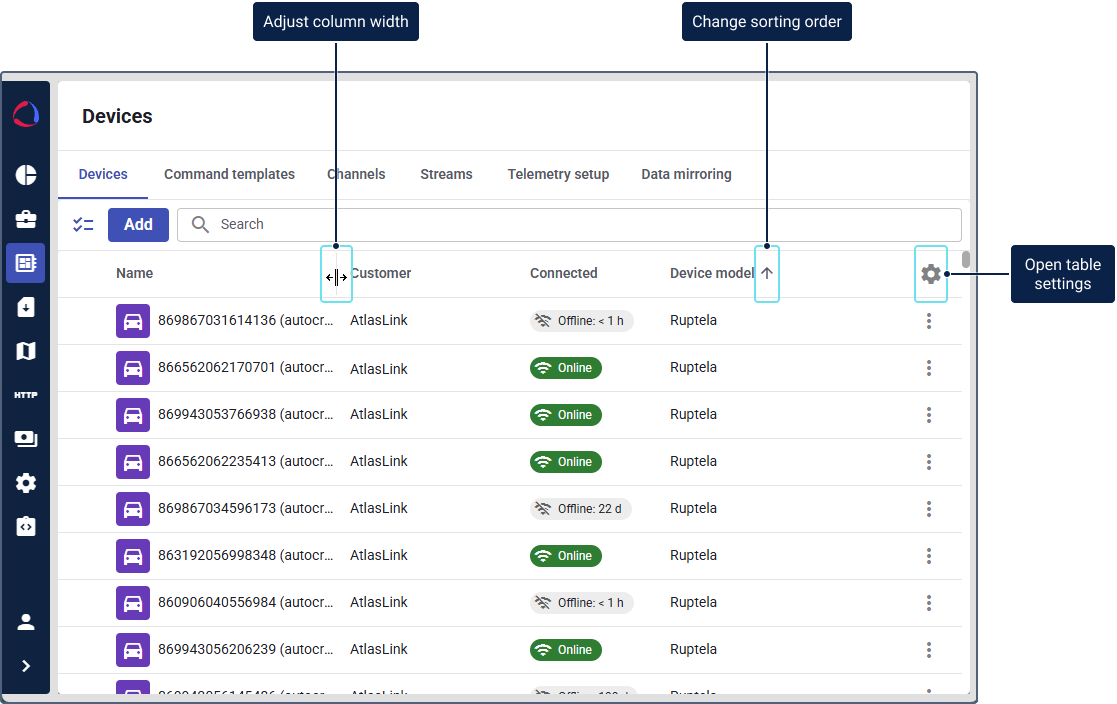
In Wialon Platform Studio, the created devices are displayed in the device table. You can manage it using the following actions:
- Sorting the table contents
- Adjusting the column width
- Hiding and showing the columns
- Reordering the columns
Sorting the table contents
You can sort the devices by name, customer, and device model. To do so, click on the necessary column header. For a descending sorting order, click on the header again.
Adjusting the column width
To adjust the column width, hover over the column header, click its border, then drag and drop it as needed.
Hiding and showing the columns
To hide the columns you don’t need, click the icon  , and cancel the column selection. To show the column again, select it in the same menu.
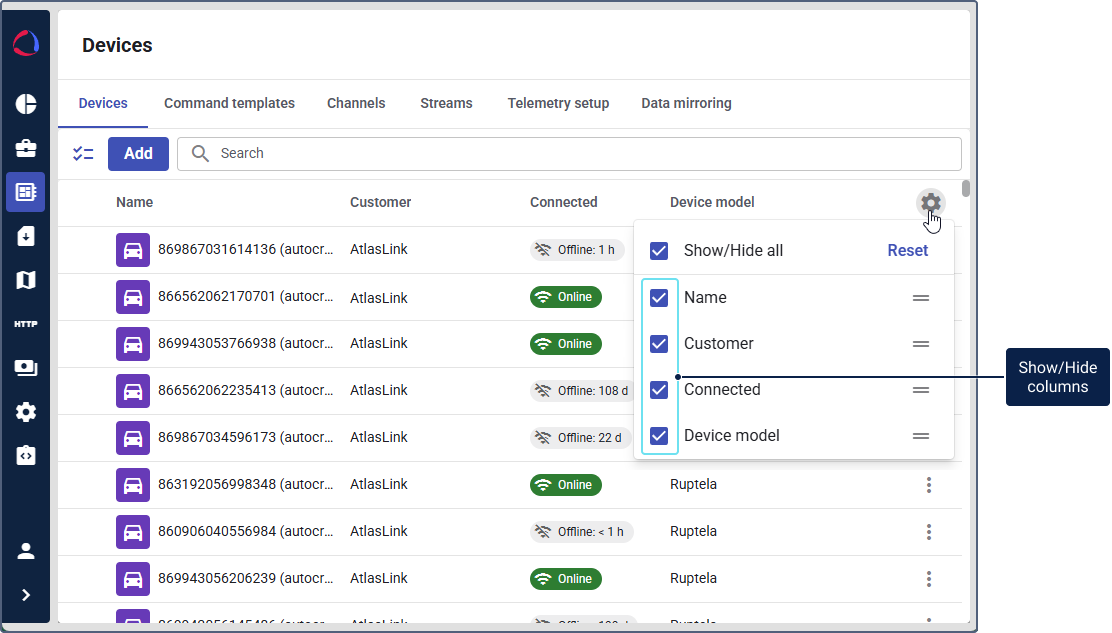
To restore the table settings to default, click Reset.
Reordering the columns
To change the order of the table columns:
- Click the icon .
- Click the icon opposite the name of the column you want to move.
- Drag and drop the column in the necessary order.
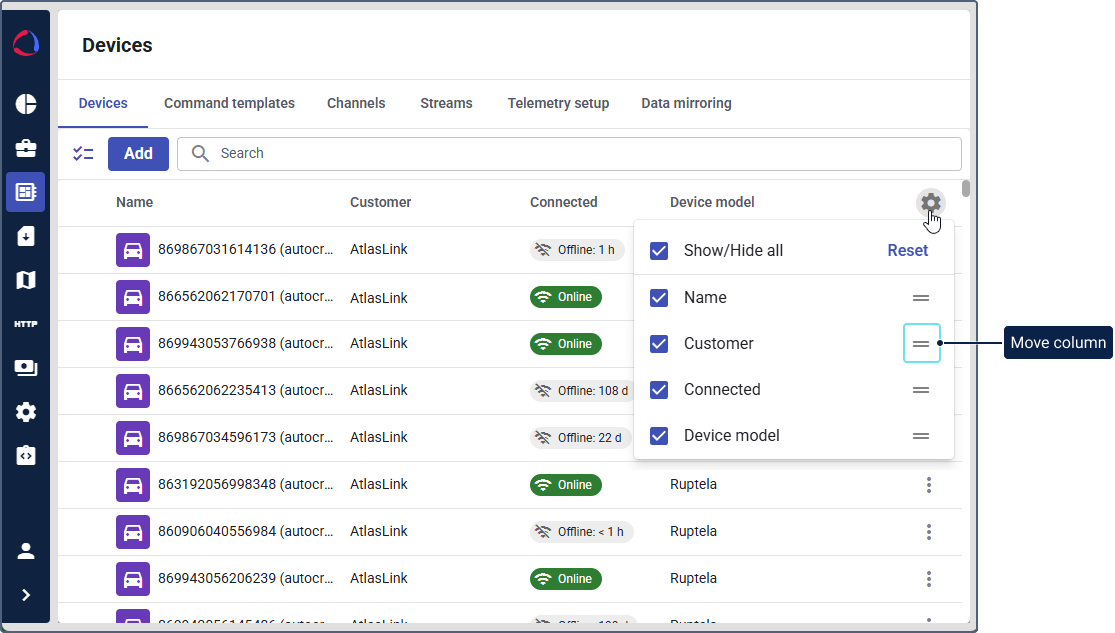
To restore the table settings to default, click Reset.