Managing notifications
Who can do it: Customer user
Where: Wialon Platform mobile app
The Notifications tab provides a dedicated feed of fleet events triggered by automations. Use it to stay informed about critical events such as speeding, geofence entries or exits, maintenance reminders, and other alerts while you’re on the go.
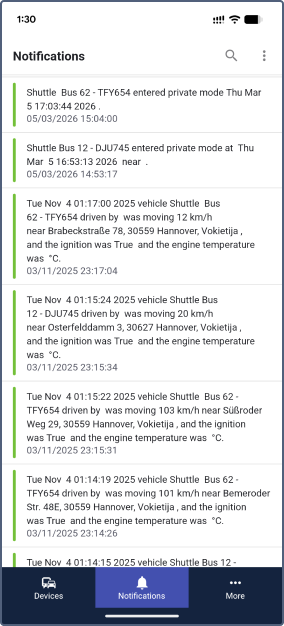
To open the notification feed, tap the Notifications tab in the navigation bar.
Notification list
Each notification in the list shows:
- the notification text describing the event
- the date and time when the notification was received
A colored bar on the left side of each notification is set by the service provider in the action template settings.
Tap a notification to mark it as read.
Searching notifications
To find a specific notification:
- Tap the search icon
 in the upper-right corner of the Notifications screen.
 - Type your search text. The list is filtered in real time to show only matching notifications.
Actions with the notification list
To manage your notifications in bulk, tap the menu icon  on the Notifications screen.
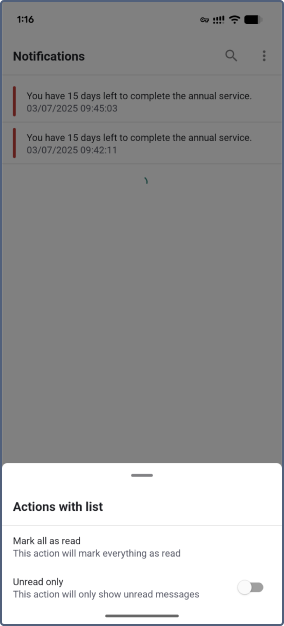
The Actions with list panel has the following options:
- Mark all as read: Marks all notifications in the list as read.
- Unread only: When enabled, the list shows only unread notifications. Toggle this option on or off.