Finding assets on the map
Who can do it: Service provider, customer user
Where: Wialon Platform FleetSpace
On the Live View page, you can see where your assets are located at the moment and how long ago each of them was detected.
In the mobile app, only the Live View, Assets, and More tabs are available. To create buildings, floors, and zones use Wialon Platform FleetSpace on the web. For details, see Tracking indoor assets.
Selecting a building and floor
- Navigate to the Live View page.
- Select the building in the page header.
- Select the floor in the floor switch on the map.
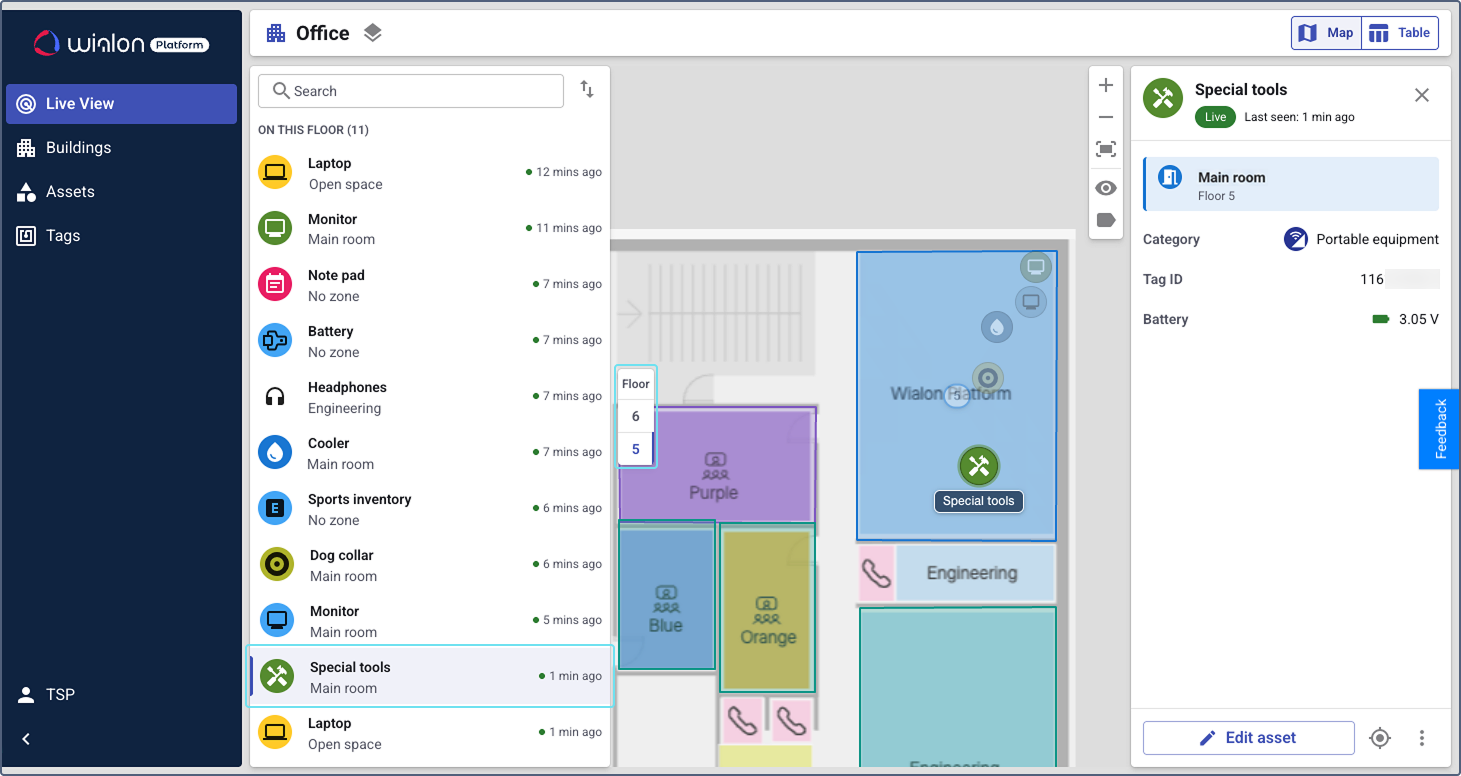
For each asset on the selected floor, the list on the left shows the zone where it’s located and the time when it was last detected. The assets outside any zone are shown with the No zone value. For details on creating zones, see Drawing zones on the floor plan.
Finding an asset
-
In the search field, enter the asset name or the zone name.
-
To narrow down the results, use the following filters:
Filter Description Name The name of the asset. Zone The zone where the asset is located. Available if at least one zone is created. Category The category of the asset. Available if at least one category is created. Status The current status of the asset: Live, Stale, Lost, Not seen, or Untracked. -
Click the asset in the list to center the map on the position where it was last detected.
To change the order of the assets in the list, click the sorting icon above it. You can sort the assets by the last detection time, name, or zone.
Map and table views
To switch between the views, use the Map and Table buttons in the upper-right corner.
Map view
The map view shows the assets on the floor plan. The number in a zone shows how many assets are located inside it.
The position of an asset on the plan is calculated by the anchors that detect its tag, so it can differ from the real one. For details, see How the tag position is defined.
Table view
The table view shows the data of the whole building in a table with two tabs:
- Assets: All assets in the building across all floors.
- Anchors · Gateways: All hardware in the building.
Assets tab
The Assets tab shows all assets in the building across all floors. The columns are the same as in the asset list on the Assets page. For their description, see Managing the asset list.
Above the table, the counters show how many assets have the Live, Stale, and Lost statuses. Click a counter to leave only such assets in the table. You can also filter the table by Name, Zone, Category, Status, Floor, and Battery.
To work with an asset, click the icon  in its row. The available actions are Find on map, Change tag, Unpair tag, and Edit asset. For their description, see Actions in the asset row.
Anchors · Gateways tab
The Anchors · Gateways tab contains the following columns:
| Column | Description |
|---|---|
| Name | The name of the anchor or gateway. |
| Ident | The ident of the hardware. |
| Kind | The type of the hardware: Anchor or Gateway. |
| Floor | The floor where the hardware is placed. |
| On plan | Shows whether the hardware is placed on the floor plan. |
| Link | The connection status. |
| Last heard | The time of the last received message. |
| Battery | The battery level. Shown for anchors only. |
Above the table, the counters show how many devices have the Online, Silent, Offline, and No data statuses. Click a counter to leave only such devices in the table. You can also filter the table by Name, Ident, Floor, and Link.
To place the hardware that isn’t shown on the plan yet, see Placing anchors on the floor plan.
Showing and hiding objects on the map
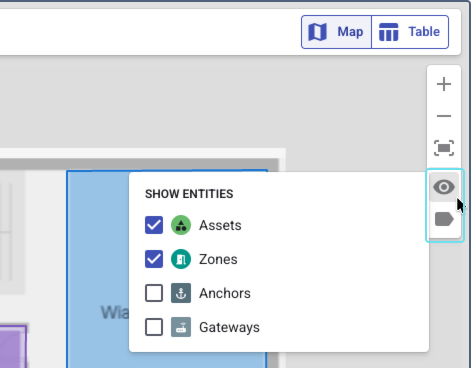
To make the floor plan easier to read, you can hide the objects you don’t need at the moment. On the map toolbar, use the following controls:
- Entities: Shows or hides the Assets, Zones, Anchors, and Gateways on the map.
- Labels: Shows or hides the names of the Assets, Zones, Anchors, and Gateways.
Checking the asset status
The status of an asset depends on how long ago its tag was last detected.
| Status | Condition | What to do |
|---|---|---|
| Live | Less than 15 minutes ago | Nothing. The asset is tracked in real time. |
| Stale | From 15 minutes to 1 hour ago | Check the tag and the anchors near the asset. |
| Lost | 1 hour ago or more | Check the tag battery and the hardware on the floor. |
| Not seen | The tag has never been detected | Check that the tag is turned on and is within the range of the anchors. |
| Untracked | The asset isn’t paired with a tag | Pair a tag with the asset. |
The untracked assets are also shown with the No tag value in the Tag column on the Assets page.
The time is counted from the moment when the platform last determined the position of the asset. A tag can be detected by the anchors that aren’t placed on the floor plan, and in this case the position isn’t updated. For details, see How the tag position is defined.
Checking the tag battery
To avoid losing an asset from the map, replace the tag battery before it runs out. To check the battery level, switch to the table view and see the Battery column.
| Level | Voltage | What to do |
|---|---|---|
| Normal | More than 3.0 V | Nothing. |
| Warning | From 2.8 V to 3.0 V | Plan the battery replacement. |
| Low | From 2.5 V to 2.8 V | Replace the battery. |
| Critical | 2.5 V or less | Replace the battery immediately. The tag can stop reporting the position at any moment. |