Completing forms
Who can do it: Customer user
Where: Wialon Platform FleetSpace
This page explains how customer users (for example, a dispatcher or any other designated staff member) can view, complete, and review their assigned forms.
Customer drivers can complete forms using the Wialon Driver mobile application. See the guide Completing forms in the Wialon Driver section.
Viewing and completing forms
Customer users can view and complete assigned forms directly within the Wialon Platform FleetSpace web interface.
To view and complete a form, follow these steps:
-
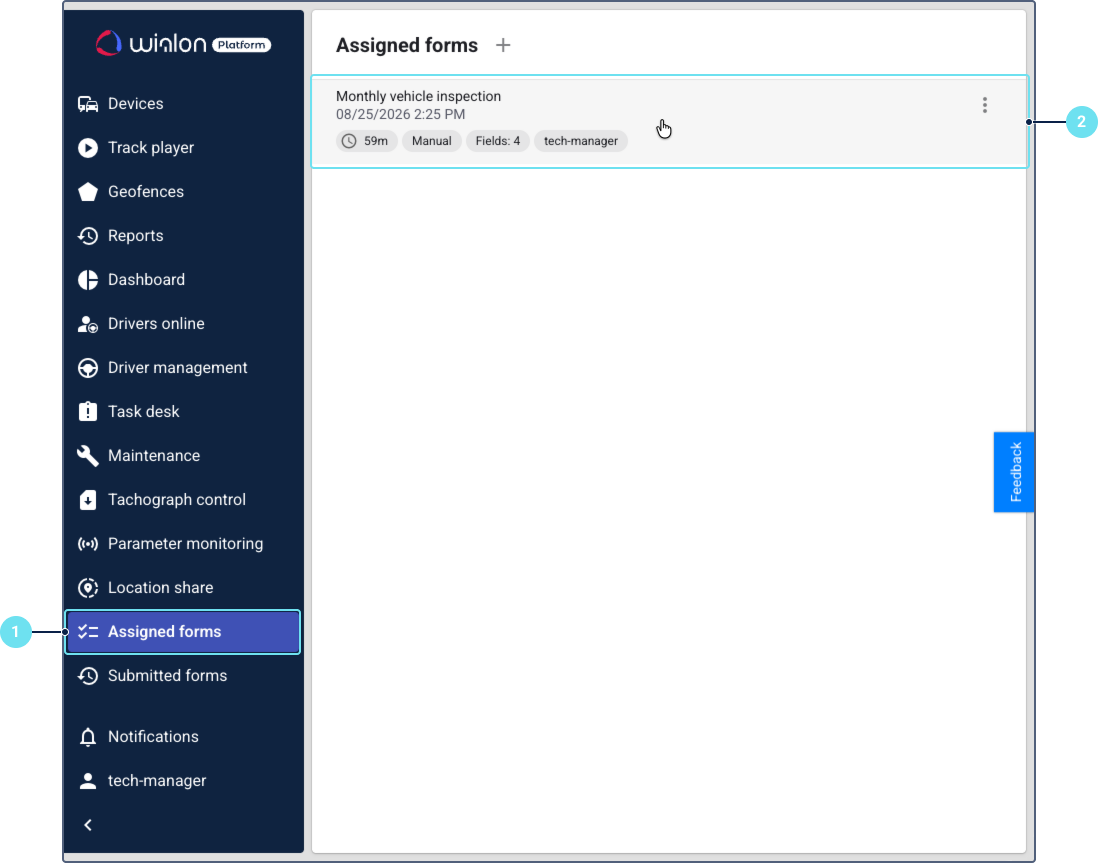
In Wialon Platform FleetSpace, go to the Assigned forms page.
-
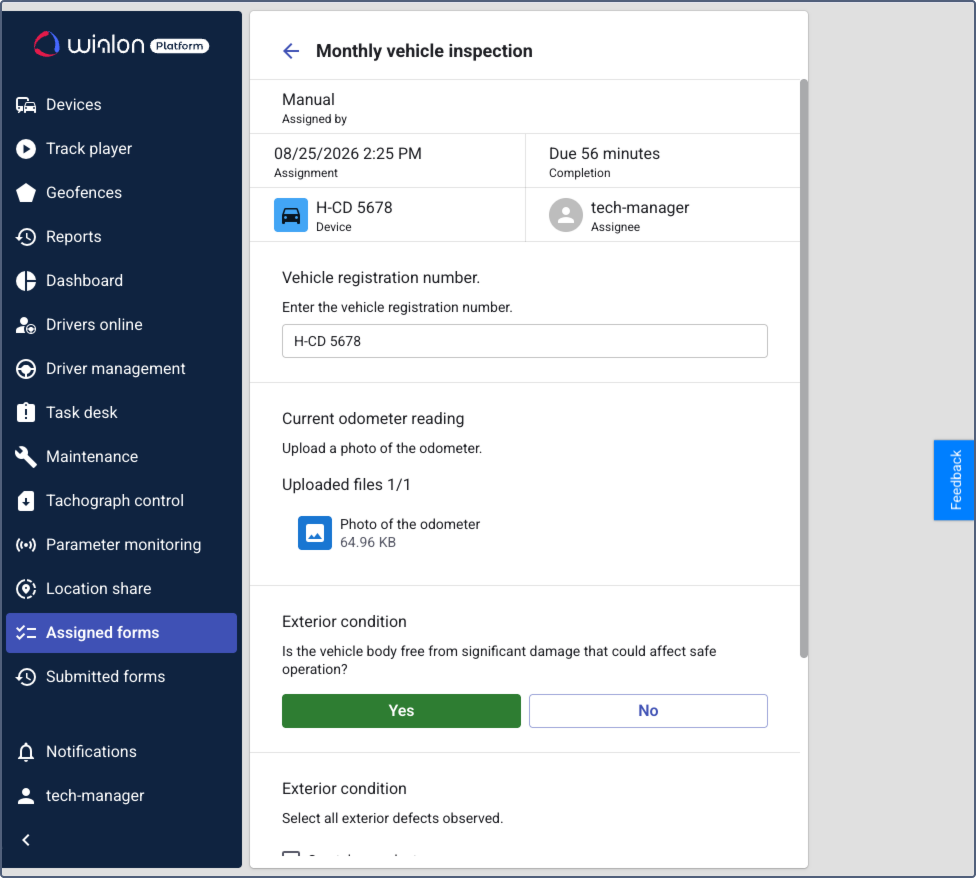
Select the required form from the list. The interface displays the form details and individual fields.
Only users to whom a form is specifically assigned can view and interact with it on the Assigned forms page.
-
Complete all mandatory checks.
-
If configured, upload images and provide an electronic signature (draw your signature on the screen).
-
Click Save to submit the answers.
The form is completed and submitted, and the system updates its status.
Viewing submitted forms
Customer users can review their own previously submitted forms in the Wialon Platform FleetSpace web interface.
To view submitted forms, follow these steps:
-
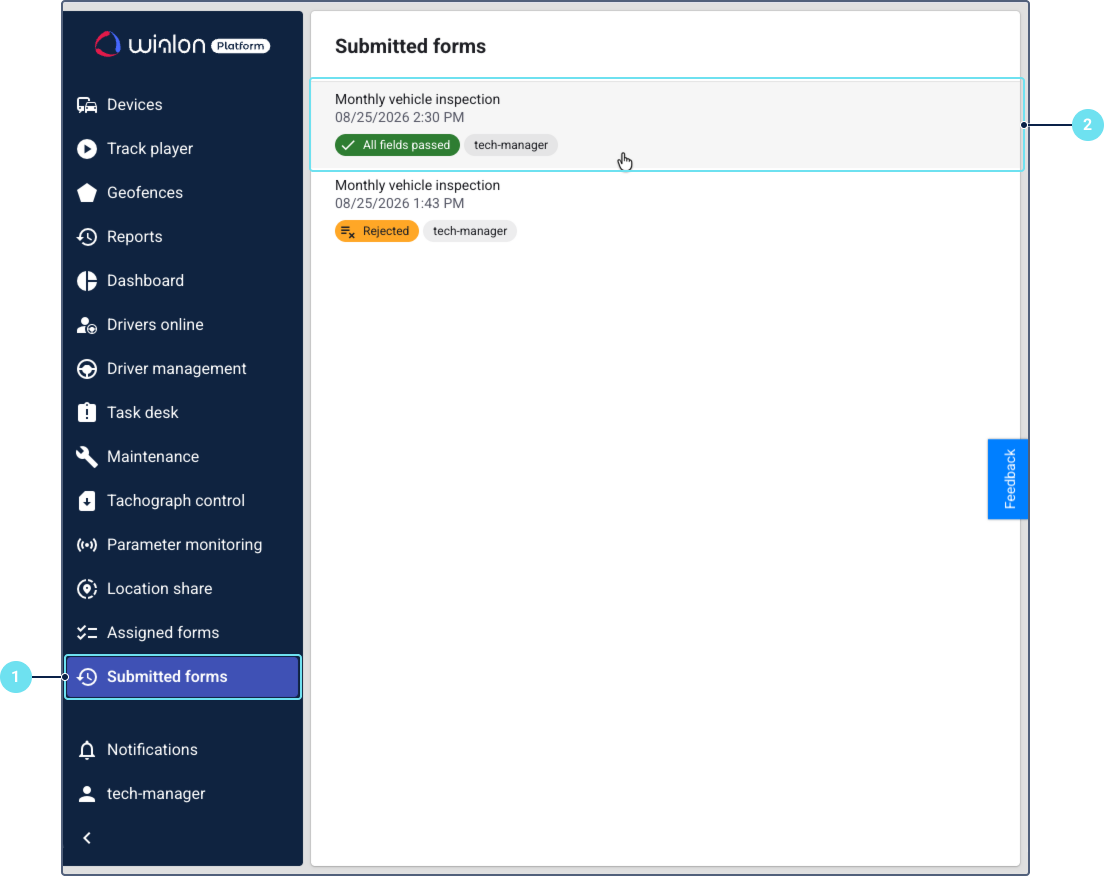
In Wialon Platform FleetSpace, go to the Submitted forms page.
-
Review the list of submitted forms. The list displays the form name, completion time, and number of failed items. The list is sorted in descending order by submission date.
Only users to whom a form is specifically assigned can view and interact with it on the Submitted forms page.
-
Select a form from the list to review its details. The details page includes information about the assigned device, assignment method, and submission results.
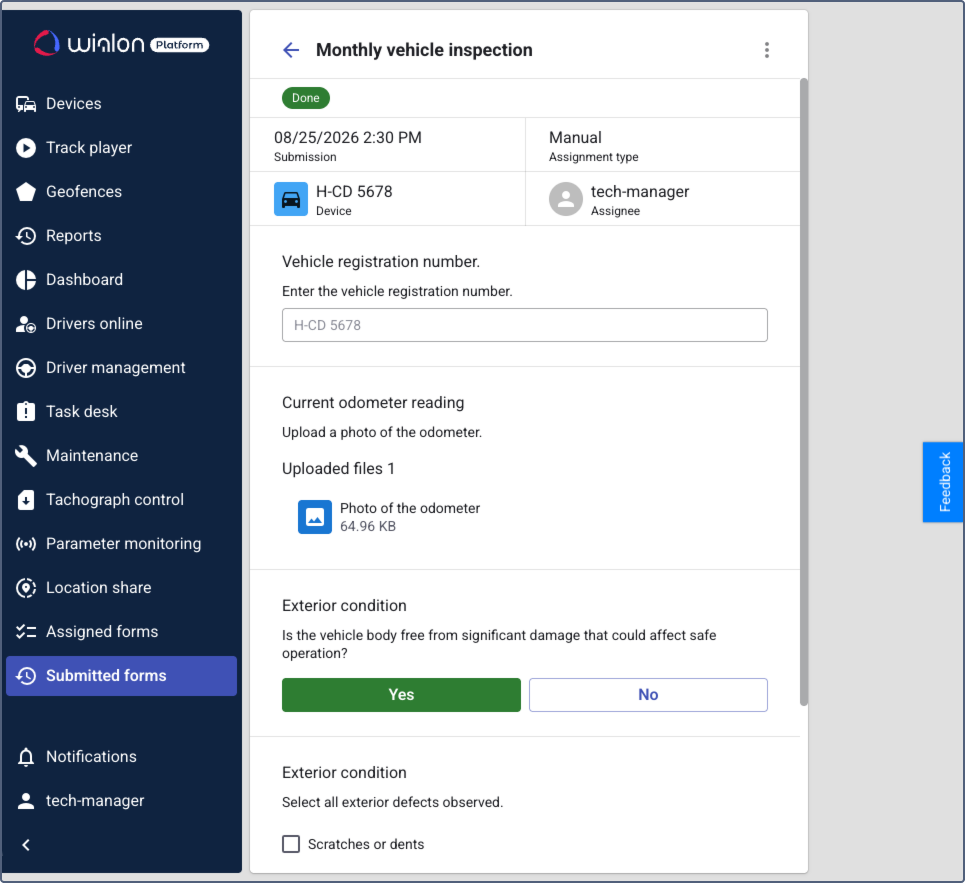
You can’t edit submitted forms.