Configuring form-related widgets for customers in FleetSpace
Who can do it: Service provider
Where: Wialon Platform FleetSpace
Wialon Platform FleetSpace allows you to customize the information displayed in the device list, device details, driver list, and driver details pages by adding and configuring various widgets. These widgets provide quick access to key data, analytics, and actions relevant to your fleet operations.
To configure widgets in a customer workspace, log in as this customer from Studio and follow instructions from the sections below.
Form-related widgets on the “Devices” page
You can add form-related widgets to both the device list and the device details page.
In the device list
In the device list, you can add the following widgets:
- The Assign form action to manually assign forms to the device.
- The Form status (chip) widget to display information about the last updated form or all assigned forms.
To add widgets to the device list, go to the Devices page and enable the editor mode. To quickly find the widget in the list, start typing its name in the Search bar.
“Assign form” widget
To add the Assign form widget:
- Click on any of the icons
 in the device list, or the icon
  if your action widgets are lined up in the device row.
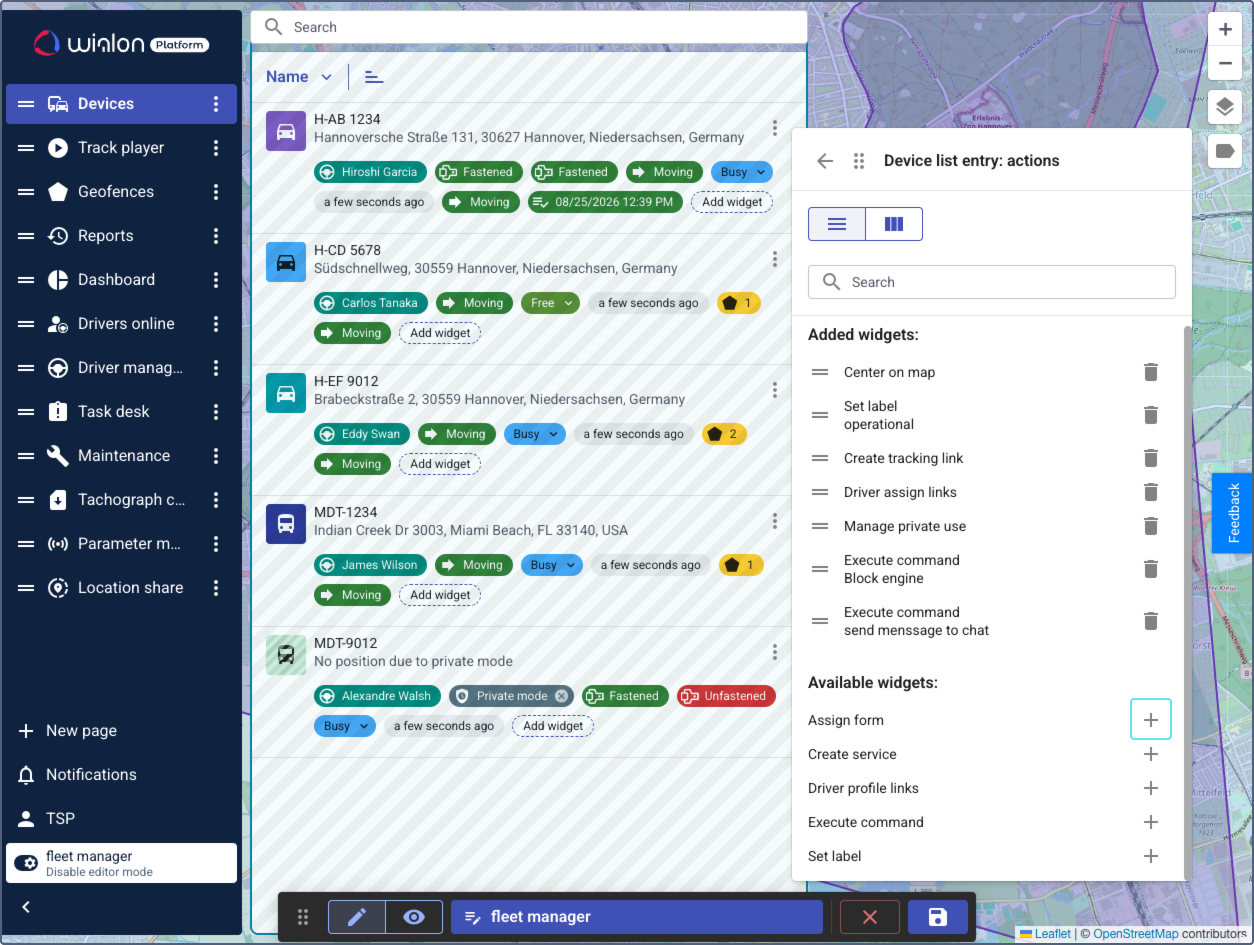
- Select Assign form.
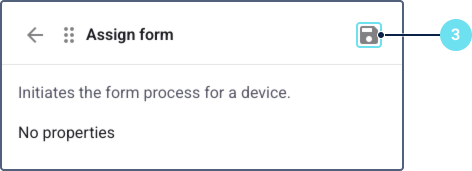
- Click on the icon
 .
.
“Form status (chip)” widget
To add the Form status (chip) widget:
- Click Add widget in any device section in the device list.
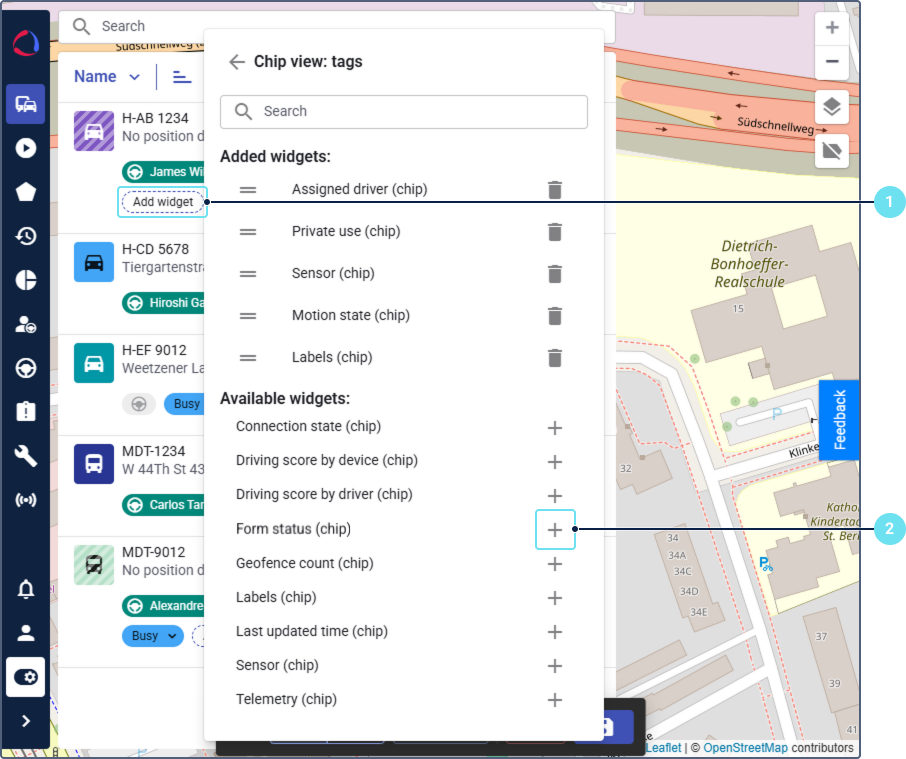
- Select Form status (chip).
- Select whether you want to display all assigned forms or only the last updated one.
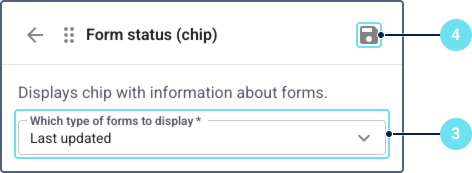
These settings apply to all devices in the device list.
In the device details
In the device details, you can add the following widgets:
- The Assign form action to manually assign forms to the device.
- The Form status (chip) widget to display information about the last updated form or all assigned forms.
- The Assigned forms list to see all assigned forms for the device.
- The Submitted forms list to view past inspection submissions for the device.
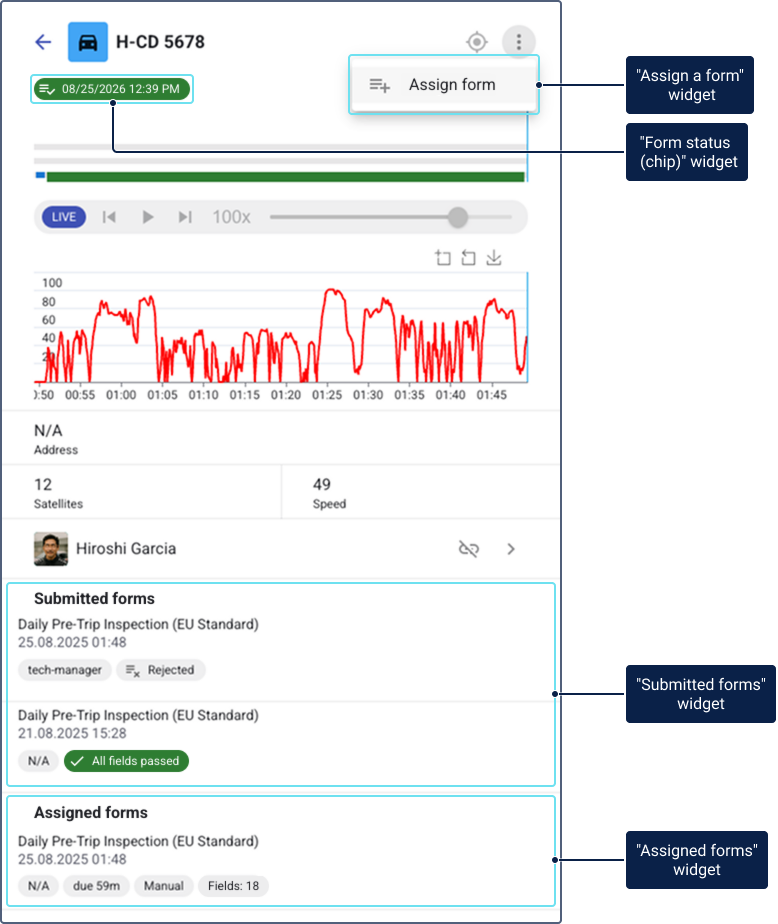
To add these widgets, go to the Devices page, click on any device, and enable the editor mode. To quickly find the widget in the list, start typing its name in the Search bar.
“Assign form” widget
To add the Assign form widget:
- On the device details page, click on the icon .
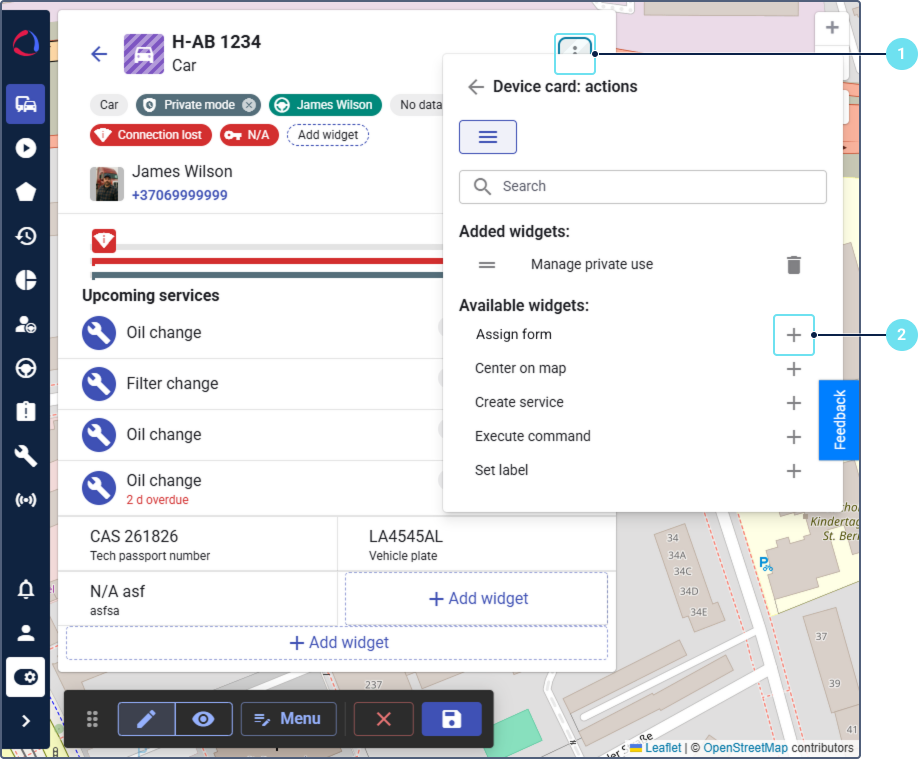
- Select Assign form.
- Click on the icon to save the changes.
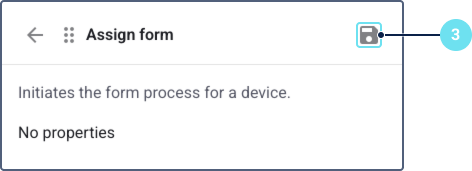
“Form status (chip)” widget
To add the Form status (chip) widget:
- On the device details page, click Add widget under the device name.
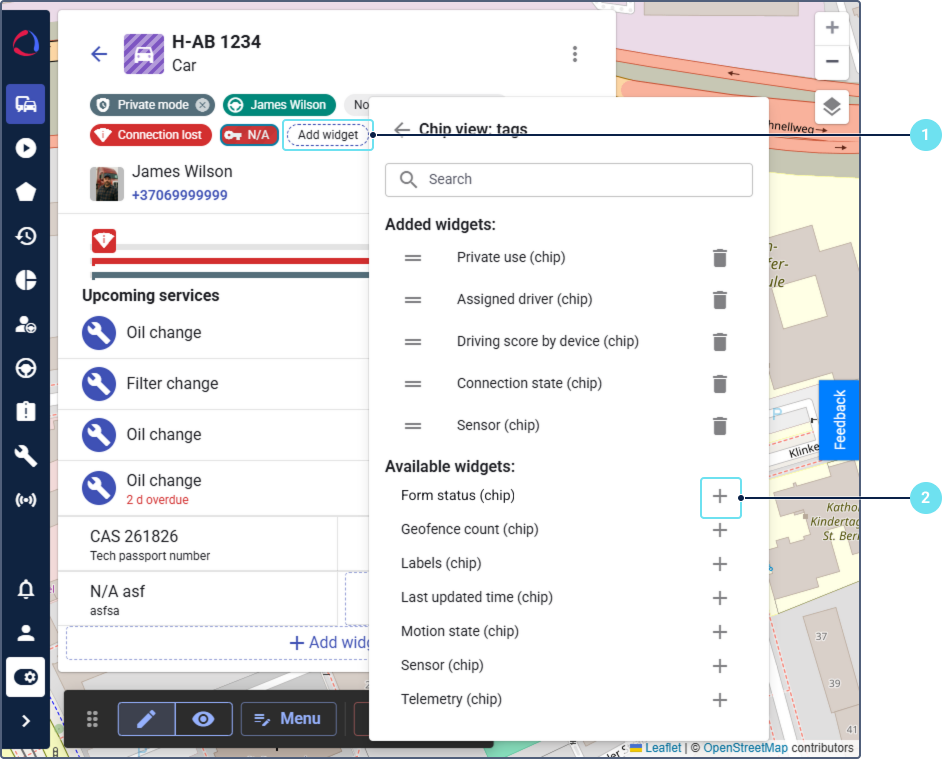
- Select Form status (chip).
- Select whether you want to display all assigned forms or information about the last updated form.
- Save the changes.
“Assigned forms” widget
To add the Assigned forms widget:
- On the device details page, click Add widget.
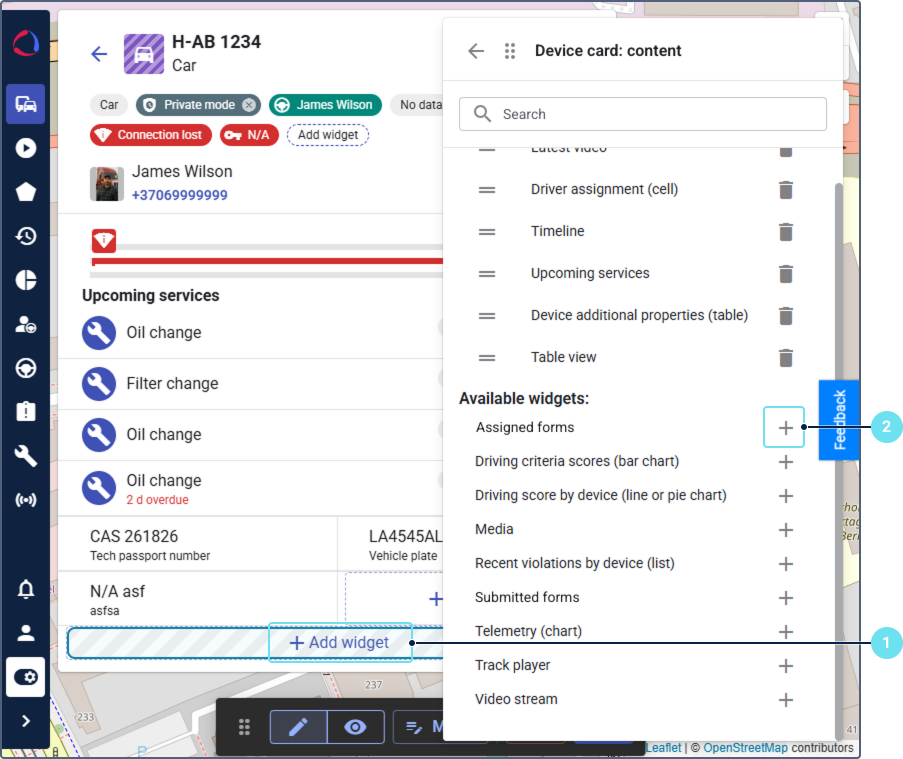
- Select Assigned forms.
- Click on the icon to save the changes.
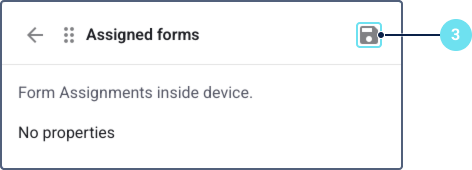
If there are more than five assigned forms, the widget displays only the first five. To go to the Reports page and view the complete list, click the See all assigned forms on Reports link at the bottom of the widget.
“Submitted forms” widget
To add the Submitted forms widget:
- In the bottom of the device details page, click Add widget.
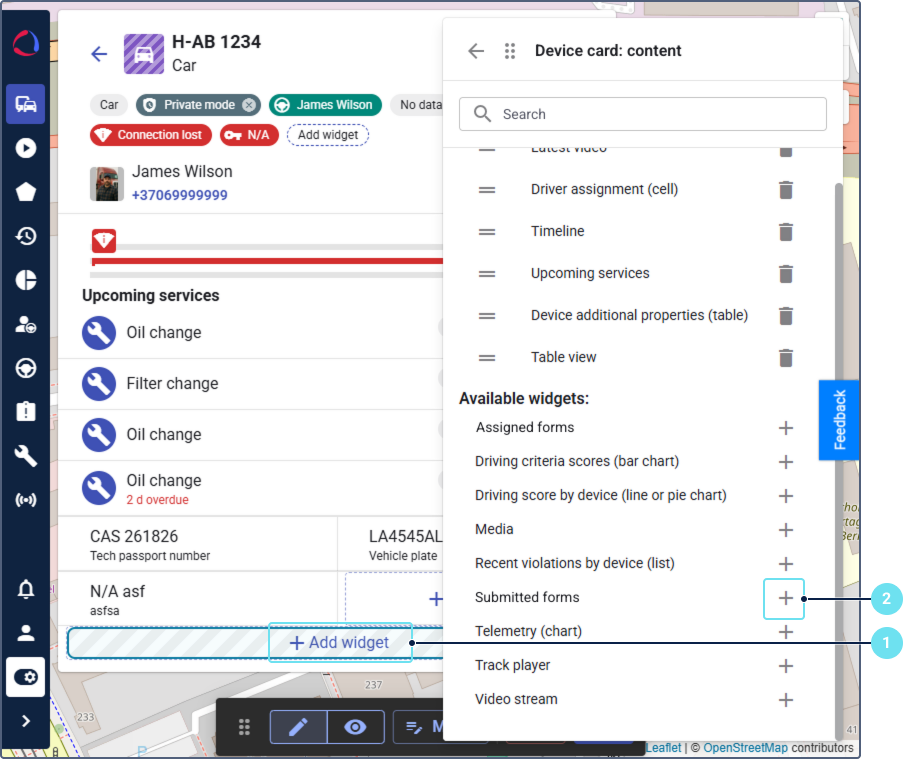
- Select Submitted forms.
- Click on the icon to save the changes.
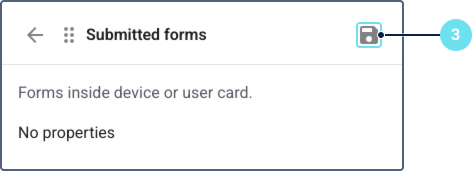
If there are more than five submitted forms, the widget displays only the first five. To go to the Reports page and view the complete list, click the See all submitted forms on Reports link at the bottom of the widget.
Form-related widgets on the “Drivers online” page
You can add form-related widgets to both the driver list and the driver details page.
In the driver list
In the driver list, you can add the following widgets:
- The Assign form action to manually assign forms to the driver.
- The Form status (chip) label to display information about the last updated form or all assigned forms.
To add these widgets, go to the Drivers online page and enable the editor mode. Then, follow the instructions from Form-related widgets in the device list.
In the driver details
In the driver details, you can add the following widgets:
- The Assign form action to manually assign forms to the driver.
- The Form status (chip) label to display information about the last updated form or all assigned forms.
- The Assigned forms list to see all new forms assigned to the driver.
- The Submitted forms list to view the forms submitted by the driver.
To add these widgets, go to the Drivers online page, click on any driver section and enable the editor mode. Then, follow the instructions from Form-related widgets in the device details.
Form-related widgets on the Dashboard
The Dashboard page provides an overview of your fleet performance and key metrics. You can add the following charts related to forms to monitor form submission trends and results:
- Form overview (pie chart): Displays the total number of submitted forms and categorizes them by their status: all items passed, with failed items, or rejected.
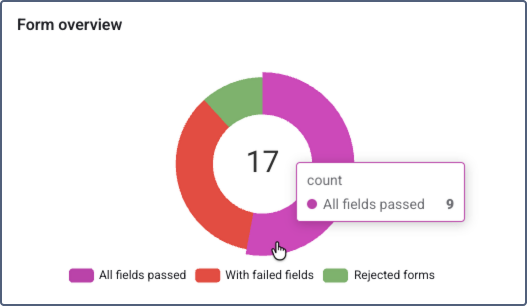
Click a chart segment to view the list of vehicles that have submitted forms with the selected status and the submitted form total number. Also, you can go to the Form reports from the details. - Failed forms by type (pie chart): Displays the distribution of failed forms fields by the type of form (template).
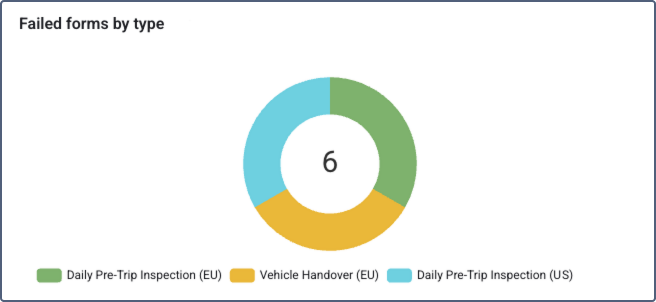
Click a chart segment to see the vehicles that failed the selected form type and total number of submitted forms for this type. Also, you can go to the Form reports from the details. - Failed forms by vehicle type (pie chart): Shows the distribution of submitted forms with failed items, categorized by vehicle type labels. Devices without an assigned vehicle type appear in Without types.
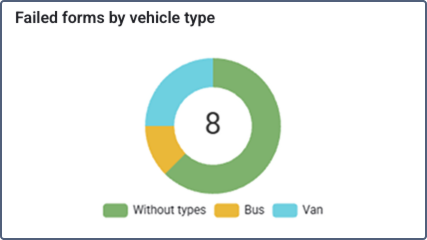
Click a chart segment to see the devices of the selected type with failed forms and total number of submitted forms. Also, you can go to the Form reports from the details. - Failed forms over time (line chart): Displays the trend of failed forms over a selected period, helping to identify recurring issues.
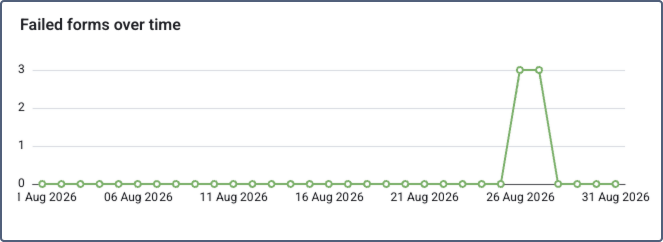 Click a data point to see the vehicles with failed forms and total number of submitted forms. Also, you can go to the Form reports from the details.
 - Vehicle form results (pie chart): Provides a summary of vehicle conditions based on submitted forms. It categorizes vehicles into two groups: those in good condition (all form items passed) and those with problems (at least one failed item).
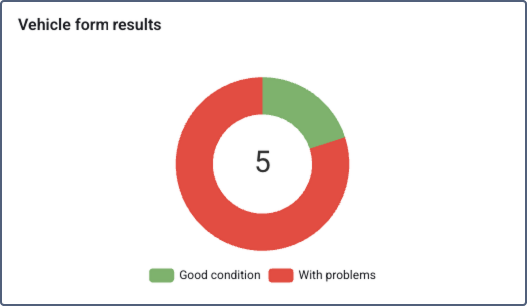 Click a chart segment to view the vehicles in the selected group, number of failed, rejected and total submitted forms for each vehicle. Also, you can go to the Form reports from the details.
In all widget details views, you can sort the data by clicking a column header and download it in CSV format.
To add form-related charts to the Dashboard:
- Go to the Dashboard page and enable the editor mode.
- Click Add widget.
- Select the required form chart from the list (for example, Form overview (pie chart), Failed forms over time (line chart), and so on). No specific configurations are required for the form widgets.
- Save the changes.