Generating the “Vehicle unit events” report
Who can do it: Service provider, Customer
Where: Wialon Platform FleetSpace
The Vehicle unit events report shows the events recorded by the tachographs of your vehicles. Unlike the driver reports, it’s built from the files downloaded from the vehicle units, not from the driver cards, so you can check what happened with the vehicle even when no driver card was inserted.
Use the report to detect vehicles driven without a card, to notice possible attempts to manipulate the tachograph, and to find the periods for which you have no vehicle data at all.
This report doesn’t require the Drivers module, unlike the Driver activity events and Tachograph infringements reports.
Generating the report
To generate the report, follow these steps:
- In Wialon Platform FleetSpace, go to the Reports page.
- In the report type list, select Vehicle unit events.
- Click the Period, UTC field, specify the report period, and click Apply. By default, the report covers the last 6 days.
- In the devices list, select one or more vehicles.
- In the event types list, select the types you want to include, or leave all of them selected.
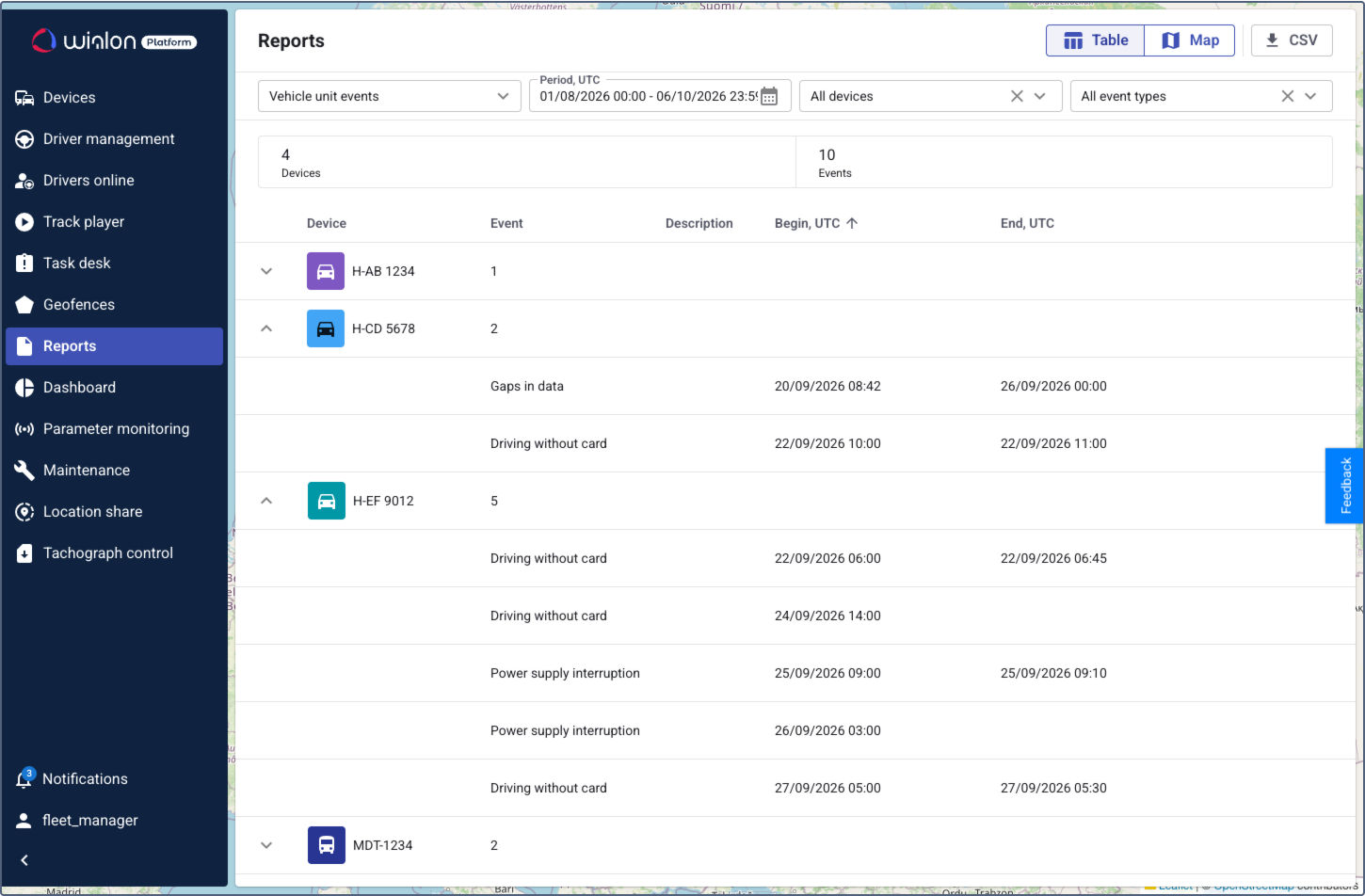
The report is generated automatically after you select the vehicles and the event types. To reset a filter, click the icon  next to it. If you clear the vehicles or the event types completely, the report isn’t generated.
The report period and all event times are shown in UTC, not in your account time zone. This matches the way tachographs record data, so the values can be compared with the original tachograph files.
Event types
You can include the following entries in the report:
| Event type | Description |
|---|---|
| Driving without card | The vehicle was driven while no driver card was inserted into the tachograph. Such a record can point to misuse of the vehicle. |
| Power supply interruption | The power supply of the tachograph was cut off. Such a record can point to an attempt to manipulate the tachograph. |
| Gaps in data | A period for which the vehicle provides no records. Unlike the other items in this list, it isn’t an event recorded by the tachograph. See Gaps in data. |
Gaps in data
A gap is a period between two downloads of the tachograph files of the same vehicle that isn’t covered by any of them. For example, if you download the files on August 19 and the next download covers the data only from August 25, the period between these dates stays uncovered, and the report shows a gap.
Gaps are calculated only for the vehicle files downloaded after the release of this feature. The files downloaded earlier aren’t analyzed, so no gaps are shown for them.
Companies must download the data of each vehicle unit at least every 90 days and keep it. Use this report together with the Due dates tab to check that you have no missing data.
Report results
The report is organized into two parts: a summary at the top and a detailed table below.
Summary
| Card | Description |
|---|---|
| Devices | The number of devices that have at least one entry matching the selected filters. |
| Events | The total number of entries found, including the gaps in data. |
Report table
The results are grouped by device. The collapsed row shows the device name and the number of entries found for it. Click the icon  to expand the row.
| Column | Description |
|---|---|
| Device | The name of the device. |
| Event | The type of the entry. In the collapsed row, it shows the number of events found for this device. See Event types. |
| Begin, UTC | The date and time when the event or the gap started. |
| End, UTC | The date and time when the event or the gap ended. The column is empty for the events that were still open at the moment of the download. |
To sort the table, click a column header. Click the header again to switch between ascending and descending order. By default, the entries are sorted by the Begin, UTC column.
The Map button at the top of the page doesn’t apply to this report. Tachograph files of a vehicle unit contain no coordinates for these events, so the map stays empty.
Exporting the report
To download the report in CSV format, click CSV at the top of the page.