Monitoring devices
Who can do it: Customer user
Where: Wialon Platform mobile app
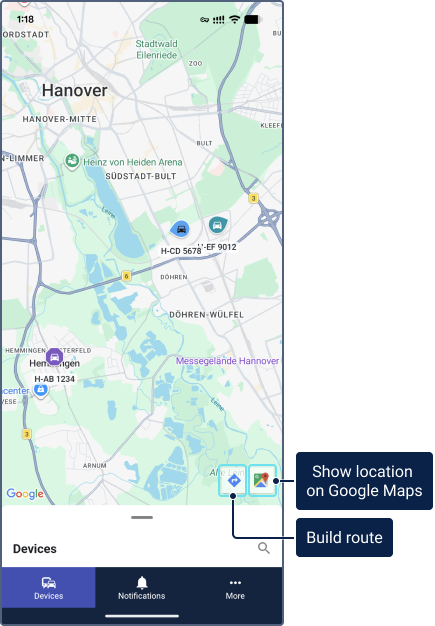
The Devices tab is the main screen of the mobile app. It combines a live map view with a device list, giving you real-time visibility of your fleet on the go. You can track device locations, check their status, and navigate to any device directly from the map.
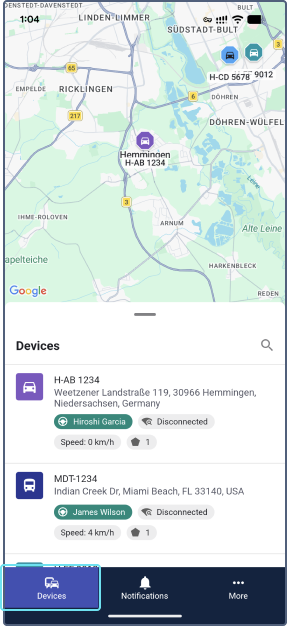
Map view
The top part of the screen displays an interactive map with device icons. You can pinch to zoom, drag to pan, and tap device icons to view details.
Device icons on the map
The shape of a device icon on the map tells you the current movement state of the device at a glance:
| Shape | Example | Movement state |
|---|---|---|
| Drop |  |
Moving |
| Octagon |  |
Stopped |
| Circle |  |
Idling |
| Square |  |
Parked |
| Diamond |  |
Offline |
The color of each icon is taken from the device profile configured by the service provider in Wialon Platform Studio.
When multiple devices are close to one another, they are grouped into a cluster with a number showing how many devices are located in the area. Zoom in to see individual devices.
Device list
The bottom part of the screen displays the list of your devices. Swipe up on the list to expand it and see more devices; swipe down to return to the map view.
Each device row in the list shows the device name and its current address. The specific chips and data fields displayed for each device are configured by the service provider in Wialon Platform FleetSpace on the web. The device information in the list can include the assigned driver name, connection status, speed, sensor data and more.
See how to configure basic widgets for the device list on the Setting up widgets in the device list page.
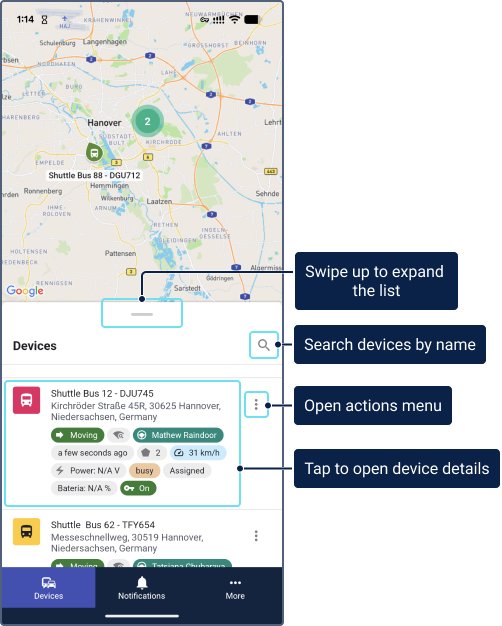
Searching for devices
To find a specific device, tap the search icon  in the Devices header and type the device name.
Device details
Tap a device in the list to open its details. The device details screen shows the device location on the map along with key information configured by the service provider for your workspace.
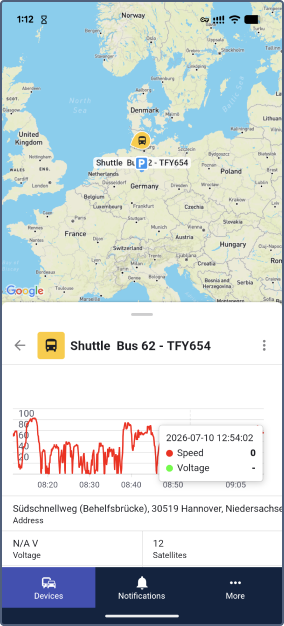
The specific set of chips and widgets displayed in the device details depends on the workspace configuration set up by the service provider in Wialon Platform FleetSpace. Some widgets available in the web version aren’t supported in the mobile app.
For the full list of available widgets, see Customizing devices in Wialon Platform FleetSpace. To learn how to configure widgets for the device details, see Setting up widgets in the device details.
Actions menu
Each device in the list and in the device details has a menu icon  that opens the Actions sheet. The available actions depend on the widgets configured by the service provider in the workspace.
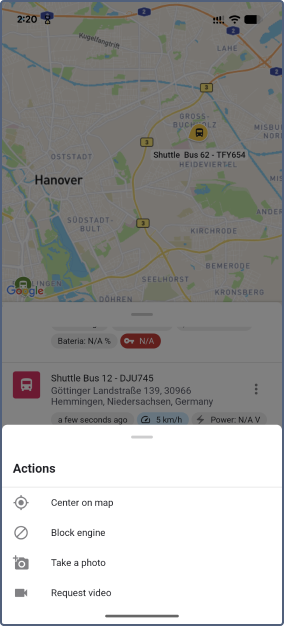
Locating a device on the map
When you need to quickly check where a specific device is, tap the three-dot menu and select Center on map. The map zooms to the device location. This is useful when you manage a large fleet and need to find a particular vehicle without scrolling through the map manually.
The action is configured by the service provider using the Center on map widget.
Sending commands to a device
You can send remote commands to a device directly from your phone. Tap the icon and select the command you need. Each command appears as a separate action in the menu.
The available commands are configured by the service provider using the Execute command widget.
Other action widgets available in Wialon Platform FleetSpace on the web (such as Assign form, Create service, Manage private use, and Set label) aren’t supported in the mobile app.
Getting directions to a device
You can quickly build a route from your current location to any device on the map:
-
Tap a device icon on the map.
-
Tap the navigation icon on the map to build a route to your current location in Google Maps.
-
Tap the Google Maps icon to show the device location in Google Maps.
When you click one of these icons, you are redirected to the Google Maps app.