Creating a custom widget
Who can do it: Service provider
Where: Wialon Platform Studio, Wialon Platform FleetSpace
On the Analytics tab, you can configure custom widgets for your customers which they can later view on the Dashboard page in Wialon Platform FleetSpace.
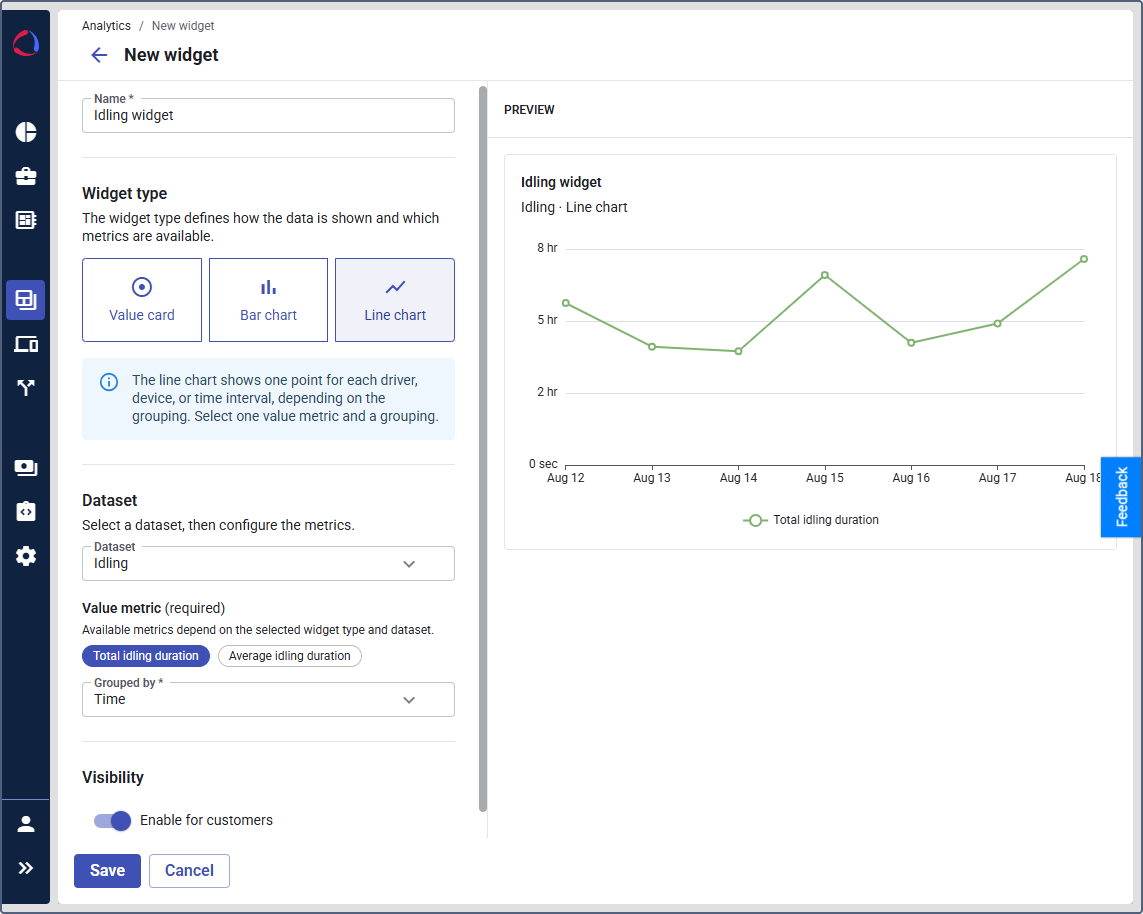
The analytics builder is organized into configuration sections and includes a preview panel.
Configuring a custom widget in Wialon Platform Studio
To set up a custom widget, follow the steps below.
-
In Wialon Platform Studio, expand the Resources section in the navigation menu and open the Analytics page.
If you haven’t created any analytics items yet, click Add first analytics item on the empty page.
-
Click New analytics item.
-
In the dropdown, select New widget.
-
Enter a name in the Name field (no more than 256 characters). This field is mandatory. The widget will be displayed with this name in Wialon Platform FleetSpace for your customers.
-
Select one of the available widget types:
- Value card: Shows a single aggregated number for the period selected on the Dashboard.
- Bar chart: Shows one bar for each time interval within the period selected on the Dashboard.
- Line chart: Shows one point for each time interval within the period selected on the Dashboard.
-
Open the Dataset dropdown and select the data type to analyze.
The following datasets are available:
- Idling: Data about device idling events.
- Parking: Data about parking events.
- Trips: Data about trip events.
-
Choose the necessary value metric for the widget by clicking on a chip.
The available metrics depend on the selected widget type and dataset:
Dataset Available metrics Note Idling Total idling duration, Average idling duration. Not available for a bar chart. Parking Total parking duration, Average parking duration. Not available for a bar chart. Trips Total trip duration, Average trip duration (for a value card and a line chart), Total mileage (for a value card and a bar chart). -
See the widget with sample data in the Preview panel.
-
Turn on the Enable for customers toggle to make the widget available in Wialon Platform FleetSpace.
-
Click Save.
You can manage the created custom widget in the table of analytics items.
To enable analytics items for customers, make sure that the Analytics builder feature is included in the customer billing plan and the Enable for customers toggle is turned on on the Analytics page. See the full guide: Enabling analytics items for customers.
Adding a custom widget to the Dashboard in Wialon Platform FleetSpace
To add the created widget to the customer’s Dashboard page, follow the steps below.
- Log in as a service provider to the customer account in Wialon Platform FleetSpace.
- In Wialon Platform FleetSpace, select the Dashboard page.
- Switch the toggle
 in the sidebar to enable the editor mode.
 - Click the icon
 in the sidebar or your username to select the workspace you want to edit.
 - Click Add widget.
- In the Custom widgets section, select the widgets you want to add. To quickly find the required one, start typing its name in the dynamic search field.
- Click the icon
 to save the changes.
 - Exit the editor mode by switching the toggle .
The custom widget is now displayed on the customer’s Dashboard page.