Managing analytics items
Who can do it: Service provider
Where: Wialon Platform Studio
The Analytics page in Wialon Platform Studio provides a central place to view, create, and manage analytics items. These items define the structure and content of the custom reports and widgets that your customers can run in Wialon Platform FleetSpace.
Managing the table of analytics items
The page displays all existing analytics items in a table with the following columns:
- Name: The name of the analytics item. Click the column header to sort the list alphabetically.
- Type: The type of the analytics item (report or widget). Click the column header to sort the items by type.
- Visualization: The type of the widget (value card, bar chart, or line chart). For reports, a dash is shown.
- Data: The dataset used by the item (Parking, Trips, or Idling). Click the column header to sort by datasets.
- Enable for customers: A toggle that controls whether the item is available to customers in Wialon Platform FleetSpace. See the full guide Enabling analytics items for customers
- Updated: The time since the item was last modified.
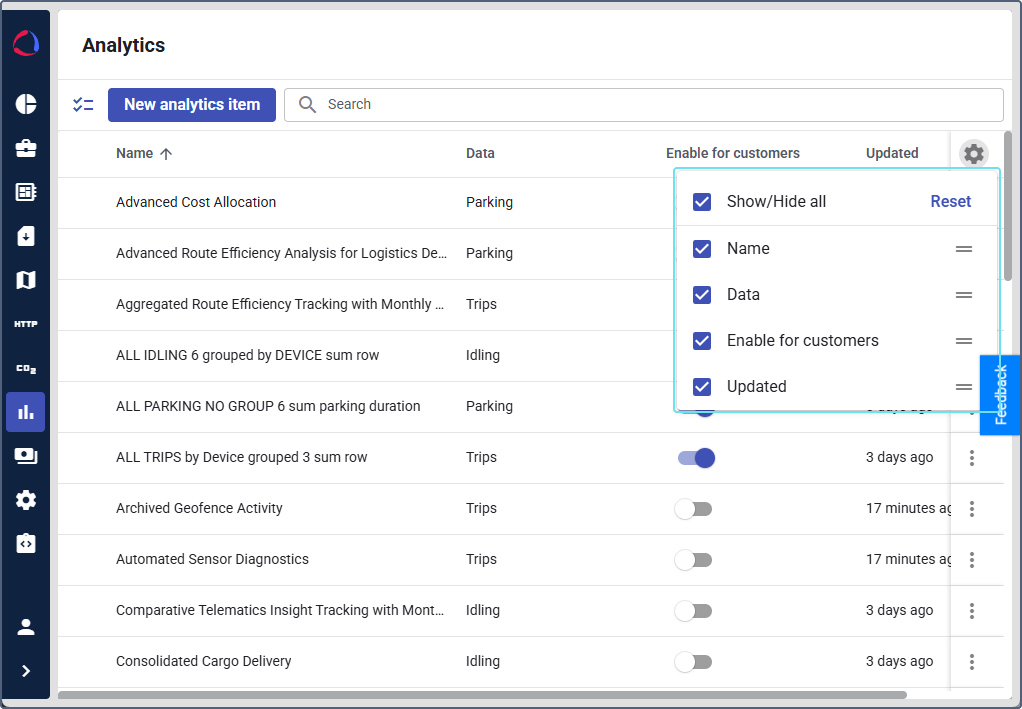
To manage column visibility or change column order, click the icon  . Use the checkboxes to show or hide columns, and drag them to change the order. Click Reset to restore the default settings.
Each row has a menu icon  with additional actions: edit, copy and delete.
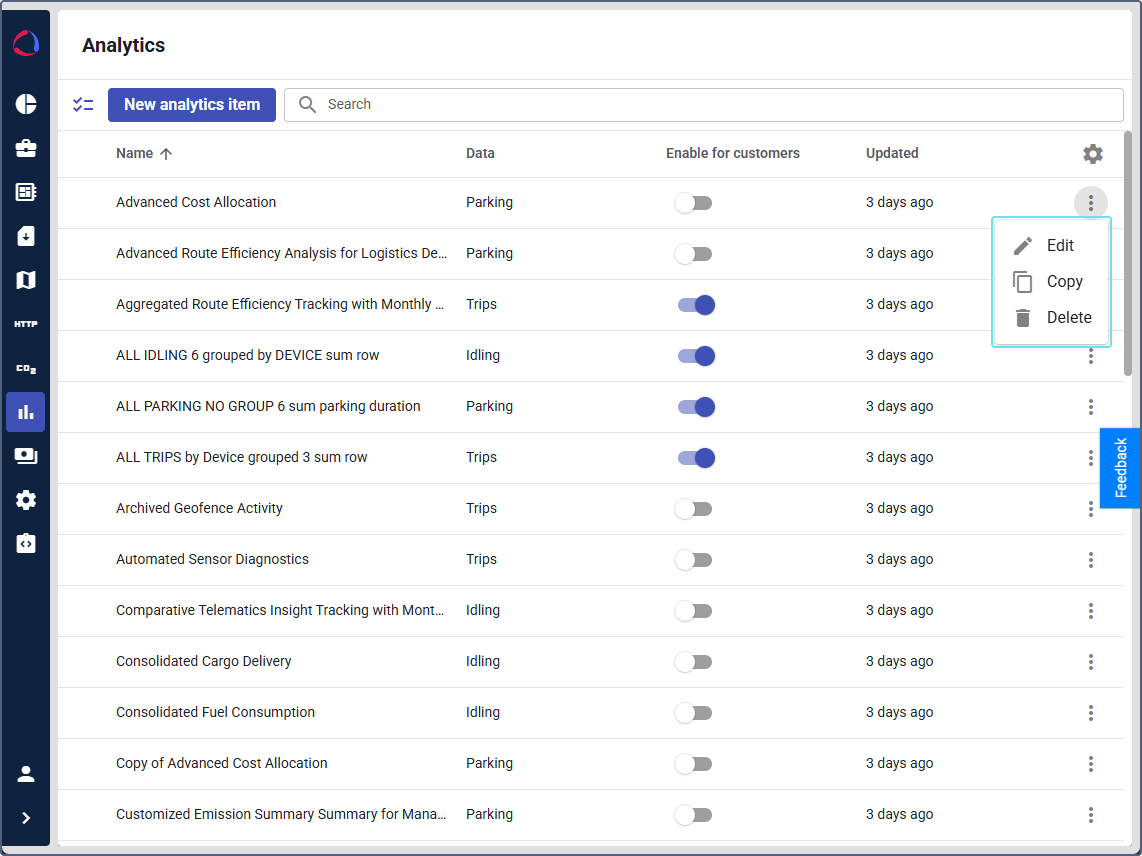
Editing an analytics item
To change the metrics included in the dataset or modify the structure of the analytics item, click on its row in the list and start editing or follow the next steps:
- Click the icon in the item row.
- Select Edit.
- Make the required changes.
- Click Save.
Copying an analytics item
To create a copy of an analytics item or an item with a similar setup:
- Click the icon in the item row.
- Select Copy.
- Adjust the name and settings as needed.
- Click Save to create it as a new item.
Copying is unavailable if the limit of 50 analytics items is reached.
Deleting analytics items
To delete an analytics item, open it and click the delete icon  next to the item name. Confirm the action.
You can also delete an item from the items list. To do this, click the in the item row and select Delete. Confirm the action.
Searching analytics items
Use the search field at the top of the page to find analytics items by name, data or the status of the Enable for customers toggle.
Bulk actions
You can perform actions on multiple analytics items at once:
-
On the Analytics page, click the icon
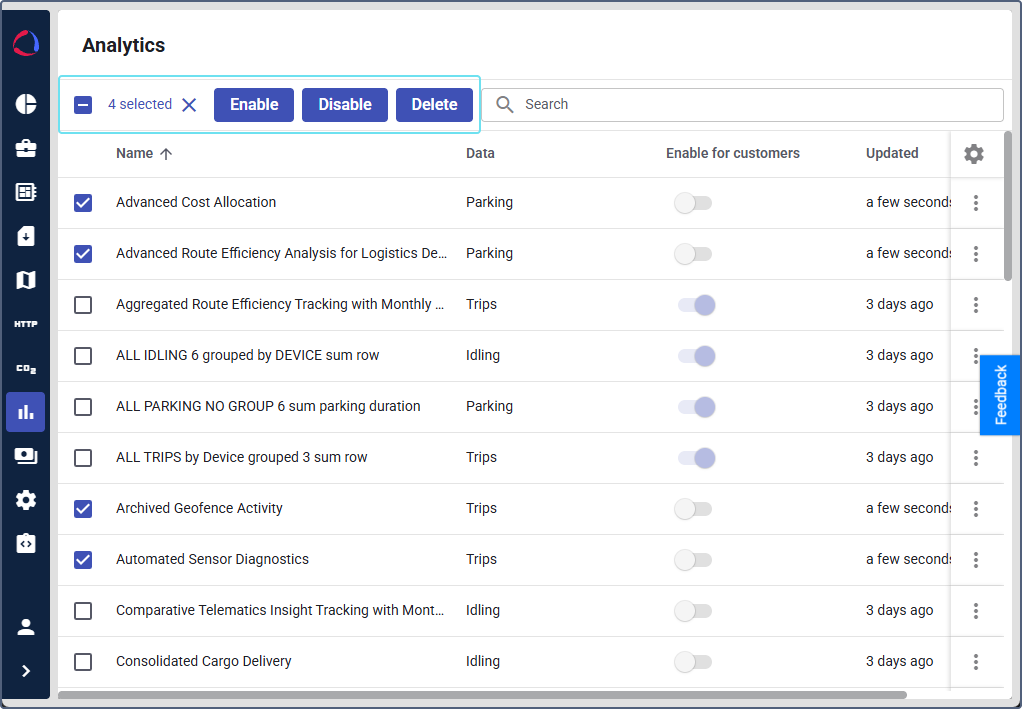
 to enter bulk selection mode. Checkboxes appear next to each item.
 -
Select the items you want to manage.
-
Use the toolbar buttons to apply one of the following actions:
- Enable: Makes the selected items available to customers.
- Disable: Hides the selected items from customers.
- Delete: Removes the selected items. Confirm the action when prompted.
The toolbar shows the number of selected items (for example, 4 selected). Click the icon  next to the counter to clear the selection and exit bulk selection mode.