Assigning forms manually
Who can do it: Service provider, Customer
Where: Wialon Platform FleetSpace
Prerequisites
- The Forms module is enabled for the customer.
- A form template is created in Wialon Platform Studio.
- The Assign form widget (represented by the icon
 ) is configured in the device list, device details, driver list or driver details.
 - The customer user has permissions to view form templates and permissions to edit and update forms.
You can assign forms to customer drivers or users.
Assign to a driver: Use this option for operational tasks that require the driver’s direct involvement with the device. Drivers perform inspections using the Wialon Driver mobile app.
Assign to a user: Use this option for administrative or office-based tasks. The form is completed by a fleet manager, dispatcher, or other designated staff member using the Wialon Platform FleetSpace web interface.
You can assign forms from the device list, device details, driver list, and driver details.
A device can have up to 20 active forms at the same time. If the device has already reached this limit, the new form isn’t created, and an error message appears. Wait until the assigned forms are submitted or rejected, and try again.
Assigning forms from device list and details
To assign an inspection form to a user or driver from the device list:
-
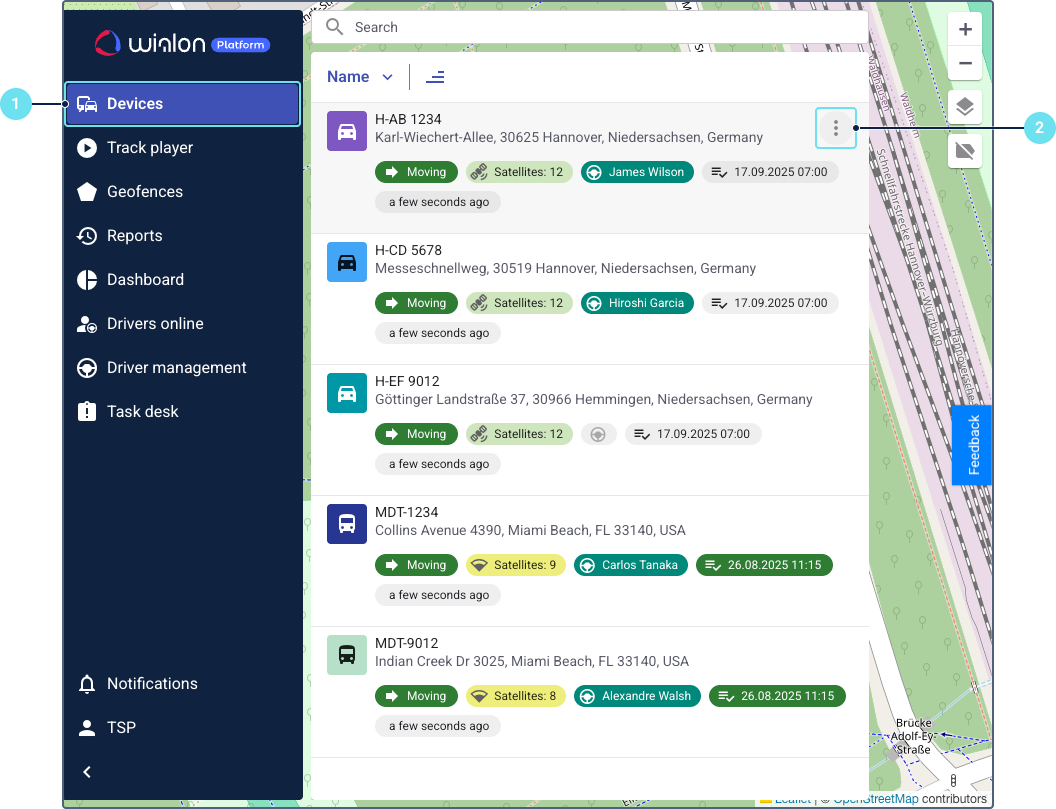
Go to the Devices page.
-
Locate the required device in the list.
-
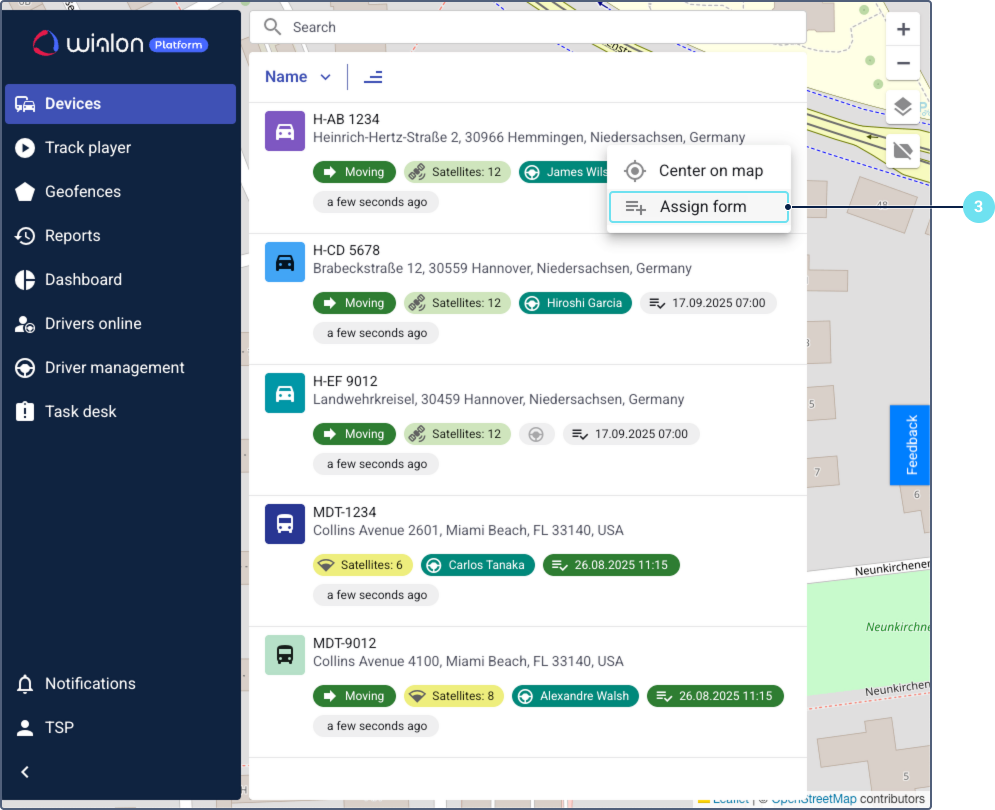
Click the Assign form icon
. You can find it directly in the device row or in the action menu that opens after clicking on the icon  .
.
-
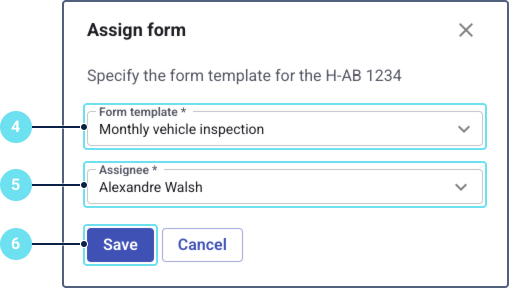
Select a form template.
-
Select an assignee from the list of drivers and users.
-
Click Save.
To assign an inspection form to a user or driver from device details:
- Go to the Devices page.
- Click on a specific device in the list to open its details page.
- Click the Assign form icon . You can find it directly on the device details page or in the action menu that opens after clicking on the icon .
Assigning forms from driver list and details
You can assign a form to a user or to a driver from the driver list or from driver details. A driver must be assigned to the required device.
To assign an inspection form to a device from the driver list or details, go to the Drivers online page. Find the driver that is assigned to the required device. Then perform the same actions as for assigning from the device list and details.