Indoor asset tracking
The Indoor module lets you find assets inside buildings, where GPS isn’t reliable: factories, hospitals, rental depots, airports, and other large facilities. Instead of satellite positioning, the system uses Wirepas Mesh hardware installed in the building: anchors with known positions, a gateway that sends data to the platform, and tags attached to the assets you want to track.
The data goes through the following chain: tag, anchors, gateway, Wialon Platform. As a result, you and your customers can see the building, floor, and zone where each asset was last detected, and when it was last seen.
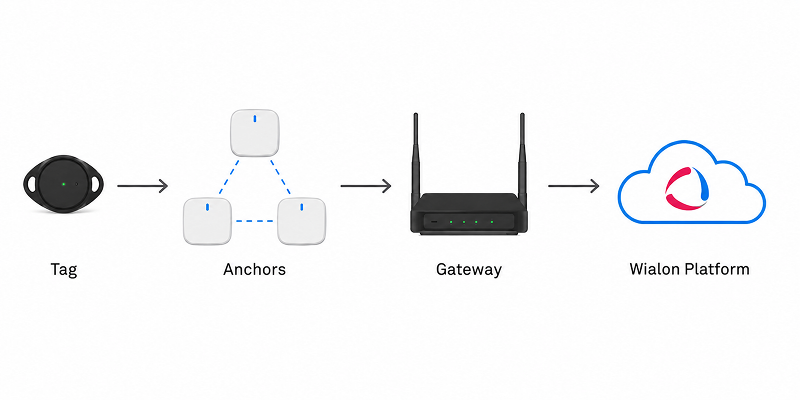
The Indoor module works only with Teltonika hardware that uses Wirepas Mesh networks.
Main entities
| Entity | Description |
|---|---|
| Building | A digital copy of a real building. It contains one or more floors with uploaded floor plans. |
| Floor | A level within a building, represented by a scaled floor plan image. You place anchors, gateways, and zones on the floor plan. |
| Zone | An area on the floor plan (a room, an office, a workshop) used to determine where an asset is located. |
| Anchor | Fixed hardware with a known position on the floor plan. Anchors receive signals from tags. |
| Gateway | Hardware that sends data from anchors and tags to the platform. |
| Tag | A small wireless device attached to an asset that you want to track. Tags communicate through the Wirepas Mesh network. |
| Asset | An object you track: equipment, tools, furniture, vehicles, and so on. An asset is tracked after you pair a tag with it. |
Where to set up indoor asset tracking
In Wialon Platform Studio, you only:
- Create the customer and assign them the Indoor billing plan.
- Add users and grant them permissions on assets, asset categories, buildings, floors, zones, anchors, gateways, and tags.
Everything else you do in Wialon Platform FleetSpace, where you can also log in as the customer to set up the account for them:
| Page | What you do there | Available in the mobile app |
|---|---|---|
| Buildings | Create buildings and floors, upload and scale floor plans, place anchors and gateways, draw zones. | No |
| Assets | Create and edit assets on the Assets tab and asset categories on the Categories tab. | Yes |
| Tags | View the tag registry, pair and unpair tags. | No |
| Live View | Find assets on the floor plan in real time. | Yes |
A customer account works either in the standard fleet tracking mode or with the Indoor module. You can serve both types of customers, but you select the mode when you create the customer account, and you can’t change it later.
For details on the indoor asset tracking in the mobile app, see Tracking indoor assets.
Setup order
To start tracking assets, complete the following steps:
- Set up an account for indoor asset tracking
- Create a building and floors
- Add and connect a gateway
- Place anchors on the floor plan
- Draw zones on the floor plan
- Add assets and tags
- Pair tags with assets
- Find assets on the map
Add the gateway before you connect the hardware. Anchors and tags are added to the account automatically, but only if their gateway is already there.