Viewing your tachograph data
Who can do it: Customer driver
Where: Wialon Driver mobile app
The Tachograph tab shows your live tachograph data: your current activity, how much driving time you have left, and when your next rests must start. Use it to plan your stops and breaks.
The tab appears in the bottom menu only if the Tachograph control module is enabled for your company. If the app can’t get live tachograph data, the tab shows the No tachograph data message.
The tab shows live data only. Tachograph files (.DDD) aren’t available in the app. Your fleet manager can download them in Wialon Platform FleetSpace on the Tachograph control page or on the Tachograph tab of your driver profile. For details, see Downloading tachograph files.
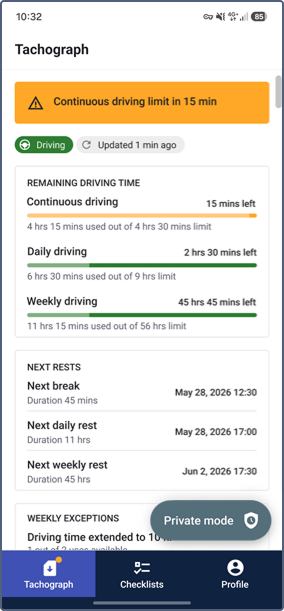
All values on the tab are based on the last message received from the tachograph, not on the current time. If the device stops sending data, the values stay as they were at the moment of the last message.
Status and last update
At the top of the tab, two chips show the following:
| Chip | Description |
|---|---|
| Status | Your current activity as reported by the tachograph:  Driving, Driving,  Rest, Rest,  Other work, or Other work, or  Available. Available. |
| Updated | How long ago the last tachograph message was received (for example, Updated 1 min ago). |
Compliance alerts
If you approach or exceed a driving time limit defined by EU Regulation 561/2006, an alert appears above the status chips:
- Orange: a warning. You are close to a limit, usually 15 minutes before it’s reached.
- Red: a critical issue. You have reached or exceeded a limit, and a break or rest is required.
A dot of the same color appears on the Tachograph icon in the bottom menu, so you can notice the issue from any tab.
The alert shows the most severe active issue. For the full list of issues, see Issue states.
You can also receive a push notification when you approach a legal limit, if your fleet manager has set up the Tachograph live issue automation.
Remaining driving time
The Remaining driving time section shows how much driving time you have left within each limit:
| Indicator | Limit |
|---|---|
| Continuous driving | 4 hrs 30 mins |
| Daily driving | 9 hrs (can be extended to 10 hrs twice a week) |
| Weekly driving | 56 hrs |
For each limit, you can see the time left next to the name (for example, 2 hrs 15 mins left), a progress bar, and the time already used below the bar (for example, 6 hrs 30 mins used out of 9 hrs limit).
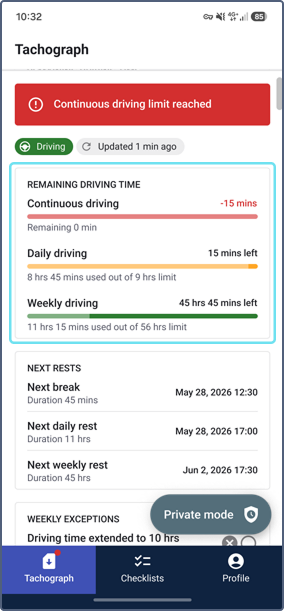
The color of the progress bar shows how much time is left:
- Green: you have enough driving time.
- Yellow: you are approaching the limit.
- Red: the limit is reached or exceeded.
If you exceed a limit, the time left is shown in red as a negative value (for example, -15 mins), and the line below the bar shows Remaining 0 min.
Next rests
The Next rests section shows when each upcoming required rest must start and how long it must last:
| Rest type | Required duration |
|---|---|
| Next break | 45 mins |
| Next daily rest | 11 hrs |
| Next weekly rest | 45 hrs |
If the rest must start on the current day, only the time is shown (for example, Today, 12:30). Otherwise, the date and time are shown (for example, May 28, 2026 12:30).
If the tachograph doesn’t provide data for a rest type, a placeholder is shown instead.
Weekly exceptions
EU Regulation 561/2006 allows you to deviate from the standard daily driving and rest limits a limited number of times per week. The Weekly exceptions section shows how many times you can still do this:
| Exception | Maximum per week |
|---|---|
| Driving time extended to 10 hrs | 2 |
| Daily rest reduced to 9 hrs | 3 |
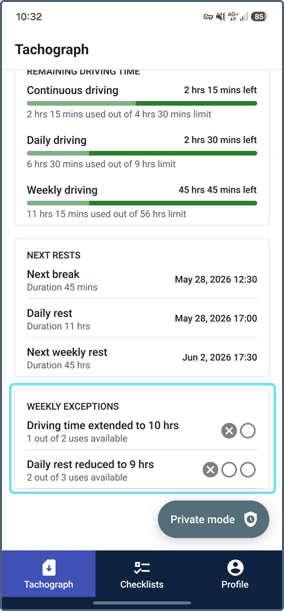
Under each exception, you can see how many times you can still use it (for example, 1 out of 2 uses available). The circles on the right show the same information: a crossed circle is a time you have already used, and an empty circle is a time still available.
The number of reduced daily rests resets after each weekly rest.